An API key lets another system read or change your data: accounting, BI, your own application. A webhook works the other way round: as soon as something changes, InShift itself knocks on your system. Together they are one connection: an event carries only the type and an id, and for the data itself your system goes to the API with the key. The developer documentation is at inshift.app/api.
The key is shown once when created, after that only its fingerprint is stored. A key has permissions: what exactly to read, whether it can change anything, whether personal data and payroll are open, and whether it is limited to locations.
Only the organisation owner and co-owners can create keys and webhooks.
Where to find it
“Settings” → the “Integrations” tab → the “API keys and webhooks” card with the caption “Your own integration” and the state “Not set up”, “Active” or “Not delivering”. The page has two blocks: “API keys” with the “Create key” button and “Webhooks” with the “Add endpoint” button.
Each key and each endpoint opens as its own page with facts: “Key”, “Created”, “Last used”, “Locations”, “Permissions”.
Step by step: create a key
- Click “Create key”. In the window type the “Name”, for example “Accounting”: “So a year from now it is clear whose key this is and what breaks if you take it away”.
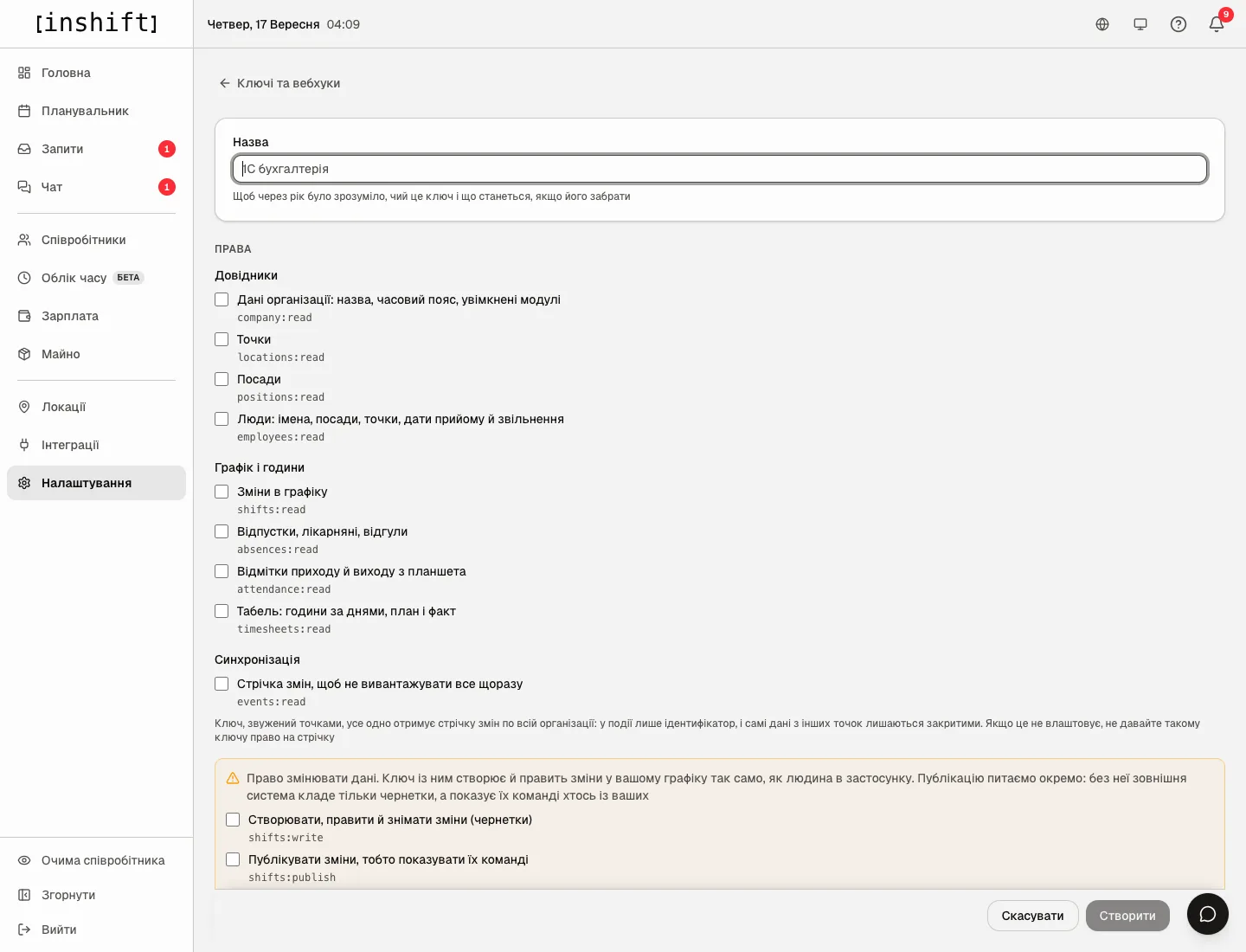
The key creation window: the name and the permission list with the codes company:read, locations:read, shifts:read and others - Tick the “Permissions”. The groups: “Directories” (“Organization data: name, time zone, enabled modules”, “Locations”, “Job positions”, “People: names, positions, locations, hire and dismissal dates”), “Schedule and hours” (“Scheduled shifts”, “Vacation, sick leave, days off”, “Clock-in and clock-out records from the tablet”, “Timesheet: hours per day, planned and actual”), “Sync” (“Change feed, so nothing has to be re-downloaded in full”). Separately the write permissions: “Create, edit and remove shifts (drafts)”, “Publish shifts so the team sees them”, “Create and update people cards”. And the sensitive ones: “Phone numbers, email, dates of birth, personnel numbers” and “Payroll: accruals with every supplement explained, payouts, balances, pay runs, pay terms”.
- Read the warnings. Personal data: “Turn this on only when the integration genuinely cannot work without it: HR, mailings. Matching people against another system works fine with the external id alone”. Payroll: read only, nothing can be changed through the API. Write access: “A key with this creates and edits shifts in your schedule exactly like a person in the app”, publishing is asked separately, without it an outside system only leaves drafts.
- Click “Create”. The “Key created” window: “Copy it now and hand it to the integrator”. Click “Copy”, then “Done”. “This is the only time the key is shown. We store just its fingerprint and cannot show it again. Lost it? Rotate the key”.
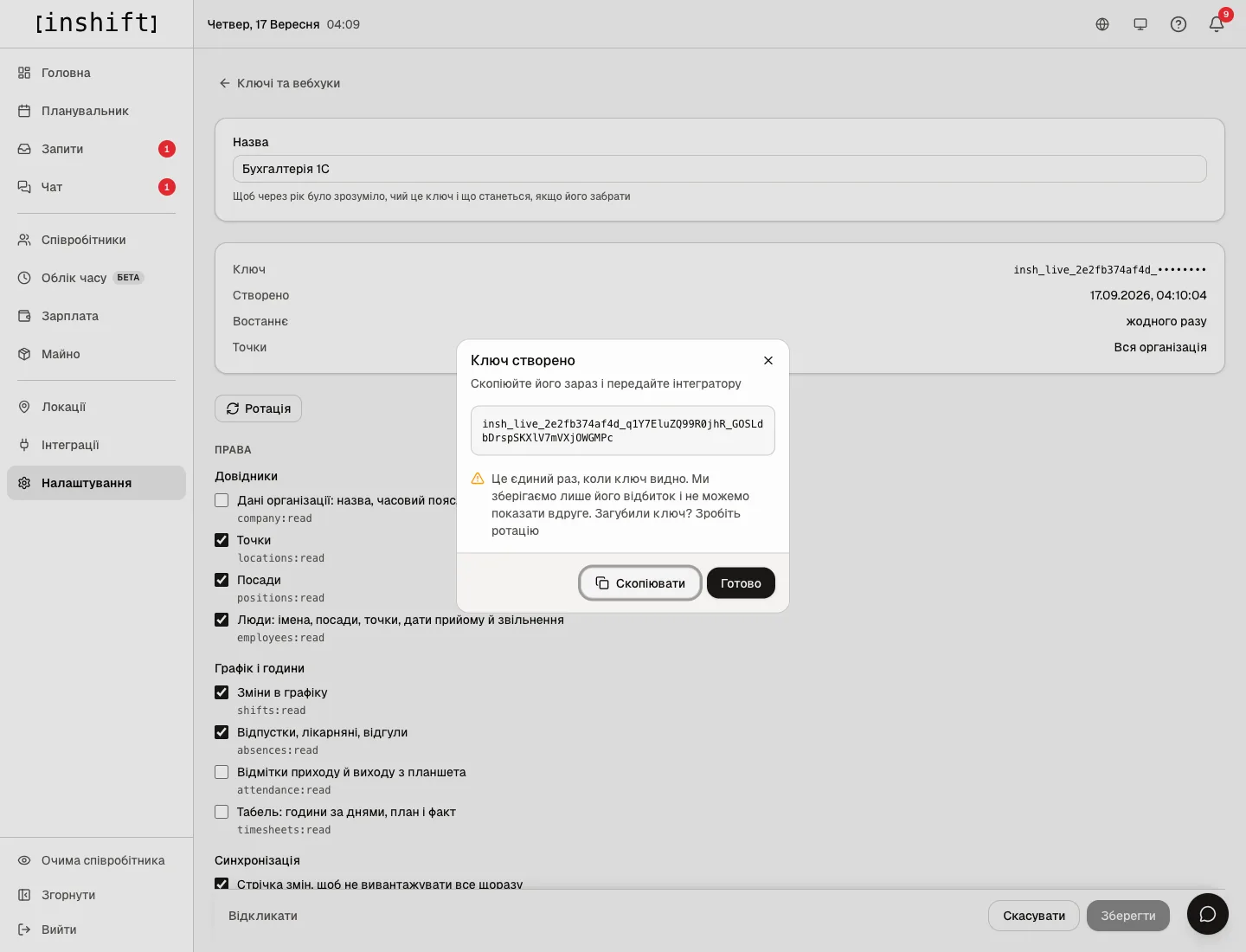
The “Key created” window with the key, the “Copy” and “Done” buttons, then the key page with permissions - The key page shows the facts: “Key” with its beginning and asterisks instead of the rest, “Created”, “Last used” and “Locations”: “Whole organisation” or “2 locations only” if the key is limited to locations.
Rotation and revocation
“Rotate” on the key page issues a new key, and the old one keeps working for a few more days: “The old key keeps working for 7 more days, so the integrator can switch over”. The key’s status during this time is “Rotating”.
“Revoke” stops the key immediately and for good: “Revoke this key?”, “"Accounting" stops working immediately and for good. Any integration using it will stop”. A revoked key stays in the list with the “Revoked” status; “Remove from the list” hides the row, the log entry remains.
Keys and webhooks belong to the organization and keep working when the person who created them is removed from co-owners or dismissed; in the confirmation window you can choose “Revoke” for everything that person created.
In the list next to a key are the marks “writes data”, “personal data”, “payroll”, “2 locations only” and “Last used” with the time of the last request or “never”.
Step by step: add a webhook
- In the “Webhooks” block click “Add endpoint”. Type the “URL”: “https only, and only an address reachable from the internet. Local and internal addresses are refused”. And the “Name”, for example “Make scenario”.
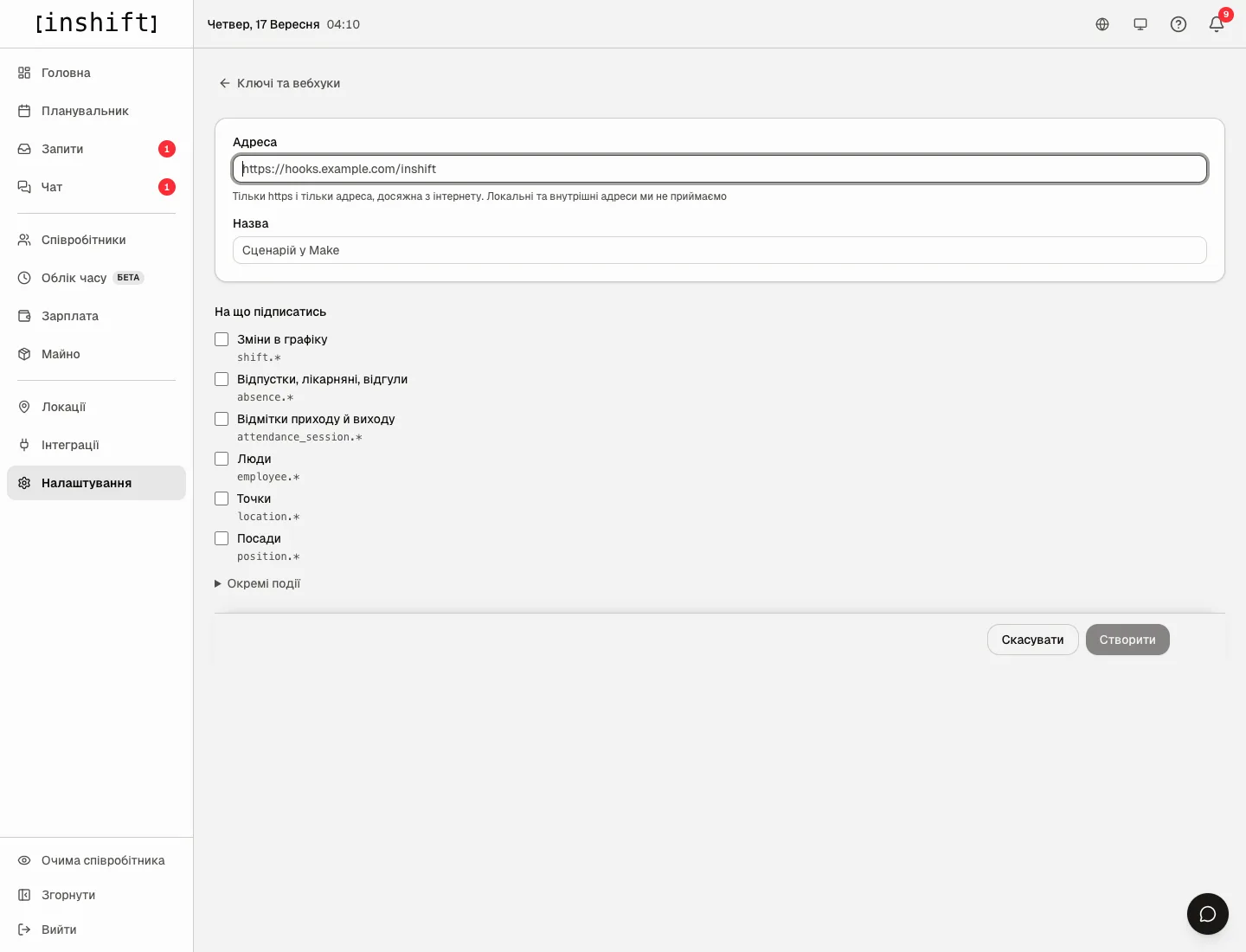
The webhook creation window: URL, name and the events “Shifts”, “Time off”, “People”, “Locations”, “Positions” with the options “added”, “changed”, “deleted” - Choose “Subscribe to”: whole groups “Shifts”, “Time off”, “Clock in and out”, “People”, “Locations”, “Positions”, or “Individual events”: “added”, “changed”, “deleted” for each.
- Click “Create”. The “Endpoint added” window shows the signing secret: “This is the signing secret. Your system uses it to verify the request really came from us”. Copy it now.
- Click “Send test” on the endpoint page: a test event goes the same way a real one does. The answer is “Delivered, the server answered 200” or “Not delivered: …”.
How webhooks work
“As soon as something changes we send a POST to your address. The body carries only the event type and the object id; the data itself is not in it, your system fetches that from the API with a key.”
“Every request is signed with your secret in a header. Check the signature before you trust a request: the address may be known to someone else, the secret is not.”
“No answer, or an error? We retry six times: after a minute, five minutes, half an hour, two hours, six hours and a day.”
“Ten deliveries in a row that never arrived switch the address off”. A switched-off endpoint is shown with the “Off” status, and the “Unmute” button brings it back: “Address is on, events are flowing again”.
You can have up to five endpoints. The “Deliveries” log on the endpoint page shows every attempt: “queued”, “delivered”, “failed”, and “Last delivered”.
Why an action is unavailable
There is no “API keys and webhooks” card: only the owner and co-owners see the “Integrations” tab.
I cannot see the key again: it is shown once. Do a “Rotate” and hand over the new one.
The address is not accepted: https and a public address are required, local and internal ones are refused.
The “Not delivering” state: the last delivery did not arrive, “We keep retrying on schedule; ten failures in a row switch the address off”. Check the server and click “Send test”.
I cannot add a sixth endpoint: the limit is five.
The key gets a 403 on a request: it does not have the permission needed. The permissions are shown on the key page.
Questions and answers
Where is the API documentation?
At inshift.app/api: a description of the methods and the openapi.json file for generating a client.
Can a key be issued for one location?
The panel creates a key for the whole organisation. A key limited to locations is marked “2 locations only” in the list: if you need such a limit, write to support. The change feed for such a key still arrives for the whole organisation, but an event carries only an id, the data of other locations stays closed.
Does a key see payroll?
Only if the “Payroll” permission is ticked. It is read only, with the “Money” warning.
What is the “Change feed”?
A list of events with ids, so your system fetches only what has changed instead of re-downloading everything every time.
Does a webhook send the data itself?
No, only the event type and the id. Your system fetches the data from the API with the key: that way an event reveals nothing extra.