An access role answers the question “What this person can do in the app and admin panel”: whose schedule they see, whose they can change, whom they see in the team, whether they see pay, whether they approve requests, whether they can enter the panel. The role is assigned in the person’s card in the “Access rights” block. It is not a position: the position says what the person does in the schedule, and the role says what they are allowed to do. A cook can be a manager, and a barista a director.
A new organisation has three roles: “Employee”, “Manager” and “Director”. On screen they are named in Ukrainian, “Співробітник”, “Менеджер” and “Директор”, whatever the panel language; the help calls them by their English meaning. They are enough for most teams. When something else is needed, for example a shift leader who builds the schedule but does not see pay, create your own role with the right set of permissions.
Roles can be created and changed by the owner, co-owners and anyone whose role has “Job positions and access rights”. A manager creates, changes and gives people only roles with fewer rights than their own role; the owner and co-owners can do this with any role.
Where to find it
The list of roles: “Employees” → the “Access rights” tab. Next to each role you can see how many people it is assigned to.
Assign a role to a person: their card → “Edit” → the “Access rights” block. The same is on the “Employee’s view” page, see Preview as an employee.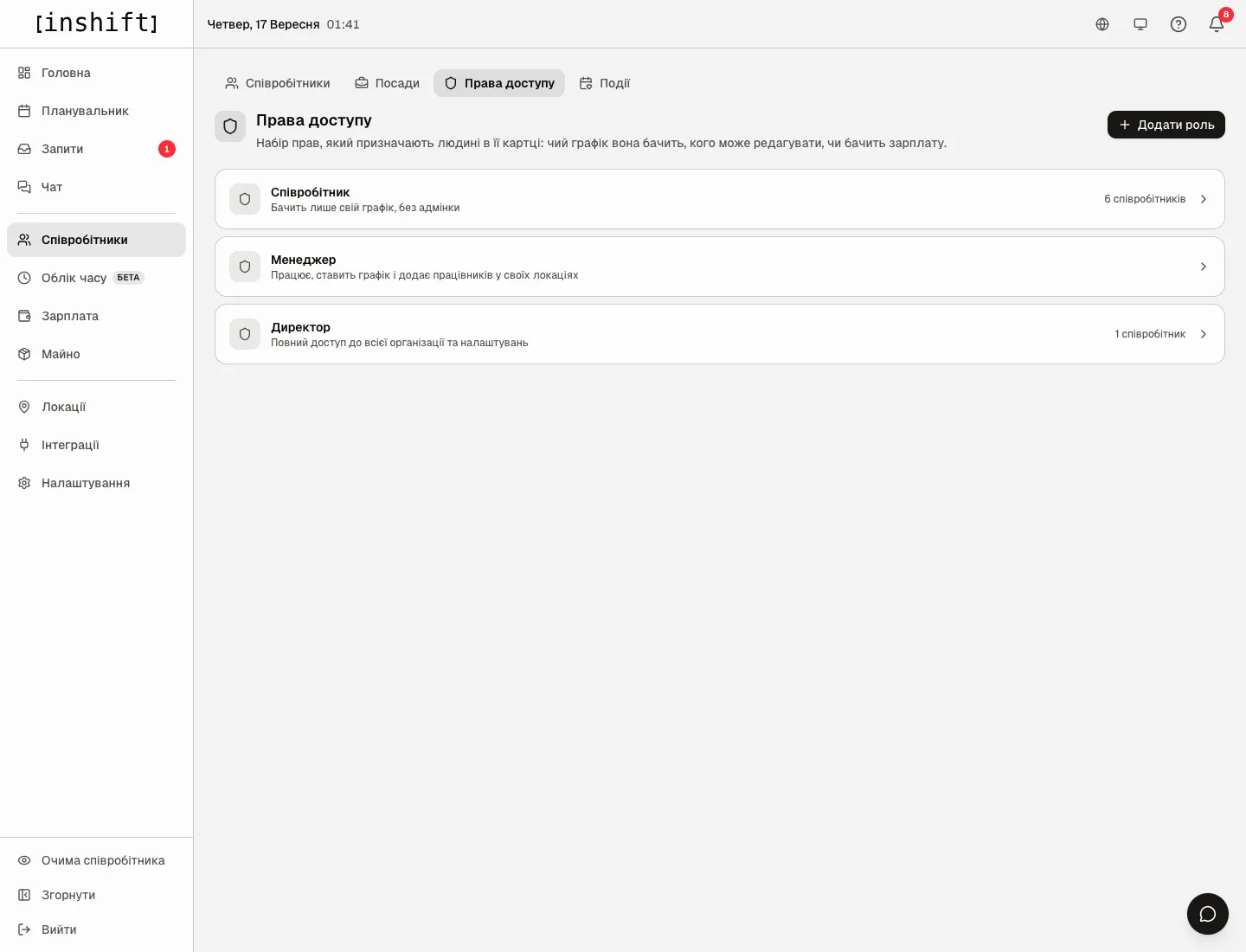
The three ready-made roles
“Employee”: sees only their own schedule, no admin panel. Sees colleagues of their own location in the team, their own pay and their own stats. Submits requests, swaps shifts. This is the role for most of the team.
“Manager”: works, builds the schedule and adds staff in their own locations. Enters the panel, sees and edits the schedule of their locations, adds and edits people of their locations, sees their pay but does not pay out or change rates, approves time off and swaps of their locations, publishes announcements in the chat of their locations. A manager’s locations are those in their card: the primary one and “Also works at other locations”.
“Director”: full access across the network: schedule, people, payroll, roles. Everything across the entire network, plus “Manage locations” and “Job positions and access rights”. Organisation settings, modules, “Integrations” and the POS stay with the owner and co-owners.
None of the roles grants “Manage time tracking”: correcting check-in records means editing the basis of payroll, so this permission is turned on separately in the role that needs it.
How a role is built
Open a role on the “Access rights” tab. Each permission has a level: “None”, “Own”, “My locations” or “Entire network”. The hint at the top explains: “Own: their own data only. Own locations: everyone working at the same locations. Whole network: the entire organisation.”
Permission groups: “Rota” (“View rota”, “Edit rota”), “Team” (“View team”, “Manage employees”), “Payroll” (“View payroll”, “Pay out wages”, “Change pay”), “Requests” (“Approve time-off”, “Approve substitutions”), “Stats” (“View stats”), “Announcements” (“Publish announcements”). The “Property”, “Time tracking” and “Training” groups appear when those modules are turned on. The “Training” right (marking “Trainee” and moving to staff) is read-only in a role and says “Set in Training settings”: it is set under “Training” → “Settings” → “Who manages training”.
“Pay out wages” lets you record payouts, close the period and see the bank details for a payout. “Change pay” covers rates, pay terms, bonuses, deductions and shift prices, and at “Entire network” also premiums, holidays and “Cancel closing”. So a cashier pays out money but does not change the rate. These two permissions have no “Own” level: nobody pays out or changes their own pay except the owner.
Below is “System access”, three switches: “Manage locations”, “Job positions and access rights” and “Admin panel access”. The last one allows signing in to admin.inshift.app, and what exactly is visible there is defined by the rest of the role’s permissions. Under the switch there is a warning: enable for managers only.
The “View rota” permission cannot be lowered below “Own”: their own schedule is what a person opens the app for. The “None” button there is grey with the hint “People see this even without a role, so it cannot be taken away”.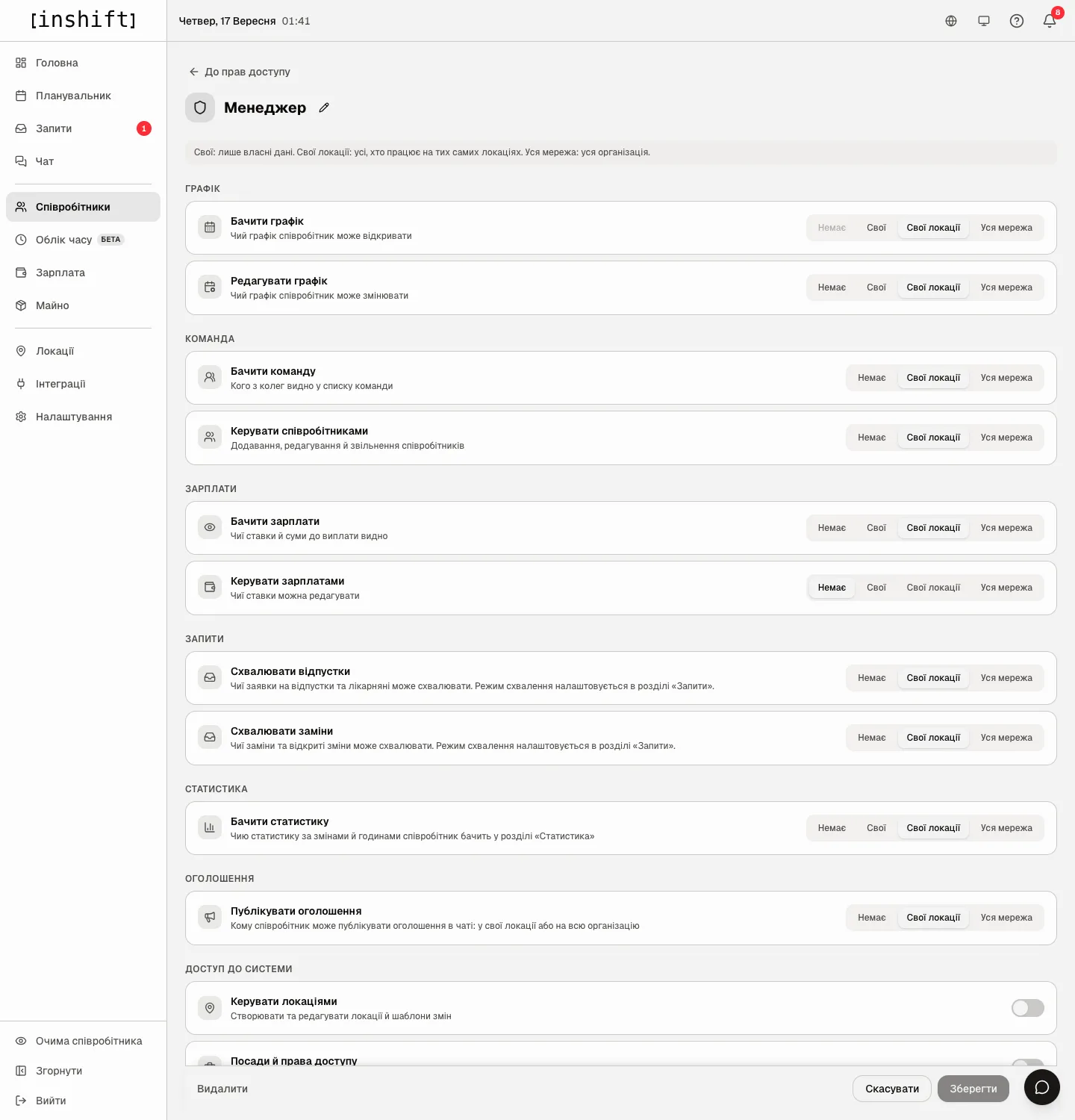
Step by step: your own role
- On the “Access rights” tab click “Add role”.
- Type the “Role name”, for example “Shift leader”.
- Set the permission levels. A new role starts with what a person has even without a role: their own schedule, their own pay, their own stats, the team of their own location. Then add: for example “Edit rota” at “My locations”, “View payroll” at “None”.
- If the person should enter the panel, turn on “Admin panel access”. Without it the role works only in the app.
- Click “Create”. The role appears in the list and in people’s cards in the “Access rights” block as one more option.
Change a role: open it, adjust the levels, click “Save”. The change takes effect immediately for everyone the role is assigned to. The name is changed with the pencil next to the heading.
Delete: the “Delete” button at the bottom of the role page. A role that is assigned to someone, including dismissed people, cannot be deleted: the panel says “Cannot delete: the role is still assigned to employees, including dismissed ones”. Reassign the people first.
Step by step: assign a role
- Open the person’s card → “Edit” → the “Access rights” block.
- Click a role. “Details” next to each one expands the exact list of permissions.
- Click “Save”. If the person has already connected the app, the permissions change the next time the screen refreshes. If not yet, the note under the roles says “This role takes effect once the employee has a login account (via invite).”
Who can give which role
The owner and co-owners stand above all roles: they change any role and give it to anyone. There are two exceptions: only the owner changes the owner’s card, and only the owner manages co-owners’ cards, see Owner and co-owners.
Other managers manage only people who have fewer rights than they do: no permission higher, and at least one lower. “Own” counts as “None” here: it is only about the person themselves, so a manager without “View payroll” still manages a barista who sees their own pay. For such people a manager changes the card and role, dismisses and deletes, changes the email and password, issues an invite code, sees them in “Employee’s view”, and sees, pays out and changes their pay according to their own payroll rights. The card of a person with the same or more rights opens for viewing only with “This person has as many rights as you or more, so a co-owner or the owner changes this card. You can view it.”
You can give a person only a role with fewer rights than yours. The other roles on the card are grey with the caption “You can only give a role with fewer rights than yours”. Nobody except the owner and co-owners changes their own role: on your own card the roles are grey with the caption “A co-owner or the owner changes your role”.
The role editor follows the same rule. A manager with “Job positions and access rights” creates and changes only roles that stay below the manager’s own role, both before and after the edit. The owner and co-owners change any role. Levels above yours are grey in the editor with the hint “Above your own rights, so you can't give it”. Your own role and roles with the same or more rights are view-only: “This role has as many rights as yours or more. A co-owner or the owner can change it.”
Why an action is unavailable
There is no “Access rights” tab or “Add role” button: your role does not have the “Job positions and access rights” permission.
In a person’s card some roles are grey with the caption “You can only give a role with fewer rights than yours”: these roles have as many rights as yours or more. A co-owner or the owner gives such a role.
A person’s card opens for viewing only: the person has as many rights as you or more. A co-owner or the owner changes it.
A role opens for viewing only with “This role has as many rights as yours or more. A co-owner or the owner can change it.”: it is your own role or a role not below yours.
A permission level is grey with the hint “Above your own rights, so you can't give it”: your role has this permission lower.
A role will not save, with “The role must give fewer rights than yours: lower at least one of them.”: right now it gives as much as yours.
A person with the “Manager” role does not see some location in the panel: a manager’s locations are the locations from their card. Add the one you need under “Also works at other locations” or set “All”.
A manager does not see the whole “Payroll” section: the role has “View payroll” at “My locations”, and “Pay out wages” and “Change pay” at “None”. This is deliberate: money is paid out and rates are changed by the owner, co-owners or a “Director”.
In “Payroll” a person’s row has no amounts and no “Payment”: the person’s role is equal to or above yours, their pay is handled by a co-owner or the owner.
The “Time tracking”, “Property” or “Training” group is not visible in a role: the module is turned off in the organisation settings.
The “Training” right in a role cannot be clicked: it is chosen under “Training” → “Settings” → “Who manages training”, see Training: trainees and mentors.
A role cannot be deleted: it is still assigned to someone, including dismissed people.
Questions and answers
How does a role differ from a position?
A position is the work in the schedule: barista, cook. A role is permissions: what the person sees and can do. A person has one primary position and one role.
Does a manager see the pay of their people?
Yes, the “Manager” role has “View payroll: My locations”. If you do not want that, create your own role with “None”.
What happens if no role is assigned at all?
The person has the basic set: their own schedule, their own pay, their own stats, the team of their own location. This is the same as “Employee”.
How many people can have panel access?
As many as you like. But each such person sees everything their role allows, so for location managers “Manager” is better than “Director”.
Can I give a person a view of the whole network’s schedule without the right to change it?
Yes: your own role with “View rota: Entire network” and “Edit rota: None”.
How do I let an accountant see everyone's pay without putting them on the rota?
Your own role with “View payroll: Entire network” and, if they do not change rates, “Change pay: None”; for work in the panel turn on “Admin panel access”. In their card, in the “Schedule” block, turn on “Not scheduled”: they will not appear in the planner, see Employee card.
How do I let a cashier pay out wages but not change rates?
Your own role with “Pay out wages” at “My locations” or “Entire network” and “Change pay: None”. The cashier will record payouts and close periods, and will not have the “Pay” tab.
Can a manager give someone the same role as their own?
No. You can give only a role with fewer rights than yours: otherwise a manager would create an equal they could not manage afterwards. A co-owner or the owner gives such a role.