“Employee’s view” shows the InShift app the way a particular person on your team sees it: their schedule, their notifications, their open shifts and requests. On the right of the page is a phone with the live app, on the left the team list. You click a person, and the phone switches to their eyes.
It is the fastest way to answer “so what does Maria see?”, to check that the published schedule has arrived, and to set a person's rights while looking at the result. The phone only shows: you cannot change anything on the person's behalf from it.
Where to find it
The menu on the left, at the bottom: “Employee’s view”. The item is visible to the owner, co-owners and anyone with the “Manage employees” right. The “Team” list holds only the people you manage: a manager sees there the people with fewer rights than the manager’s own.
After the first schedule is published, the panel itself suggests coming here with the “See it as an employee” button.
Step by step
- Click “Employee’s view” in the menu. A page with two parts opens: on the left the row with your own app (“The app through the owner’s eyes” for the owner, “The app through your eyes” for everyone else) and the “Team” list, on the right an empty phone.
- Click a person in the list. If there are many people, find them through “Search teammate”. Under the name you see the state: “Connected” with a green dot or “Not joined yet” with a yellow one.
- In a few seconds the phone on the right shows their app: “Home” with today's shift, “Needs attention”, upcoming shifts. At the bottom of the phone are the same tabs the person has: “Home”, “Rota”, “Chat”, “More”. You can move around them like a real app.
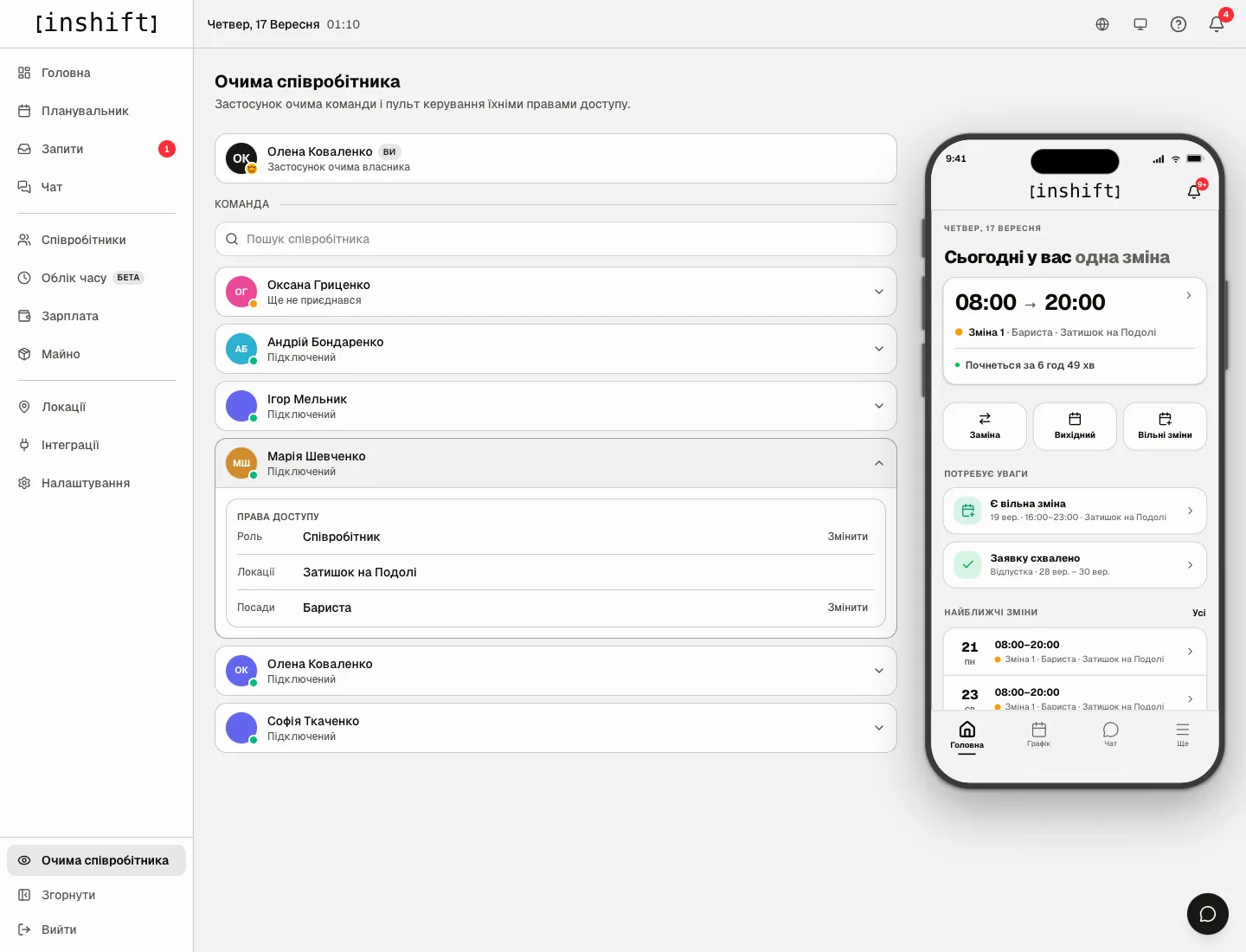
The “Employee’s view” page: the team list, Maria's expanded card with access rights, a phone with her app - Under the name the “Access rights” block unfolds: “Role”, “Locations”, “Job positions”. Click “Change” next to the role, choose “Employee”, “Manager” or “Director”, and the phone reloads with the new rights. “Details” shows exactly what the role allows. The same “Change” is next to the positions.
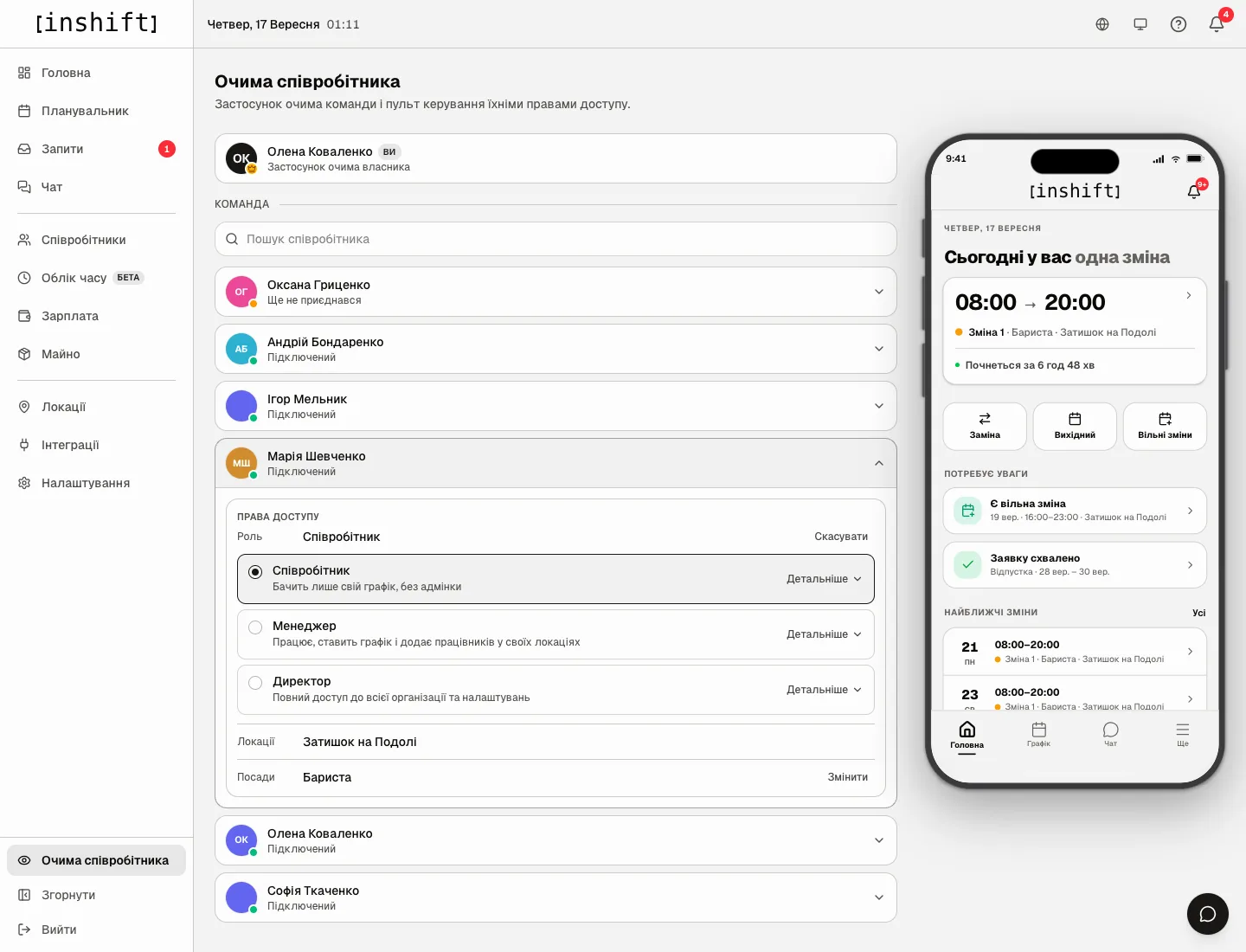
Choosing a role right in the person's card: “Employee”, “Manager”, “Director” with explanations - To look at the app through your own eyes, click the top row marked “You”: this is your own app with the manager section.
The person has not joined yet
For a person in the “Not joined yet” state the phone works too: the panel shows the app the way it will look once they enter the code. And in the card, instead of nothing, there is the “Invite” block with the code and the “Copy invite” button, the “WhatsApp”, “Telegram”, “Viber” and “Email” buttons and the hint “In the app: “Sign Up” → “I’m an employee” → enter the code.”. It is the same code as in “Employees”, article The invite code: how it works and what to do when it fails.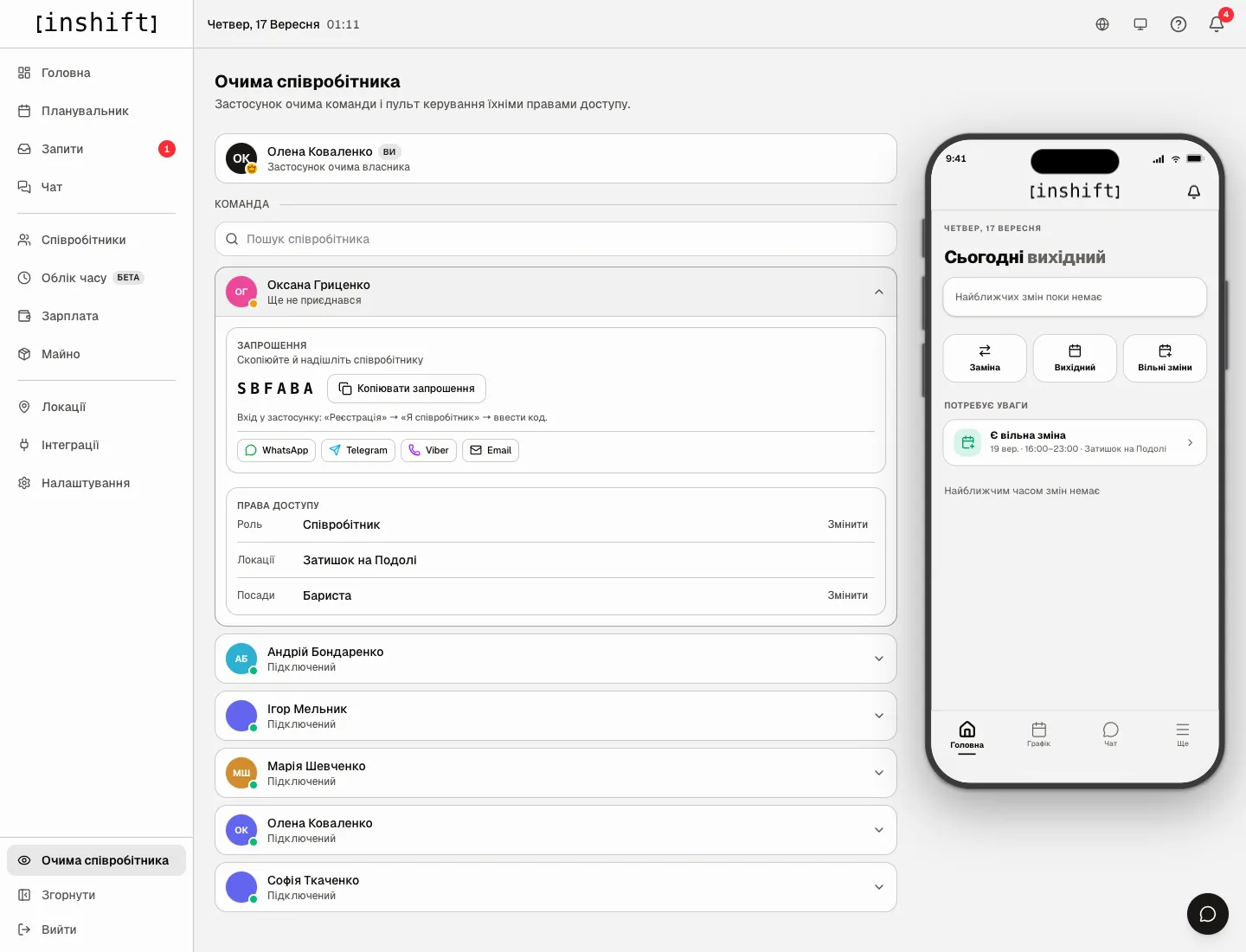
What you can and cannot do
The phone shows everything the person sees: schedule, chat, open shifts, requests, settings. You can flip through months in “Rota”, open shifts, read the chat.
The phone sends nothing: submitting a request, writing in chat, taking a shift or changing the password on the person's behalf does not work. That protects both you and them.
Money: if the person's pay is open to them in the app, you see their amounts only when you have the right to this person's payroll in the panel.
The person notices nothing: the preview does not count as their sign-in to the app and sends them no notifications.
The phone speaks the panel's language and repeats its light or dark theme, not the person's settings.
A preview lives for 15 minutes while the tab is open. If you came back later, click the person again.
Why an action is unavailable
There is no “Employee’s view” item in the menu: your role does not have the “Manage employees” right. Ask the owner or a co-owner.
The page says “Add employees first” with a “Go to employees” button: there is nobody on the team yet.
The phone stays empty for a long time: wait a few seconds, the app is loading. If it has not appeared, click the person again.
There is nothing instead of “Change” next to the role: your role does not have the right to manage employees.
Some roles are grey with the caption “You can only give a role with fewer rights than yours”: a role with the same or more rights is assigned by a co-owner or the owner.
A person is missing from the “Team” list: the person has as many rights as you or more, or is the owner or a co-owner. A co-owner or the owner can view the app through such a person’s eyes.
The phone says “Preview ended”: the preview has expired. Click the person again.
Questions and answers
Will the person see that I am looking at their app?
No. This is a preview in your panel, not a sign-in to their phone.
Can I answer a request or write in chat on the person's behalf this way?
No. The phone only shows. Requests are handled in “Requests”, and in chat you write as yourself.
Why is the schedule on the phone empty although I published it?
Check the person's location and whether they have shifts in this period. If the shifts are drafts, the person does not see them, article Publish the schedule and what the team sees.
Can I show “Employee’s view” to the employee themselves?
There is no need: they have the same app on their phone. The page is for you, to see the same thing they do.