An empty slot in the schedule is a shift with no person: you know someone is needed at eight, but you have not decided who yet. The panel keeps such slots in a separate “Someone needed” row in the planner, counts them on the dashboard as “Unassigned shifts” and shows “gaps” in the week ahead, and gives the manager in the app an “Unassigned” screen with the list for the week. Closing a gap means putting a person on it.
Separate from gaps are people who are not scheduled: the “Not scheduled” switch in a person's card removes them from the planner altogether, for the owner, an accountant or anyone who does not work shifts.
Empty slots can be placed and closed by anyone whose role has the “Edit rota” right.
Where to find it
In the planner: the “Someone needed” button at the top and the “Someone needed” row under the position group with a counter, for example “9/9”, of how many slots are covered. If open shifts are enabled, the button and the row are called “Open shift”.
On the dashboard: the row “Unassigned shifts: 2” with the caption “nearest: Fri, 18 Sep, Cosy Corner on Podil, 08:00–20:00” and the “Open rota” button, the “gaps: 1” mark in “Week ahead”, and in the day card “1 unassigned shift” or “Day is not covered”.
In the manager's app: “Home” → the row about unassigned shifts → the “Unassigned” screen.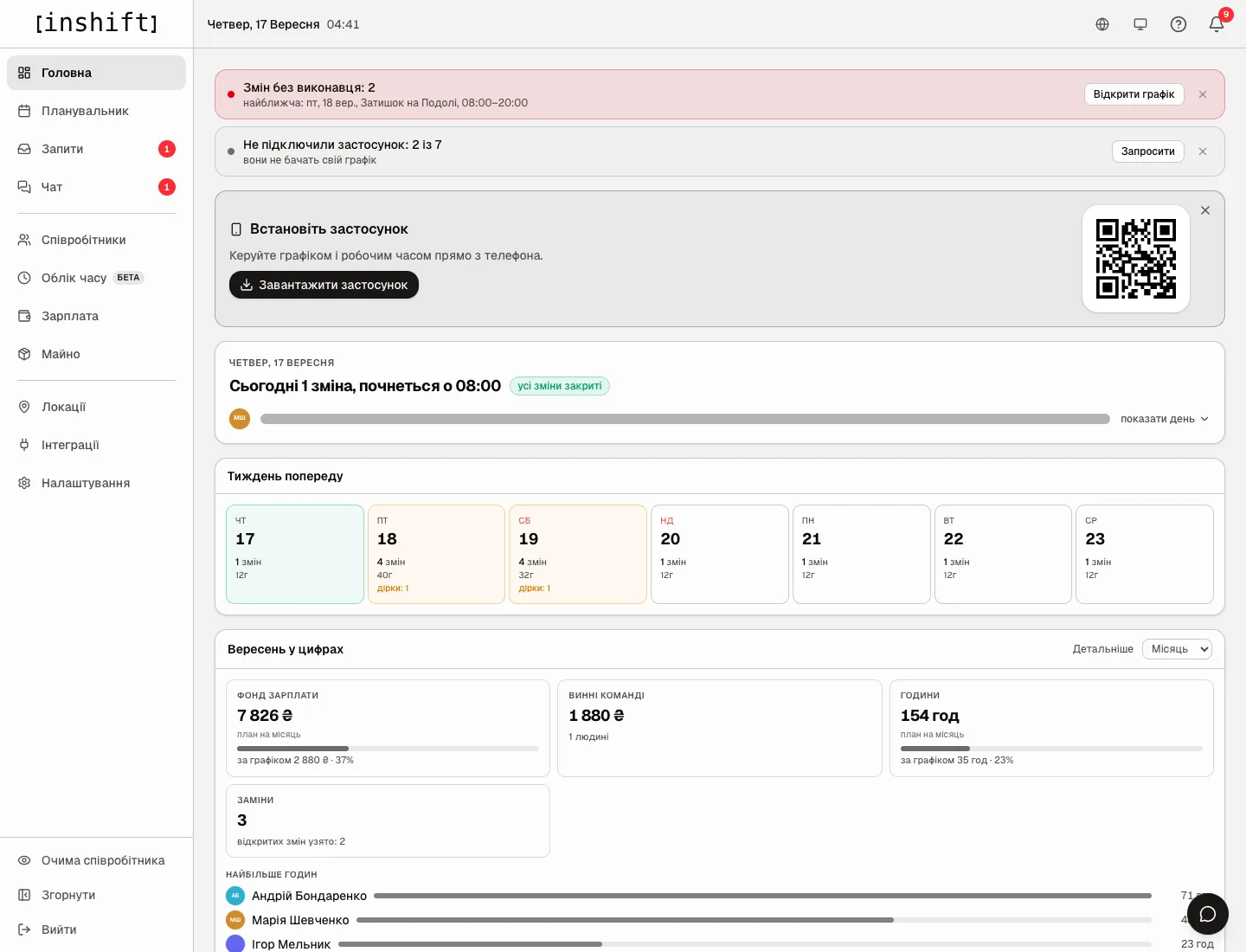
Step by step: place an empty slot
- In the planner click “Someone needed”. In the window choose “Position” or “Any position”, and a “Shift type” with its time, for example “Shift 1 · 08:00–20:00”.
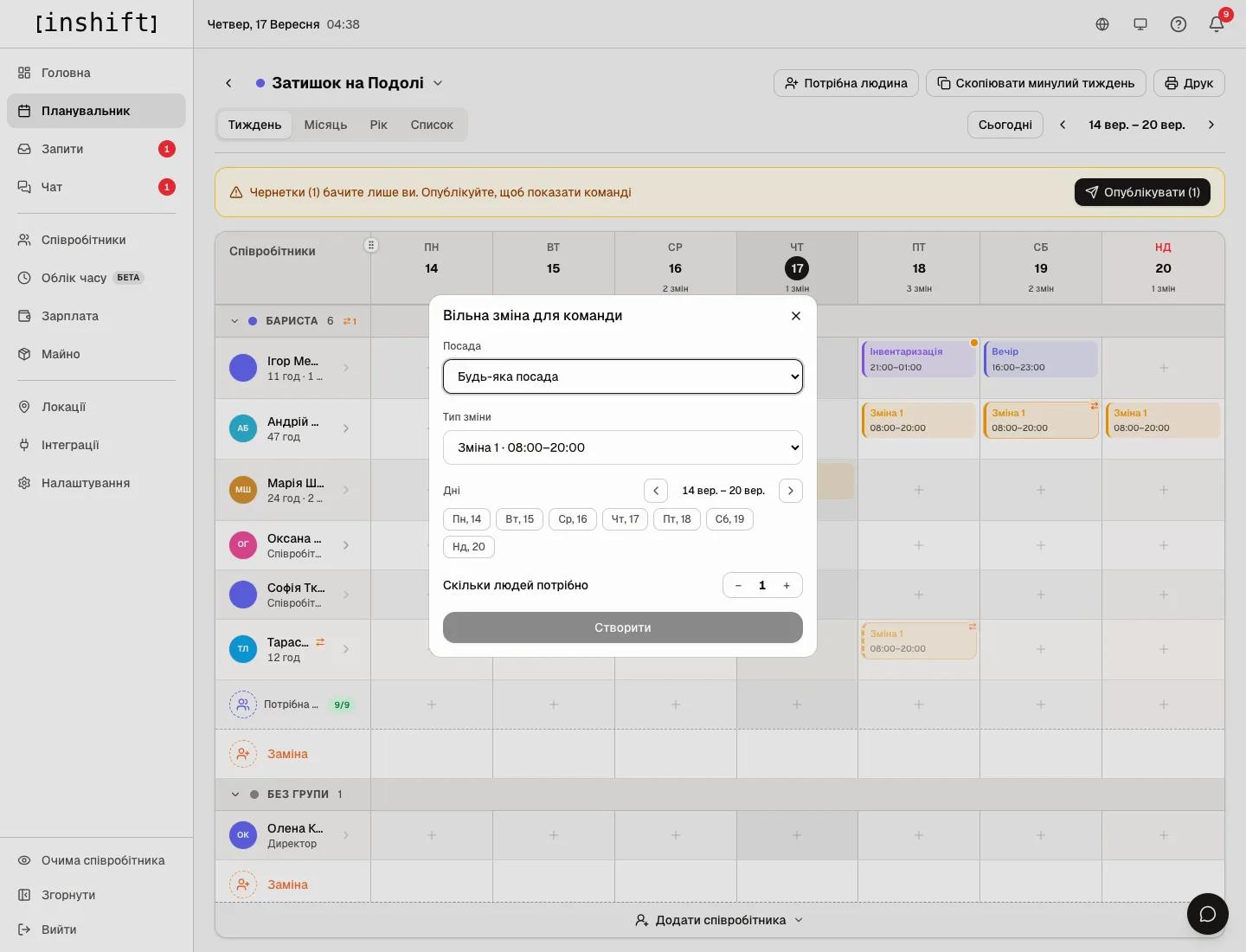
The window for creating empty slots: “Position”, “Shift type”, “Days” of the week, “How many people needed”, the “Create” button - In “Days” tick the days of the week; the arrows flip through weeks. “How many people needed” places several slots on one day.
- Click “Create”. The slots appear in the “Someone needed” row as drafts; publish them together with the rest of the schedule with the “Publish (N)” button. The team does not see empty slots, only you.
An empty slot can also be left from a phone: in the app's planner, on the person selection screen, there is “Nobody yet”, article The planner on your phone.
One more way: when dismissing a person with upcoming shifts, choose “Convert upcoming shifts to open”: their shifts become empty slots.
Step by step: close a gap
- Click the empty slot in the “Someone needed” row. The “Who covers this shift?” window opens with the list of eligible people; those busy at that time are grey, with the time of their shift. If there is nobody, it says “No eligible people”.
- Click a name. The shift goes to the person, the counter in the row changes, and the “Unassigned shifts” row on the dashboard shrinks after publishing. A person from another site is called in through the “Substitute” row, article Cover: put someone from another location on a shift.
- To remove the slot altogether: “Delete this shift” in the same window.
If open shifts are enabled in the organisation, an empty slot can be offered to the team: people apply with “I want it”, and you choose who gets it, article Open shifts: offer a shift to the team.
From a phone: the “Unassigned” screen shows “2 shifts in the week ahead” by day, and tapping a shift opens the planner on that day and site.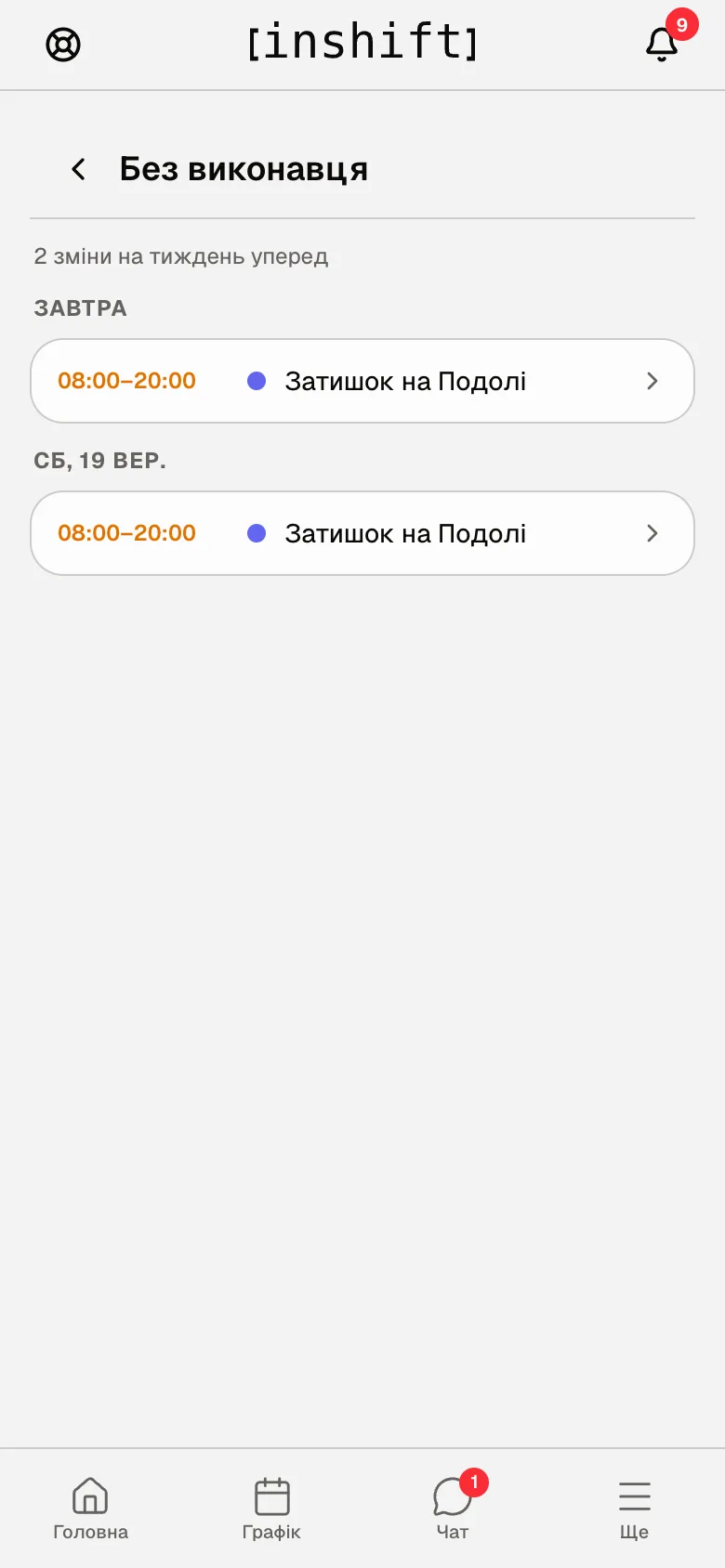
The “Unassigned” screen in the app: “2 shifts in the week ahead”, “Tomorrow” and “Sat, 19 Sep” with the time and site
People who are not scheduled
In a person's card → “Edit” → the “Schedule” block → the “Not scheduled” switch with the caption “The person is absent from the planner and is never offered anyone else’s shift”. Such a person is absent from the planner grid and from the list of substitute candidates, but the card, app access, chat and property stay. This is for an owner who does not work shifts, an accountant, a courier on their own schedule.
Turn the switch off, and the person returns to the planner.
Why an action is unavailable
No “Someone needed” button: your role does not have the “Edit rota” right.
The “Unassigned shifts” row on the dashboard does not disappear after you put a person on: it counts only published shifts for the week ahead and updates after publishing.
The “Unassigned” screen in the app says “Every shift is covered” although there are gaps: they are more than a week ahead or still drafts.
A person is not in the planner: “Not scheduled” is on in their card, or their primary location is a different one.
Tapping a shift in “Unassigned” opens the day screen rather than the planner: your role has the schedule for viewing only.
Questions and answers
Does the team see empty slots?
No. An empty slot is visible only in the panel and in the manager's planner. The team sees the shift once a person is put on it, or as an open shift if you offered it to the team.
Do empty slots count in payroll and on the board?
No. A shift without a person has nobody to pay, and it does not get onto the time tracking board.
What happens to an empty slot if nobody closed it?
Nothing; it stays in the schedule as a day without a person. On the dashboard it drops out of the row once the day has passed.
Can an assigned shift be turned into an empty slot?
No. In the “Edit Shift” window the employee can only be replaced with someone else, not removed. Delete the shift and place an empty slot with the “Someone needed” button. The one exception is dismissal: “Convert upcoming shifts to open” does this for all of the person's upcoming shifts at once.
How do I remove an empty slot?
Click it in the “Someone needed” row and in the “Who covers this shift?” window choose “Delete this shift”.