A shift in InShift lives in the cell where a person and a day meet. It is placed with one click from the cell menu, and everything else, the time, date, person, location and status, is edited in the “Edit Shift” window, which opens with a click on the shift itself. There is no need to drag shifts with the mouse: moving one to another day or another person means changing “Date” or “Employee” in that window.
While a shift is a draft, it can be edited and deleted without consequences: the team does not see drafts. A published shift can be edited too, but the person gets a notification at once about exactly what changed.
Shifts can be edited by the owner, co-owners and anyone whose role has the right to edit this location's schedule.
Where to find it
The “Planner” menu → location → the “Week” or “Month” view. An empty cell shows a plus, a filled one shows the shift card with the type name and time.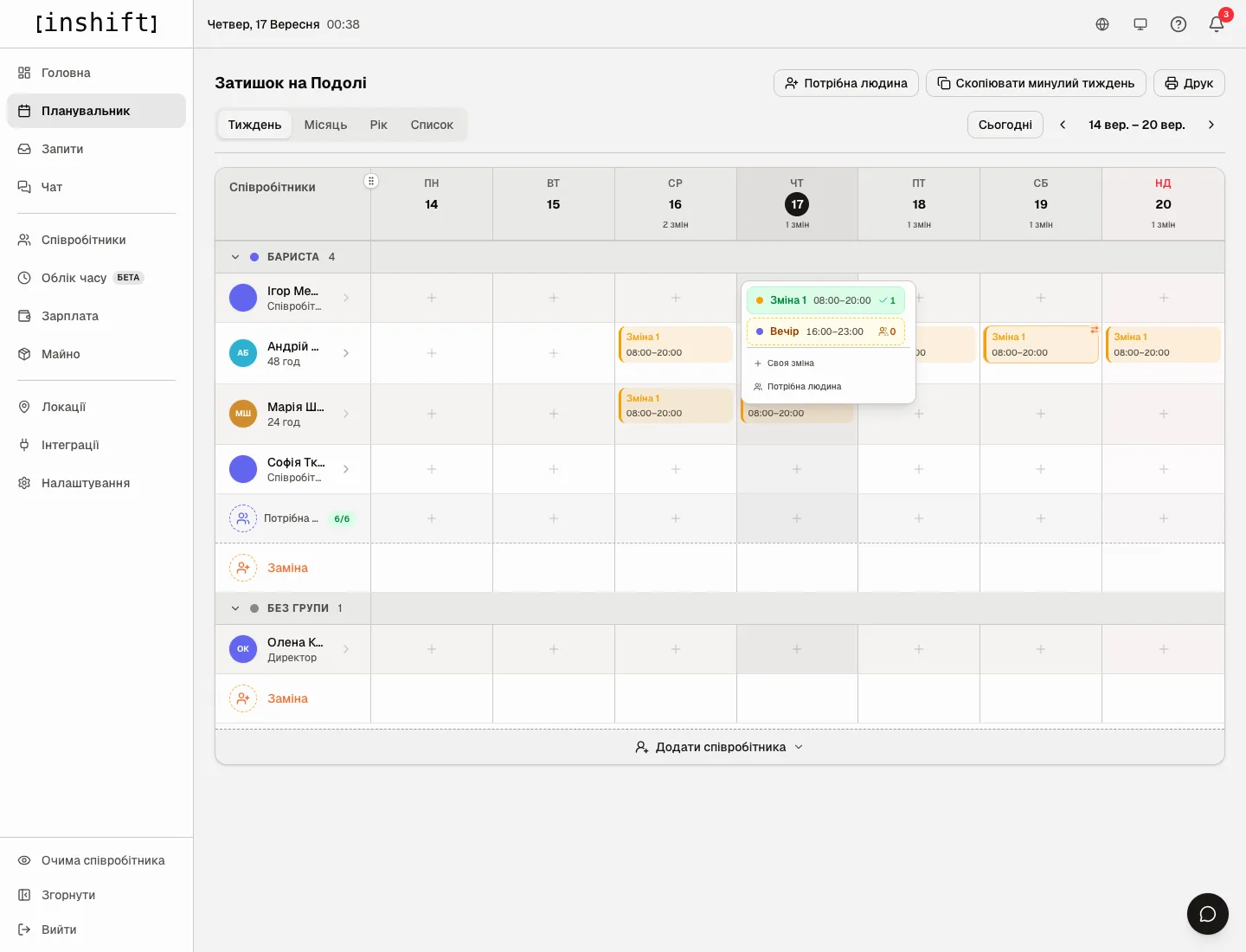
Step by step: add a shift
- Click the person's empty cell on the day you need.
- A list of this location's shift types appears, for example “Shift 1 08:00–20:00” and “Evening 16:00–23:00”. A green row with a tick means someone is already on this shift that day, and the number next to it says how many. A yellow dotted row means nobody is on the shift yet.
- Click the type. The shift lands in the cell at once, as a draft: a dotted border and a pale colour.
- To give the person a second shift on the same day, hover over the cell: a dotted plus appears under the card. It opens the same menu.
Lower in the menu there are two more items. “Custom shift” places a one-off shift with any time and name; it is covered in Shift types in the planner: by template and outside it. “Someone needed” places a shift with no one on it in the “Someone needed” row under the position group, and you close it later. With open shifts enabled this item is called “Open shift”, article Open shifts: offer a shift to the team.
Step by step: change, move, give to someone else
- Click the shift card in the cell. The “Edit Shift” window opens.
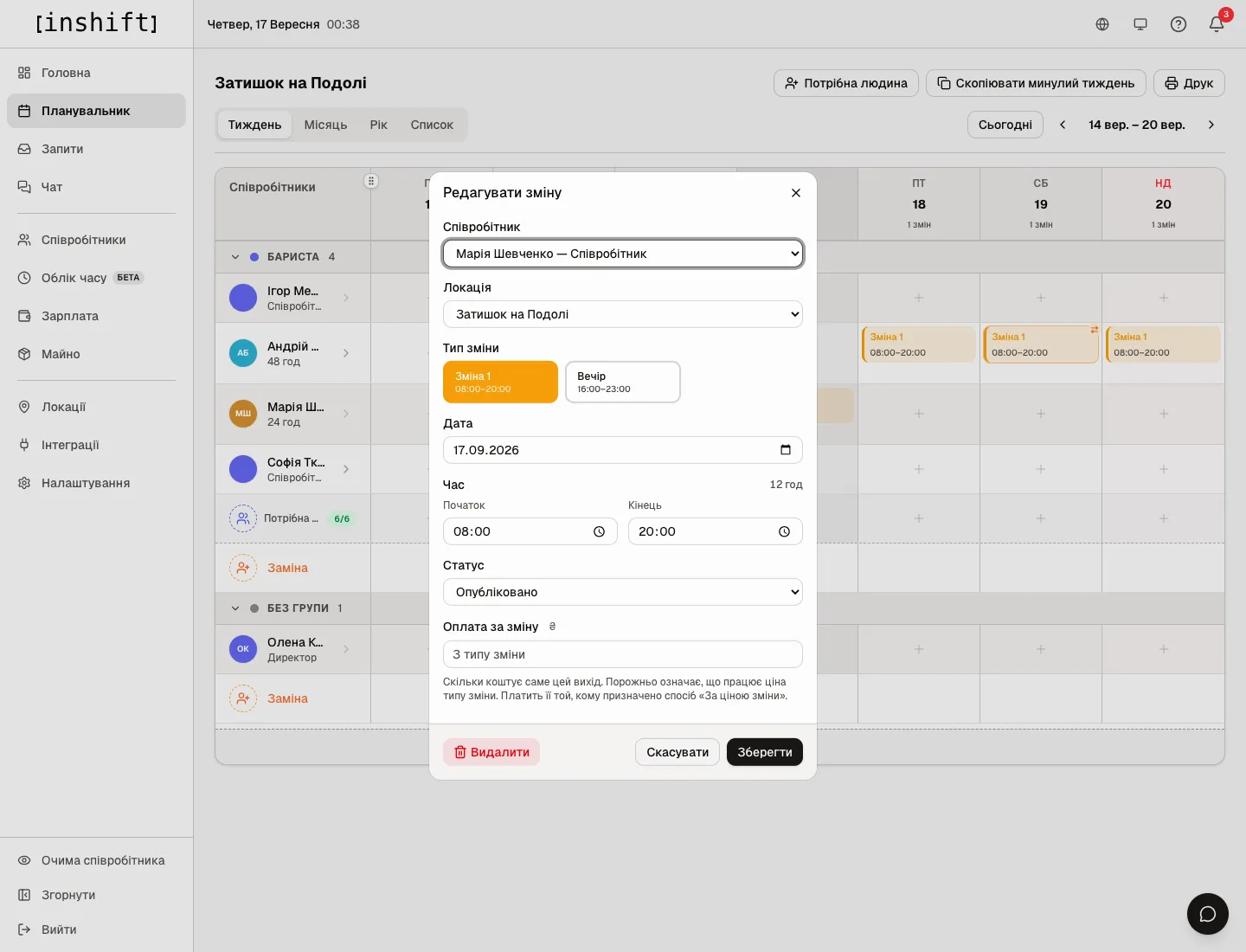
The “Edit Shift” window: employee, location, shift type, date, time, status, shift pay - What can be changed.
“Employee”: give the shift to another person. The list starts with the people of this location, and below, under the “Substitute” heading, people from other locations. Anyone marked “Not scheduled” does not appear in the list.
“Location”: move the shift to another site. The shift types in the window switch to that location's types.
“Shift type”: switch to another type. The time and colour come from it.
“Date”: move to another day.
“Time”: the “Start Time” and “End Time” fields. To the right of the heading you see the duration, for example “12 h”. If the time differs from the type, it shows in yellow in the grid, and the hover hint shows the template time.
“Status”: “Draft”, “Published” or “Confirmed”. That is how a single shift is published separately from the rest or put back into draft.
“Shift pay”: what this particular shift is worth, if it differs from the type's price. Empty means the type's price. Only someone with access to payroll sees the field. - Click “Save”. If the shift is published and lies in the future, the person gets a notification: “Shift time changed”, “Shift moved” or “Shift location changed”, and when the person is replaced, the one taken off sees “Shift taken off you” and the new one “You are on this shift”. The notification shows the old and new values, for example “08:00-20:00 → 09:00-20:00”.
Step by step: delete
- Open the shift and click “Delete” at the bottom left of the window.
- The question “Are you sure you want to delete this shift?” appears. Click “Delete” once more.
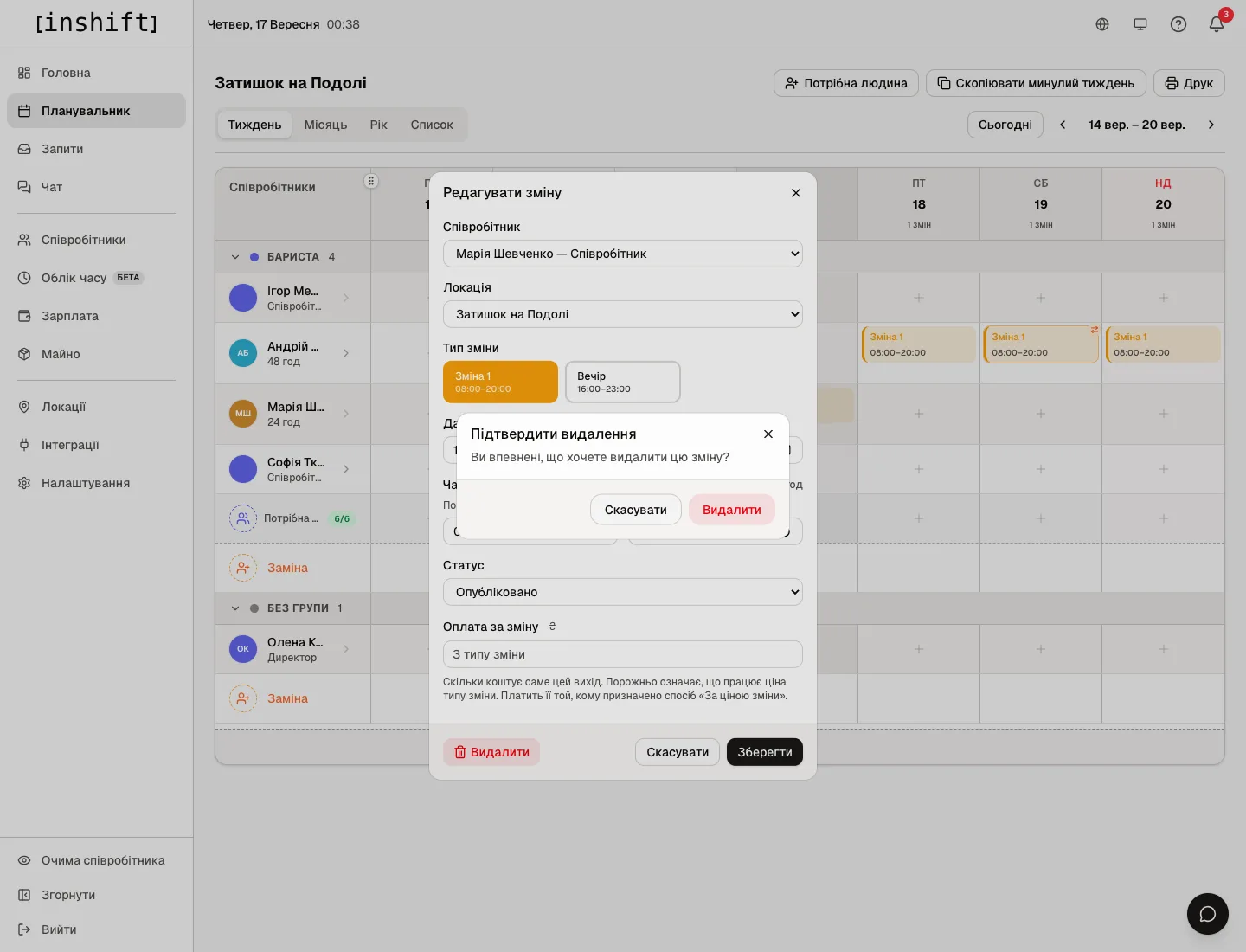
The “Confirm deletion” question over the shift window - A draft disappears silently. A published future shift disappears from the person's app, and they get a “Shift taken off you” notification with the date and time. Past shifts are deleted without notifications.
A non-standard shift
When no type fits, there are two ways, and both are described in detail in Shift types in the planner: by template and outside it.
“Custom shift” in the cell menu: a shift with any time and name, for example “Stocktake” from 21:00 to 01:00. In the window you set “Time”, “Name” and “Colour”, then the “Add” button.
A shift by type with a different time: place the shift by type, open it and adjust “Start Time” or “End Time”. The shift stays a shift of its type, and the time on the card turns yellow.
What the marks in the grid mean
The shift card.
A dotted left stripe and a pale colour: a draft, the team does not see it. A solid stripe and full colour: published.
A yellow dot in the top right corner: a custom shift not placed by type, or a shift of a type that does not apply on this day of the week.
Yellow time instead of grey: the time differs from the type. The hover hint says what the template time is.
An orange circle with arrows in the top right corner: a substitute, that is a person from another location working at this site. Their row sits in the “Substitute” group at the bottom of the section.
An orange border and another location's name on the card: the person works at another site that day. The card is shown in their row here so you can see why they are busy.
A triangle before the time: the shift was entered or rewritten retroactively, later than its day. A red border around the card: the edit touched a month that has already been paid out. The hover hint says when exactly the shift was touched.
A people icon and “Visible after publishing”, “Offered to the team” or “2 volunteers”: an empty slot offered to the team, article Open shifts: offer a shift to the team.
An empty cell with a pale plus: a shift can be placed here. A hatched cell: the day is beyond the end of the built schedule, article The schedule is ending: the reminder and what to do. The Sunday cell has a pink background, and today is highlighted.
The cell menu.
A green row with a tick and a number: that many people are already on this shift that day. A yellow dotted row with a people icon and a zero: nobody is on the shift yet.
Rows and headings.
The number next to a group name, for example “Barista 4”: how many people with this position are in the grid. A people icon with a number next to it: how many empty slots this group has on the screen.
Under a person's name: hours for the period on the screen, for example “24 h”, and if they have a rate and you have access to payroll, the amount too, “24 h · £288”. If there are no hours, the access role is shown instead, for example “Employee”.
The “6/6” badge in the “Someone needed” row: how many shifts of this position on the screen are covered by people and how many there are in total including empty slots. Green when there are no empty slots, yellow when there are.
The number in a day's header, for example “2 shifts”: how many shifts are on that day.
Time conflict
One person cannot be on two shifts that overlap in time, even in different locations. If you place or move a shift on top of another, a red message appears at the bottom, “Time conflict: already working 08:00–20:00 (Shift 1)”, and the shift does not appear. Back-to-back shifts, where one ends at 16:00 and the next starts at 16:00, are not a conflict.
Copying a week goes through the same check: shifts that overlap existing ones are not copied.
Why an action is unavailable
Clicking a cell shows “No permission to edit the rota at this location”: your role lets you view this schedule but not change it. Ask the owner or a co-owner.
The cell menu says “No shifts for this day or position”: none of the location's shift types applies on this day of the week. Check “Days” in the type, article Create a location and shift types.
The cell menu has only “Add a shift type →”: the location has no types yet. Click it, and the panel opens the location.
The message “Employee is already assigned to this shift”: this person already has a shift of this type on this day.
The message “The shift was just edited by someone else, refresh and try again”: a colleague changed this shift while your window was open. Close the window and open the shift again.
A dismissed person's row has no plus and the shifts do not open: the history stays visible, but it cannot be edited.
Questions and answers
Can I drag a shift to another day with the mouse?
No. Open the shift and change “Date” or “Employee”.
Will the person find out that I adjusted a published shift?
Yes, at once, if the shift is still ahead: the notification arrives on the phone and lands in the list behind the bell. Nobody finds out about edits to drafts and past shifts.
What does the “Confirmed” status mean?
It is a mark for you that the shift has been agreed with the person. The team sees such a shift just like a published one.
Why is the shift time yellow in the grid?
This shift's time differs from its type. The hover hint shows the template time. Details in Shift types in the planner: by template and outside it.
How do I put one person on several days at once?
Click the cells one by one: one type, one click per day. For a new week it is faster to copy the previous one, article Copy a week.
Can I flip through weeks with the keyboard?
Yes: the left and right arrows switch the period, and the T key returns to today.