A shift type is a template: the name, time and colour you set in the location once. In the planner you do not type hours; you pick a type from the cell menu, and the shift takes its time. That is the main way to build the schedule.
But life does not always fit the template: a stocktake until two in the morning, a start an hour later, a one-off shift on a holiday. For that there are two exceptions. “Custom shift” places a shift with any time and a name that is not among the types. And any shift by type can be adjusted in the “Edit Shift” window, and then it stays a shift of its type but with a different time. The planner marks both cases so you do not forget where you departed from the template.
Where to find it
The cell menu: “Planner” → click an empty cell. At the top of the list are the location's shift types, at the bottom “Custom shift”.
The types themselves are created and edited in “Locations” → location → the position card, article Create a location and shift types.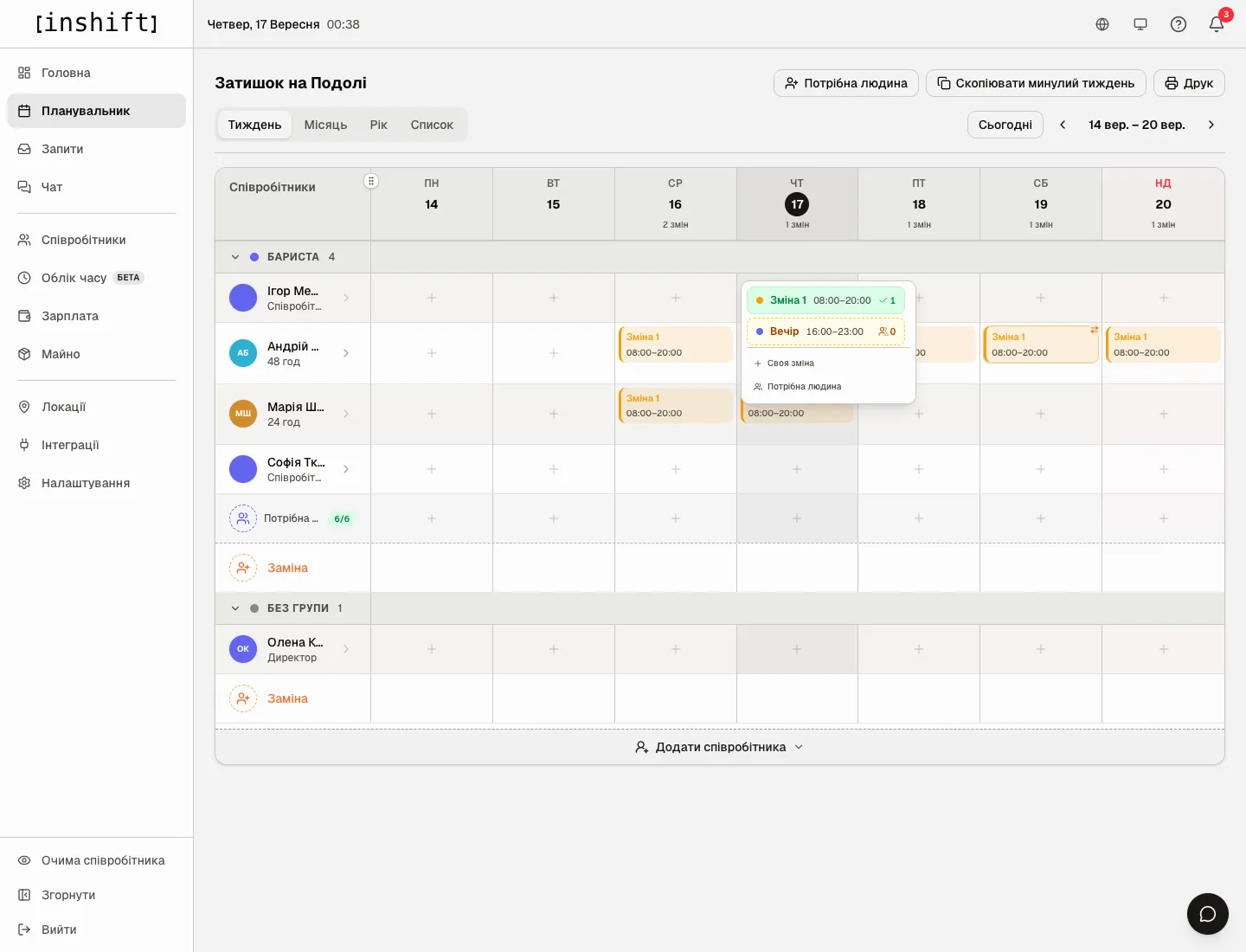
Step by step: a shift by type
- Click the person's empty cell on the day you need.
- In the menu every row is a shift type with its time for this day of the week. If the type has a different time on certain days (“+ different time for other days” in the location), the menu shows the time of this particular day. A type that does not apply on this day of the week does not appear in the menu.
The number on the right says how many people are already on this shift that day. A green row with a tick means someone is already there, a yellow dotted one that nobody is yet.
The menu holds all the location's shift types, not only the types of this person's position. - Click the type. The shift becomes a draft with the type's name, time and colour.
Step by step: a custom shift
- In the cell menu click “Custom shift”. The “Custom shift” window opens with the person's name and the date.
- “Time”: the “Start Time” and “End Time” fields. The duration is shown on the right. A shift can cross midnight: 21:00 and 01:00 give “4 h”.
- “Name”: what the shift is called in the grid and in the person's app, for example “Stocktake”. If you leave the name empty, the shift is called “Custom shift”.
- “Colour”: a circle for the grid.
- Click “Add”. The shift becomes a draft.
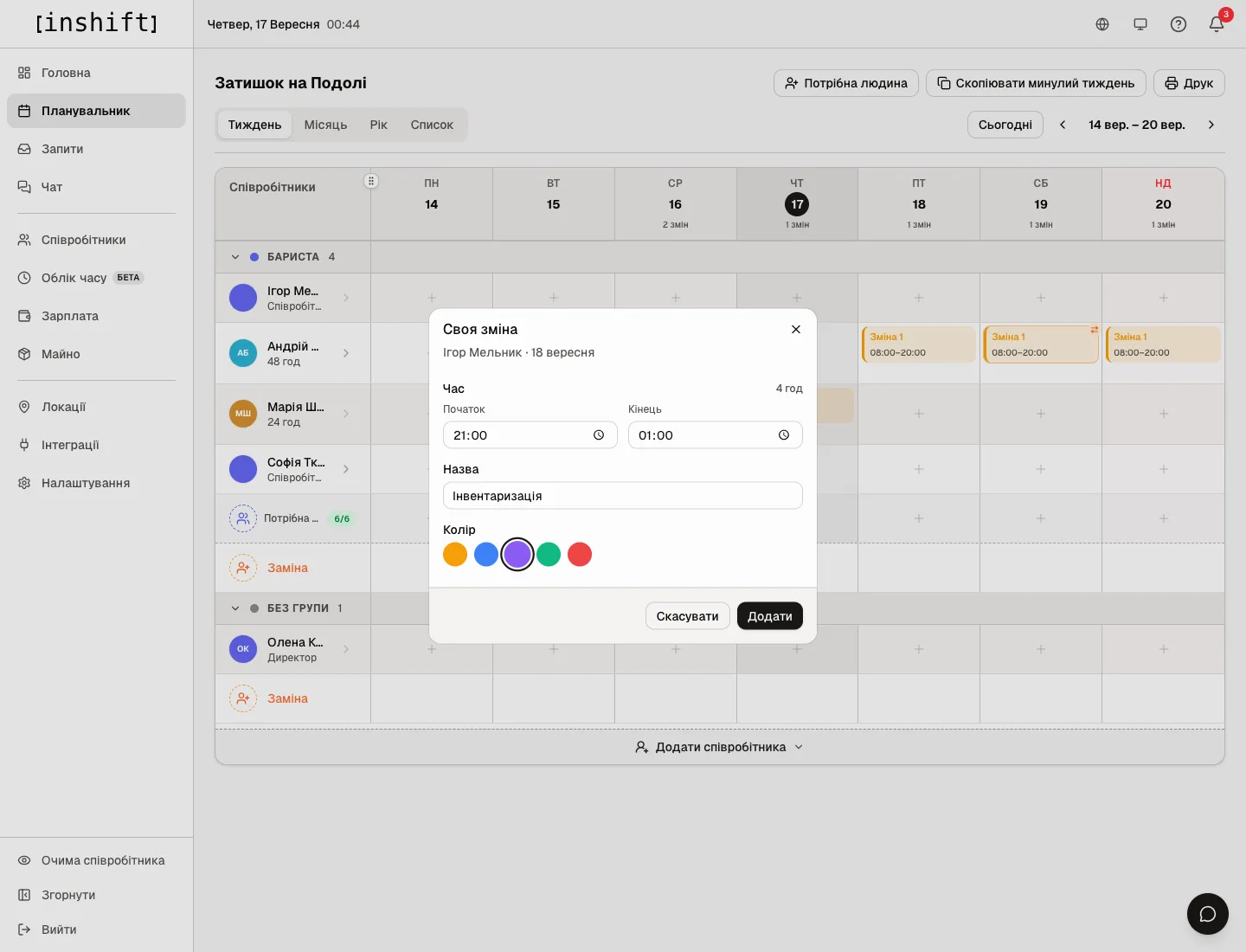
The “Custom shift” window: time 21:00–01:00, the name “Stocktake”, a colour picker
In the grid a custom shift has a yellow dot in the top right corner of the card, and the hover hint says “Custom shift”. In the “Day” view on a phone such shifts are gathered in the “Outside patterns” group.
A shift by type with a different time
If the person works by type but not as usual, do not make a custom shift: place the shift by type and adjust the time. Click the shift, in the “Edit Shift” window change “Start Time” or “End Time” and click “Save”.
Such a shift stays a shift of its type and counts in its counter, but the time on the card turns yellow, and the hover hint says “Time changed, template says 08:00–20:00”. That way the grid shows at once who is working outside the template.
To restore the type's time, in the same window click another type and then the one you need again: the time comes back from the type.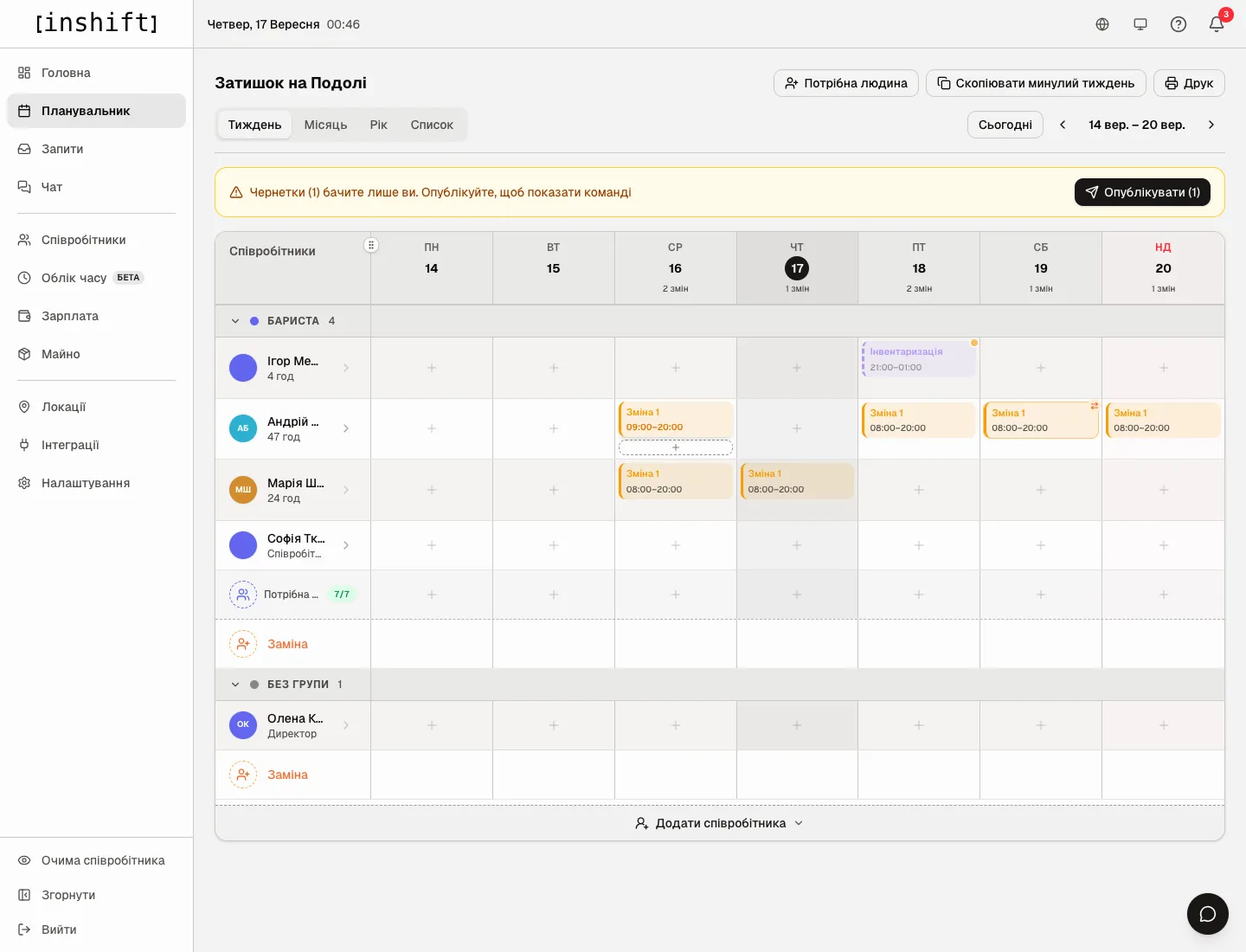
What happens to shifts if you change a type in the location
Shifts already in the schedule keep their name and time as of the moment they were created. Editing the type in the location does not rewrite them.
Renamed a type: old shifts keep the old name and are shown as custom shifts, with a yellow dot. New shifts are placed with the new name.
Changed a type's time: old shifts keep the old time and are shown as shifts with a changed time. If you want them to move to the new time too, adjust them in the grid. Copying a week also carries shifts with their own time, not the type's time.
Removed a type: the shifts in the schedule do not disappear; they are shown as custom shifts.
Shift price
If the person's pay term is “Shift price”, a shift by type is worth what the type is given in “Payroll” → “Pay” → “Shifts”. A custom shift has no type, so its price is set separately: open the shift and fill in “Shift pay”. The same field overrides the type's price for one particular shift. Only someone with access to payroll sees the field.
Why an action is unavailable
The cell menu says “No shifts for this day or position”: none of the location's types applies on this day of the week. Check “Days” in the type or place a “Custom shift”.
The menu has only “Add a shift type →”: the location has no types yet. Click it, and the panel opens the location.
The “Add” button in the “Custom shift” window does nothing and at the bottom it says “Start and end are the same, set the shift length”: a shift of zero length is a day-off mark, not work. Set the time.
In the “Someone needed” row the “Custom shift” item opens a different window: it creates empty slots there, not a shift for a particular person.
Questions and answers
Can I turn a custom shift into a shift by type?
Yes. Open the shift and in “Shift type” click the type you need: its name, time and colour come in.
What does the person see in the app?
The shift's name and time. Whether it is a type or a custom shift makes no difference to them.
How do I add a night shift from 22:00 to 06:00 so the hours count correctly?
The same way as any other: a shift type with that time in the location, or a “Custom shift” starting at 22:00 and ending at 06:00. A shift across midnight is counted correctly, it is 8 h, and the hint next to the time says so. Extra pay for night hours is a separate rule: “Payroll” → “Premiums” → the “Night hours” card, see Premiums.
Do I need a separate type for every case?
No. A type is for shifts that repeat every week. For a one-off case there is “Custom shift”, and for an hour's shift there is the time edit.
Why does the cell menu have other positions' types?
The planner offers all the location's types to everyone, and the position card in the location only groups the types for tidiness.