A schedule is not built once and for all: you publish a week or a month, and one day it ends. The team opens the app, there is nothing after that, and people start writing “so when am I working?”. To stop that happening, the panel itself keeps track of the date each location's schedule is filled through and reminds you when less than a week is left.
The reminder lives on the dashboard, in the planner and in the manager's app. It is not a fire: no phone notifications are sent about it; it is work for the next few days, not an alarm.
Where to find it
“Dashboard” → the grey row at the top: “Schedule is filled through 20 September” with the caption “Nothing after that” and the “Plan” button.
“Planner” → the grey row above the grid: “Schedule runs through 20 September, nothing after”.
In the manager's app: “Home” → the row “Schedule is filled through …” or “Schedule ends at 2 locations” → the “Where the schedule ends” screen.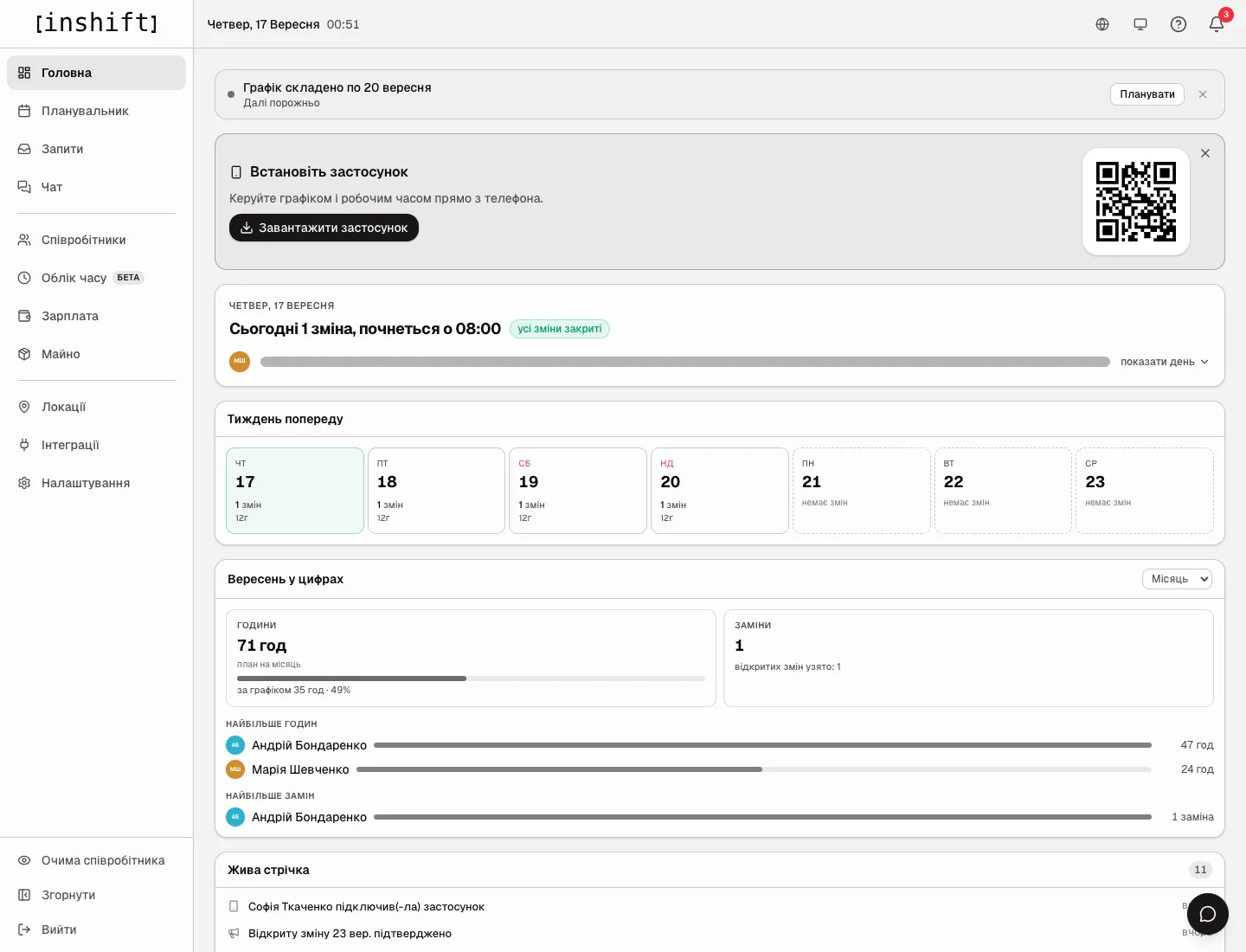
How the panel counts it
For every location the panel takes the last day that has a published shift. Drafts do not count: the team does not see them, so for the people the schedule does not exist yet. Empty days inside the schedule do not count either: a site that works three days a week gets no alarms for its days off.
The reminder appears when a location's schedule does not reach the end of the next seven days, counting today. So on Thursday 17 September the row appears if the schedule is filled through 22 September or earlier, and disappears as soon as you publish shifts for 23 September.
A location that has had no published shift in the last week is left out of the reminder: the panel treats it as not in operation.
If there are several locations and their schedules end on different days, the row is called “Locations where the schedule ends: 2”, and under it each site is a separate link: “Cosy Corner on Podil until 20 September”. The link opens that site's planner on the first day without a schedule. If all locations' schedules end on the same day, the row simply says the date. A location manager sees only their own sites.
Step by step
- On the dashboard click “Plan” in the reminder row. The planner opens on the first day without a schedule.
- In the planner, above the grid, there is the row “Schedule runs through 20 September, nothing after”. Cells beyond the end of the schedule are hatched, so an empty day meaning “nobody works” is not confused with an empty day meaning “not built yet”.
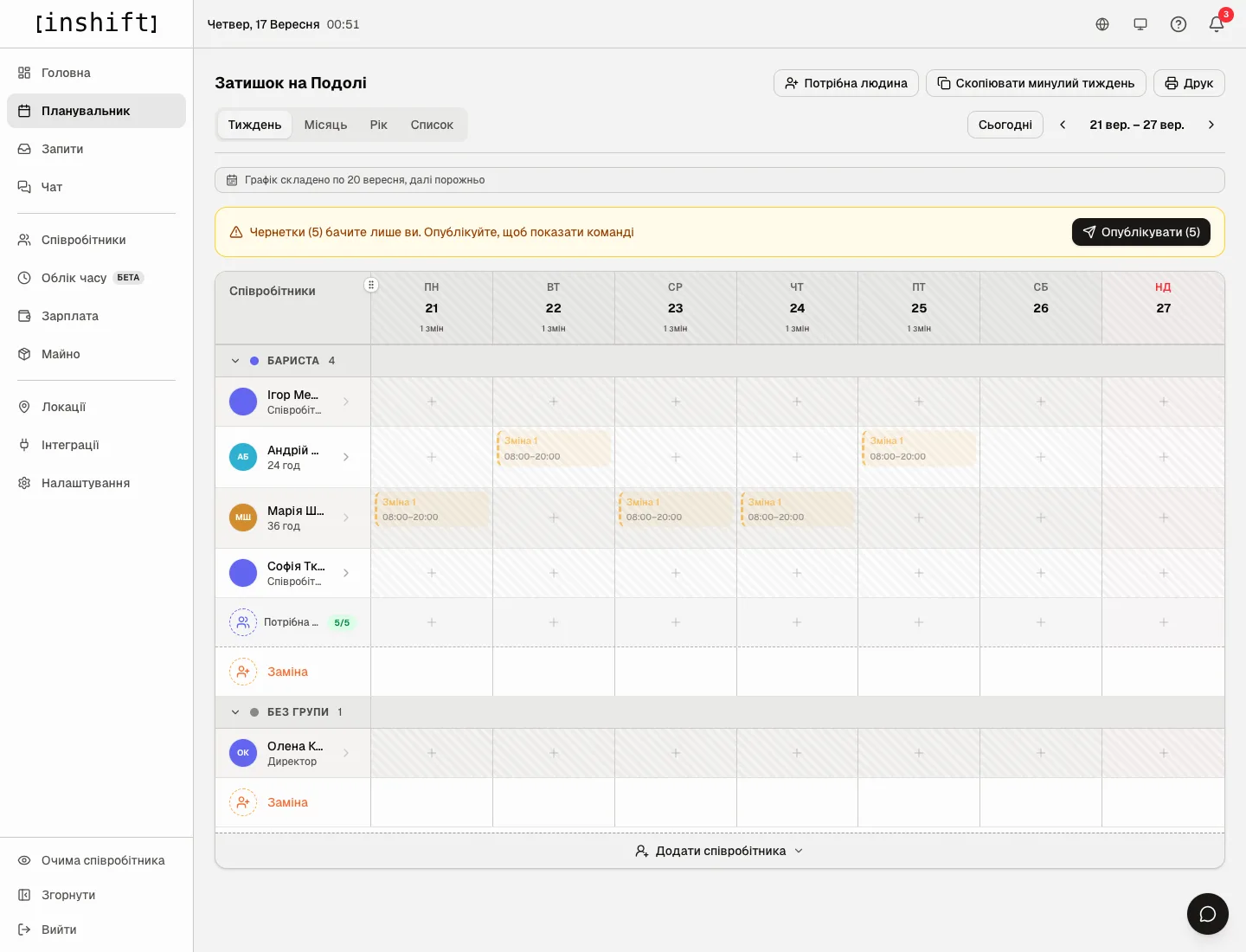
The planner on a week without a schedule: the row above the grid and hatched cells - Build the week: copy the previous one with the “Copy last week” button or place shifts from the cell menus, articles Copy a week and Shifts: add, edit, move, delete.
- Click “Publish”. The hatching disappears, the row on the dashboard updates or disappears, and the team gets a notification about the new shifts.
If there are several locations, open the location switch at the top of the planner: next to the name of every site whose schedule ends this week there is an “until 20.09” badge. That way you see all sites at once without opening each.
In the manager's app
On “Home” in the app there is the same row as in the panel. If there is one location, it opens the planner on the first day without a schedule. If there are several sites, the “Where the schedule ends” screen opens with the list “These locations need scheduling further out” and a date next to each. When everything is built, the screen says “Schedule is complete everywhere” and “No location runs out this week”.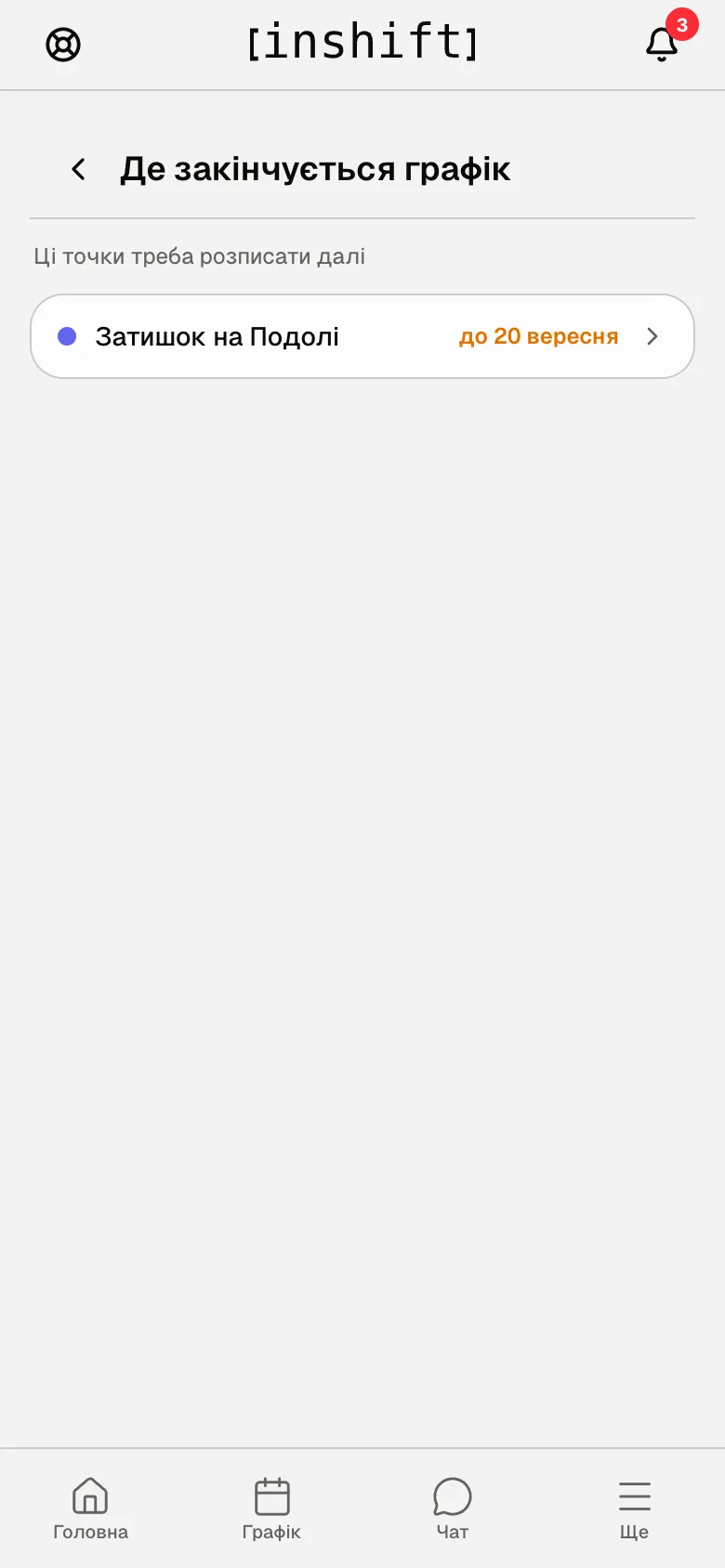
Why an action is unavailable
There is no row on the dashboard although the schedule is about to end: the schedule is built further than a week ahead, or the location is not in operation, that is it has had no published shift in the last week.
The row says “No schedule for this week”: no location has published shifts from today onwards. Build and publish the schedule.
You published the schedule and the row stayed: check that the shifts were published in this location and not another, and that they are not drafts. The yellow row “Drafts (N) are visible only to you” means there has been no publication yet.
The row disappeared after clicking “Dismiss”: the cross hides the row in this browser until there are more sites without a schedule. When the schedule is built and then ends again, the row comes back.
There is no row in the app: you do not have a role with panel access, so there is no manager section in the app either.
Questions and answers
Will I get a phone notification that the schedule is ending?
No. It is not an urgent event, and it is not part of the manager's morning digest. The row is visible on the dashboard and in the planner every time you open them.
How far ahead should I build the schedule?
Far enough for the row not to appear: at least a week ahead of today. A comfortable rhythm is to copy last week every week, adjust and publish.
Does the team see that the schedule is ending?
The team sees empty days in the app after the last published shift. The reminder exists only for you.
A location is closed for renovation, and the row about it stays. What do I do?
A week after the last published shift the panel stops treating it as in operation, and the row disappears by itself. If the location is closed for good, close it in “Locations”: a closed site is left out of the reminder.