A substitute in the planner is a person working away from their own site: a barista from Pechersk covers a shift on Podil because the barista there is ill. A person from another location is put on the schedule through the “Substitute” row under the position group, and from then on they live in the grid like everyone else, only with a substitute mark.
This is not the same as a swap between employees, where one gives their shift to another from the app. That is covered in Swaps: how to approve or reject. This article is about the manager's decision: who from another site to put on your schedule.
Substitutes can be placed by anyone with the right to edit this location's schedule.
Where to find it
“Planner” → location → the “Week” or “Month” view → the “Substitute” row with an orange icon under the position group. The “No group” group has the same row without a position restriction.
In the employee card, the “Location” block: the “Available for substitution” switch opens a person up for substitutions in other locations.
Step by step
- Open the schedule of the location that is short of a person and click the “Substitute” row under the group you need, for example under “Barista”.
- The “Substitute · Barista” window opens with a list of people from other locations who can work as a barista, grouped by position. Under each name is their primary location.
Below is the “Unavailable” list: people who are held back by something, with the reason in grey under the name. “substitutions not enabled” means the person is not open for substitutions in other locations. “no “Barista” position” means they have another position and barista is not in their “Can cover”. The “Allow” button next to it fixes that at once: it turns on “Available for substitution” for the person or adds the position to “Can cover”. “Now available for substitutions: Taras Lysenko” appears at the bottom, and the person moves to the list at the top.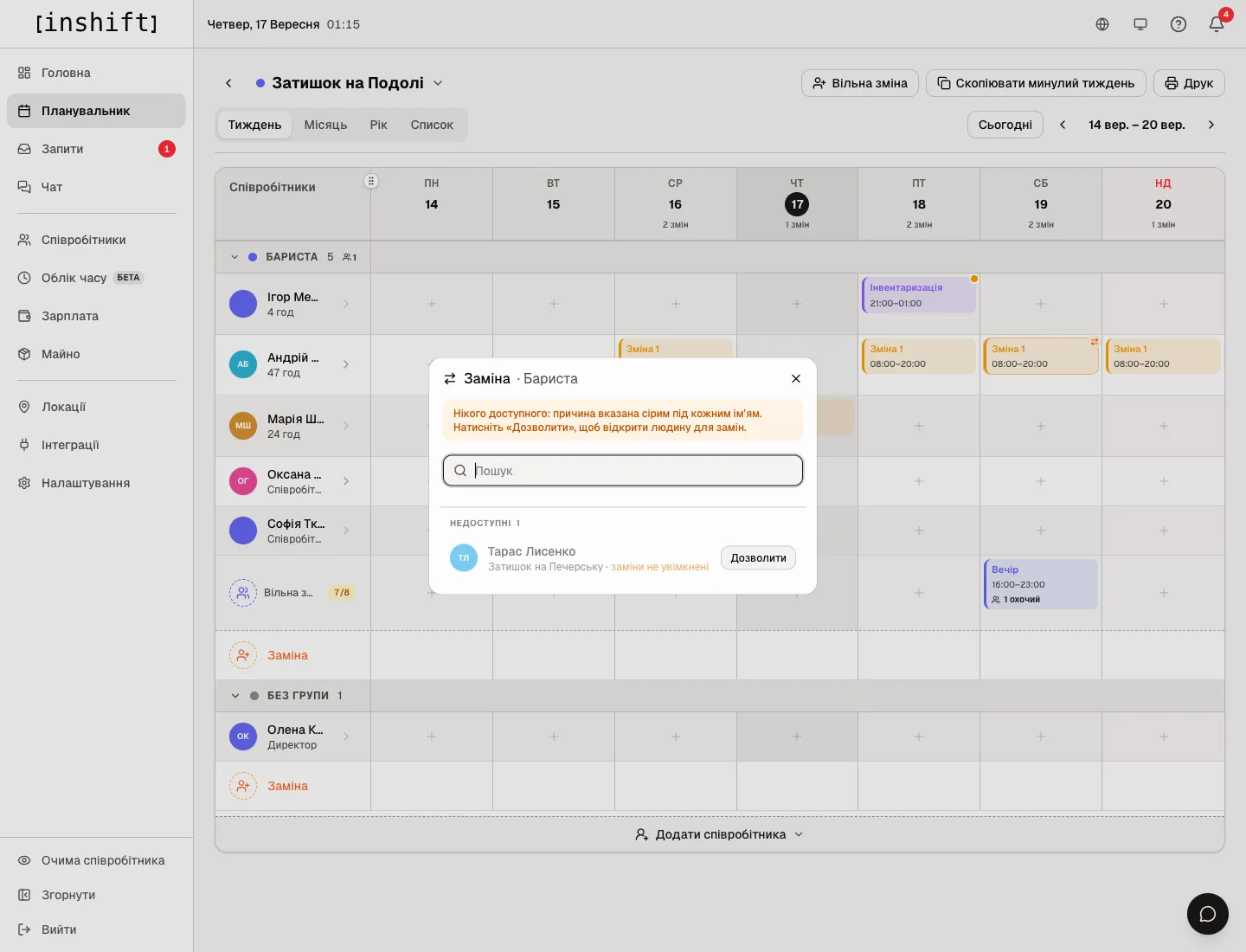
The “Substitute · Barista” window: the “Unavailable” list with the reason “substitutions not enabled” and the “Allow” button 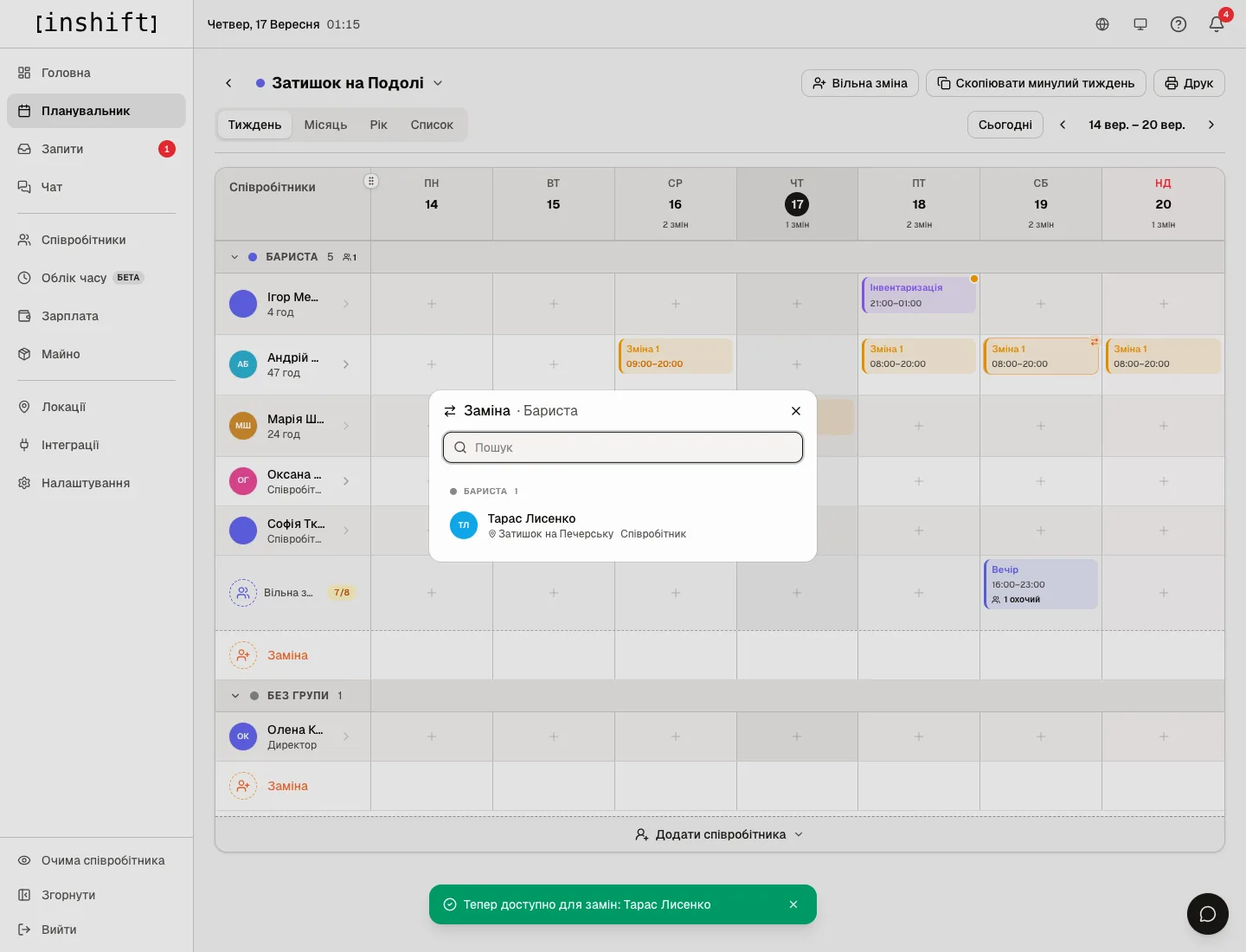
The same window after “Allow”: the person in the available list with the name of their primary location - Click the person. Their row appears in the grid under the group with an orange arrows icon next to the name and a cross on the right. The cross hides the row if you change your mind: it does not touch shifts.
- Click a cell in their row and pick a shift type as usual. The shift becomes a draft with an orange circle with arrows in the corner of the card: that is the substitute mark. In the group heading, next to the number of people, an orange substitutes counter appears.
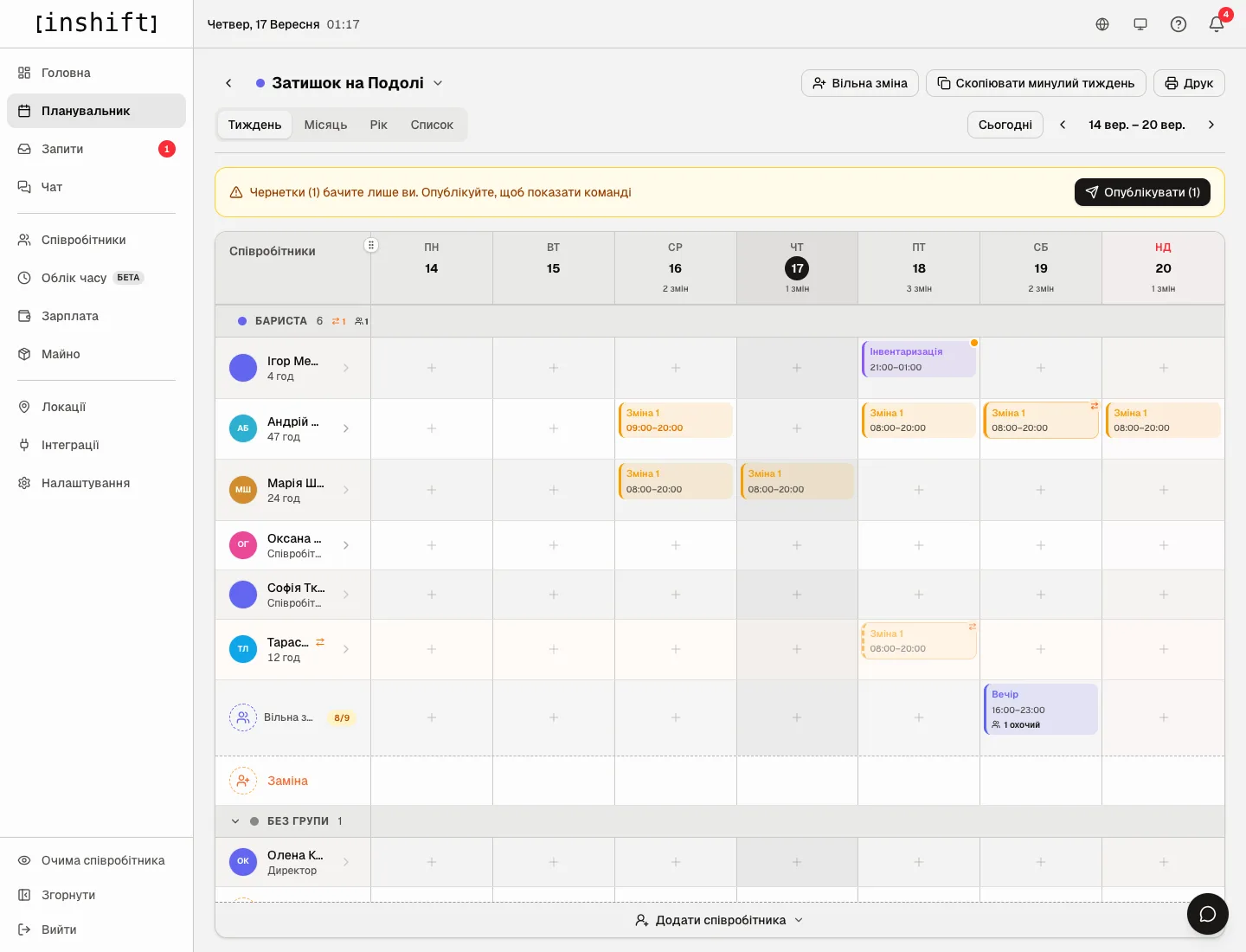
A week with a substitute row: a person from another location and their shift with the substitute mark - Click “Publish”. The person gets a “You are covering a shift” notification with the date, time and location name, and the shift appears in their app with your site's name.
Once the person has at least one shift in this location, their row stays in the grid on its own, without the cross: it can be removed only by deleting the shifts.
How it looks in their own location
Open the schedule of the person's primary location: that day their row holds the same card with an orange border and your location's name, for example “Cosy Corner on Podil”. That way the manager of their site sees that the person is busy and will not put them on their own shift at the same time: the planner will not allow it, and the message will be “Time conflict”.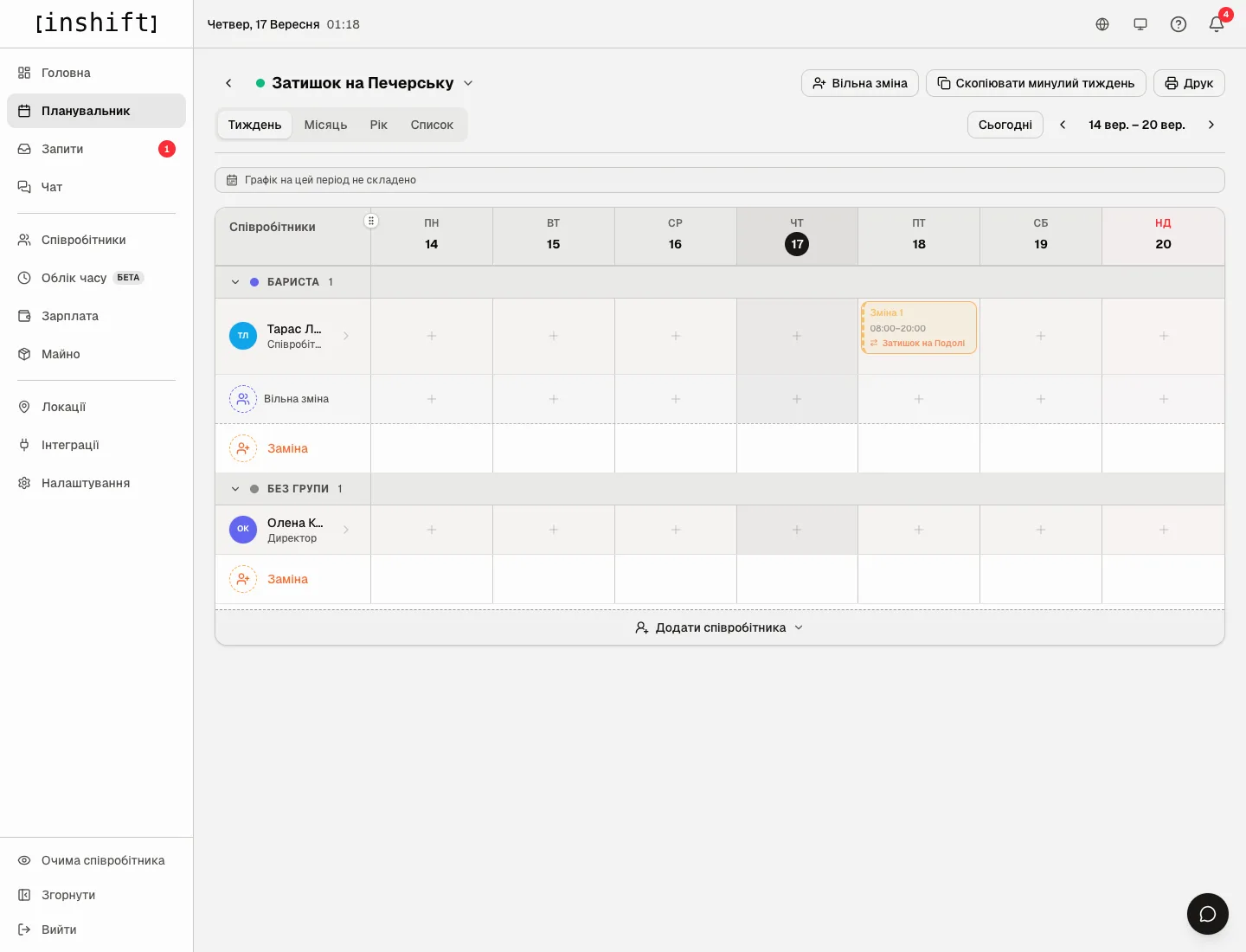
Who gets on the list
A person gets on the substitute list when all of this holds: they are in the schedule, that is without the “Not scheduled” switch, their primary location is different, and at the same time this location is in their card as an additional one, or “Available for substitution” is on for them, or they have “All locations”. For the row under a position group the position has to match too: primary or from the “Can cover” block.
Dismissed people are not on the list and “Allow” does not work for them: reinstatement lives in the card.
Why an action is unavailable
There is no “Substitute” row: your role does not have the right to edit this location's schedule.
The window says “No other employees, everyone is already on this rota.” with an “Add Employee” button: the organisation has one location or everyone is already in this grid. A substitute from another location is possible only when there is another location with people.
The list at the top is empty, there is only “Unavailable”: nobody from other locations is open for substitutions here. Click “Allow” next to the person you need.
The person is not even in “Unavailable”: “Not scheduled” is on in their card, or they are dismissed, or their primary location is this very one.
The person is on the list but the shift cannot be placed, the message is “Time conflict: already working 09:00–21:00 (Shift 1)”: they have a shift at their own site at that time. Pick a different time or a different person.
Questions and answers
Does the person see that this is a substitution?
Yes: the notification is called “You are covering a shift”, and in the app the shift shows the name of a location that is not their primary one.
Can a substitute be placed for several days?
Yes, the row stays in the grid until you hide it: place shifts on the days you need one by one.
Whose rate is the substitution paid at?
The person's own pay terms. If they are on “Shift price”, the price is taken from the shift type of the location where they worked.
How do I make it possible to always put a person in another location?
In their card, in the “Location” block, add this location to “Also works at other locations” or turn on “Available for substitution”. Then they are in the list at the top straight away.