An open shift is an empty slot in the schedule that you have offered to the team: eligible people see it in the app, apply with “I want it”, and you choose who gets it. That is how gaps are closed when someone is ill, or extra hours are handed to those who want to earn more, without ringing everyone one by one.
Without this, empty slots still exist in the schedule: the “Someone needed” row shows who is missing, and you close them yourself. Open shifts add applications from the team on top. The decision is always yours: the shift goes to whoever you choose, not to whoever clicked first.
Only the owner and co-owners can enable open shifts. Offering shifts to the team and choosing people is available to anyone with the right to edit the location's schedule.
Where to find it
Enable: “Requests” → “Settings” at the top right → the “Request rules” page → the “Open shifts” block → “Requests, manager picks” → “Save”.
Create: “Planner” → the “Open shift” button at the top right, or the “Open shift” row under the position group, or the “Open shift” item in the cell menu.
Applications: “Requests” → the “Open shifts” tab, article Open shift applications.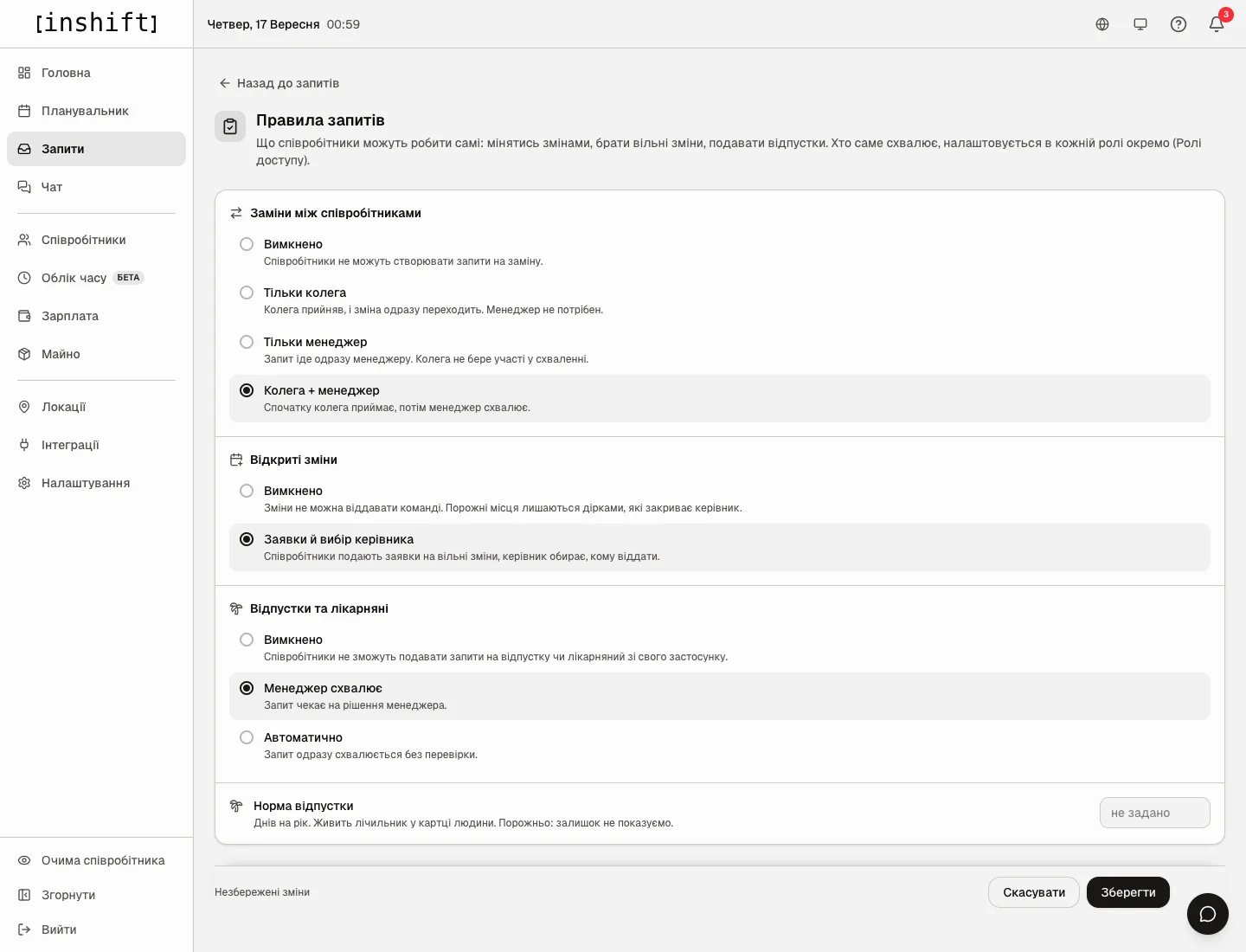
Step by step: enable
- In the menu on the left click “Requests”, then “Settings” at the top right.
- In the “Open shifts” block choose “Requests, manager picks”. While “Off” is selected, shifts cannot be offered to the team: empty slots stay gaps for the manager to fill.
- Click “Save” at the bottom. In the planner the “Someone needed” button and the row under the groups are renamed to “Open shift”, and in the team's app the “Open shifts” button appears on the home screen and the “Open” tab in requests.
Step by step: offer a shift to the team
- In the planner click “Open shift” at the top right. The “Open shift for the team” window opens.
- “Position”: who you are looking for, for example “Barista”. Only people with this position, primary or from the “Can cover” block, see the shift. “Any position” means everyone who works at this location sees it.
- “Shift type”: for example “Evening · 16:00–23:00”. The time comes from the type.
- “Days”: click one or several days. The arrows flip to another week, and the chosen days stay in the list under the buttons.
- “Offer to the team”: leave it on. If you turn it off, a regular empty slot without applications is created.
- “How many people needed”: how many slots to create on each chosen day.
- Click “Create · 1”. “Created 1 shifts” appears at the bottom, and the “Open shift” row gets a card saying “Visible after publishing”.
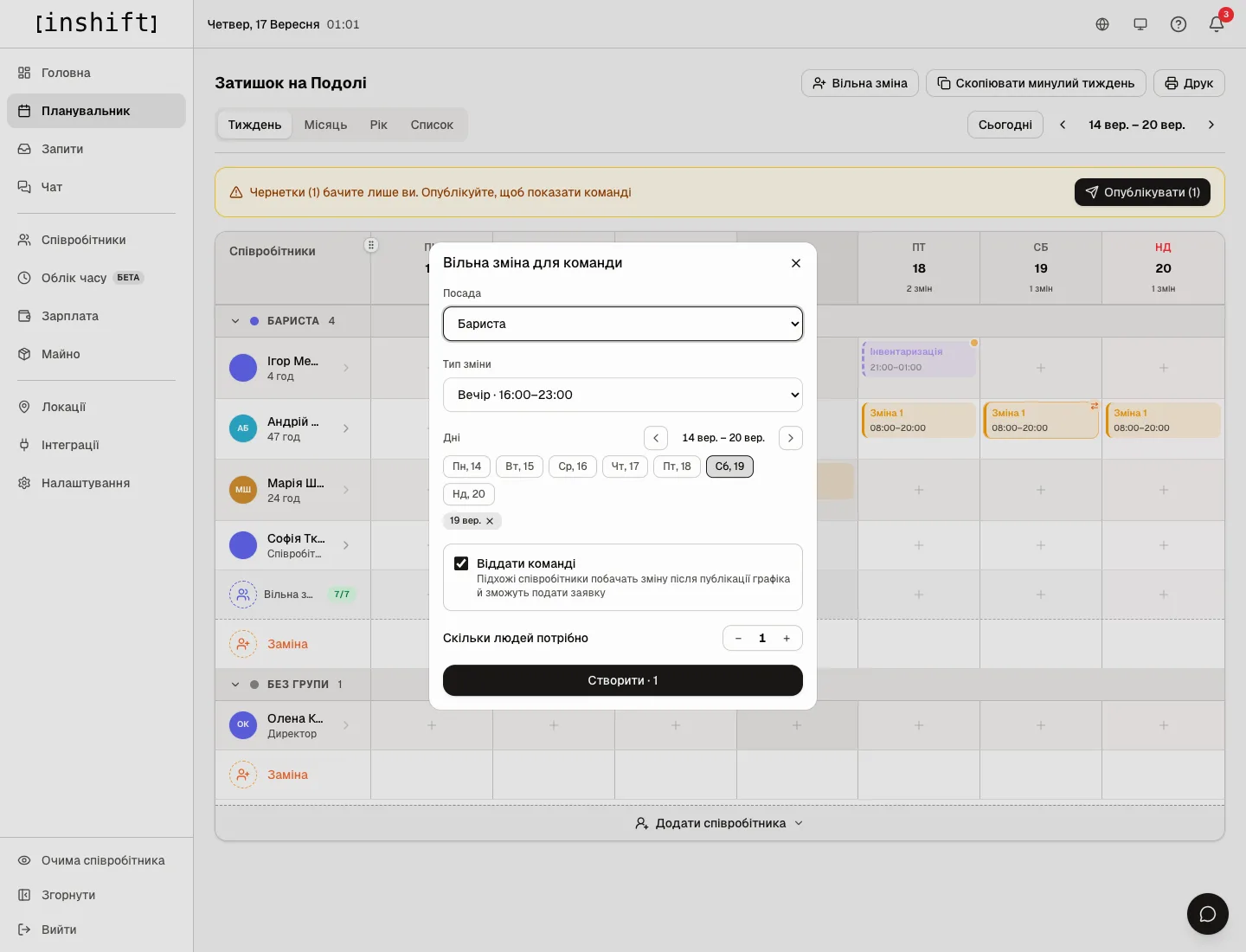
The “Open shift for the team” window: the position “Barista”, the type “Evening”, Saturday chosen, “Offer to the team” on - Click “Publish” in the yellow row. Only after publishing does the team see the shift: eligible people get a “New open shift” notification, and the card changes to “Offered to the team”.
A faster way for a single day: click the cell in the “Open shift” row under the group you need and pick a type. Or in a person's cell menu click “Open shift” and pick a type: the shift lands in the “Open shift” row of their position, and “Placed in the “Open shift · Barista” row” appears at the bottom.
An empty slot that already exists can be offered to the team too: click its card and in the “Who covers this shift?” window click “Offer to the team”.
Who sees the shift
The shift is seen in the app by a person whose position matches, who works at this location, that is it is their primary or additional location, or who has “Available for substitution” on, who is in the schedule, and who has no shift of their own at the same time. Nobody sees a draft: publishing comes first. A shift that has already started is not offered either.
A location manager who does not see the shift in the app sees it in the panel as a regular empty slot.
Step by step: choose a person
- When someone applies, you get a “Someone wants this shift” notification, a counter appears on “Requests”, and the card in the grid shows “1 volunteer”.
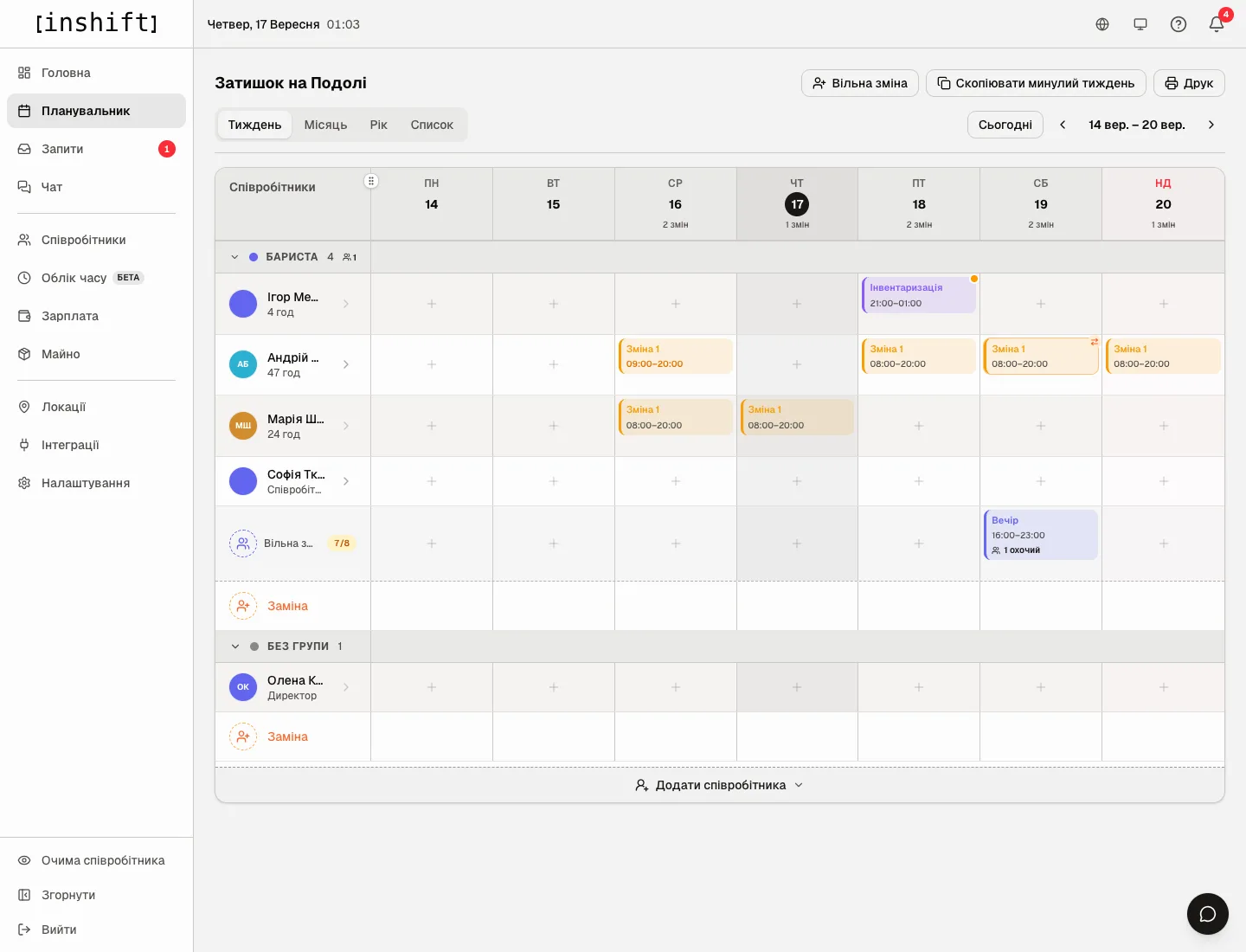
A week with an open shift in the “Open shift” row: the card “Evening 16:00–23:00, 1 volunteer” - Open “Requests” → “Open shifts”. Under the shift is the list of applicants with their position and comment, and “Approve” and “Reject” next to each. Only one can be chosen: as soon as you approve an application, the shift becomes theirs, and the other applicants get “The shift went to someone else”. Details in Open shift applications.
- The chosen person gets a “The shift is yours” notification, and the shift appears in their schedule and in their row in the grid.
You do not have to wait for applications; you can assign a person yourself: click the shift card in the grid and in the “Who covers this shift?” window click a name. People busy at that time are grey in the list, with the time of their shift. Applications for this shift are then closed.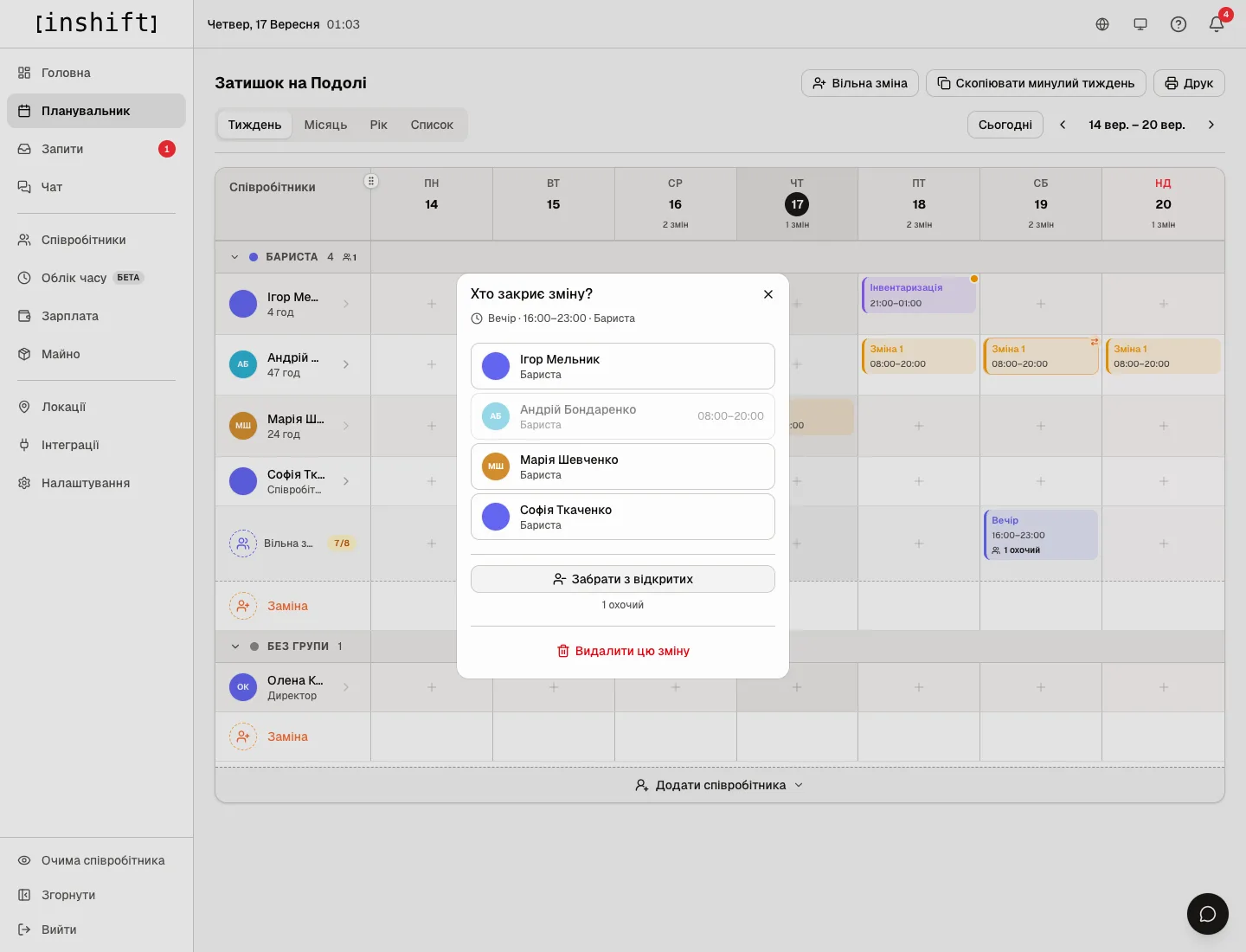
The “Who covers this shift?” window: the list of eligible people, “Stop offering”, “1 volunteer”, “Delete this shift”
Take back or delete
Click the shift card and in the “Who covers this shift?” window click “Stop offering”: the shift stays in the schedule as an empty slot and disappears from the app. Those who applied get “The open shift is gone”.
“Delete this shift” removes the slot altogether.
Why an action is unavailable
In the planner the button is called “Someone needed” rather than “Open shift”: open shifts are off. Enable them in “Request rules”.
In “Request rules” the “Open shifts” block cannot be changed: only the owner and co-owners can change the rules.
The “Open shift for the team” window says “Add shift types to the location first.”: the location has no shift types, article Create a location and shift types.
The card says “Visible after publishing”: the shift is still a draft. Click “Publish”.
Nobody sees the shift although it is published: check the shift's position and whether eligible people work at this location. A cook does not see a shift with the “Barista” position, and a barista from another location sees it only when this location is in their card or “Available for substitution” is on for them.
The “Who covers this shift?” window says “No eligible people”: nobody with this position at the location is in the schedule.
A person says they tapped “I want it” and nothing happened: the application is waiting for your decision. Look at “Requests” → “Open shifts”.
Questions and answers
Can a person take a shift without my decision?
No. There is no “first come, first served” mode: applications are gathered, and you choose.
Do other applicants see an application?
No, everyone sees only the number of applicants, for example “2 volunteers”.
What happens to the shift if nobody applies?
It stays an empty slot in the “Open shift” row. Assign a person yourself through “Who covers this shift?”.
Can I offer the team a shift a person already has?
No, only empty slots are offered. If a person cannot make it, they ask for cover from their app, article Swaps: how to approve or reject.
Are open shifts copied along with the week?
They are copied as regular empty slots: after copying, offer them to the team again.