A location is your site: a café, a shop, a warehouse, an office. Each location has its own schedule and its own people. If you have one site, you have one location, and that is fine.
A shift type is a template of working hours, for example “Morning 08:00–16:00” or “Evening 16:00–23:00”. You create it once, and then in the schedule you simply put a person on “Morning” without typing the hours every time. Without a single shift type the schedule stays empty: there is nothing to choose in the cells.
Shift types live inside a location and are grouped by position: the “Barista” card holds the barista's shifts, the “Cook” card the cook's. In the planner a person is offered every shift type of the location, so the grouping is the order on the page, not a restriction. The setup order is: first the location, then a position in it, then the shift types.
Locations can be created by the owner, co-owners and anyone whose role has the “Manage locations” right.
Where to find it
The “Locations” menu → the “Add Location” button at the top right. If there are no locations yet, there is a big “Create location” button in the middle of the screen.
Positions and shift types are added inside a location: click the location's row in the list.
Step by step: create a location
- In the menu on the left, click “Locations”.
If this is the first location, you will see “Add your first location” and the “Create location” button. Click it.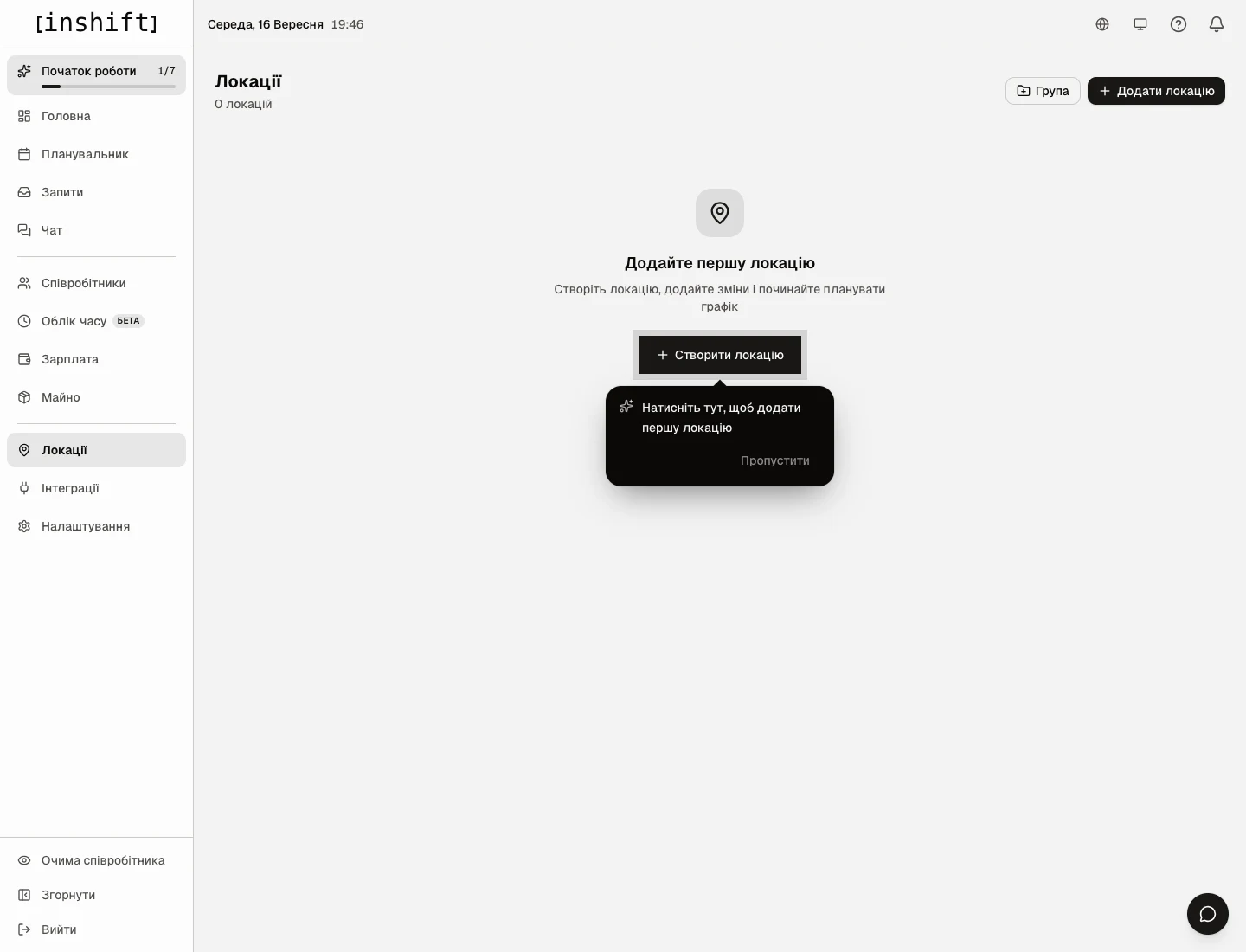
The “Locations” section with no sites yet: the “Create location” button and a hint - Fill in the “Add Location” form.
“Name”: what the site is called, for example “Cosy Corner on High Street”. The team will see this name in the app above their schedule.
“Address”: optional. It is shown to employees, which is handy when you have several sites.
“Colour”: pick a circle. The location is marked with this colour in the schedule and on the dashboard. With a single site the colour does not matter.
“Group”: leave “No group”. Groups are for chains, to gather sites by city or by line of business.
Click “Create location” at the top right.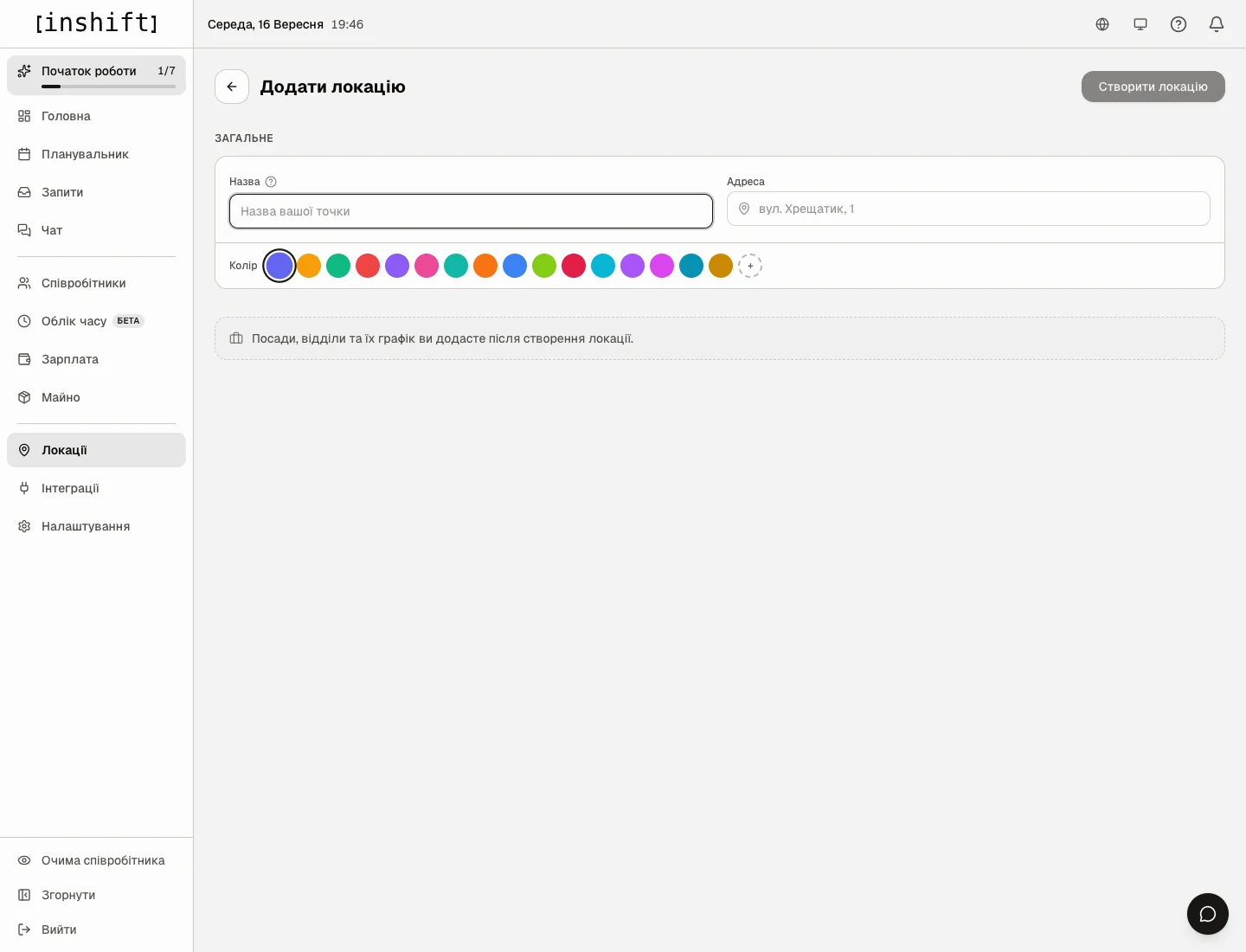
The “Add Location” form: name, address and colour picker - You return to the list of locations. A green message appears at the bottom: “Location created, open it to add positions and the schedule”. Click the row of the new location.
Step by step: a position and shift types
- Inside the location, at the top, there is a “Location setup · Step 1 of 3” card titled “Add a position”. Click “Add position” in it.
The same button is also in the top right corner of the page; you will need it later, when there are more positions.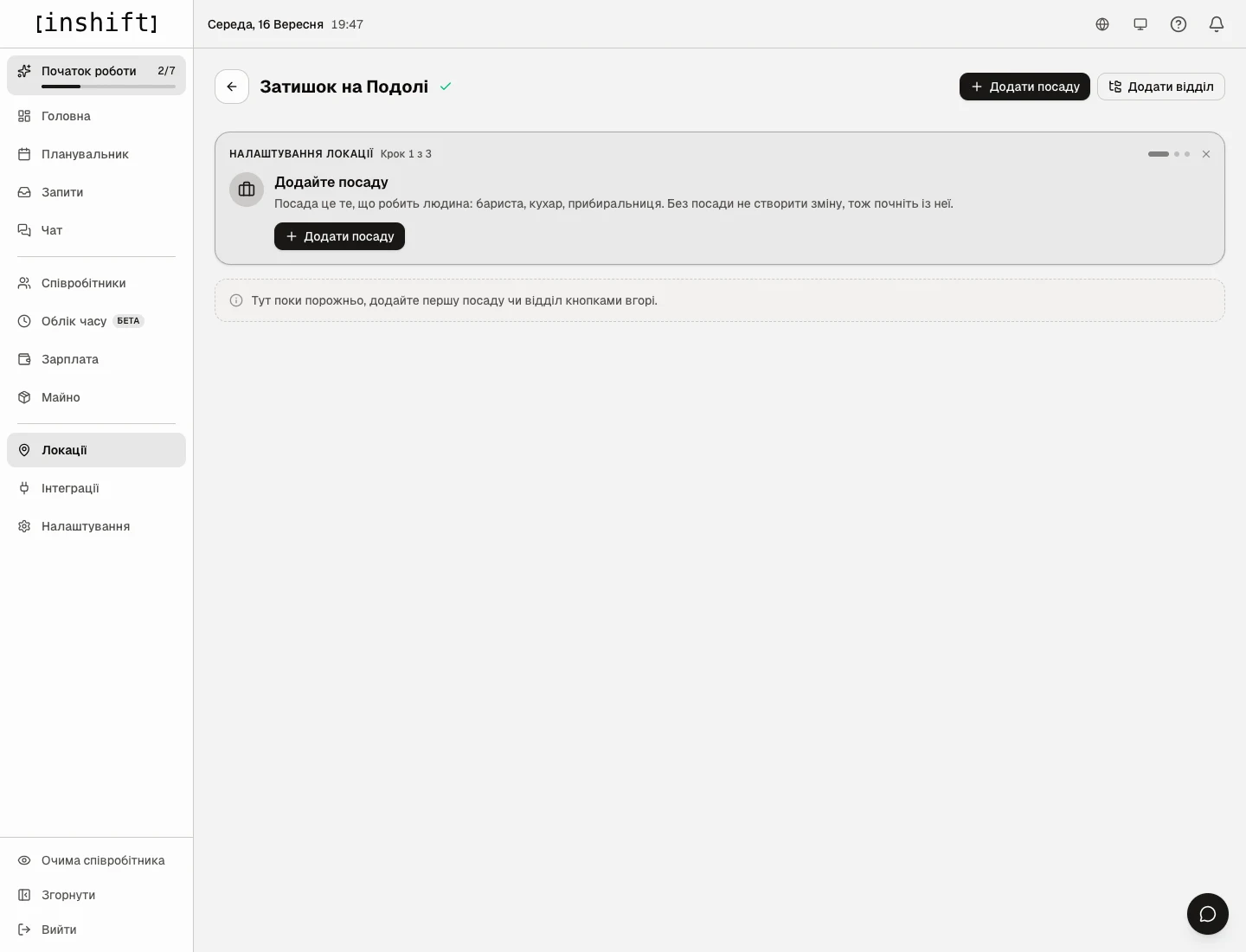
The location page right after creation: the “Location setup” card, step 1 “Add a position” - The “New position” block opens. In the “Name” field write what the person does: “Barista”, “Cook”, “Cashier”. Pick a colour if you like and click “Add position” at the bottom of the block.
A position is a person's job, not their rights. What someone can do in the app is set separately, in the employee card.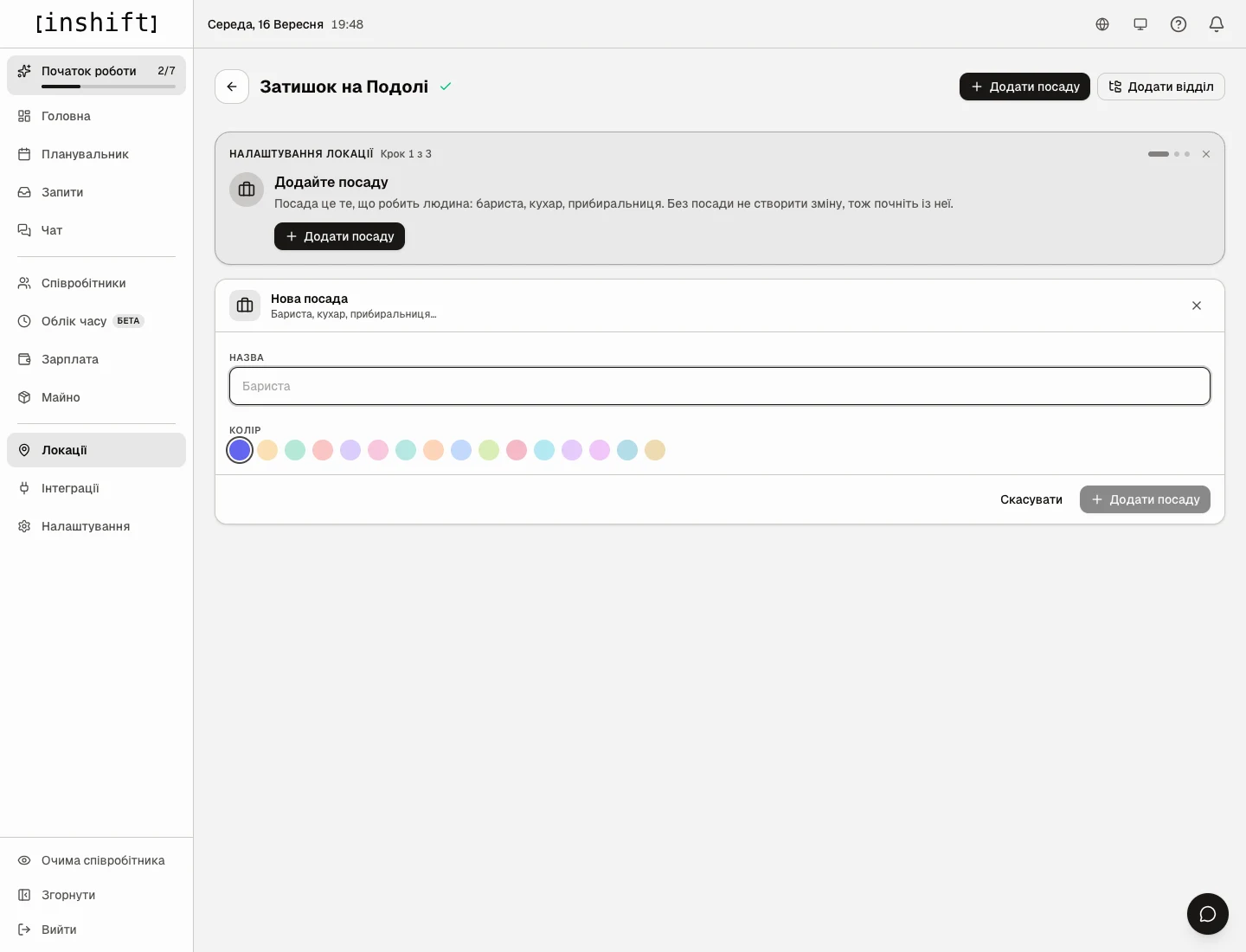
The “New position” block with a name field and a colour picker - The position appears on the page as a “Barista” card, and the setup card moves on to “Step 2 of 3: Add a shift”. Inside the position card there is “No shifts for this position yet” and an “Add shift type” button. Click it.
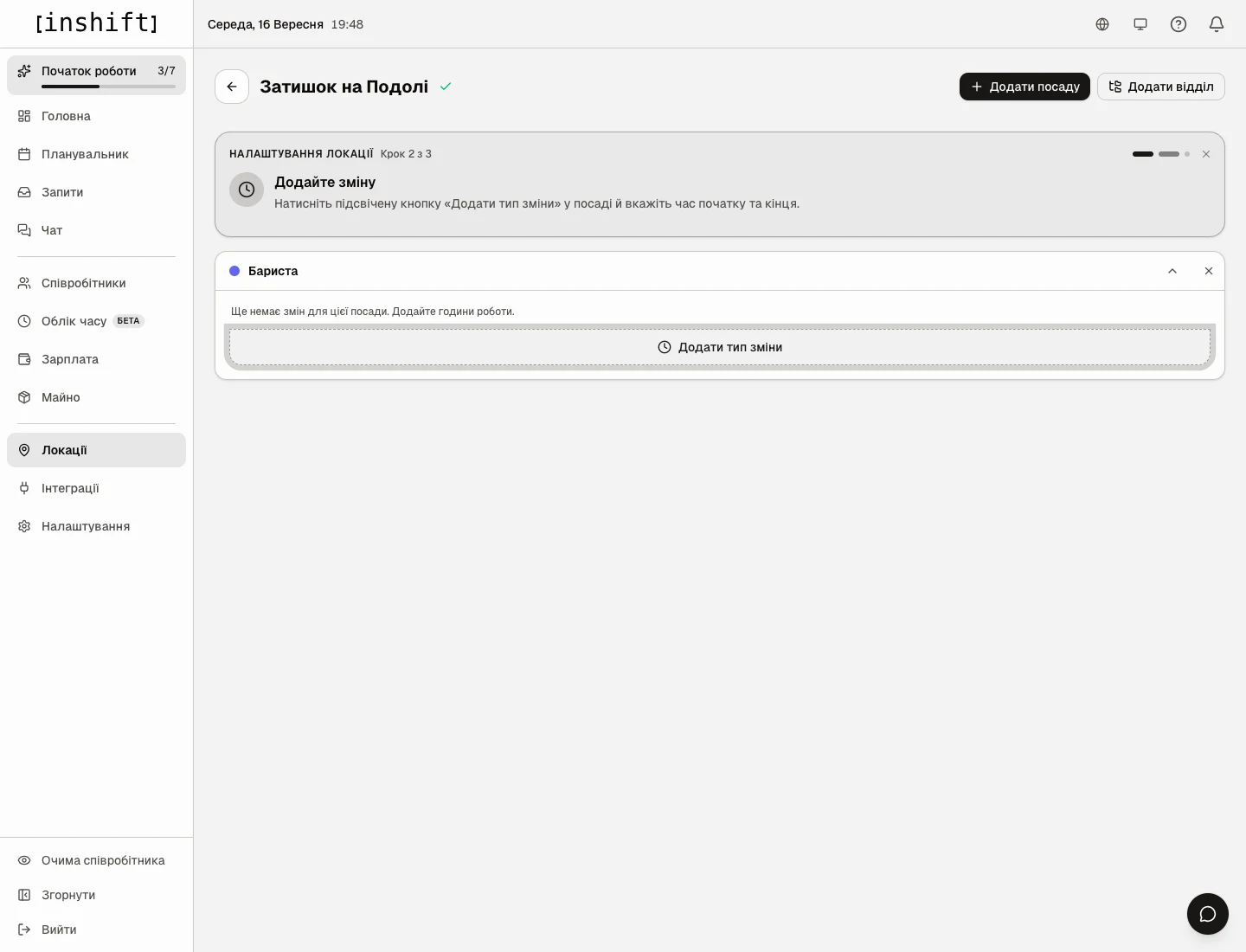
The “Barista” position card with no shifts and the highlighted “Add shift type” button - A row for the new shift type appears. Fill it in.
The “Type name (morning, evening)…” field: write “Morning”. If you leave the name empty, the type is called “Shift 1”.
“Days”: seven buttons from “Mon” to “Sun”. Filled-in days mean this shift happens on those days. Click a day to turn it on or off. For a café that is open every day, leave all seven.
“Time”: start and end, for example 08:00 and 16:00. Click the time field and pick the hour.
“Set price”: the dotted button on the right shows what one such shift is worth if you pay per shift rather than per hour. You do not enter the price here: the button leads to “Payroll”, the “Pay” tab, the “Shifts” toggle, where the prices of all shift types are set on one screen. At the start you can skip this. Only someone with access to payroll sees the button.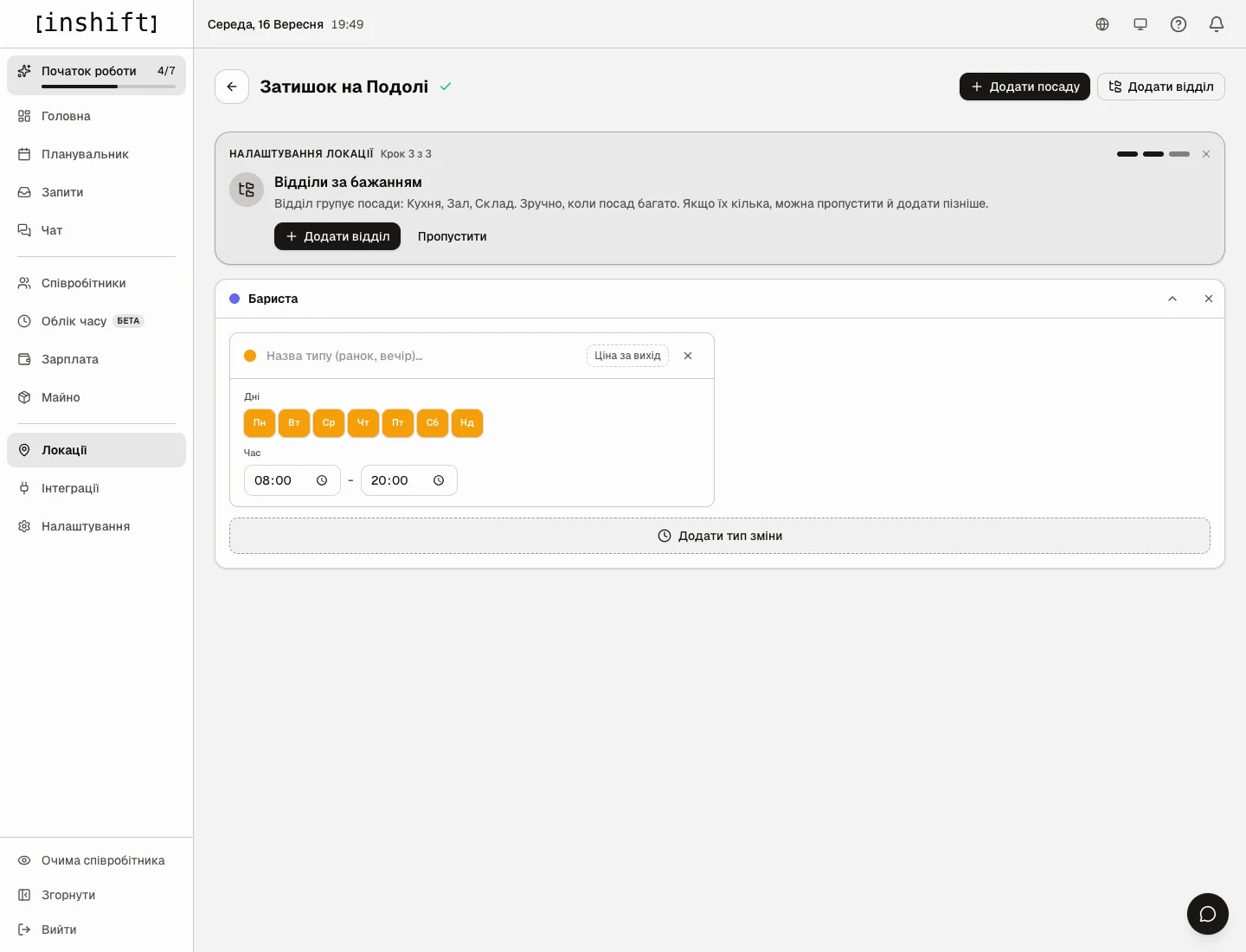
A shift type row: name, days of the week, start and end time, the “Set price” button - There is no separate “Save” button here: everything you change is saved by itself. Next to the location name at the top there is a green tick when everything is saved, and “Saving…” while it is being saved.
- Add the second shift type with the same “Add shift type” button: “Evening”, 16:00–23:00. Two types are enough to start with; add the rest when you need them.
If the shift has different hours on different days, for example shorter on Sunday, click “+ different time for other days” in the type's row and set the days and time separately. - The setup card moves on to “Step 3 of 3: Departments (optional)”. A department is a folder for positions: “Kitchen”, “Floor”, “Storage”. You need it when there are many positions. For now click “Skip”: departments can be added at any time with the “Add department” button.
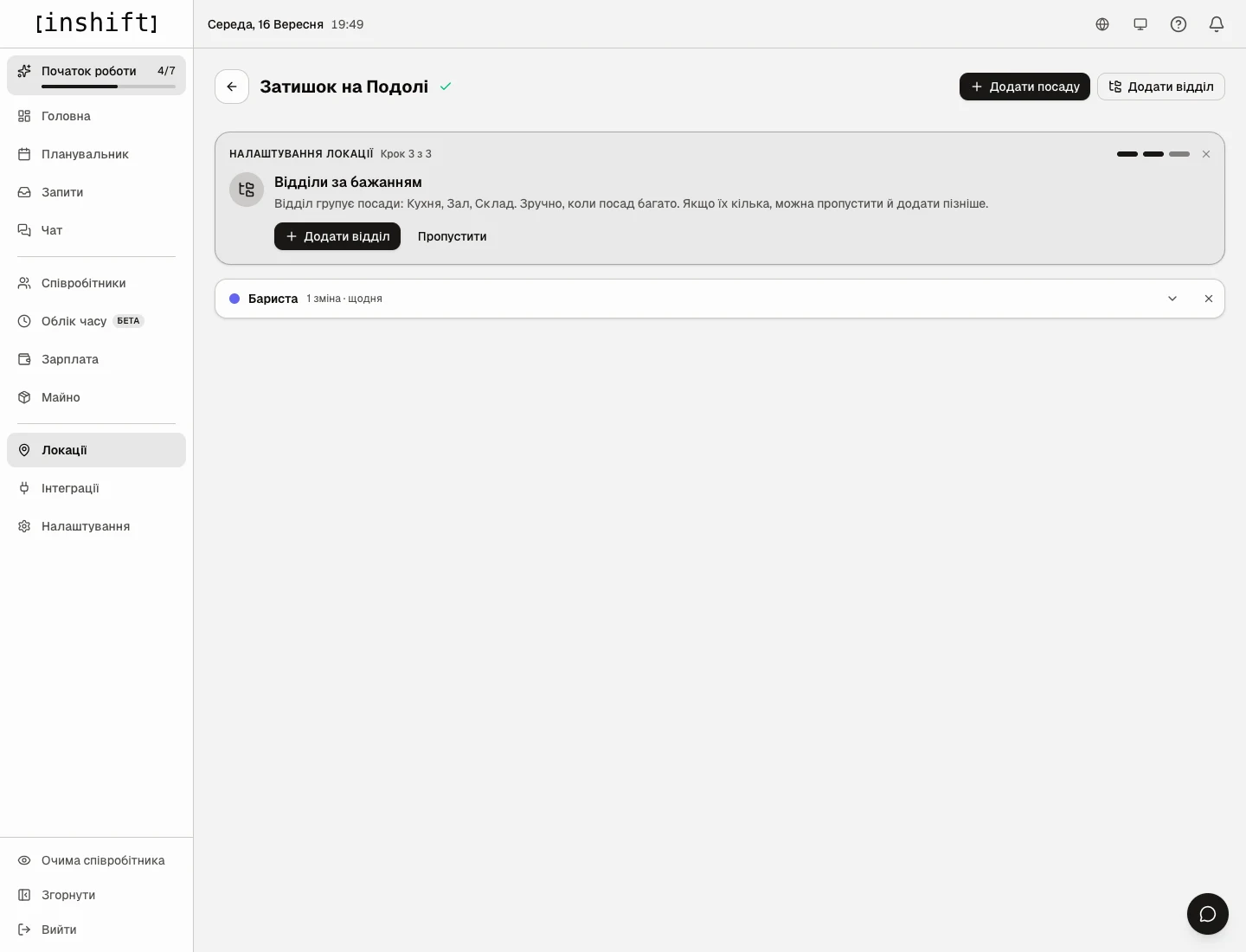
The location with the “Barista” position and one shift, step 3 “Departments (optional)”
The location is ready: it has a position and shift types. The next step is to add people, article Add employees and invite them with a code.
How to change or delete
The location's name, address and colour are changed in the “Locations” list: hover over the location's row and click the pencil icon. The bin icon there closes the site: it disappears from lists and the schedule, while the shift history and payroll data stay.
A shift type is changed inside the location: click the position card to expand it and edit the name, days or time. The “Remove” cross on the right of the row deletes the shift type. Shifts already placed in the schedule do not disappear because of it.
The “Remove” button on the position card itself takes the position off this site together with its shift types. The position itself stays in the organisation.
A position is renamed in “Employees” → the “Positions” tab.
If you have several sites, you can gather them into groups with the “Group” button in the list of locations, for example “London” and “Manchester”.
Why an action is unavailable
No “Add Location” button: your role does not have the “Manage locations” right. Ask the owner or a co-owner to add the location or to give you this right in your card, the “Access rights” tab.
No “Add shift type” button: add a position first. Shift types are added in the position card, and without a position there is nowhere to put them.
The “Create location” button is grey: the “Name” field is empty.
A cell in the schedule is empty and there is nothing to choose: this location has no shift types yet, or none of them applies on this day of the week. Go back to the location and add them, or check “Days”.
Questions and answers
I have one site. Do I need to do anything with locations?
Yes, one location has to be created: a schedule is always tied to a location. After that you can forget about it.
Can one person work at two sites and be scheduled at one of them by default?
Yes. The employee card has “Primary Location” and “Also works at other locations”: make the site where the person usually works the primary one, and add the second site under “Also works at other locations”. By default the person stands in the primary location's schedule, and in the second one they are scheduled as its own staff, without the “Substitute” row. The “Available for substitution” switch is a different thing: it is for one-off cover at another site, see Cover: put someone from another location on a shift.
Do I need a shift type for every case?
No. Types are for regular shifts. A one-off unusual shift can be placed in the schedule with “Custom shift” and its time set by hand.
What is “Set price”?
A fixed amount for one shift of this type. It is used when the person's pay term is “Shift price”. If you pay by the hour, this price is not needed: the pay term and the rate for each person are set in “Payroll”, the “Pay” tab.