For an owner or a manager, InShift starts in the admin panel: the website admin.inshift.app, opened on a computer. This is where you register your organisation and then build its schedule.
Only the person in charge registers: the owner or a manager. Employees register nothing on the website: they install the InShift app on their phone and sign in with a code you give them. That has its own article, Join your team with a code.
Registration takes about three minutes and has three screens: details about you, time and currency, and a confirmation code from your email.
Where to find it
On a computer, open admin.inshift.app/register.
Or, on inshift.app, click “Sign up” in the top right corner.
Step by step
- Open admin.inshift.app/register. You will see a page titled “Create business”.
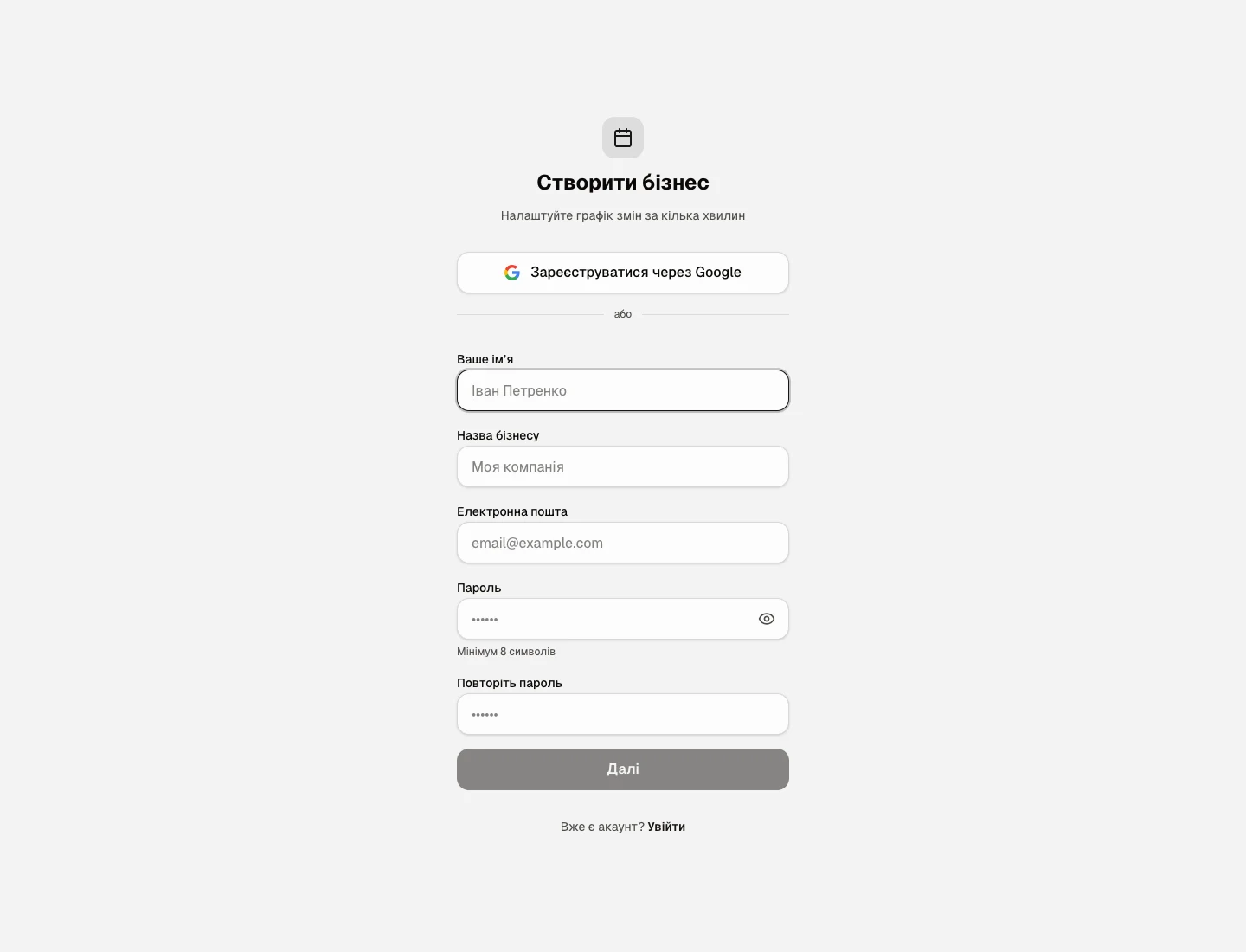
The “Create business” page: a Google button and a form with name, business name, email and password fields - Choose how to register. There are two ways, and the result is the same.
The first way: the “Sign up with Google” button. Pick your Google account, and there is no password to invent and no email code to type. Next comes the “Create your workspace” screen: fill in “Business name”, check “Timezone” and “Currency” (as in step 4) and click “Create workspace”. You land in the admin panel straight away (step 6).
The second way: fill in the form below the word “or”. That is the way described next. - Fill in the four fields of the form.
“Your name”: first and last name, the way the team will see you, for example “Jane Smith”.
“Business name”: the name of your organisation, for example “Cosy Corner Café”. The team sees it in the app. You can change it at any time in “Settings”.
“Email”: your work email. The code arrives there now, and from then on it is your sign-in login.
“Password”: at least 8 characters. Type it once more in “Confirm password” to rule out a typo.
Click “Next”. - On the “Time and currency” screen, check two fields.
“Timezone” is detected from your computer's settings, for example “London · Europe · GMT+1”. If the city is not yours, click the field and pick your own.
“Currency”: rates and pay are counted in it. For the United Kingdom it is “GBP · British pound”.
Click “Send code”.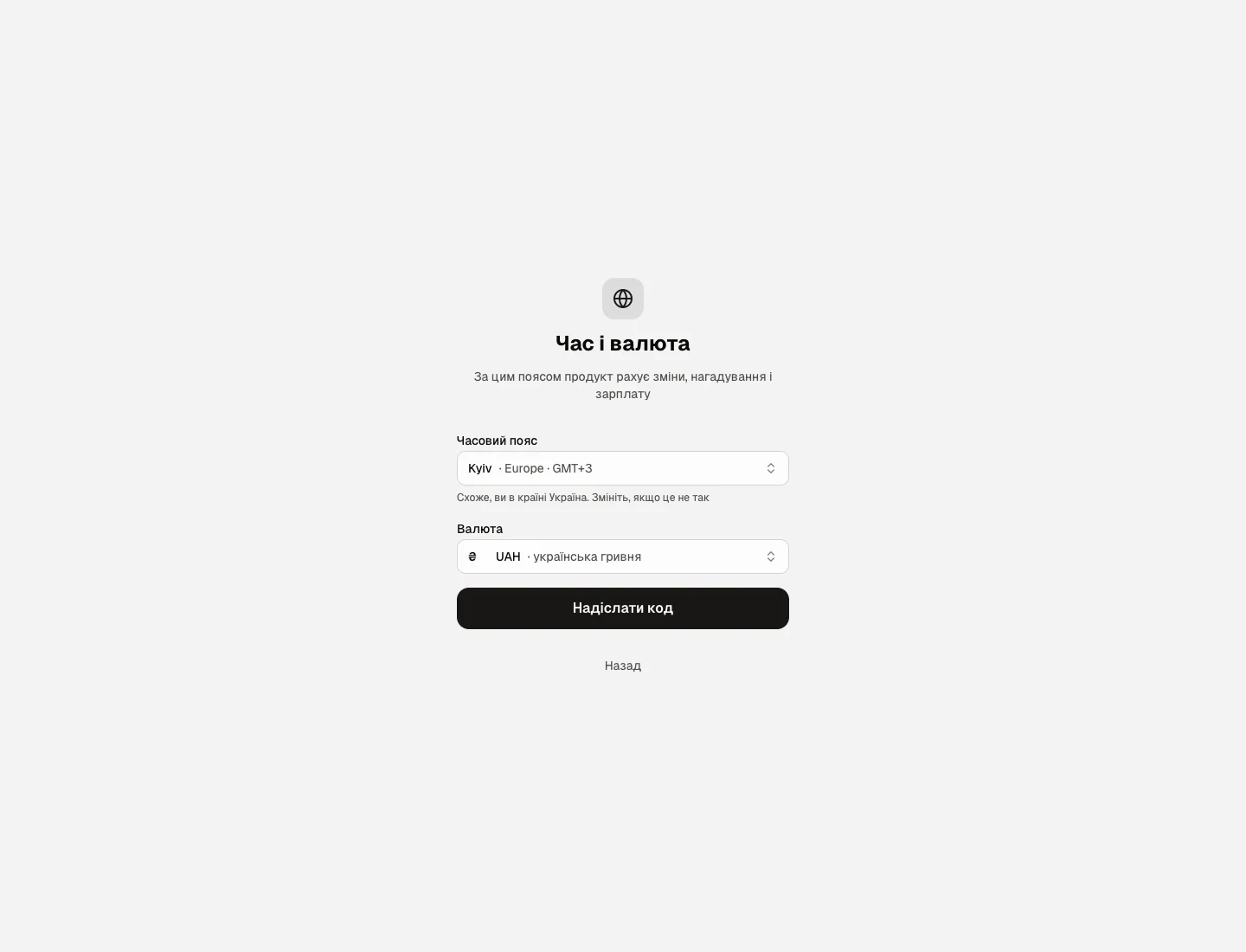
The “Time and currency” screen: timezone and currency detected automatically, the “Send code” button - Open your inbox. There is an email from InShift with a 6-digit code.
Go back to the registration page: it shows the “Verify your email” screen. Enter the code in “Verification code” and click “Verify”.
No email: wait a minute and check the spam folder. Still nothing: click “Resend code”. Typo in the address: click “Change email” and fix it.
The code is valid for 15 minutes and allows 5 attempts.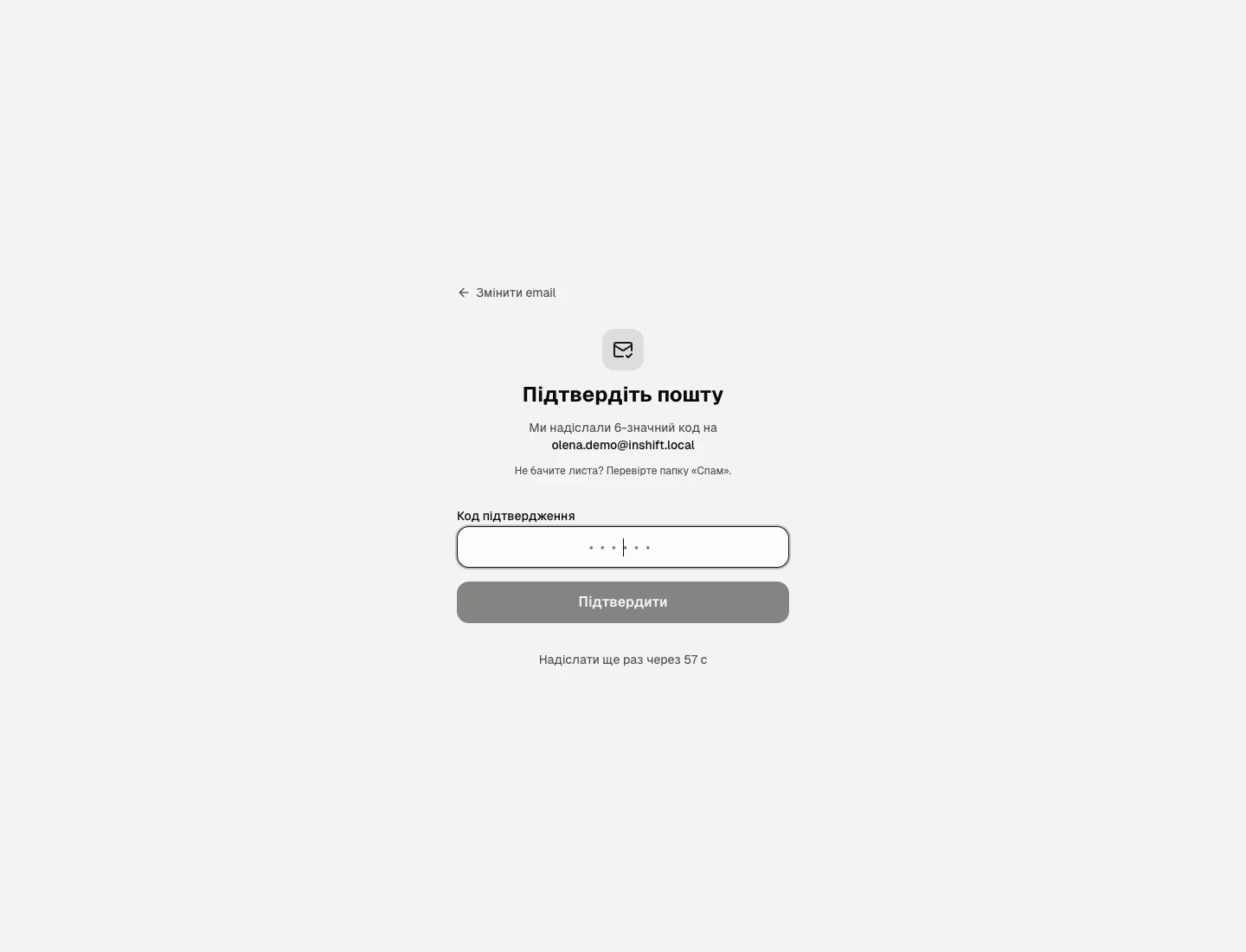
The “Verify your email” screen with a field for the 6-digit code - Done: you are in the admin panel. The section menu is on the left, with “Getting started 1/7” at its top, and in the middle there is a “Getting started” card with a “Start setup” button.
That button walks you through the rest step by step: location, shift types, positions, employees, schedule, publishing. The same steps are described in the next articles of this section.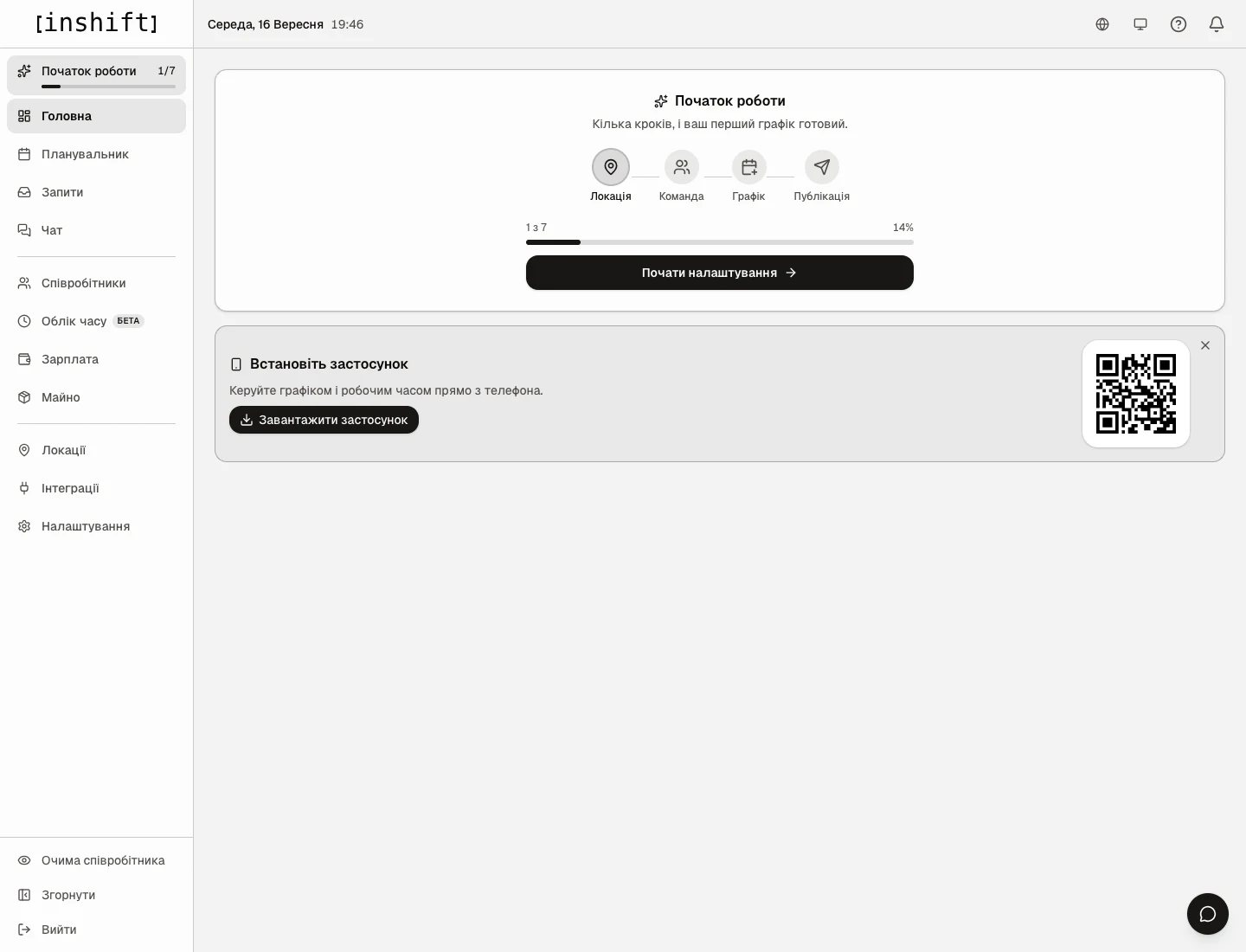
The first screen after registration: the “Getting started” card and the “Start setup” button
How to sign in next time
- Open admin.inshift.app. You will see the sign-in page.
- Enter the “Email” and “Password” you gave at registration and click “Sign In”. If you registered with Google, click “Continue with Google”.
- Forgot your password: click “Forgot password?” under the form. Enter your email, click “Send code”, type the code from the email and choose a new password.
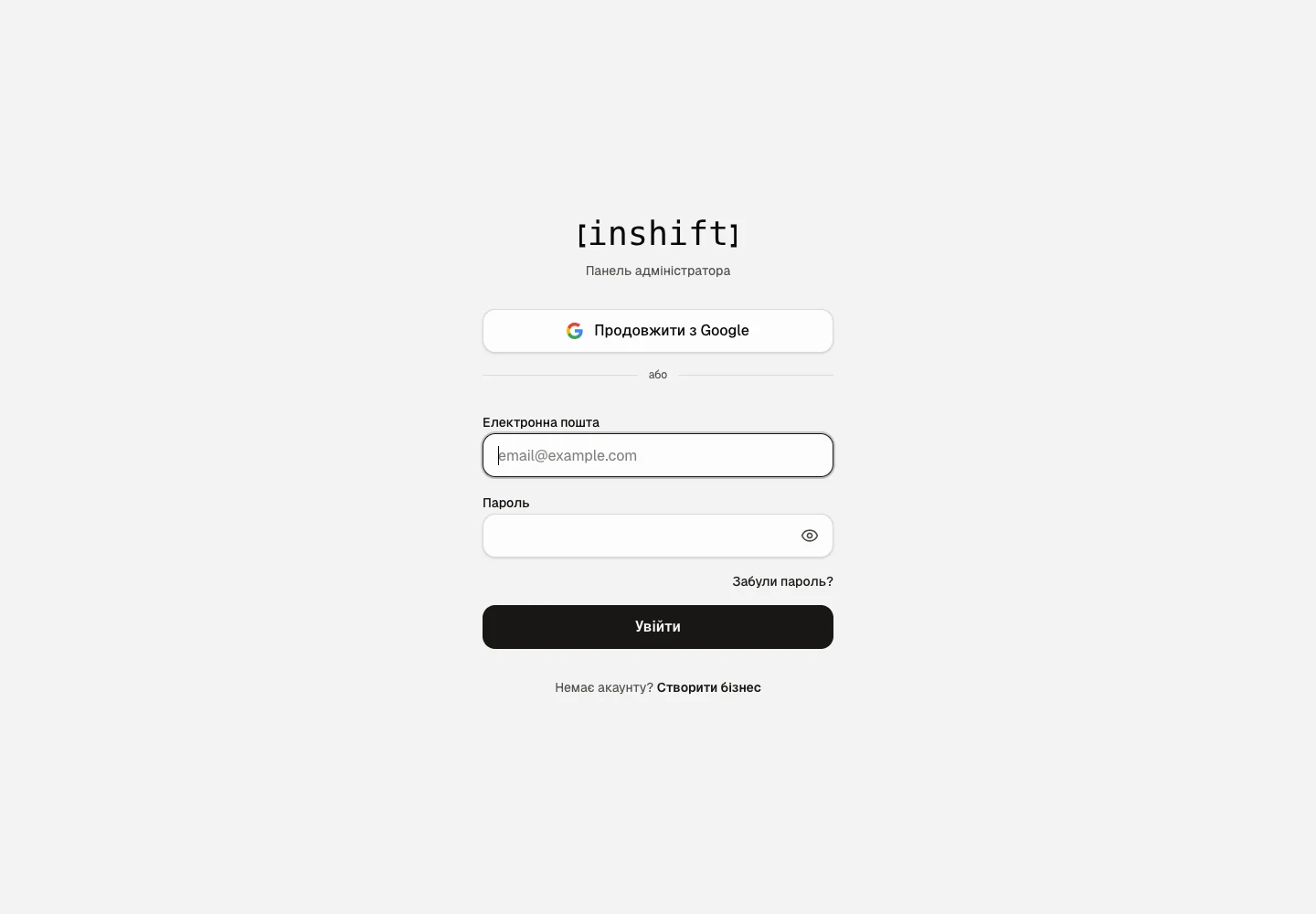
The sign-in page: email, password, the “Sign In” button and “Continue with Google”
You can manage the schedule from a phone as well: install the InShift app and sign in with the same email and password. The home page of the admin panel has an “Install the app now” card with a QR code: point your phone's camera at it.
Why an action is unavailable
The message “This email is already registered”: you already have an account with this email. Go back to the sign-in page and click “Sign In”. Cannot remember the password: “Forgot password?”.
The message “Code expired. Please register again.”: more than 15 minutes have passed. Start the registration over, and a new code arrives.
The message “Too many attempts. Please register again.”: the code was entered wrongly 5 times in a row. Start the registration over in the same way.
The message that the Google sign-in “started in one browser and came back in another”: click “Continue with Google” once more in the same browser where the page is open.
You are an employee, not the owner: you do not need to register on the website. Ask your manager for an invite code and enter it in the app.
Questions and answers
Can I change the business name after registration?
Yes. “Settings” → the “General” tab → the “Organisation name” field.
Can I change the sign-in email?
Yes. “Settings” → the “General” tab → the “Account” block → “Sign-in email” → “Change”. Enter the new email and your current password, then click “Send code”. A code arrives at the new address, and the email changes once you enter it. If you sign in with Google, first set a password in the “Password” block next to it.
Can several people sign in to the panel?
Yes. Add the person in “Employees”, choose the “Manager” or “Director” access rights in their card and give them an invite code with the “Invite” button. In the app they create an account with their own email and password, and with the same details they sign in to admin.inshift.app. Until the account exists, the role does not apply. The owner and co-owners can give any role, a manager only a role with fewer rights than the manager’s own. And someone who runs the organisation with you as an equal is made a co-owner by the owner, in the “Co-owner” block of the person’s card.
What happens if I close the page in the middle of registration?
Nothing bad. Open admin.inshift.app/register again and fill in the form from the start.