The admin panel is the website admin.inshift.app, where the owner and managers run the organisation: build the schedule, add people, look at payroll. It is most comfortable on a computer: the schedule grid is wide.
This article is a short tour of the screen, so you know where everything is and do not hunt for buttons.
Where to find it
Open admin.inshift.app and sign in. The section menu is always on the left, the header with the date and icons is at the top, and the section itself is in the middle.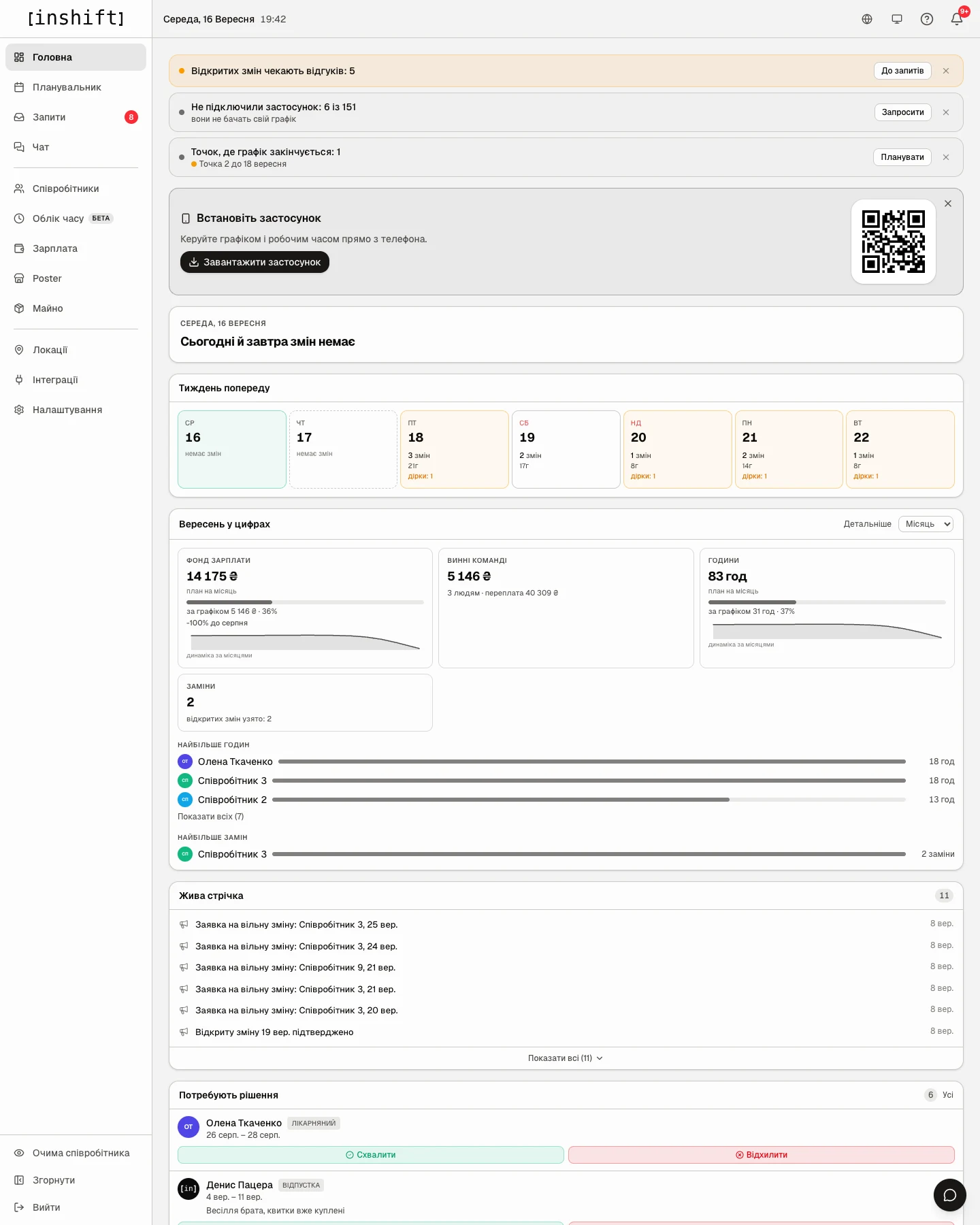
The menu on the left: sections
The sections come in the order you use them day to day. Click a name and the section opens in the middle.
“Dashboard”: the day at a glance. What needs your attention, who is working now, the week ahead, the month's numbers.
“Planner”: the shift schedule. This is where you put people on shifts, copy weeks and publish the schedule to the team.
“Requests”: everything the team asks for: time off and sick leave, swaps, applications for open shifts. The red number next to it shows how many requests are waiting for your decision.
“Chat”: conversations with the team and announcements to everyone.
“Employees”: the list of people, their cards, invite codes. The “Positions”, “Access rights” and “Events” tabs live here too.
“Time tracking”: clock-in and clock-out records, if you have enabled this module.
“Payroll”: accruals by shift, rates, payouts.
“Property”: items issued to people: uniforms, keys, equipment.
“Locations”: your sites: cafés, shops, warehouses. Inside each location are its positions and shift types.
“Integrations”: connecting the Poster POS and the API.
“Settings”: organisation name, timezone, currency, your sign-in email and password, modules. Request rules are not here but in “Requests”: the “Settings” button at the top right there opens the “Request rules” page.
At the bottom of the menu there are three items.
“Employee’s view”: shows the app exactly as a person on your team sees it. Handy for checking the schedule before everyone sees it.
“Collapse”: hides the section names, leaving only the icons. The schedule grid gets wider.
“Sign Out”: signs you out of the account.
The header: icons on the right
The globe icon: the panel language. Українська, English, Русский.
The sun, moon or screen icon: the colour theme. “Light”, “Dark” or “System”, as on your computer. The icon shows the current theme.
The “?” icon: this help centre, opened at the side without leaving the screen.
The bell: notifications. The red number on it shows how many are unread.
The round button with a chat icon at the bottom right is worth remembering too: on hover it expands into “Need help?”. It opens the help centre, and on the “Chat” tab you write to us directly. While you scroll down the page, the button hides so as not to cover tables.
Dashboard: what is on it
At the top of the page are rows that need attention. For example, “Not connected to the app: 2 of 3” with an “Invite” button that leads to “Employees”, or “Schedule is filled through 16 September” with a “Plan” button. Any row can be hidden with the “Dismiss” cross.
The “Install the app now” card: a QR code to put InShift on your phone and manage the schedule from it.
The today block: who is working now and whether every shift is covered.
“Week ahead”: seven days with the number of shifts and hours. An orange “gaps” mark means that day has shifts without a person assigned.
“September in numbers”: payroll fund, hours, substitutions for the month, and who works the most.
“Activity”: the latest events: who connected the app, who submitted a request, whose swap was approved.
“Awaiting decision”: requests waiting for your “Approve” or “Reject”, right here, without going to “Requests”.
While the organisation is not set up yet, the dashboard shows the “Getting started” card with the steps and the “Start setup” button (after the first step, “Continue setup”). It disappears once you publish your first schedule.
Hints inside the panel
In forms, next to the names of fields and blocks there is a small “?” icon. Click it and an explanation appears right there.
During the first setup the panel highlights the button you need and suggests what to click next. A hint can be closed with “Skip”, and nothing breaks.
Why an action is unavailable
You do not see some section in the menu: your role has no access to it. “Locations”, “Payroll”, “Requests”, “Property”, “Time tracking” and “Employee’s view” are visible only to those whose role has the matching rights, and “Integrations” only to the owner and co-owners. Everyone sees “Settings”, but the organisation name, timezone and currency there can be changed only by the owner and co-owners.
On a phone the menu is not visible: it hides behind the three-line icon in the top left corner. On a phone the schedule grid scrolls sideways, and it is more comfortable to open it on a computer.
Questions and answers
Can I change the language just for myself?
Yes. The globe icon in the header changes the language for your account only. Every employee has their own language in the app.
Where can I see what my team sees?
“Employee’s view” at the bottom of the menu. There you can pick any person and see the app through their eyes.
Where do I find an invite code for a person?
“Employees” → open the location → the “Invite” button in the person's row.