An employee appears in InShift in two steps. First you create their card in the admin panel: name, position, location. Then you give the person an invite code; they install the InShift app on their phone, enter the code and see their schedule.
A card can be created without a code too: the person is in the schedule and connects the app later. But until the code is entered they do not see their schedule, and the dashboard keeps showing the “Not connected to the app” reminder.
People can be added by the owner, co-owners and anyone whose role has the “Manage employees” right.
Where to find it
The “Employees” menu → the “Add” button at the top right. The “Add people” window opens with two options: “One person” (a card with all the fields) and “Several in a table” (like Excel: paste people from your spreadsheet).
Next to it is the “Import” button: a file with your team becomes locations, positions, people and roles in one go. Only the owner and co-owners see it.
From the planner: the “Add Employee” button under the schedule, with “Add Employee” and “Add multiple” inside.
The invite code: in the people table, the “App” column has an “Invite” button in the row of anyone without the app.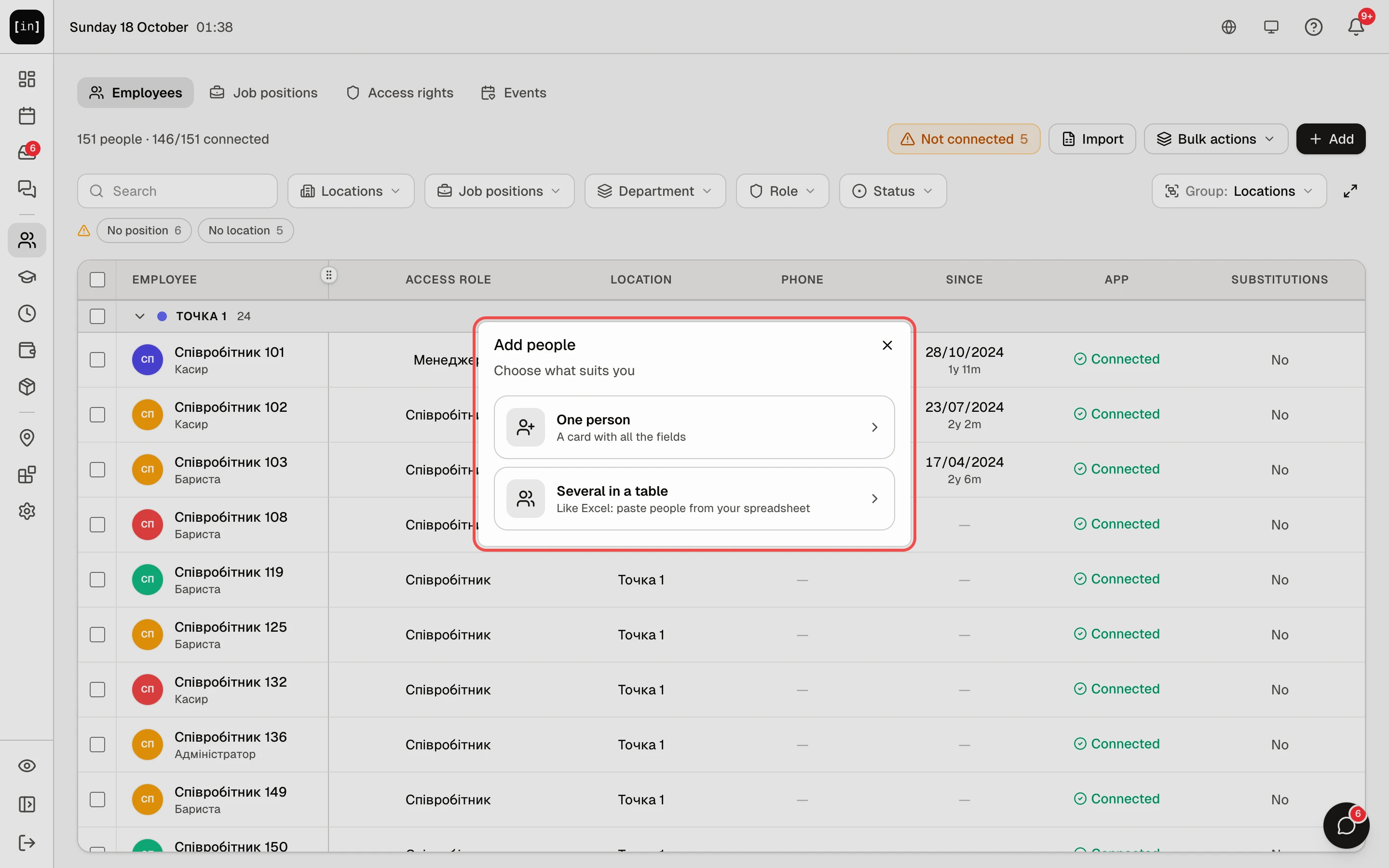
Step by step: add one person
- In the menu on the left, click “Employees”, then “Add” → “One person”. The “Add Employee” form opens.
- The “Basics” block: fill in “First name” (required) and “Last name”. This is how colleagues will see the person in the schedule and in chat.
- The “Personal” block can be skipped: the person fills in their gender and date of birth themselves in the app.
- The “Position” block: in the “Primary position” field pick from the list what the person does, for example “Barista”. If the list is empty, create a position first, article Job positions.
- The “Employment” block is optional: “Start date” counts seniority in the card, and “Vacation days per year” is needed only if this person's allowance differs from the general one.
- The “Schedule” block: turn on the “Not scheduled” switch only for people who do not work shifts, an accountant for example. For a regular employee leave it off. If the “Training” module is on, the same block has the “Trainee” switch for a newcomer in training, see Training: trainees and mentors.
- The “Location” block: “Primary Location” is already filled in if you have one site. This is the location in whose schedule the person appears by default. If the person also works at other sites, click “Also works at other locations” and add them.
- The “Access rights” block: choose what the person can do.
“Employee”: sees only their own schedule, submits requests, swaps shifts. This is the option for most of the team.
“Manager”: builds the schedule and adds people in their locations, signs in to the admin panel.
“Director”: full access across the network: schedule, people, payroll, roles. The organisation settings and the POS stay with the owner and co-owners.
Click “Details” next to a role to see the exact list of rights. A role of your own with a different set of rights is created with the “Manage roles & permissions” button. - Click “Save” at the top right. You return to the list, and the person appears in their location.
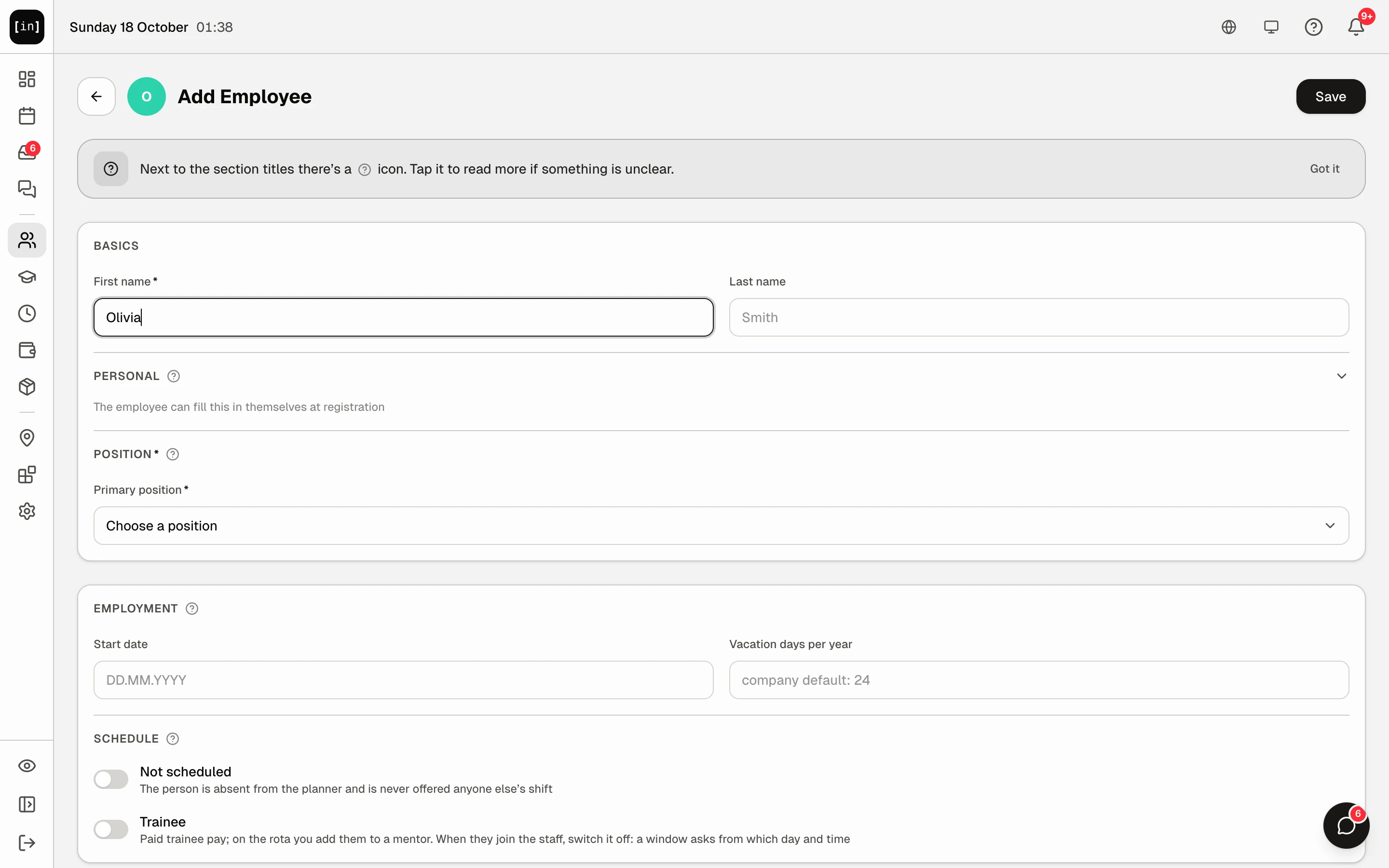
The “Add Employee” form: “Basics”, “Personal”, “Position”, “Employment”, “Schedule”
The pay term and the rate are set not here but in “Payroll”, the “Pay” tab. You can build the schedule without that.
Step by step: add several in a table
- In “Employees”, click “Add” → “Several in a table”. “New people in a table” opens.
- The “Choose what to fill in” step: tick the columns you need, for example “Phone” or “Start date”. “First name” and “Last name” are always there, and anything marked “Required for new people” is switched on by itself. Click “Next”.
- The “Fill in the table” step. Copy people from your Excel or Google Sheets, click the first cell and paste (Ctrl+V, on a Mac ⌘V). If you copied the headers too (“First name”, “Last name”, “Position”), the columns sort themselves out. You can also type row by row, as in Excel.
- In cells with an arrow (“Position”, “Access role”, “Main location”) pick from the list or start typing. The position or location does not exist: type its name and choose “Create position "Barista"” (the same for “Create location”).
- Grey italics show what happens if you leave a cell empty: the default employee role. If you came from the planner with “Add multiple”, its location already stands there in grey too.
- A red frame means the cell must be fixed, for example “Required” or a number without a country code. At the bottom you see how many errors there are and where the first one is; “Show” takes you to it, and the “With errors” button above the table leaves only rows with errors. While at least one cell is red, nothing is saved.
- Click “Add N people”. You see “Added N people. Made a mistake? You can delete them until …” and the “Invite team” and “Delete the added people” buttons.
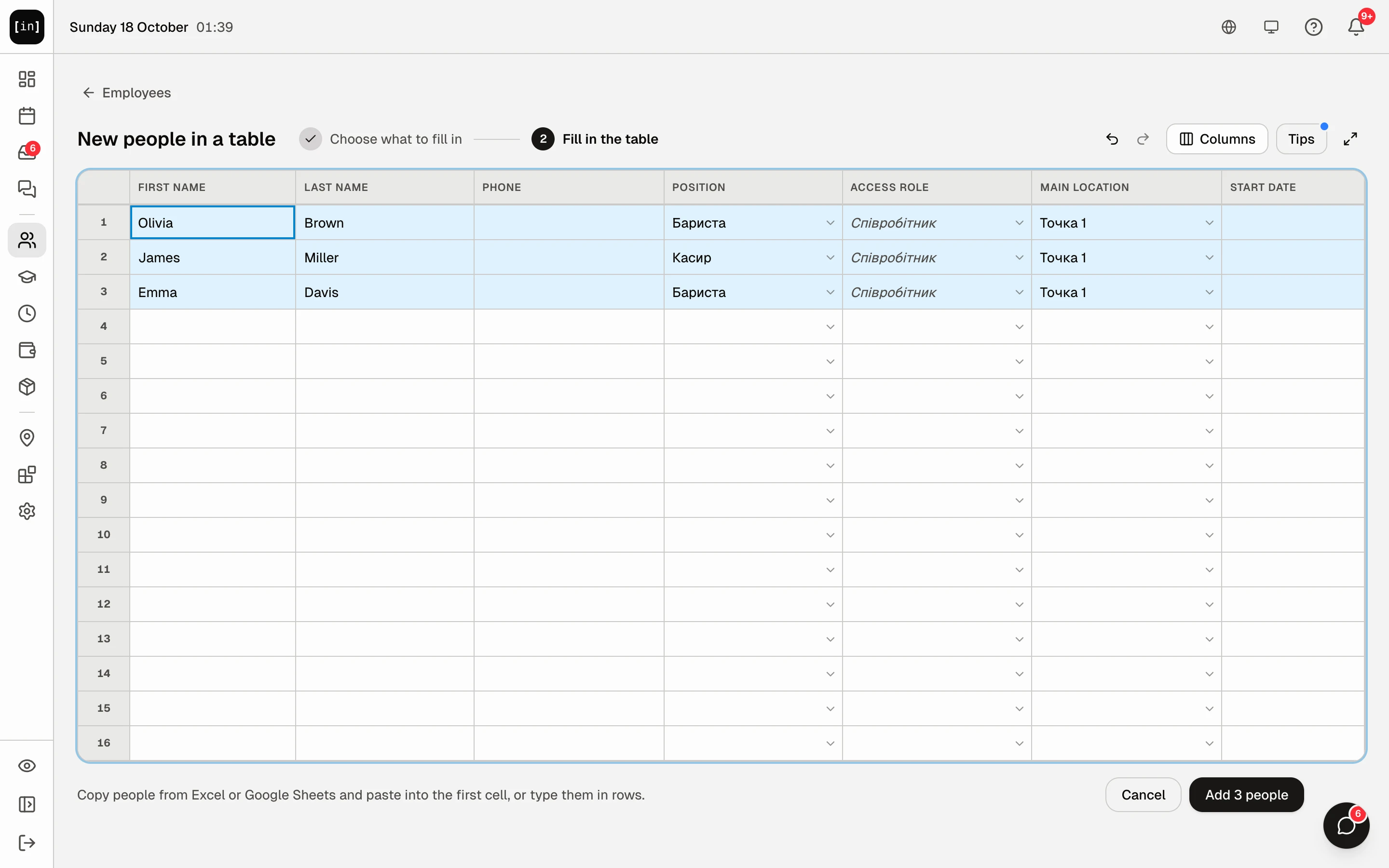
The “New people in a table” sheet: names, position, the employee role in grey, “Main location”
Added the wrong people: “Delete the added people” removes the people you have just added within 24 hours, as long as they have not signed in to the app and are not on a published schedule. Closed that line: the same is in “Bulk actions” → “Recent bulk changes”.
On a phone a cell opens on the first tap and a field appears at the bottom of the screen: with a list for the position, role and location, a calendar for dates, and a “Done” button. Paste a list of names from your notes or a chat into the field of the first cell: each line becomes a separate person.
Step by step: give a person the code
- In “Employees”, find the person. In the “App” column everyone who has not connected yet has an “Invite” button. The “Not connected” button at the top leaves only them in the table.
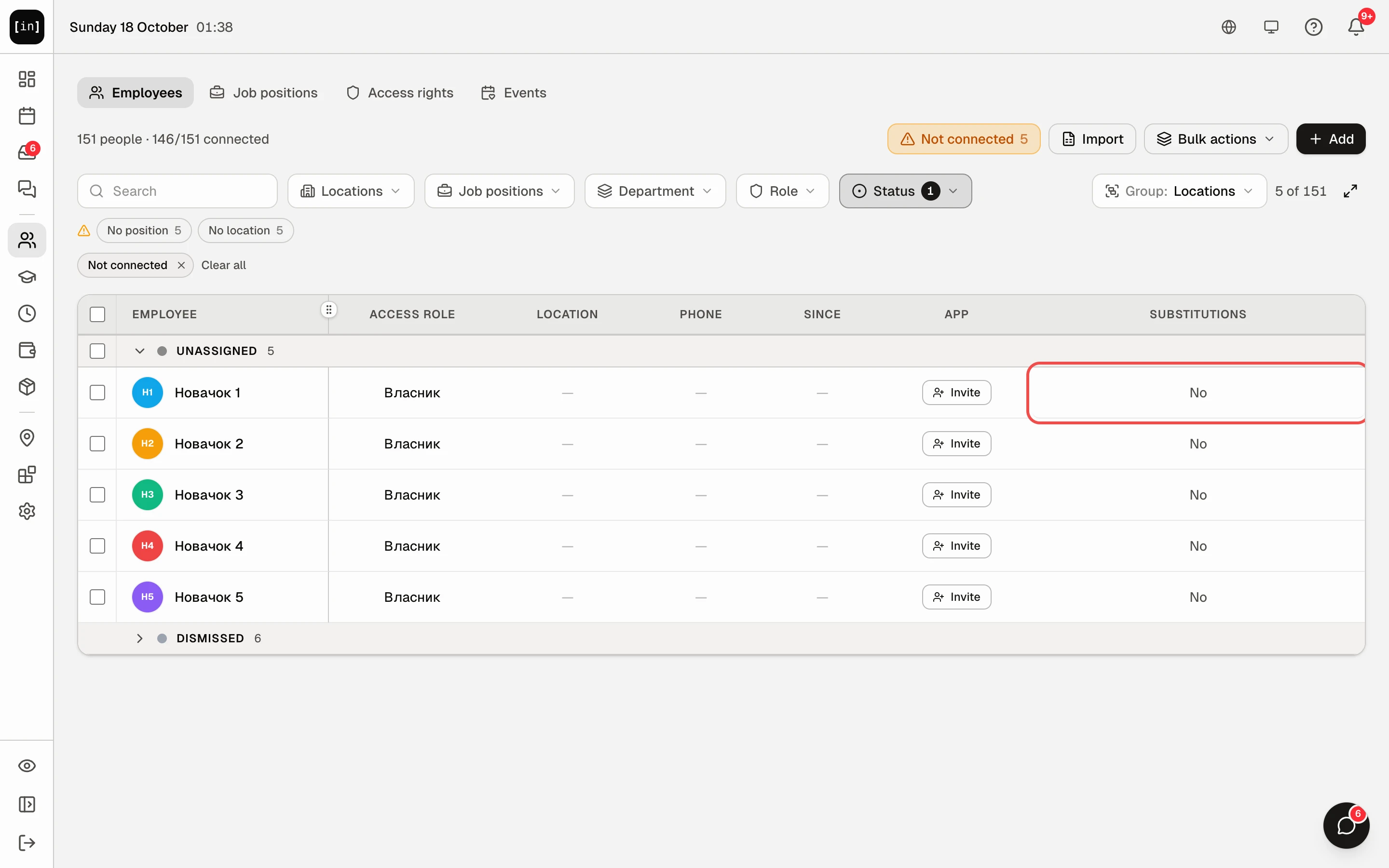
The “Not connected” table: the “Invite” button in the “App” column - Click “Invite”. A window opens with the person's name and a big six-character code, for example “AJBUL3”.
- Pass the code to the person in whatever way suits you.
“Copy invite”: a ready-made message goes to the clipboard: a greeting by name, the link to download the app, the code and the three sign-in steps. Paste it into any messenger.
The “WhatsApp”, “Telegram” and “Email” buttons (on a phone also “Viber” and “SMS”): open the matching app with the message already written.
“Or send the code by email”: type the person's email and click “Send”; the email comes from InShift.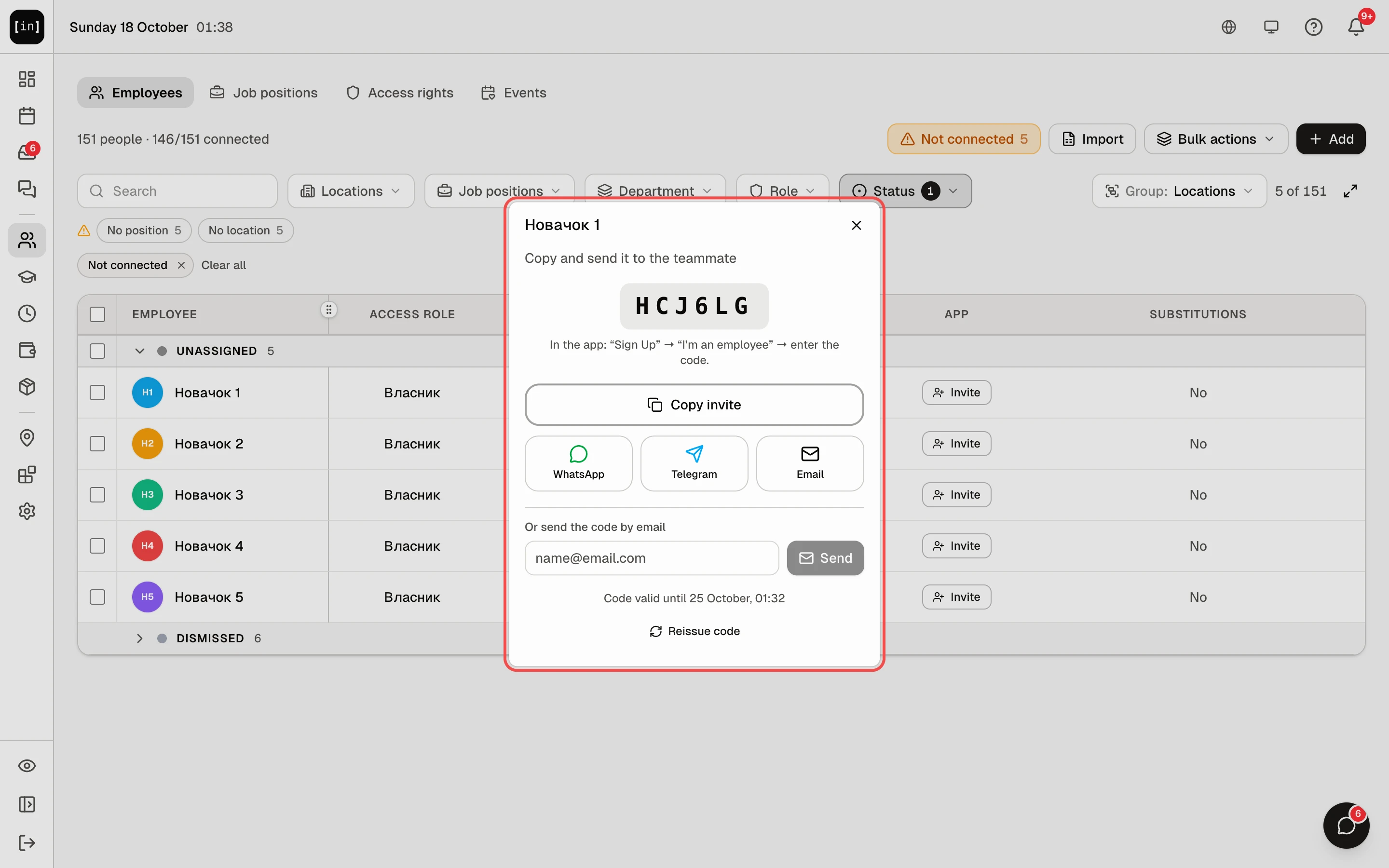
The invite window: a six-character code, “Copy invite”, WhatsApp, Telegram, Email - What the person does on their phone: installs the InShift app from the App Store or Google Play, opens it, taps “Sign Up”, then “I’m an employee”, enters the code and creates an account with their own email and password. Right after that they see their schedule. Details in Join your team with a code.
- The code is valid for 7 days. While it is valid, the “Invite” button shows the same code. If the person did not make it in time, click “Invite” after the code expires: a new code appears.
To hand out codes to the whole team at once, use the “Invite your team” window: one message for everyone who has not joined yet, with the app link and a code next to each name. Click “Copy text” and send it to your team chat: each person finds their name. The window opens from “Invite team” after adding people in a table, after the first schedule is published in the “Rota published!” window and after “Import”. Only a few people: tick them in the table and click “Invite N” in the bar at the bottom. Details in The invite code.
On the dashboard the “Not connected to the app” row with its “Invite” button leads to the list of employees.
How to tell who has connected
In “Employees”, under the tabs, there is a counter, for example “3 people · 1/3 connected”. The “Not connected” button shows only those who have not entered a code yet.
In the table, the “App” column says “Connected” for a connected person and shows the “Invite” button for the rest.
On the dashboard, while someone is not connected, the “Not connected to the app” row stays with the number of people.
How to change or dismiss
Click a person's row in the table: a short summary of them opens underneath, with a strip at the top that has “Profile” and “Edit”. “Edit” opens the form where you change the position, locations, rights and everything else, article Employee card.
Dismissal is in the form as well, the “Dismissal” block → “Dismiss”. The person disappears from the schedule and loses access to the app, while the history of their shifts and pay stays. Their upcoming shifts can be converted to open shifts or deleted; the panel asks.
Why an action is unavailable
No “Add” button: your role does not have the “Manage employees” right. Ask the owner or a co-owner.
No “Import” button: a team file is brought in only by the owner and co-owners.
The form does not let you pick a position: there are no positions yet. Create them on the “Positions” tab and come back.
Some roles are grey with the caption “You can only give a role with fewer rights than yours”: you can give a person only a role with fewer rights than your own. A role with the same or more rights is assigned by a co-owner or the owner. In the table such a role is marked “This role is above yours: the owner assigns it”.
The “Save” button does nothing and fields are highlighted red with “Required field”: a required field is empty. Required: first name, position (once positions exist), location (if the person works shifts) and access rights.
“Add N people” in the table does nothing: some cells are red. Click “With errors” above the table and fix each one.
The person says the code does not work: check that they enter the code in the app via “Sign Up” → “I’m an employee” and are not trying to sign in with an email. The code is made of capital letters and digits without zero, one, I and O, so they are not confused. If more than 7 days have passed, click “Invite” and give them the new code.
Questions and answers
Does the person need an email to connect?
Yes: in the app the person creates an account with their own email and password, and the code links that account to their card with you. You do not need to know their email. Once the person connects, their email appears in the card in the “App access” block, and there you can set a new password for them if they forget it.
Will the person see the schedule if I do not give them a code?
No. Without the code they have no access to the app. They are still in the schedule in the panel, and you can put them on shifts.
Is a position required?
Only once positions exist: then “Primary position” is a required field both in the form and in the table. While there are no positions, the field is replaced by the note “Add positions (barista, cook…) to assign them in the rota” with a “Set up” button, and the card can be saved without a position. A person without a position appears in the schedule under “No group”.
How many people can I add in a table at once?
Up to 1000 people per save. You can paste more, but the table will ask you to add the extra rows next time.
I added a person to the wrong location. What do I do?
Open their card and change “Primary Location”. Shifts that are already placed stay. If you got several wrong at once, “Bulk actions” → “Edit in a table” edits everyone visible under the current filter.