“Dashboard” is the manager's day at a glance: what needs attention, who is working now, the week ahead, the month's numbers, the live activity feed and the requests waiting for a decision. Cards can be rearranged by dragging, and attention rows can be hidden. While the organisation is not set up yet, the dashboard shows the “Getting started” card instead.
The dashboard shows only what exists: empty cards are not drawn, and a location manager sees the data of their own locations.
Where to find it
“Dashboard” in the panel menu; it is also what opens after signing in. Attention rows at the top, then the cards: “Install the app now”, today, “Week ahead”, “September in numbers”, “Activity”, “Awaiting decision”, “Birthdays”.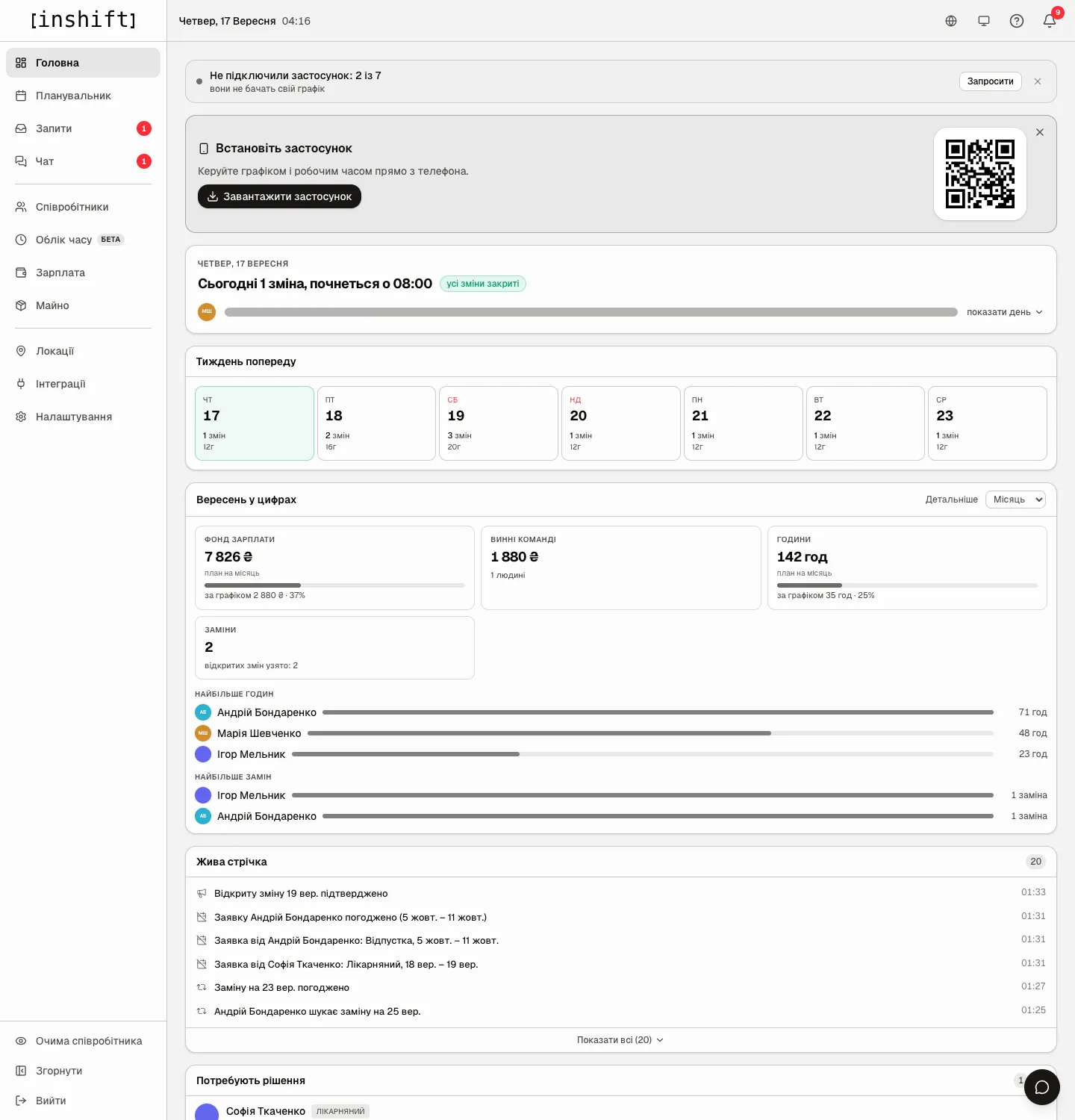
Attention rows
Rows with an action button at the top of the page, each about one problem.
“Unassigned shifts: 3” with the caption “nearest: 19 September, Podil, 08:00–20:00” and the “Open rota” button: there are empty slots in the schedule.
“Open shifts awaiting claims: 2” and “To requests”: there are applications for open shifts, article Open shift applications.
“Not connected to the app: 2 of 7” with the caption “they can’t see their rota” and “Invite”, article The invite code: how it works and what to do when it fails.
“Schedule is filled through 20 September” with the caption “Nothing after that”, or “No schedule for this week”, and the “Plan” button; in a chain, “Locations where the schedule ends: 2” with the list “Podil until 20 September”, article The schedule is ending: the reminder and what to do.
The “Dismiss” cross hides a row until its number grows: hide “2 of 7”, and the row comes back at “3 of 7”.
Today
A card with the date and a summary: “1 shift today, starts at 08:00”, “3 people working now” with “next at 16:00: 2 more”, “Break now, next shift at 16:00”, “Day is done, 2 shifts tomorrow, first at 08:00” or “No shifts today or tomorrow”. The “all shifts covered” mark means every shift has a person; otherwise “1 unassigned shift” or “Day is not covered”.
“show day” expands the day's timeline: who works from when until when, with an empty slot labelled “unassigned”. “collapse” hides it.
Week ahead
Seven days from today, each with the number of shifts and hours: “2 shifts”, “16h”. The orange “gaps: 1” mark means shifts without a person, “no shifts” a day with no schedule. Clicking a day opens it in the planner.
The month in numbers
The “September in numbers” card with the “Period” switch: “Month”, “3 months” (“Last 3 months”), “Year” (“Last 12 months”). “Details” leads to “Payroll”.
“Payroll fund”: “plan for the month” and below it “scheduled £2,880 · 37%”, that is how much has been accrued to date. “Owed to team”: the open debt and “1 person”, or “overpaid £500”. “Hours”: the plan for the month and hours worked. “Substitutions”: how many substitutions in the period and “open shifts taken: 2”. Under the tiles, “Most hours” and “Most substitutions”: the top people with bars, and “Show all (7)” expands the list. For periods longer than a month there is a “monthly trend”.
The money on the card is seen only by those with access to payroll.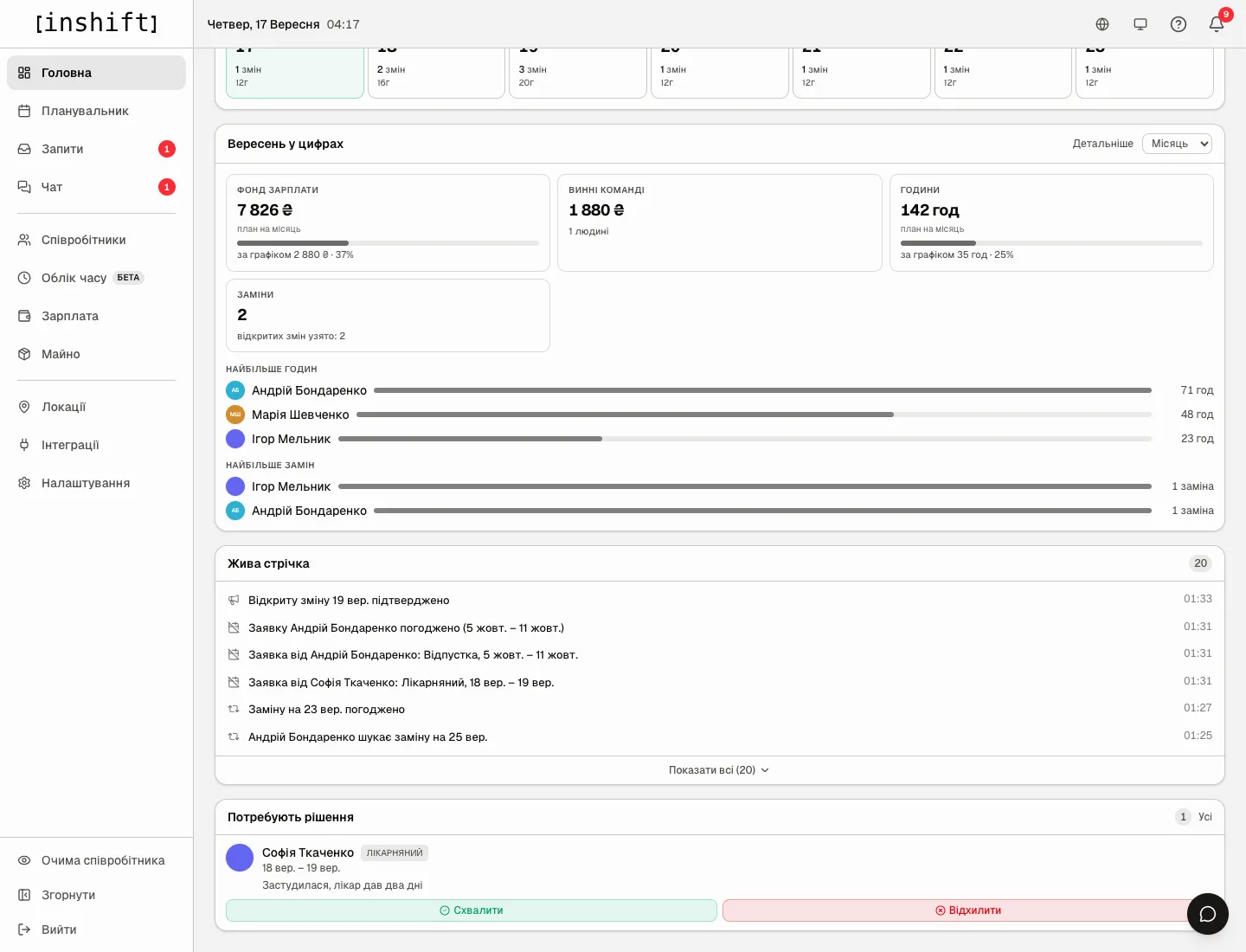
Activity
The team's latest events with the time: “Maria Shevchenko connected the app”, “Request from Andrii Bondarenko: Holiday, 5 Oct – 11 Oct”, “Andrii Bondarenko's request approved”, “Andrii Bondarenko is looking for cover on 25 Sep”, “Ihor Melnyk will take the shift on 19 Sep”, “Swap on 23 Sep approved”, “Open shift: Sat, 19 Sep”, “Open-shift request: Maria Shevchenko, 19 Sep”, “Open shift on 19 Sep confirmed”. Yesterday's are marked “yesterday”.
“Show all (20)” expands the feed, “Collapse” hides it. Filters: “All”, “Time off”, “Swaps”, “Open shifts”, “Connections”.
Awaiting decision
Requests waiting for your decision: the name, the type “Sick leave” or “Holiday”, dates, a comment, and the “Approve” and “Reject” buttons right here, without going to “Requests”. “All” leads to the “Requests” section. Swaps waiting for approval are here too, article Swaps: how to approve or reject.
Birthdays and card layout
The row “Birthday today: Maria Shevchenko” with “turns 29” and “Upcoming birthday: Ihor Melnyk in 3d” shows up when dates of birth are filled in on the cards. “Show all” expands the full list, and the “Events” tab in “Employees” shows the whole year, article Events: birthdays and team holidays.
Any card can be dragged by its “Drag card” handle to another place, with the hint “Drop here”. The layout is saved for your account. “Reset layout” restores the default order.
Why an action is unavailable
The dashboard is almost empty, just “Open rota” and “Once you have a rota, problems, today’s staff and the week ahead will show up here.”: there is no schedule yet.
Instead of the cards there is “Getting started” with steps: the organisation is still being set up; the card disappears after the first published schedule, article Admin panel tour: where everything is.
No “September in numbers”, or no money in it: your role does not have the “View payroll” right, or there is no data for the period: “No data for this period”.
An attention row from yesterday is missing: you hid it, and it comes back when its number grows.
No “Awaiting decision”: there are no requests waiting for you right now, or your role has no right to approve.
No “Birthdays”: dates of birth are not filled in on the cards.
Questions and answers
Does a location manager see the whole organisation on the dashboard?
No, only their own locations: the shifts, people, requests and numbers of their sites.
Why does “Payroll fund” differ from the total in “Payroll”?
On the dashboard it is the plan for the month by the schedule and what has been accrued to date. In “Payroll” you can pick any period, and payouts are shown there too.
How do I put back a card I dragged to the wrong place?
Drag it back or click “Reset layout” at the bottom of the page.
Does the dashboard refresh by itself?
After your actions, “Approve” for example, the cards are recalculated at once. After a long break, refresh the page.