For a manager the app opens not on their own schedule but on the manager’s “Home”: the week with the number of shifts and gaps, the quick buttons “Planner”, “Team”, “Payroll”, the “Team” and “Needs attention” rows and the “On shift today” list. It is the same overview as on the panel’s dashboard, condensed to a phone: each row leads to where the problem is dealt with.
The manager’s home screen is seen by the owner, co-owners and anyone whose role has “Admin panel access” turned on. The rest of the team sees their own day and their own shifts on “Home”.
Where to find it
The “Home” tab at the bottom of the screen. If the role grants panel access, this is the manager’s home screen; your own schedule is then on the “Rota” tab.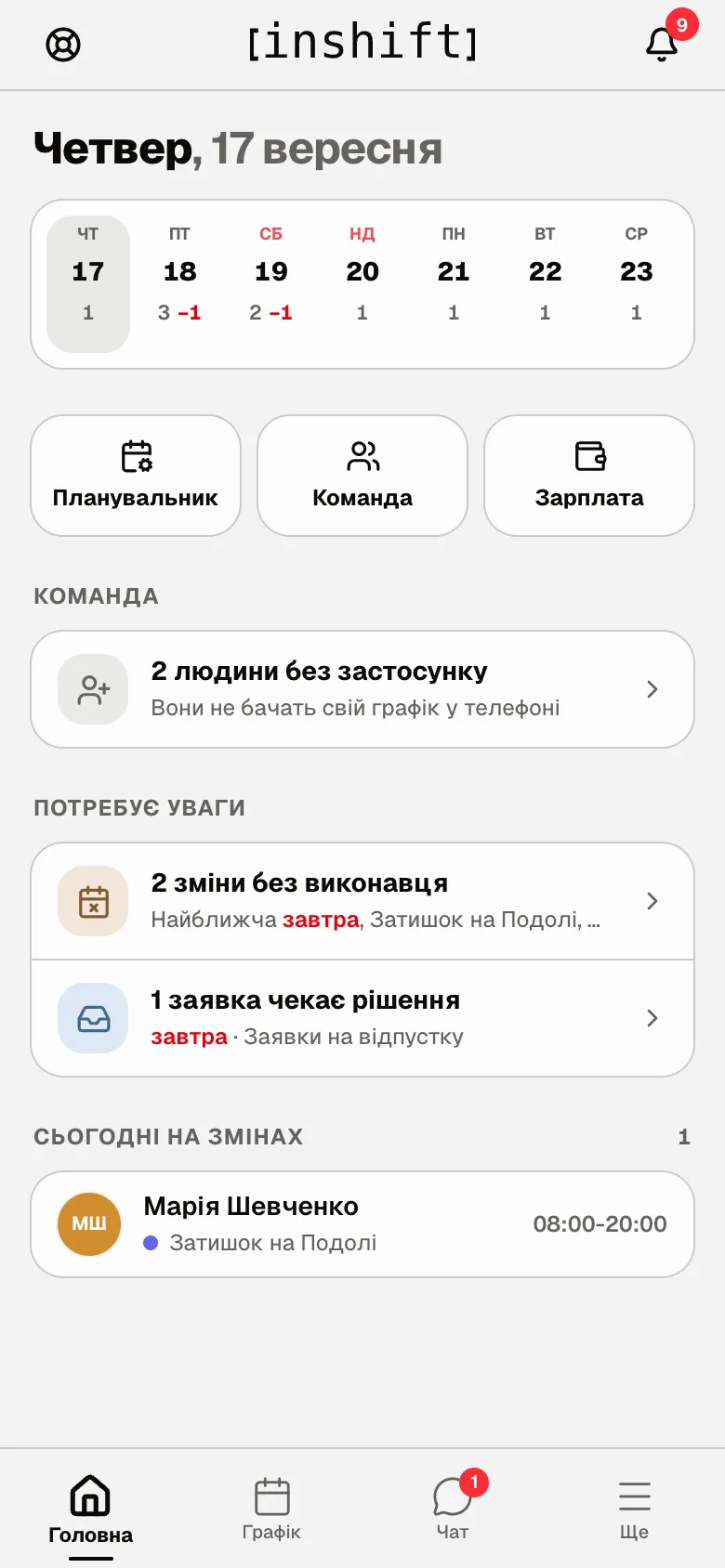
What is on the screen
The week at the top: seven days, each with the number of shifts, a red “−1” means one unassigned shift on that day. Tap a day, and the team’s day screen opens: who works from when to when at each location, “Show the whole day”.
The state of the day under the date: “3 people working now” with “next at 16:00: 2 more”, “1 shift today, starts at 08:00”, “Break now, next shift at 16:00”, “Day is done, 2 shifts tomorrow, first at 08:00”, “No shifts today or tomorrow”. The mark “all shifts covered” or “1 unassigned shift”. If you have your own shift today: “You are on shift until 20:00”, “Your shift at 16:00”, “Tomorrow at 08:00”.
The buttons: “Planner” opens the planner, see The planner on your phone; “Team” the team list, see Invite an employee from your phone; “Payroll” the statement, if the role can see payroll.
“Team”: “2 people without the app” with the caption “They cannot see their schedule on the phone” leads to the “Without the app” screen with “Invite” buttons. “Birthdays”: “Maria Shevchenko, in 3 days and 1 more” leads to the list of the team’s birthdays by month, “Birthday today: …” is shown on the day itself, as is “Today is 8 March” for team holidays.
“Needs attention”: “2 unassigned shifts” with the caption “Nearest tomorrow, Cosy Corner on Podil, 08:00–20:00” leads to the “No one assigned” screen, see Empty slots in the schedule: unassigned shifts. “1 request waiting” with the caption “Time off: 1 · Swaps: 0” leads to “Requests”, see Approve requests from your phone. “1 open shift” with “Nobody has taken it yet” or “1 response waiting” with “Somebody volunteered for an open shift” lead to open shifts. “Schedule is filled through 25.09” with “Nothing after that” or “No schedule for this week” and “Schedule ends at 1 location” lead to the “Where the schedule ends” screen, see The schedule is ending: the reminder and what to do.
“On shift today” or “On shift now”: who is working right now, with the location and time.
Why an action is unavailable
“Home” shows my schedule, not the team overview: your role does not have “Admin panel access”. The overview reads the same data as the panel, and without this permission the server does not hand it over.
Instead of the week, the note “You are not shown the organisation schedule, so there is no day state here”: your role sees only its own schedule.
An empty home screen with the “Build the schedule” button and the caption “The first week takes a few minutes”: there is no schedule yet. “There is no schedule yet. Whoever manages the schedule will build it” means you do not have the permission to edit the schedule.
There is no “Birthdays” row: dates of birth are not filled in on the cards.
There is no “Payroll” button: the role has none of “View payroll”, “Pay out wages” or “Change pay” at least at “My locations”.
Questions and answers
Do I see the whole organisation here?
Only your locations, as in the panel. The owner and co-owners see everything.
Where is my own schedule?
On the “Rota” tab. The manager’s home screen shows the team, and the day state mentions your shift too.
Does the screen refresh by itself?
Every time the tab is opened. After an action, for example “Approve” in requests, return to “Home”, and the row disappears.
How do I open the overview in the panel on a computer?
“More” → “Admin Panel”: “Manage locations, departments, positions and rota, easier from a computer”.