Time-off and sick-leave requests and swap requests can be approved from a phone. In the manager’s app, for each kind the “Requests” screen shows your own requests under “Mine” and what is waiting for a decision: “Pending” for time off, “Team” for swaps. A new request arrives with a notification, and the decision is made with two buttons: “Approve” or “Reject”.
What exactly you can approve is defined by the role: “Approve time-off” and “Approve substitutions” for your own locations or the entire network, while open shift applications are handled by the “Edit rota” permission, see Roles and access. The approval mode is set in the panel, see Request rules: what to allow the team.
Where to find it
“More” → “Requests”, or the “Requests” button on “Home”. At the top is the “Time off” and “Swaps” switch. Under time off are “Mine” and “Pending”, under swaps “Mine”, “Available” and “Team”: everything active at your locations. If open shifts are turned on in the organisation, there is also “Open”.
The notifications “New time-off request”, “Swap awaits approval” or “Someone wants this shift” open the right tab straight away.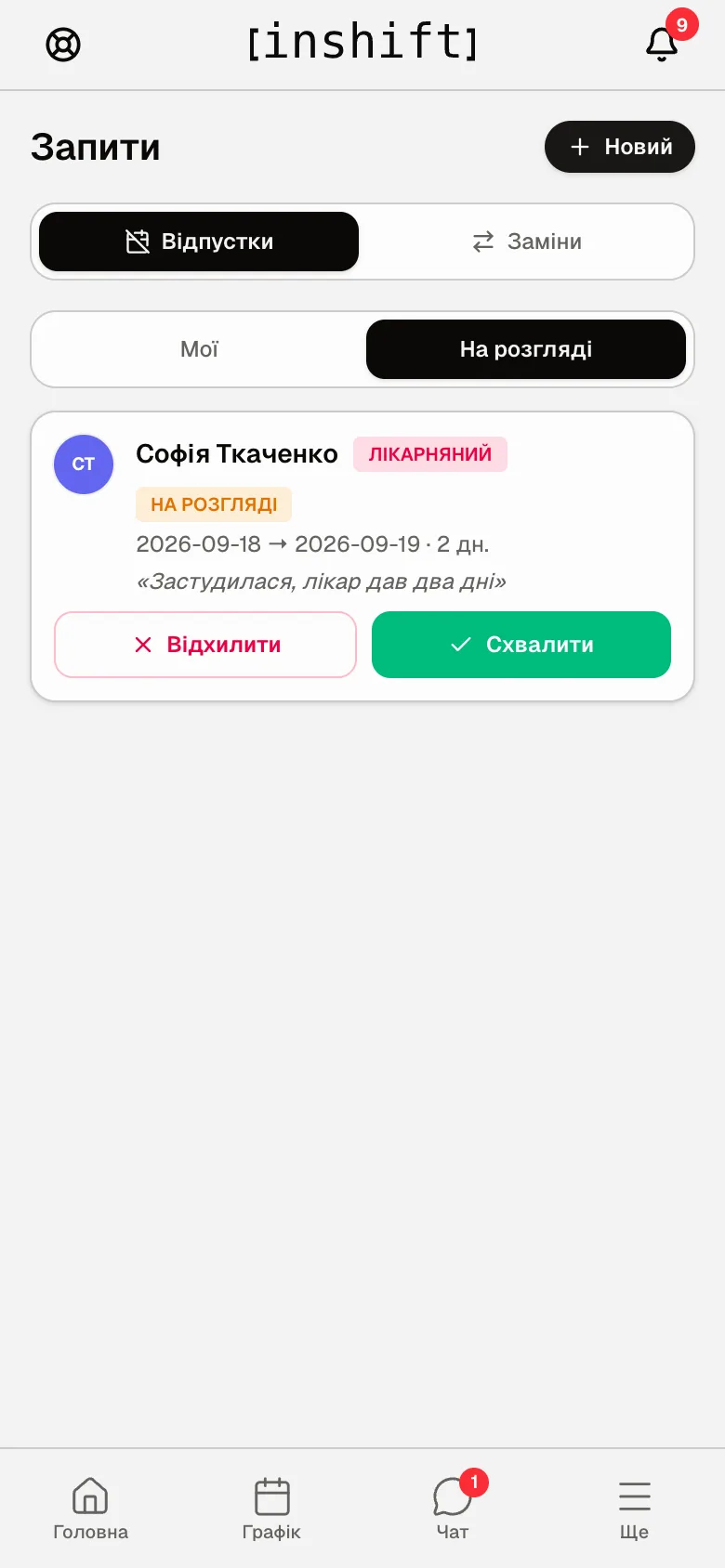
Step by step: time off or sick leave
- Open “Requests” → “Time off” → “Pending”. The card has the name, the type “Holiday”, “Sick leave”, “Personal” or “Unpaid”, the “Pending” mark, the dates with the number of days and the person’s comment in quotes.
- Check the schedule for those days: approval does not touch shifts that are already in place. If the person is in the schedule on those days, move or remove their shifts in the planner, see The planner on your phone.
- Tap “Approve” or “Reject”. The person receives “Time off request approved” or “rejected”, and the card moves to the history. Approved holiday reduces the balance in the person’s card: “Vacation 2026”, see Time off and sick leave: approval.
Step by step: a swap
- Open “Requests” → “Swaps” → “Team”. Here are the active requests of your locations: both those still waiting for the colleague’s answer and those the colleague has already accepted and which wait for your approval: who gives the shift, to whom, the date and time. The “Approve” and “Reject” buttons are only on those that have reached you.
- Tap “Approve”: the shift moves to the colleague, both receive a notification. “Reject” leaves the shift with the person who was giving it away. The statuses are described in detail in Swaps: how to approve or reject.
- If the request rules are set to “Coworker only”, your involvement is not needed: under “Team” you only see who swapped with whom, the shift moves right after the colleague agrees.
Open shifts
The “Open” tab has two switches: “For me” with the open shifts you can take yourself, and “All” with all open shifts of your locations. The card shows “2 volunteers” or “No one has volunteered yet”; choose whom to give it to, “Only one can be picked”, and the other applicants receive “The shift went to someone else”. An empty slot can be offered to the team from the phone too: in the “Planner” open the slot and tap “Offer to the team”. More in Open shifts: offer a shift to the team.
Why an action is unavailable
There is no “Requests” item under “More” or no “Pending” and “Team” tabs: your role does not have the “Approve time-off” and “Approve substitutions” permissions.
“Pending” or “Team” is empty, “No requests”, although the person says they submitted one: the request is from another location you do not manage, or another manager has already reviewed it, or the person withdrew it.
There is no “Open” tab: open shifts are turned off in the request rules.
There is no “Approve” button on a swap: the request is still waiting for the colleague’s answer, there is nothing to approve yet.
An error after “Approve”: the shift has already started or passed, or the colleague is now busy at that time. Refresh the screen.
After “Approve” the window “A trainee will be left without a mentor” or “This person mentors trainees on these days” appears: the person mentors a trainee in those shifts. Tap “Change anyway” or “Approve anyway”, and set the trainee’s mentor later.
Questions and answers
Will I see the person’s comment?
Yes, it is in the card in quotes under the dates, for example “Caught a cold, the doctor gave me two days”.
Can I reply to the person when rejecting?
Yes. “Reject” first asks “Reject this request?” and offers a “Reason for rejection” field, which you can leave empty. The person sees the reason in the card of their request next to “Note”.
Does the schedule change after holiday is approved?
No. Approval only records the holiday and reduces the balance. Remove the shifts on those days yourself.
Who else sees the request?
All managers with the approval permission for that location. Any of them can review it, after which the request disappears from “Pending” for the others.