The schedule can be built from a phone too: the app has a “Planner” for anyone whose role has the “Edit rota” permission. It shows the same grid as the panel in two views: the month as a table by shift type and the week as a day list. Putting a person on a shift, adding your own shift outside the pattern, leaving an empty slot, removing a person, publishing drafts: all of that is done from the phone. An empty slot can also be offered to the team with “Offer to the team” if open shifts are turned on in the organisation. The more complex things, such as copying a week, stay in the panel.
A location manager sees only their locations in the planner.
Where to find it
“More” → “Planner”, or the “Planner” button on “Home”. At the top is the location picker, next to it the “Month” (table) and “Week” (list) switch. The planner can open on the right day from a notification or from the line about an unclosed shift on the home screen.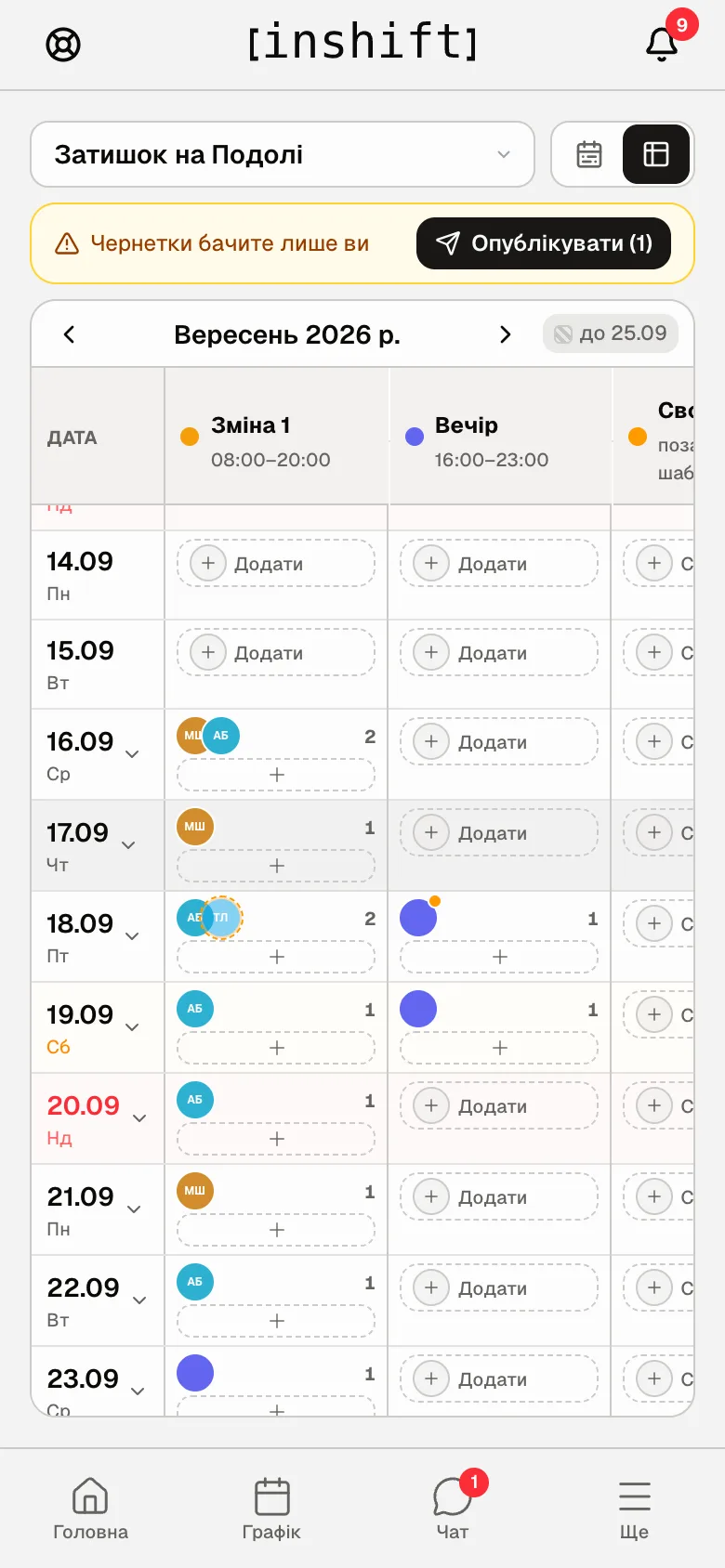
How to read the month
Rows are days, columns are the location’s shift types with their times, the last column is “Own” with the caption “off-pattern”. In a cell are the people’s circles and a number, how many are on it. The “Add” or “+” button under the circles puts one more person on. A circle with a dotted border is a draft the team does not see yet.
The arrows page through the months. The “until 25.09” mark next to the month name says up to which day the schedule is built, “not planned” means there are no shifts for the month yet. In the table itself the edge of the built schedule stands as a separate row.
The arrow next to a date expands the day: all the day’s shifts as a list with names.
The columns scroll sideways, the date stays in place.
Step by step: put a person on a shift
- Tap “Add” or “+” in the cell of the day and shift type you need. A screen opens with the shift’s name, date and time, for example “Shift 1”, “Mon, 21 Sep · 08:00–20:00”.
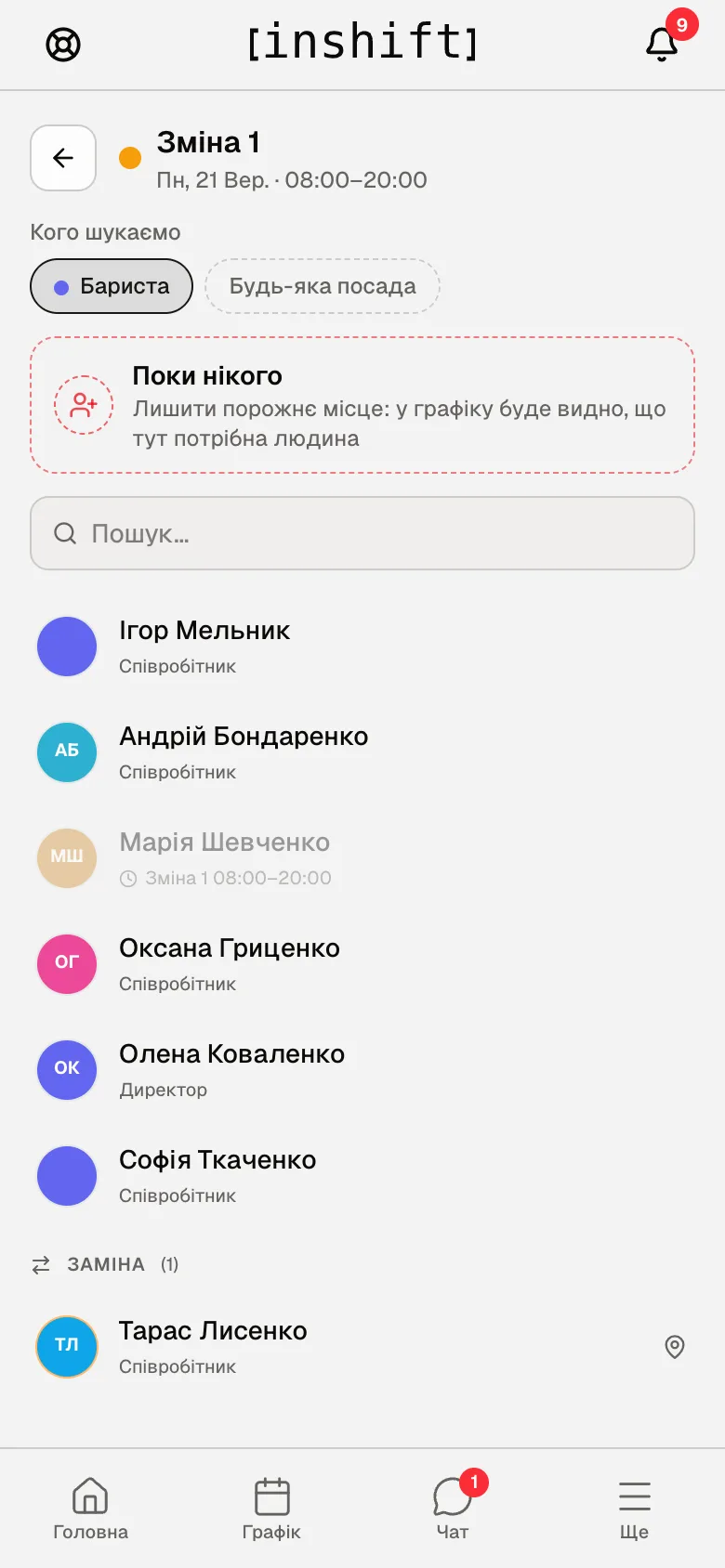
The person picker screen: “Who is needed” with positions, “No one yet”, search, the people list, busy ones in grey, the “Substitute” section - Under “Who is needed” choose a position or “Any job position”: the list narrows to people of that position.
- Tap a person. Anyone already on another shift that day is shown in grey with its time, for example “Shift 1 08:00–20:00”. The “Substitute” section at the bottom shows people from other locations who can be called in for cover, with a location mark.
If the person is a trainee, there is one more step, “Mentor”: pick someone who is on shift at this location, or “No mentor”, see Training in the manager app. - Or choose “No one yet”: “Leave the spot open so the schedule shows someone is needed here”. An empty slot is visible in the grid with its own sign, and on the home screen it counts as a shift with nobody assigned.
- The shift is created as a draft. A yellow bar “Only you can see drafts” with the “Publish (1)” button appears above the table. Tap it once everything is in place: the team gets a notification, and the bar turns green for a few seconds with a summary.
Delete a shift: expand the day or switch to “Week” and tap the cross next to the name. There is no confirmation, the shift disappears at once. A draft disappears silently; a published future shift vanishes from the person's app and they get the notification “Shift taken off you”. Fill an empty slot: tap it and choose a person. If it is a mentor’s shift and the trainee would be left without a mentor, the window “A trainee will be left without a mentor” appears first.
Step by step: a custom shift
- In the “Own” column tap “Custom shift”. The hint: “Own hours and name, outside this location’s patterns”.
- Type the “Name”, for example “Stocktake”, choose the “Colour”, “Start” and “End”. A night shift across midnight is counted correctly: “7 h 30 min”. If the start and end are the same, the app asks “Start and end are the same, set the shift length”.
- Tap “Next” and choose a person, as for an ordinary shift. Such a shift stands in the “Own” column with an amber dot.
The week as a list
The “Week” switch shows seven days at the top with the number of shifts and a fill bar. Tap a day: under it the day’s shifts by type, with the people, their times and a cross in each, “Add” and “Custom shift” at the bottom of each block, “no one” next to an empty type.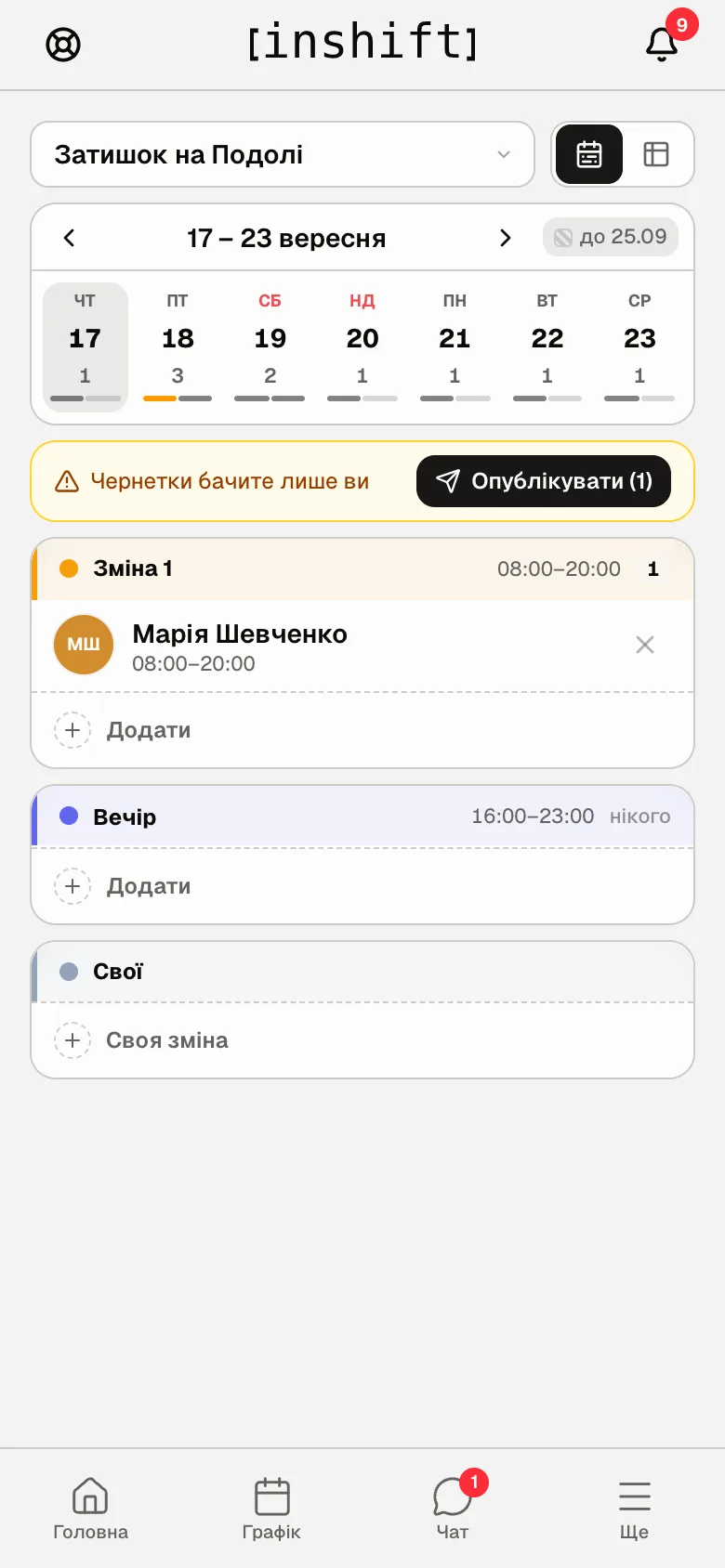
Why an action is unavailable
There is no “Planner” item under “More”: your role does not have the “Edit rota” permission.
The location you need is not in the list: your role edits the schedule of its own locations only. If you opened a link to someone else’s location, the app says “You cannot edit the location from the link, so another one is open”.
A cell has no “Add”, only “Custom shift”: the location has no shift types yet: “Add shift patterns in location settings”, which is done in the panel, see Create a location and shift types.
A shift type is not shown on a certain day: that day is turned off in the pattern.
A person is not in the list: they do not work at this location and are not available for cover, or they are dismissed.
There is no “Publish”: there are no drafts, everything is already published.
Questions and answers
Does the team see a shift as soon as I put it in?
No, at first it is a draft. Tap “Publish (N)”, and people get a notification.
How do I delete a shift from the phone?
Expand the day in “Month” or open “Week” and tap the cross next to the person's name. The shift disappears at once, without confirmation. If it was published, the person gets the notification “Shift taken off you”.
Can a shift be moved to another day from the phone?
No, remove the person with the cross and put them on the day you need. Moving with a date and time is in the panel, see Shifts: add, edit, move, delete.
Can two people be put on one shift?
Yes, tap “+” under the circles again. The number in the cell shows how many people are on it.
What does the number next to the people in a cell mean?
How many people are on this shift type on this day.