The schedule in InShift is a grid: people on the left, days along the top, shifts in the cells. You click the cell where a person and a day meet, pick a shift type, and the shift is in place. Nothing needs typing by hand if the shift types are already created in the location.
Everything you place is a draft at first: only you see it. The team sees the schedule only after the “Publish” button. So you can build it calmly, fix it as many times as you like, and nobody gets needless notifications.
Before the first schedule you need a location with shift types and at least one person with a position. If any of that is missing, the planner itself says what is lacking and gives you a button to go there.
Where to find it
The “Planner” menu. If you have one location, its grid opens straight away. If there are several, a list comes first: click the location you need or “All locations together”.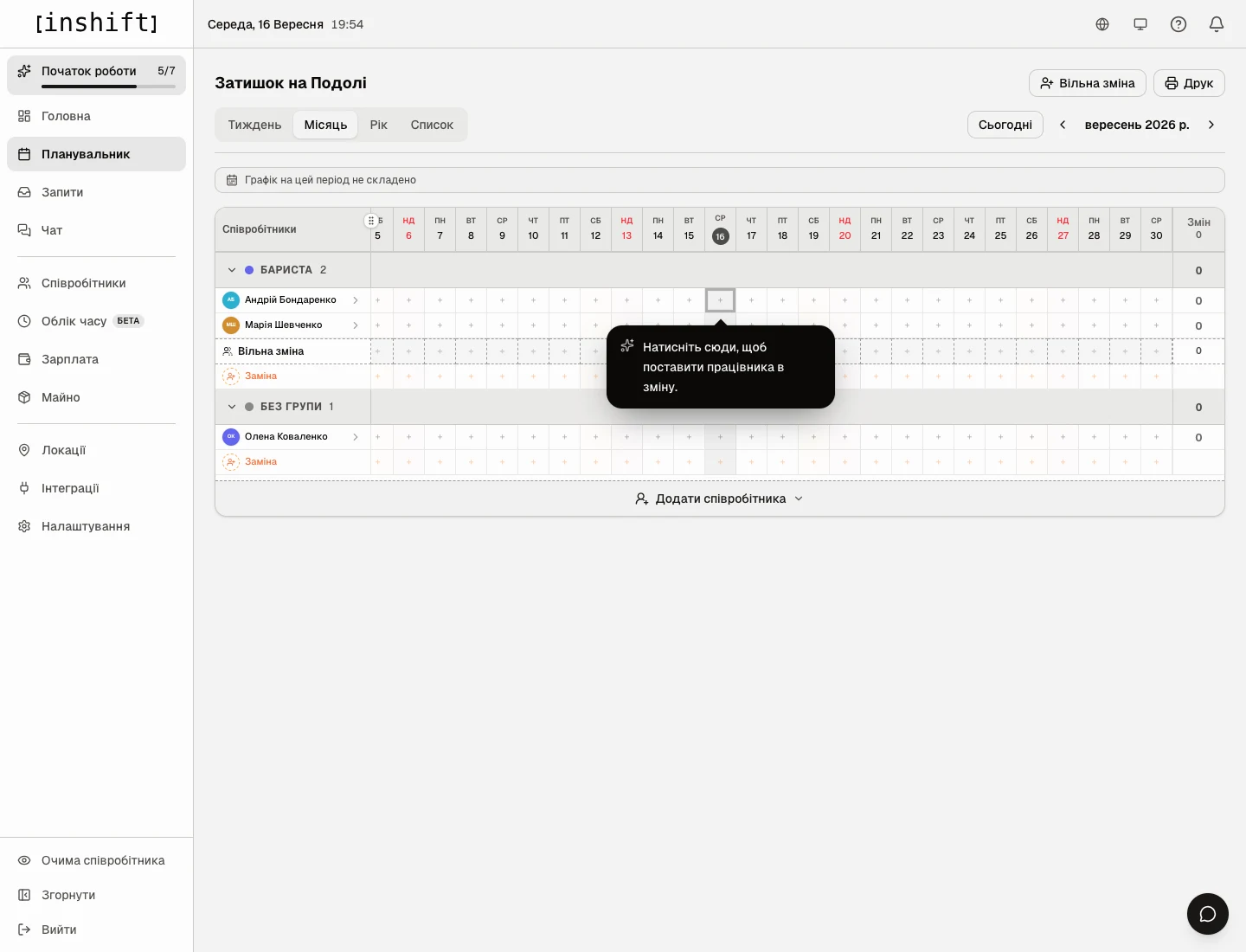
How to read the grid
At the top is the view switch: “Week”, “Month”, “Year”, “List”. On a phone there is also “Day” before them, and it opens first: the shifts of the chosen day as a list. For building the schedule “Week” is the most comfortable: the cells are big and show the name and time of each shift. “Month” shows the whole month at once, with shifts as short marks.
To the right of the switch are the “Today” button and arrows to flip through weeks or months.
On the left are people grouped by position: “Barista”, “Cook”. Anyone without a position sits in the “No group” group. Under each group are two service rows: “Someone needed” for shifts nobody is assigned to yet, and “Substitute” for one-off cover.
On the right of every row is the “shifts” counter, and in the “Week” view the person's hours for the week sit under their name, for example “24 h”.
The grey row above the grid tells you the state: “No schedule for this period yet” or “Schedule runs through 16 September, nothing after”.
Step by step
- Open “Planner” and click “Week” at the top. Use the arrows to go to the week you are building.
- Click the cell where a person and a day meet. An empty cell shows a small plus.
- A list of the location's shift types appears, for example “Morning 08:00–16:00” and “Evening 16:00–23:00”. Click the type you need. The shift lands in the cell at once.
Lower in the list there are two more items. “Custom shift”: a shift with any time, for when no type fits, for example a stocktake from 22:00 to 02:00. “Someone needed”: a shift without a person, a gap in the schedule that you close later.
If in “Requests” you click “Settings” at the top right and on the “Request rules” page, in the “Open shifts” block, choose “Requests, manager picks”, this item and the row are called “Open shift”: the team sees such shifts in the app and applies for them.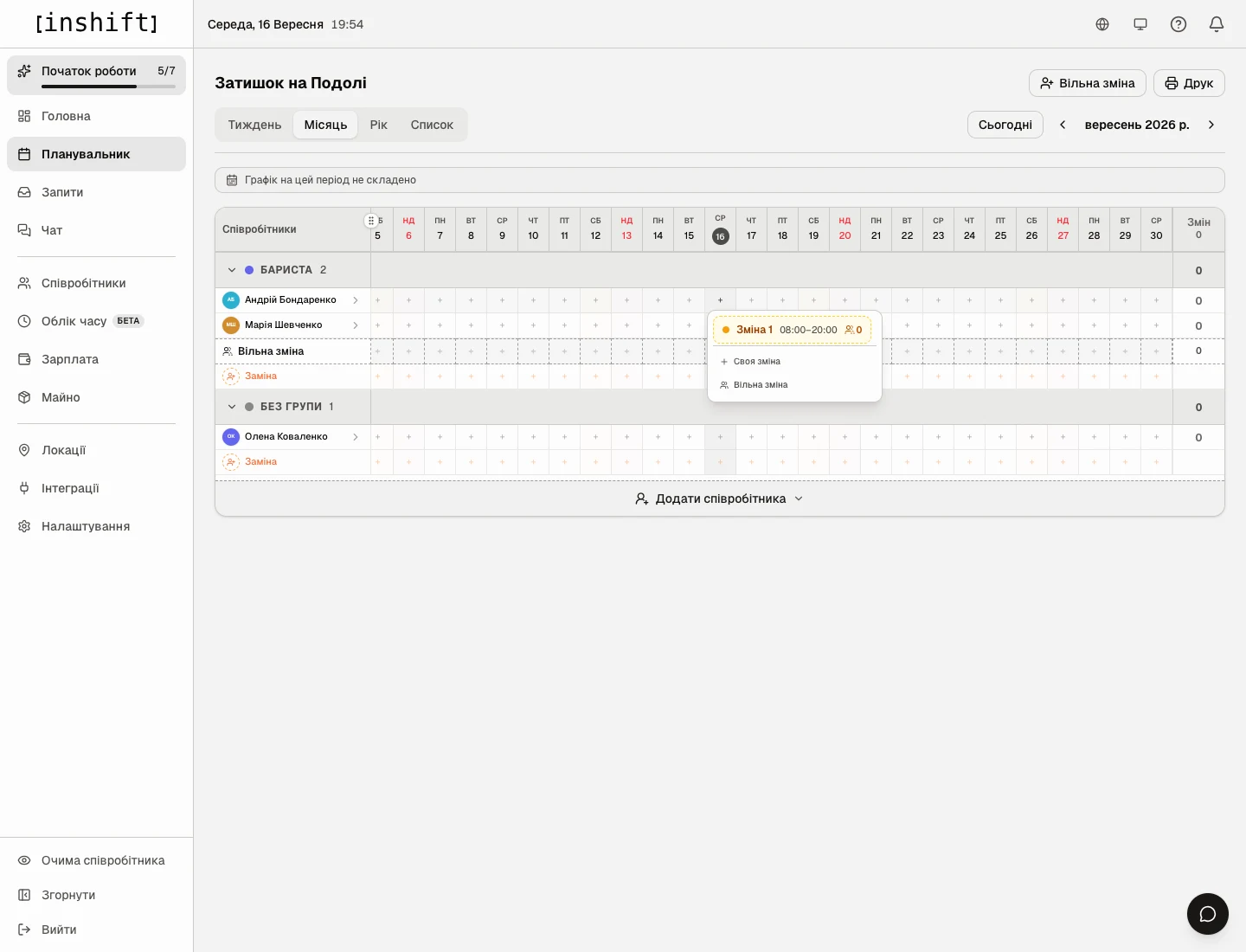
The cell menu: the shift type “Shift 1 08:00–20:00”, and below it “Custom shift” and “Open shift” - The shift in the cell is marked as a draft: a dotted border and a badge. A yellow row appears above the grid, “Drafts (1) are visible only to you, publish to show your team”, with a “Publish (1)” button. Do not rush to click it: place the whole week first.
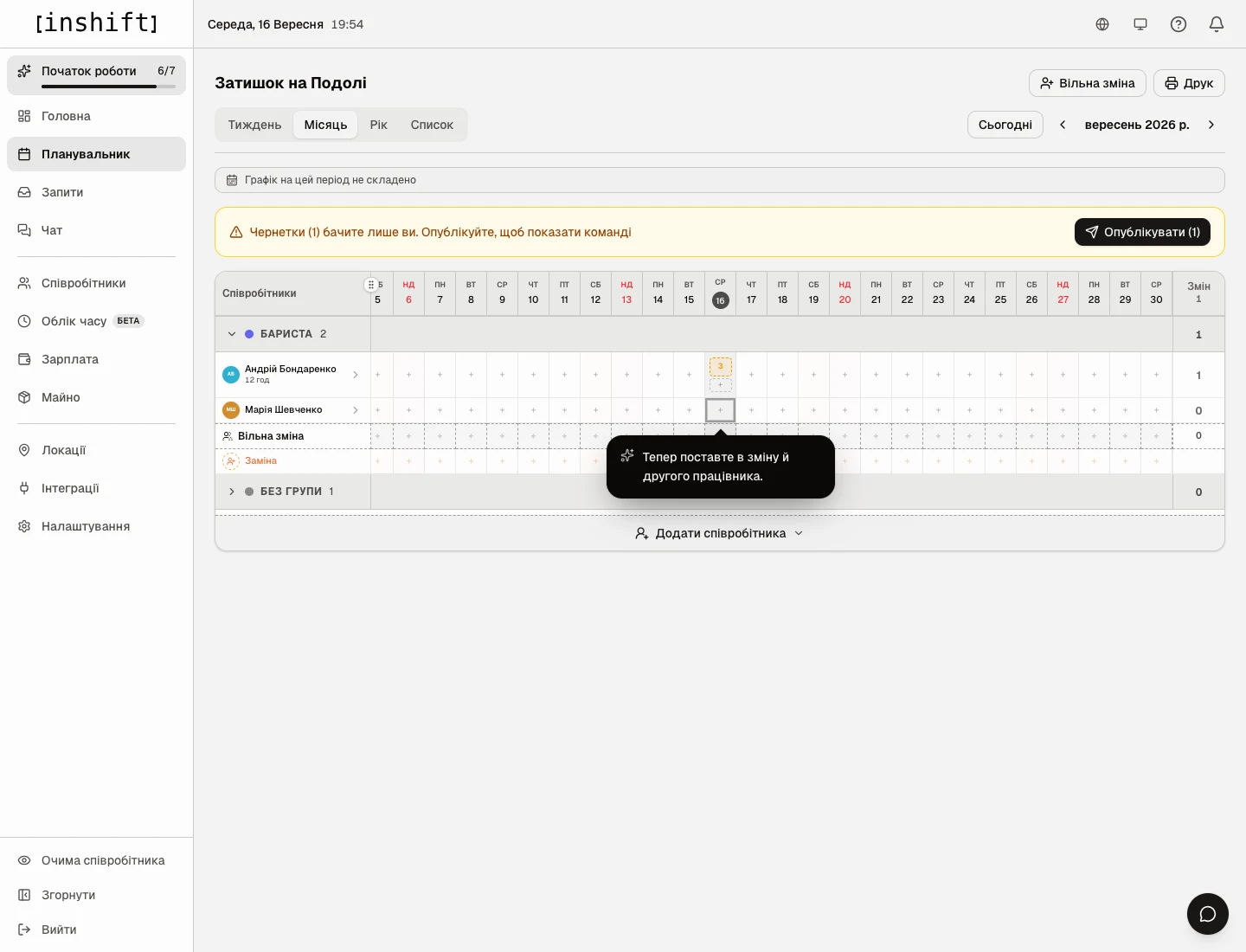
The first shift in the grid: a draft with a dotted border and the yellow row about drafts - Fill in the rest of the cells the same way: person by person, day by day. The counter next to each name shows how many hours everyone has, so you can see at once who is overloaded and who has too little.
- Made a mistake: click the shift in the cell. The “Edit Shift” window opens: here you can change the “Shift type” or the time, or click “Delete” and confirm. A draft can be deleted without consequences; the team never saw it.
- When the week is ready, click “Publish”. What happens next is in Publish the schedule and what the team sees.
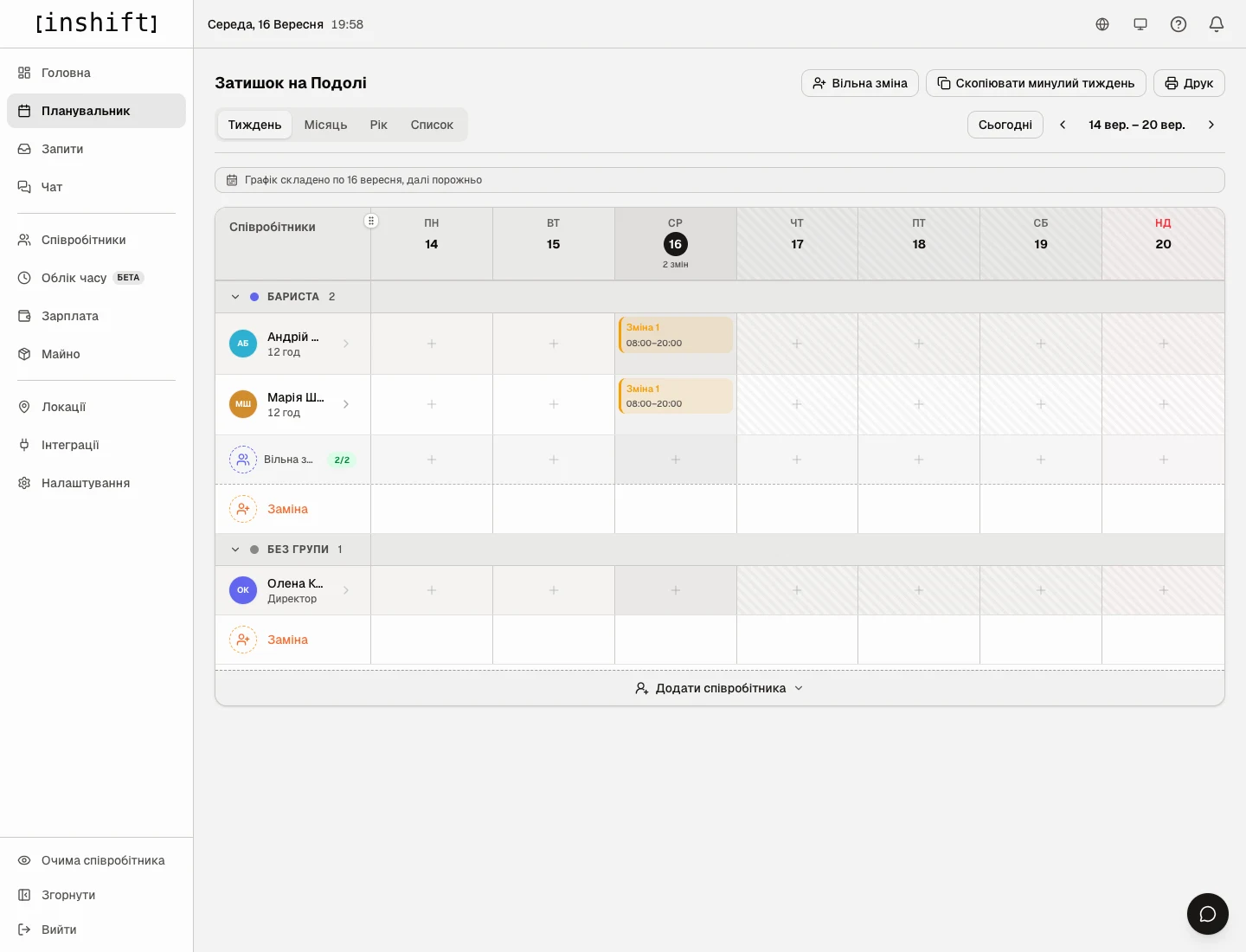
A week with shifts for two people: the “Week” view shows the name and time of every shift
The following weeks: copying
The second and following weeks do not have to be built from scratch. In the “Week” view go to the new week and click “Copy last week” at the top. The panel shows how many shifts will be copied and asks you to confirm: “Copy (14)”. The shifts arrive as drafts; you adjust holidays and days off and publish.
That is what the weekly routine looks like: copy last week, adjust, publish.
Why an action is unavailable
There is nothing to choose in the cell, the list is empty: this location has no shift types, or none applies on this day of the week. “Locations” → location → the position card → “Add shift type”, or check “Days” in the type.
Instead of the grid you see “No shift types at this location” and an “Add shift types” button: the same thing, create the shift types first.
Instead of the grid you see “No employees at this location” and an “Add employees” button: the people's cards have a different primary location, or they have not been added yet.
A person is missing from the grid: “Not scheduled” is on in their card, or their primary location is a different one.
Clicking a cell shows “No permission to edit the rota at this location”: your role lets you view but not change this location's schedule.
The message “Time conflict: already working…”: the person already has a shift at this time, possibly in another location. Pick a different time or a different person.
Questions and answers
Does the team see what I am placing?
No, not until you click “Publish”. Drafts are seen only by you and by those who have the right to edit the schedule.
Can one person have two shifts in a day?
Yes, if they do not overlap in time: for example morning and evening with a break.
What if one person works, but the shift needs two?
Place the shift for each person separately: one cell, one person. Or click “Someone needed” at the top of the planner and set “How many people needed”: empty slots appear that you close later. With open shifts enabled, the team takes them itself.
How do I look at the schedule on a phone?
Install the InShift app and sign in with your email: the grid is there too. Building the schedule is more comfortable on a computer, while checking it and fixing a single shift works from a phone.
How do I print the schedule?
The “Print” button at the top of the planner opens a menu: “Print all locations”, individual locations and “Download Excel”. Only published shifts go into the file: the schedule is handed out to people, and a draft is not a promise yet. To print drafts too, tick “Include drafts” at the top of the menu, and those shifts will be marked “draft”.