A position is what a person does at work: barista, cook, cashier, cleaner. Every employee has a primary position, and InShift builds the schedule by positions.
Why it matters: in the schedule grid people are grouped by position, shift types in a location are grouped by position, and cover for a barista's shift is searched among those who can work as a barista. A person without a position is still in the schedule, in the “No group” section, and can be given a shift, but they will not be offered as cover by position.
A position and access rights are different things. A position answers “what the person does”, and access rights (“Employee”, “Manager”, “Director”) answer “what the person can do in the app and admin panel”. A cook can be a manager, and a barista can be the owner.
Where to find it
The list of all positions: the “Employees” menu → the “Positions” tab.
A position can be added in two places: on this tab with the “Add position” button, or inside a location (“Locations” → open the location → “Add position”). The result is the same: a position is one for the whole organisation.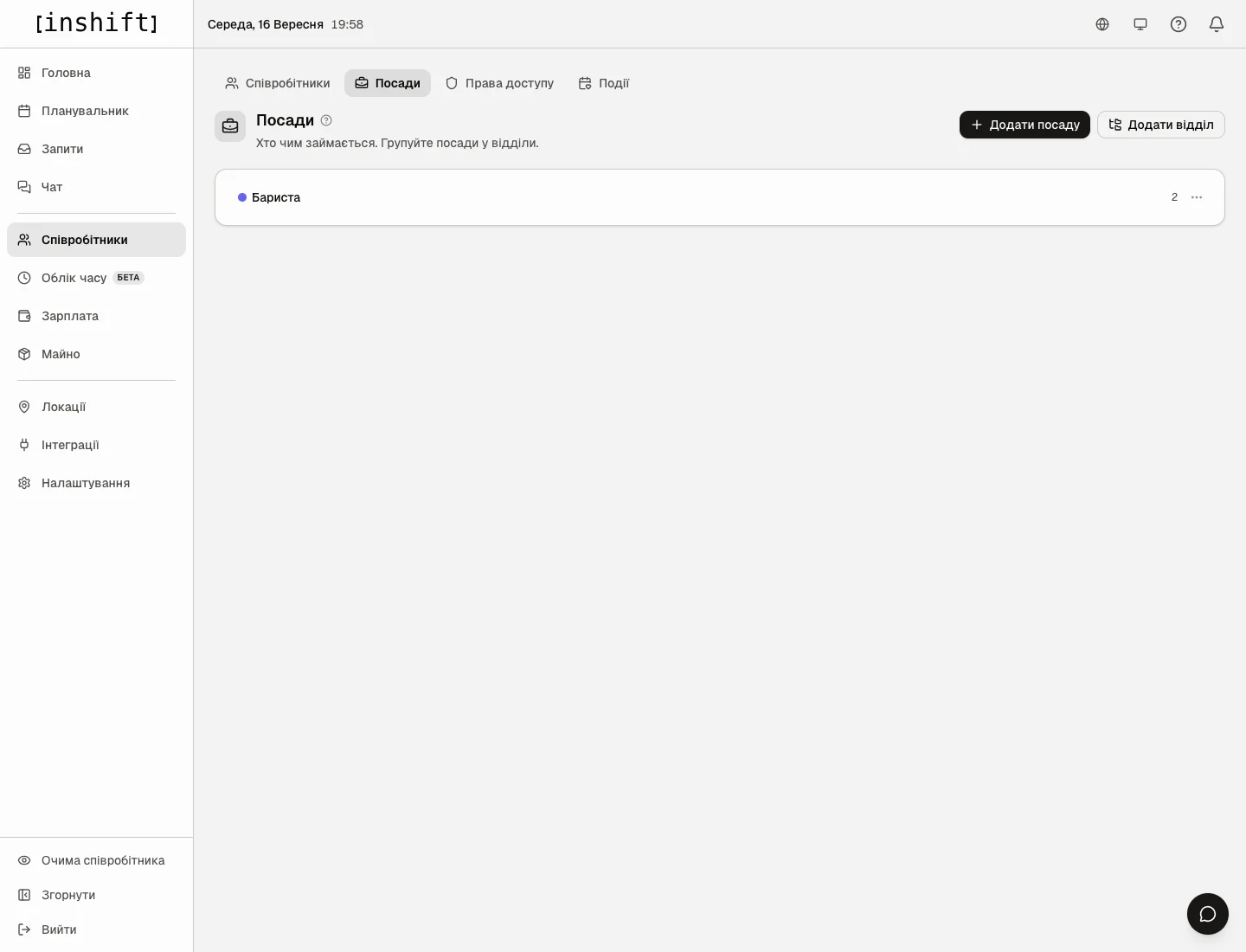
Step by step
- In the menu on the left, click “Employees”, then the “Positions” tab at the top.
- Click “Add position” at the top right.
- In the “Name” field write the position the way you call it: “Barista”, “Waiter”, “Shift lead”. One position per kind of work, with no surnames and no locations in the name.
- Pick a colour if you want the position to stand out in the schedule, and click “Add position”.
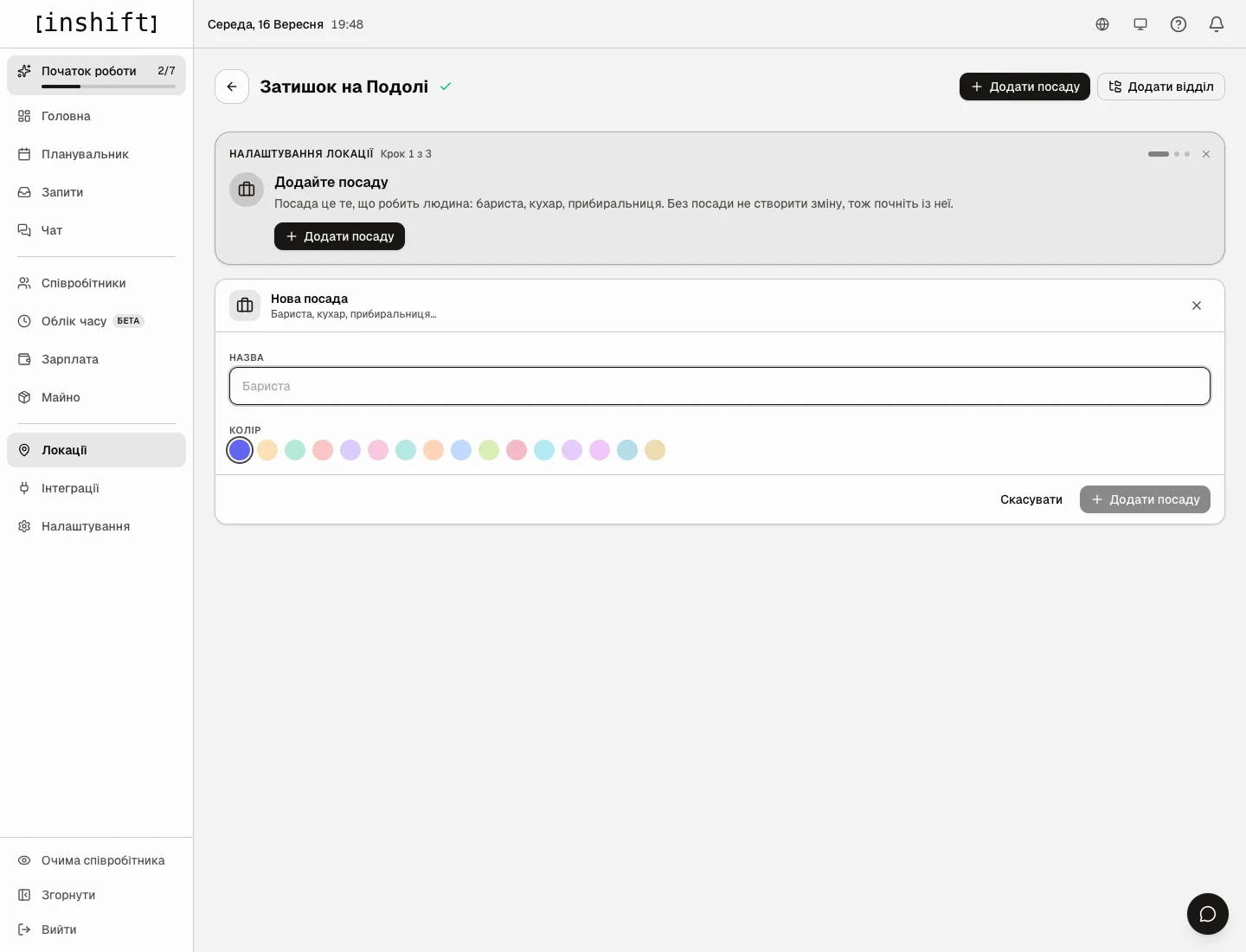
The “New position” block: the name field and colours - Assign the position to people. Open the employee card (“Employees” → location → click the person) and in the “Position” block choose the “Primary position”. If the person can do something else too, add it under “Can cover”: then they are offered as cover for that position as well.
- If the new position needs its own shifts, add them in the location: “Locations” → location → the position card → “Add shift type”. In the planner a person is offered every shift type of the location, so if the existing ones fit, there is nothing to add. Details in Create a location and shift types.
Departments
When there are many positions, it is convenient to sort them into departments: “Kitchen”, “Floor”, “Storage”. A department is just a folder for positions; it does not affect the schedule. To add one: the “Positions” tab → “Add department”, type the name in the row that appears (for example “Kitchen”), pick a colour and click the “Save” tick. Inside a location the same button opens the “New department” block with the “Name” field and the “Add department” button. A position is moved into a department by dragging the handle on the left of its row.
How to change or delete
On the “Positions” tab, on the right of a position's row, there is a three-dot icon, “Position actions”: rename, change the colour, move to a department or delete. The number next to it shows how many people hold this position.
Only a position that is no longer assigned to anyone, dismissed people included, can be deleted. Otherwise you see “First remove this position from N employees”: change the position for those people in their cards.
Why an action is unavailable
No “Positions” tab or no “Add position” button: your role does not have the “Job positions and access rights” right. Ask the owner or a co-owner.
In the employee card, instead of the position field, there is “Add positions (barista, cook…) to assign them in the rota” and a “Set up” button: no positions have been created yet. Add at least one on the “Positions” tab and come back.
In the schedule the person sits in the “No group” group instead of their position: “Primary position” in their card is empty. The person is not in the grid at all: “Not scheduled” is on in the “Schedule” block, or their primary location is a different one.
Questions and answers
How many positions should I create?
As many as there are different kinds of work in your schedule. A café usually needs two or three: barista, cook, cleaner. Do not create a position for each person.
Can a person have two positions?
Yes. The primary one is single and sets the group in the schedule. Add the rest under “Can cover”: the person can be put on that position's shifts and offered as cover for them.
Does the owner need a position?
No, if the owner does not work shifts. Their card can have “Not scheduled” turned on, and they are left out of the planner.
What happens to the schedule if I rename a position?
Nothing: the shifts stay where they are, only the group name changes.