Everything you place in the planner is a draft at first. Only you see drafts: the team does not see them in the app and gets no notifications. Publishing is the moment the schedule becomes real: it appears in the app for everyone it concerns, and people get a notification about their new shifts.
Usually you publish not one shift at a time but all the drafts of the week together with one button. So build the whole week calmly, check the hours, and only then publish.
Publishing is available to the owner, co-owners and anyone whose role has “Edit rota” set to “My locations” or “Entire network”. With “Own”, a person adds shifts only for themselves in the app, and they are published straight away: they have no drafts and no “Publish” button.
Where to find it
“Planner” → the yellow row above the grid, “Drafts (N) are visible only to you, publish to show your team” → the “Publish (N)” button. The number in brackets is how many drafts go into the publication.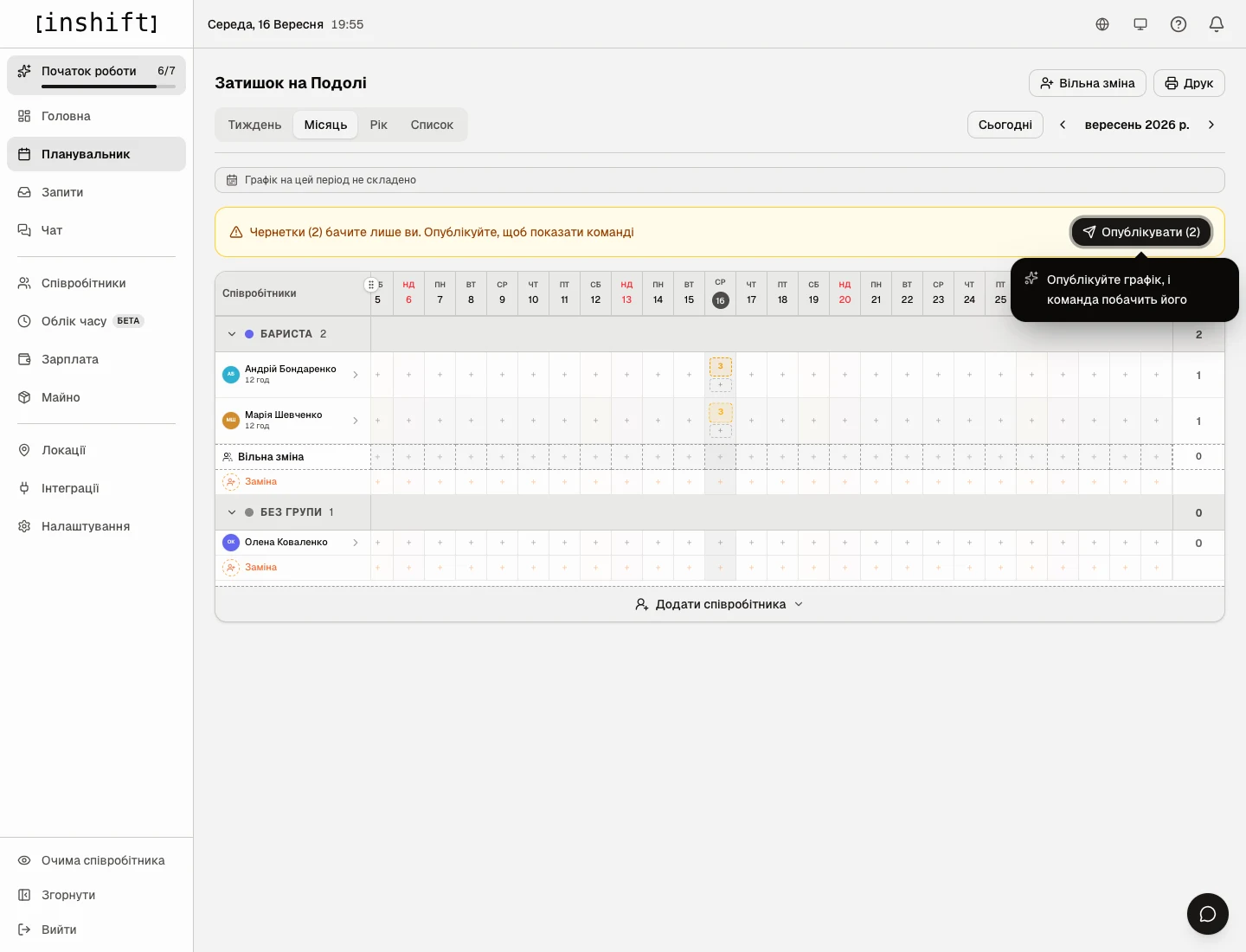
Step by step
- Open “Planner” and check the week in the “Week” view: everyone has the right shifts, the hour counters under the names look sensible, and there are no “gaps” without a person.
- Click “Publish (N)” in the yellow row. The button publishes the drafts of this location for the period on the screen: the week in the “Week” view, the month in the “Month” view. Until the schedule has been published for the first time, the panel shows where the drafts are: if there are none on the screen but there are some in another week, instead of the button you see “You have unpublished shifts in another week” with a “Go to drafts” button. After the first publication this message is gone, so open the week you need yourself.
- Done. The dotted borders disappear, the shifts become regular, and a message appears at the bottom: “Published N shift(s)”.
The first time, instead of the message, the “Rota published!” window opens with two buttons: “See it as an employee” and “Invite your team”. The second one leads to the invite codes for those who have not connected the app yet.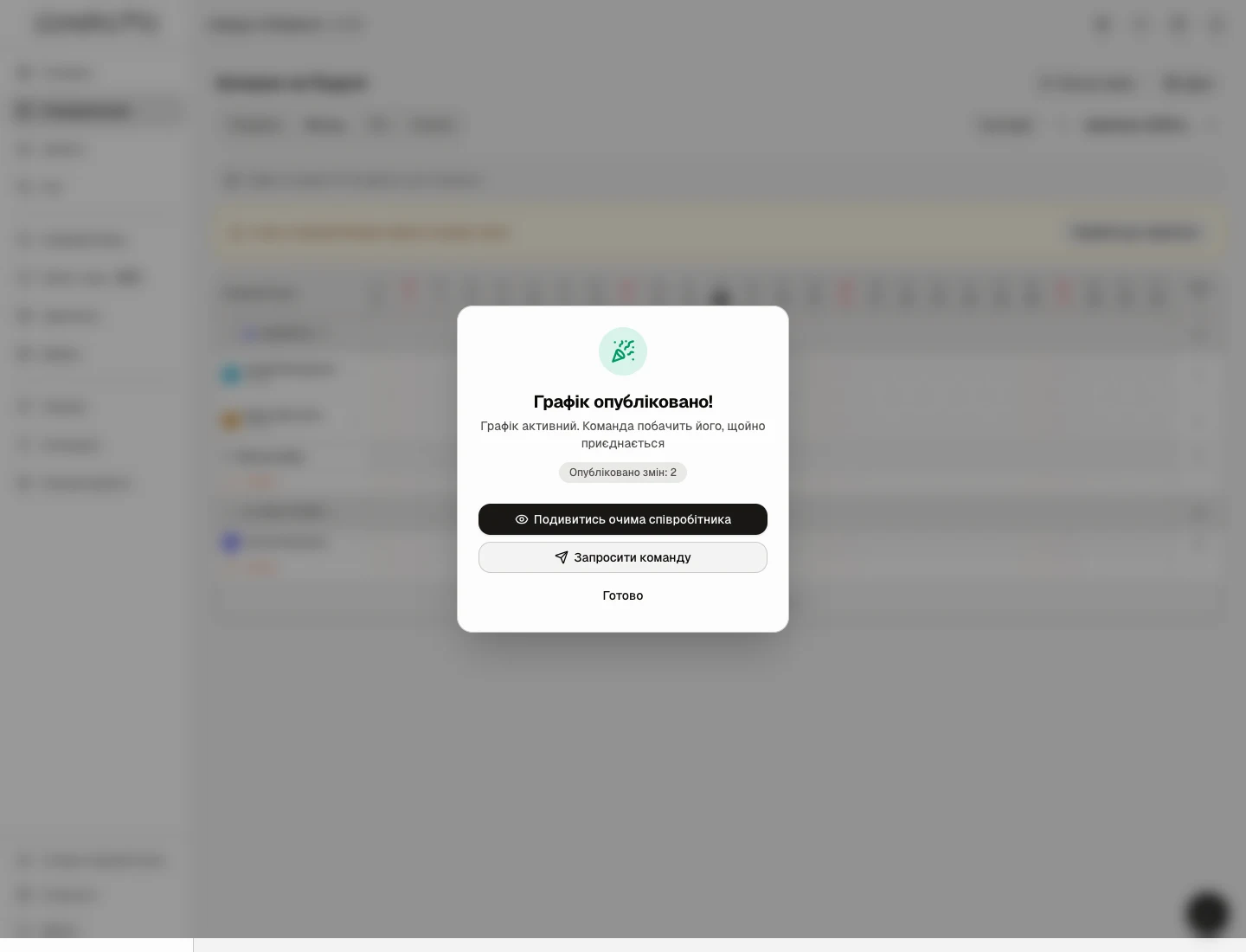
The “Rota published!” window after the first publication - Check the dashboard: the “Schedule is filled through …” row shows up to which date the team sees the schedule, and “Week ahead” shows the shifts by day.
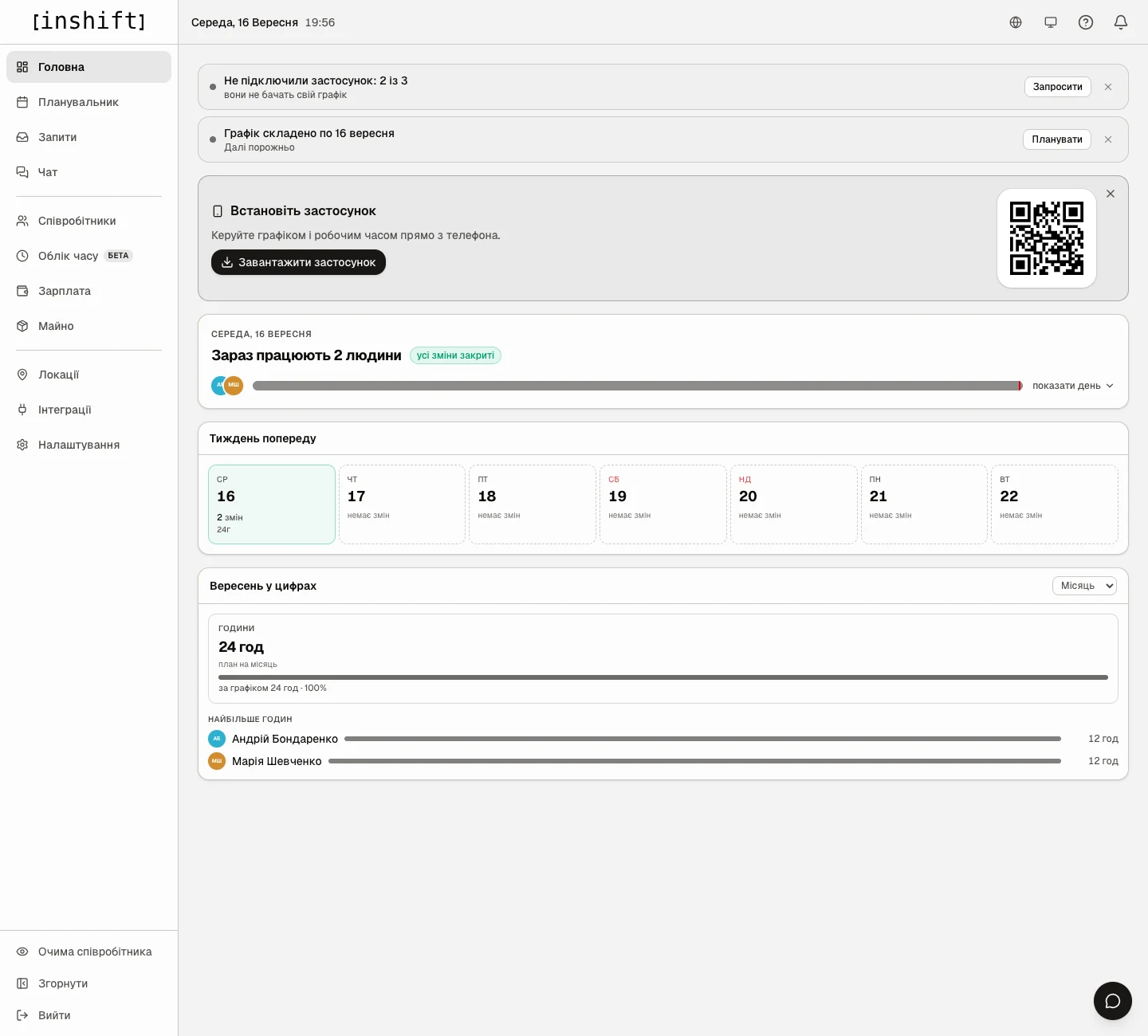
The dashboard after publishing: who is working now, the week ahead, hours for the month
What the team sees
Everyone who has a shift in the published schedule and has connected the app gets a notification on their phone and sees their shifts on the “Rota” screen. A person sees their own shifts and the shifts of colleagues at their location, but not drafts.
Anyone who has not entered an invite code yet gets nothing: they have no app. On the dashboard this shows in the “Not connected to the app” row.
To see the schedule exactly as a particular person sees it, open “Employee’s view” at the bottom of the menu and pick them in the list. A phone screen with their app appears on the right.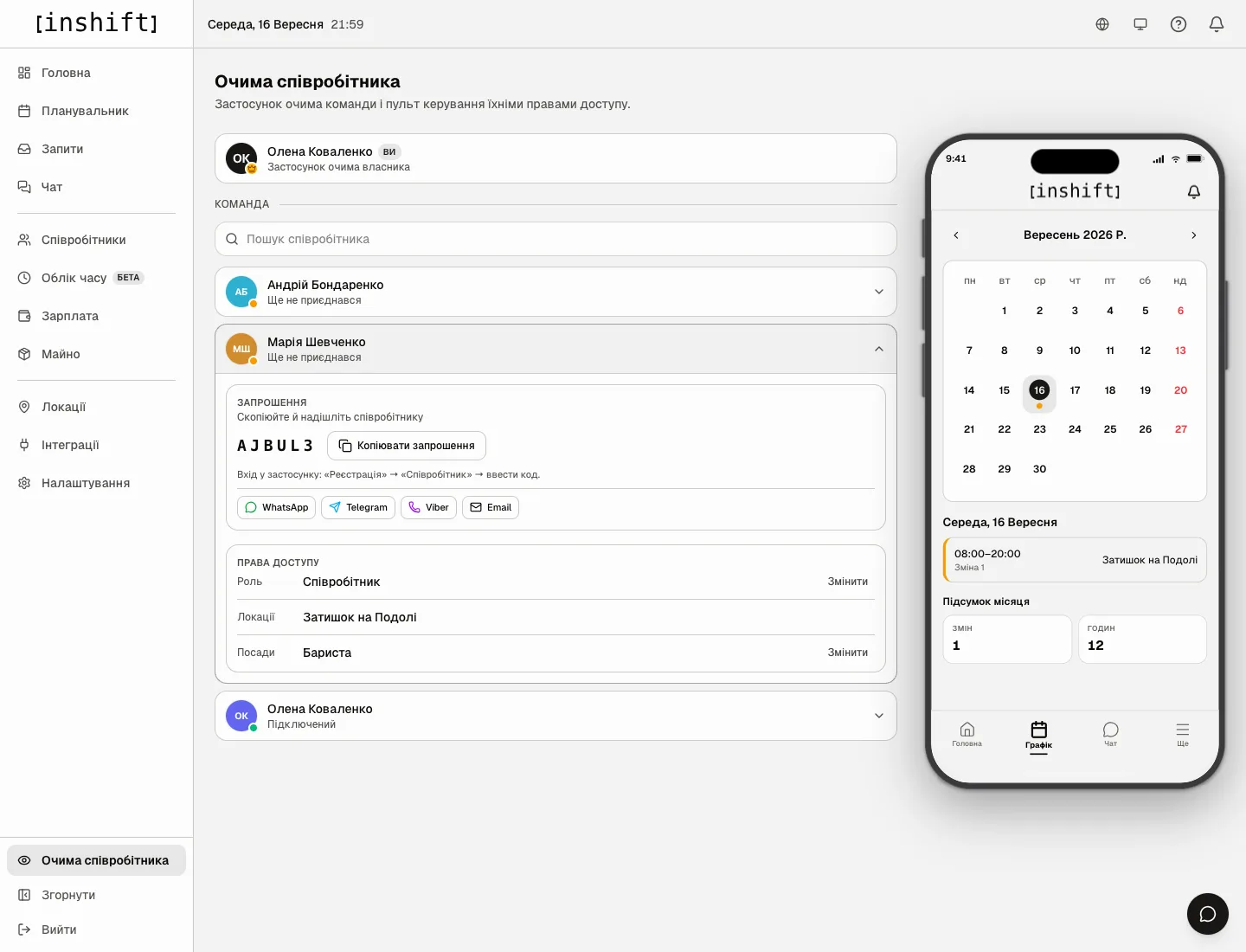
Edits after publishing
A published shift can be changed as usual: click it and fix the time or the type. It does not become a draft again, and the person gets a notification straight away that the shift has changed. The same goes for cancelling: a deleted published shift disappears from the person's app, and they find out about it.
New shifts you add to an already published week become drafts again and have to be published with the same button.
A single shift can be published on its own without waiting for the rest: the shift window has a “Status” field; switch it from “Draft” to “Published” and click “Save”.
Why an action is unavailable
There is no yellow row and no “Publish” button: there are no drafts on the screen. Everything is already published, or the drafts are in another week or month.
A colleague sees drafts and you do not: your role does not have the right to edit this location's schedule, and drafts are seen only by those who can edit them. Ask the owner or a co-owner.
You published, but a person says they cannot see the schedule: check three things. They have connected the app with a code. Their shift is in this period, not another one. They have closed and reopened the app: the schedule refreshes by itself as soon as the app comes back on screen.
The notification did not arrive: notifications for InShift are turned off in the phone's settings. The schedule is still in the app.
Questions and answers
Can I publish just one week and leave the next as a draft?
Yes. Switch to the “Week” view, open the week you need and click “Publish”: only that week goes out. The drafts of the next week stay drafts: when you get to it, publish it with the same button.
Can I unpublish?
There is no separate “unpublish” button. Delete the extra shifts or fix them: the team gets a notification about the changes.
How many notifications does a person get when I publish a week?
One notification about new shifts, not one per shift.
Does a manager of another location see my drafts?
No. Drafts are seen only by those who can edit the schedule of this particular location.