You see your schedule in the InShift app on your phone. For the app to know which team you are in, you need an invite code from your manager: 6 characters, capital letters and digits, for example “AJBUL3”. The code is valid for 7 days and fits one person only: it links your account to your card in the organisation.
There is no need to register on the website: everything is done in the app in three minutes.
Where to get the code
Your manager gives it to you. They can send it in a messenger or by email, show it on their computer screen or print it together with a QR code. Without the code the app does not know which team to add you to.
If you have a QR code, point your phone's camera at it: it leads to the app download page. You still need to type the invite code by hand after that.
Step by step
- Install InShift from the App Store or Google Play and open it.
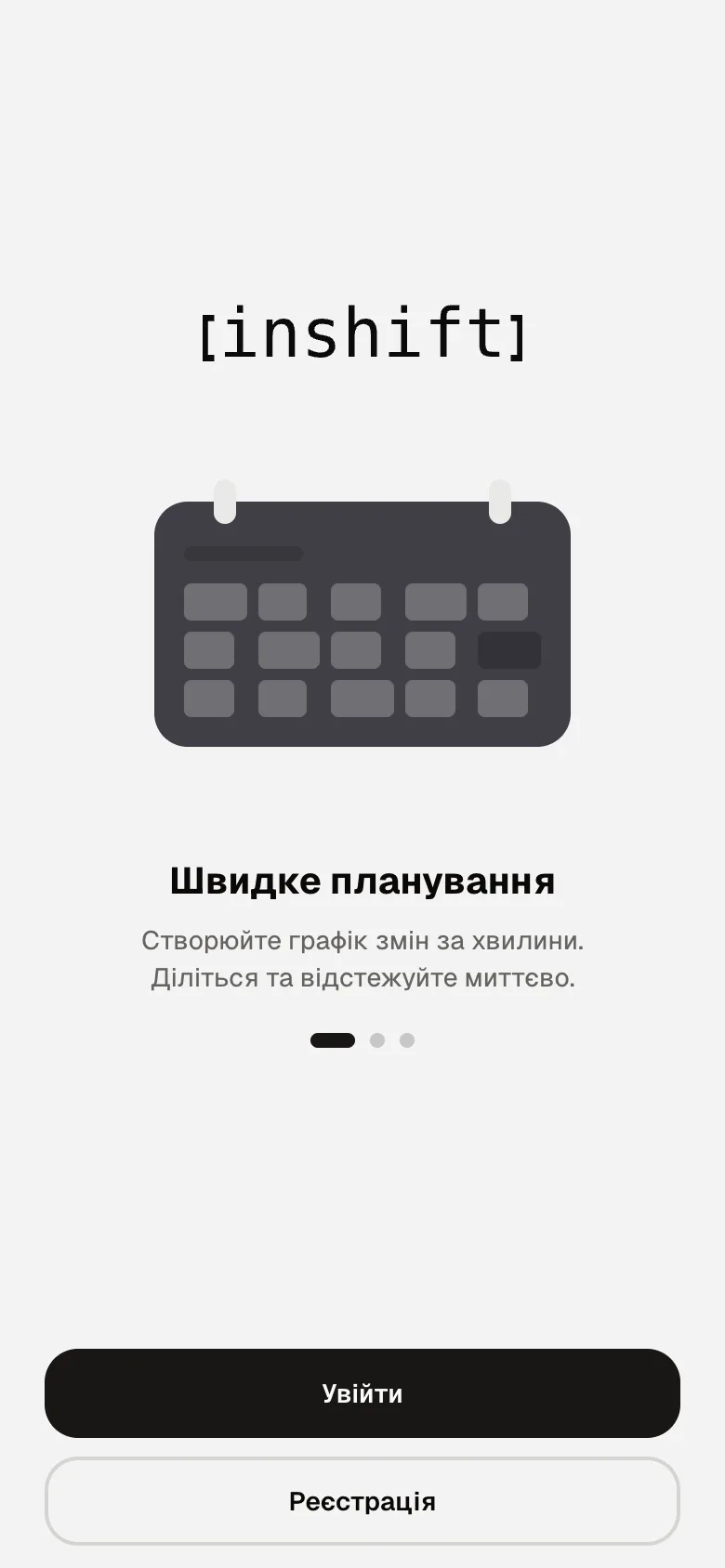
The app's first screen: “Sign In” and “Sign Up” - On the first screen tap “Sign Up”.
- Choose “I’m an employee”. The second option, “I’m setting up my business”, is for owners: it leads to the website.
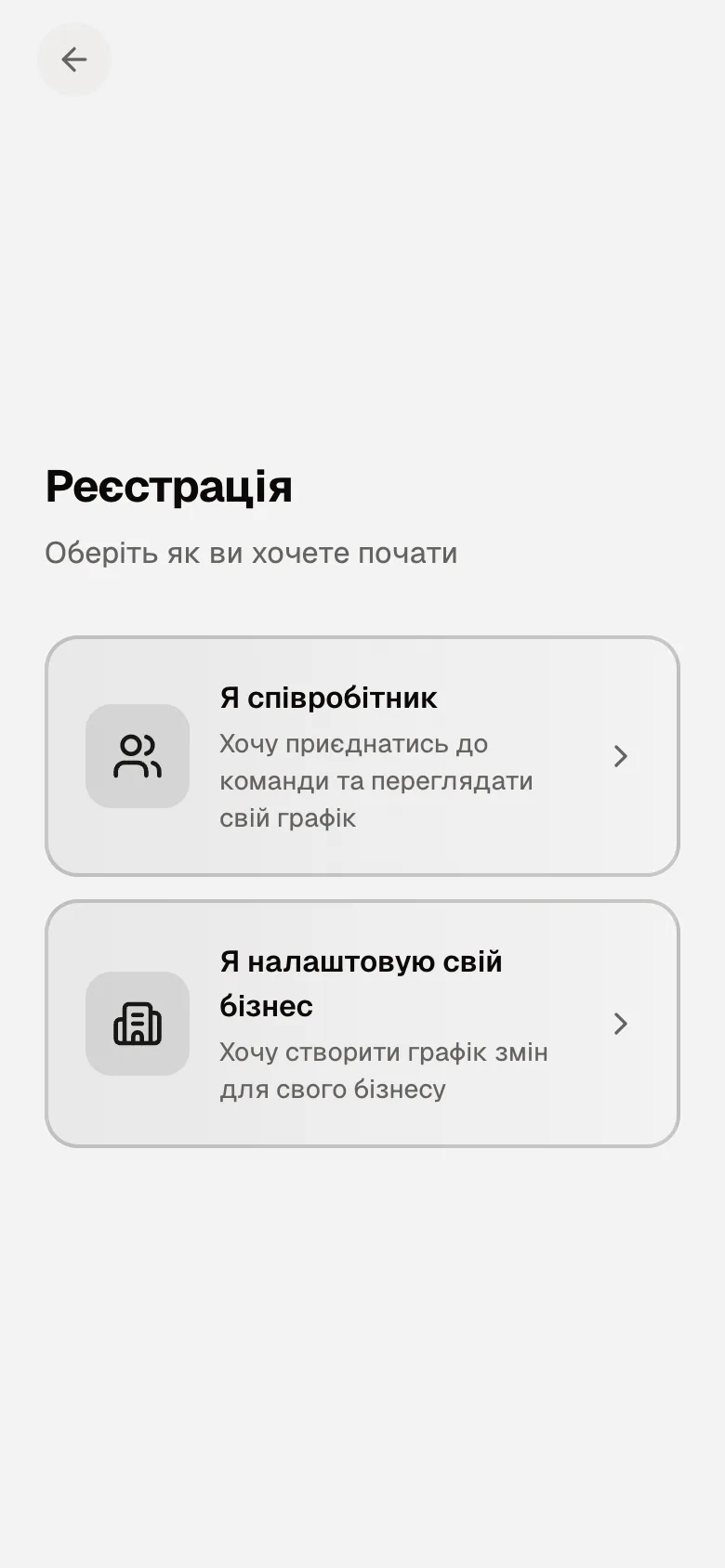
The “Sign Up” screen: “I’m an employee” and “I’m setting up my business” - On the “Enter code” screen type the 6 characters from the invitation. Upper and lower case do not matter. As soon as the last character is in, the app checks the code by itself and shows your name and the organisation's name.
The code is not accepted: see “Why the code is rejected” below.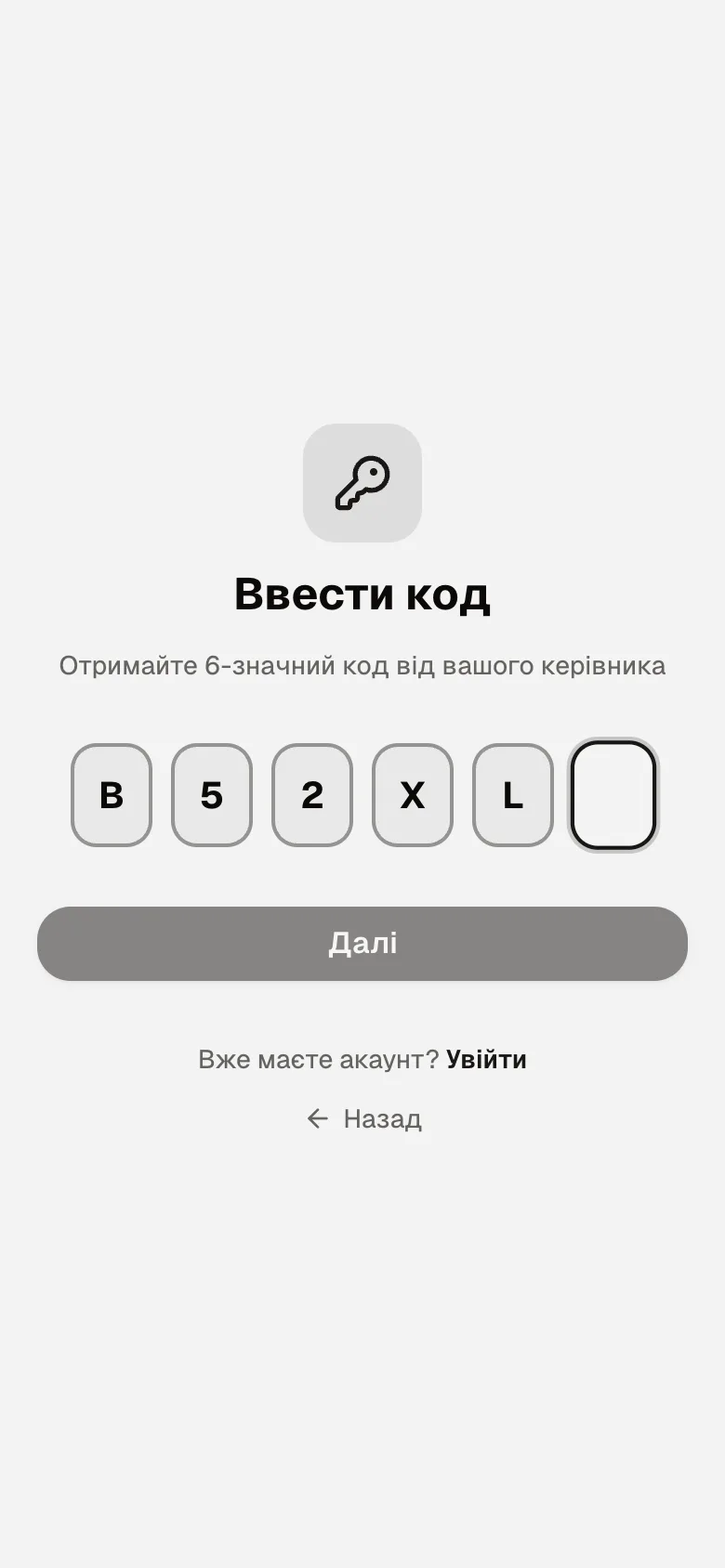
The “Enter code” screen: six boxes for the code characters - Create an account. In the “Contact details” block fill in “Email” (this is your login) and, if you like, “Phone”. In the “About you” block choose “Gender” and “Date of birth”. In the “Password” block make up a password of 8 characters or more and repeat it in “Confirm password”. Tap “Create account”.
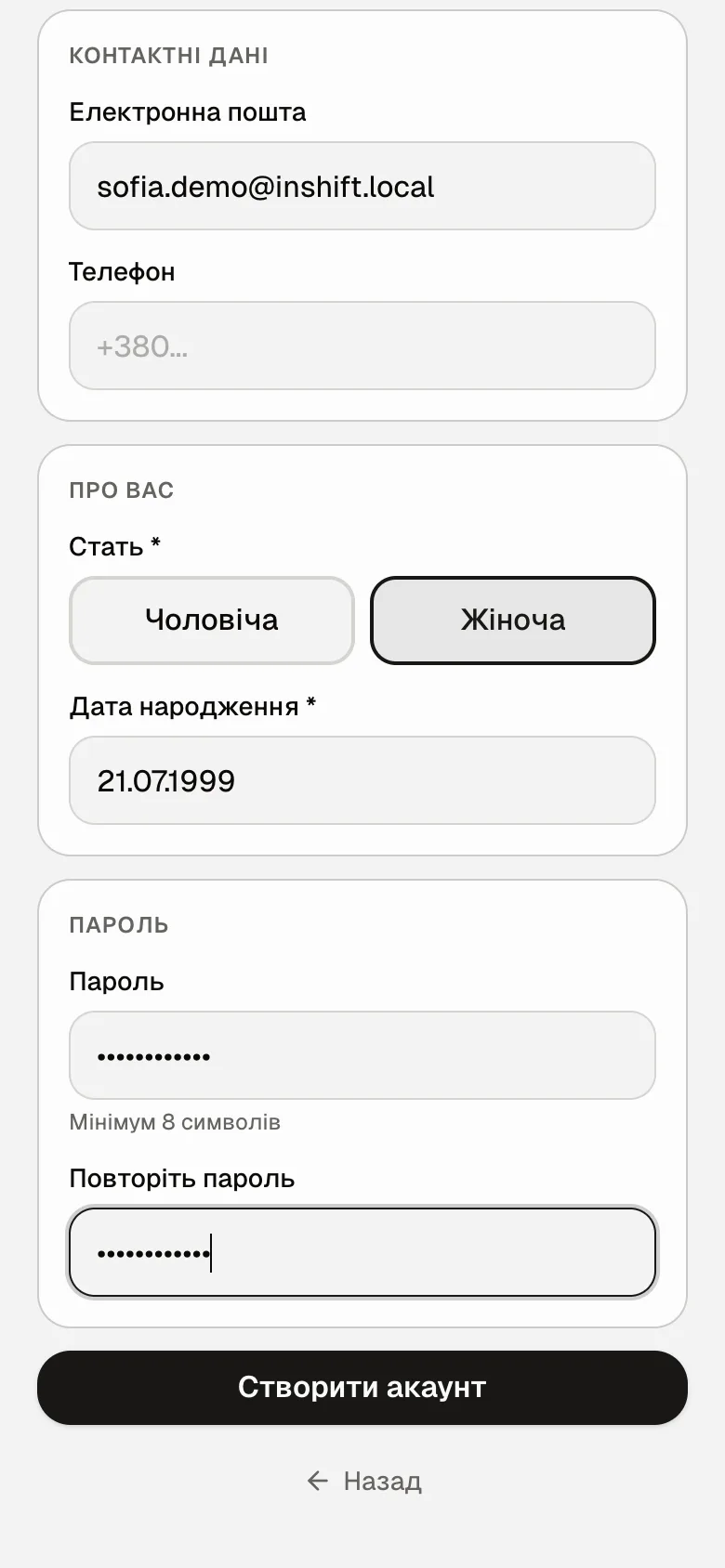
The account form: the organisation and your name at the top, email, gender, date of birth, password - You see “Done! Opening your rota”, and the app opens the “Home” screen.
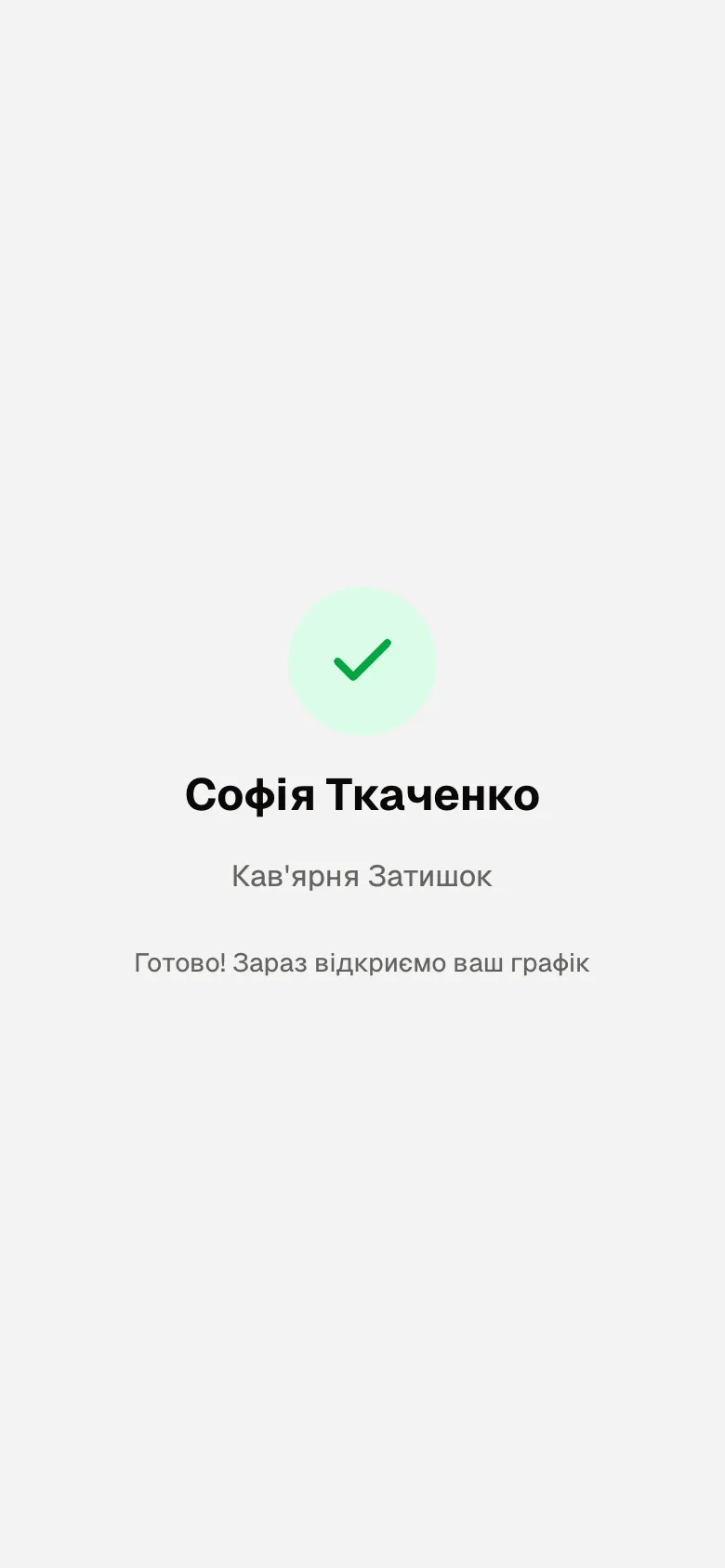
The “Done! Opening your rota” screen - Go to “Rota” at the bottom. If your manager has not published your shifts yet, there is a “You’re on the team” card with an “Enable notifications” button: tap it to hear about the schedule right away. If there are shifts already, the app shows them and the “You’re on the team” window with a “Done” button, and then asks permission for notifications.
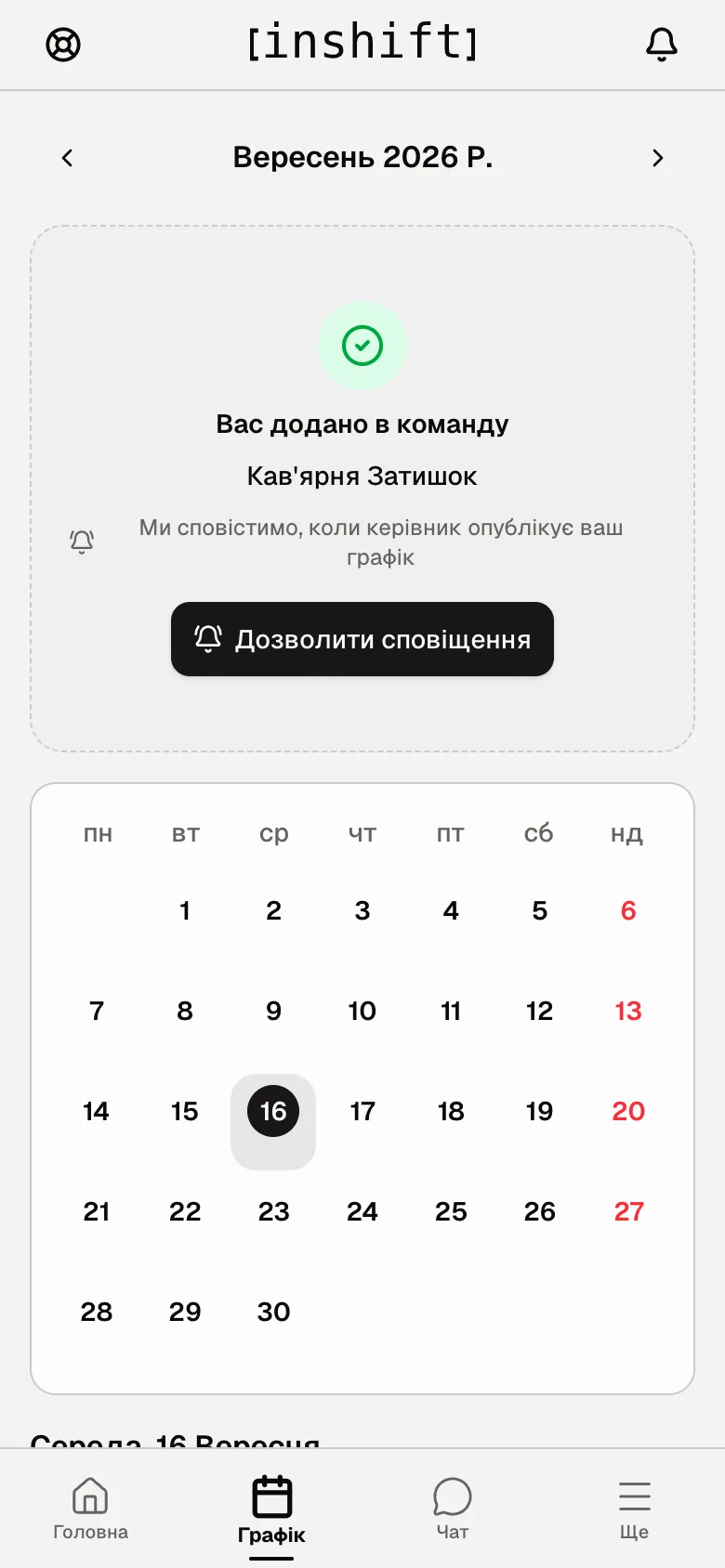
“Rota” with no shifts: the “You’re on the team” card and the “Enable notifications” button
From then on your schedule is always on the “Rota” screen, and your manager sees in their list that you have connected.
How to sign in next time
The app remembers you; there is no need to enter the code a second time. If you signed out or reinstalled the app, tap “Sign In” on the first screen and enter the email and password you gave at registration. Forgot the password: “Forgot password?”, and a code arrives by email.
Why the code is rejected
“Invalid or expired code”: check the characters. A code never contains zero, one or the letters I and O, so they are not confused. If more than 7 days have passed since it was issued, ask your manager for a new code.
“This code has already been used. If the account exists, sign in”: an account has already been linked with this code. If that was you, tap “Sign In” and enter your email and password.
“This card is already connected to an account. If it’s yours, sign in. Used the wrong email when signing up? Your manager can change it on your card.”: your card is already linked to an account, usually your own from an earlier sign-up. Tap “Sign In” and enter your email and password. If the email was mistyped when you signed up, a new code will not help: ask your manager to correct the email on your card.
“Too many attempts. Try again in a minute”: the code was entered too many times in a row. Wait a minute and try again.
“This code has expired. Ask your manager for a new one”: your manager clicks “Invite” in your row in “Employees” and gets a new code.
“You already have an account”: an InShift account with this email already exists. If there is a “Sign In” button under the message, tap it and sign in to your account: the code is not needed, or the app asks for it by itself. If it says the email is registered in another organisation, register for this team with a different email: one account works in one organisation.
“You’re already signed in”: another account is open in the app. Tap “Sign out & join” to enter the code afresh.
Questions and answers
Can I enter the code on the website instead of the app?
No. An employee's schedule lives in the app, while the inshift.app website and the admin panel are for owners and managers.
I already have an InShift account from another job. What do I do?
One account belongs to one organisation. For the new job, register with the code using a different email. If the old account is open in the app, it shows “You’re already signed in” and the “Sign out & join” button.
The schedule is empty after joining. Is that normal?
Yes: the screen says “Rota not ready yet”. Your manager has not published your shifts yet. As soon as they do, the app sends a notification if you have allowed them.
Will I see my colleagues' schedule?
It depends on the role your manager gave you: the basic “Employee” role sees only its own schedule. If the team's schedule is open to you, turn on “More” → “Settings” → “Appearance” → “Rota view” → “Table”: there you see who is working on each day. Nobody sees the manager's drafts that are not published yet.