Your schedule lives on the “Rota” tab at the bottom of the app. There you have the month calendar, the list of shifts for the chosen day and the month's summary. “Home” shows the same in short: your next shift and whatever needs your attention.
You see only what your manager has already published. While they are building the schedule, it is not in the app; as soon as they publish, the shifts appear by themselves and a notification arrives.
Where to find it
The “Rota” tab at the bottom of the screen. Your next shift is also on the “Home” tab.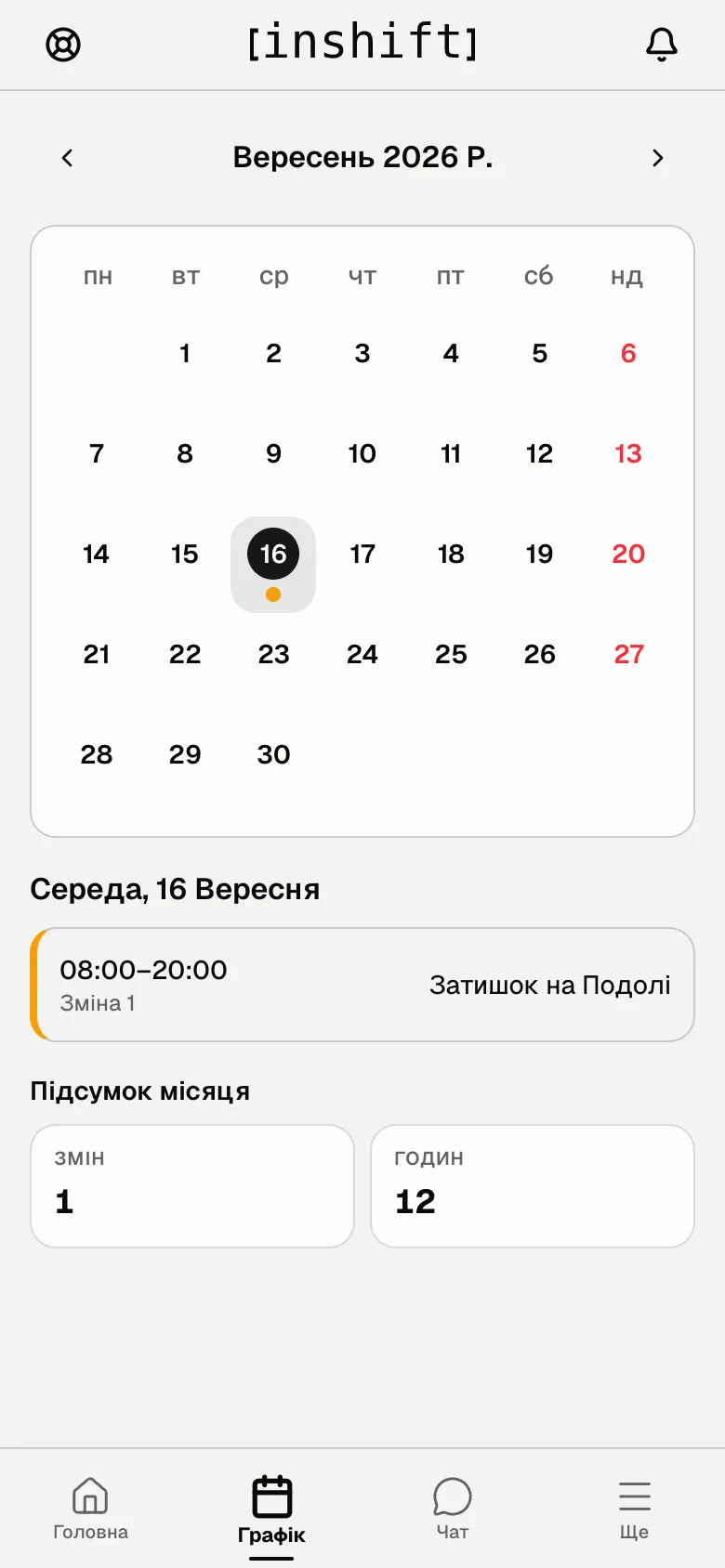
How to read the calendar
At the top is the month's name with arrows to flip through months. In the calendar an orange dot under a date means a shift on that day, and today's date is highlighted.
Below is the list for the chosen day: time, shift name and location. If there are no shifts, you see “Day off” and “Next shift” with its date, so you do not have to look for it.
If your manager has opened the team's schedule to you, under your shifts there is a “Who else is working” block with that day's colleagues, and on a day off “Who’s working this day”. The basic employee role sees only its own schedule and has no such block.
“Month summary”: how many shifts and hours you have this month.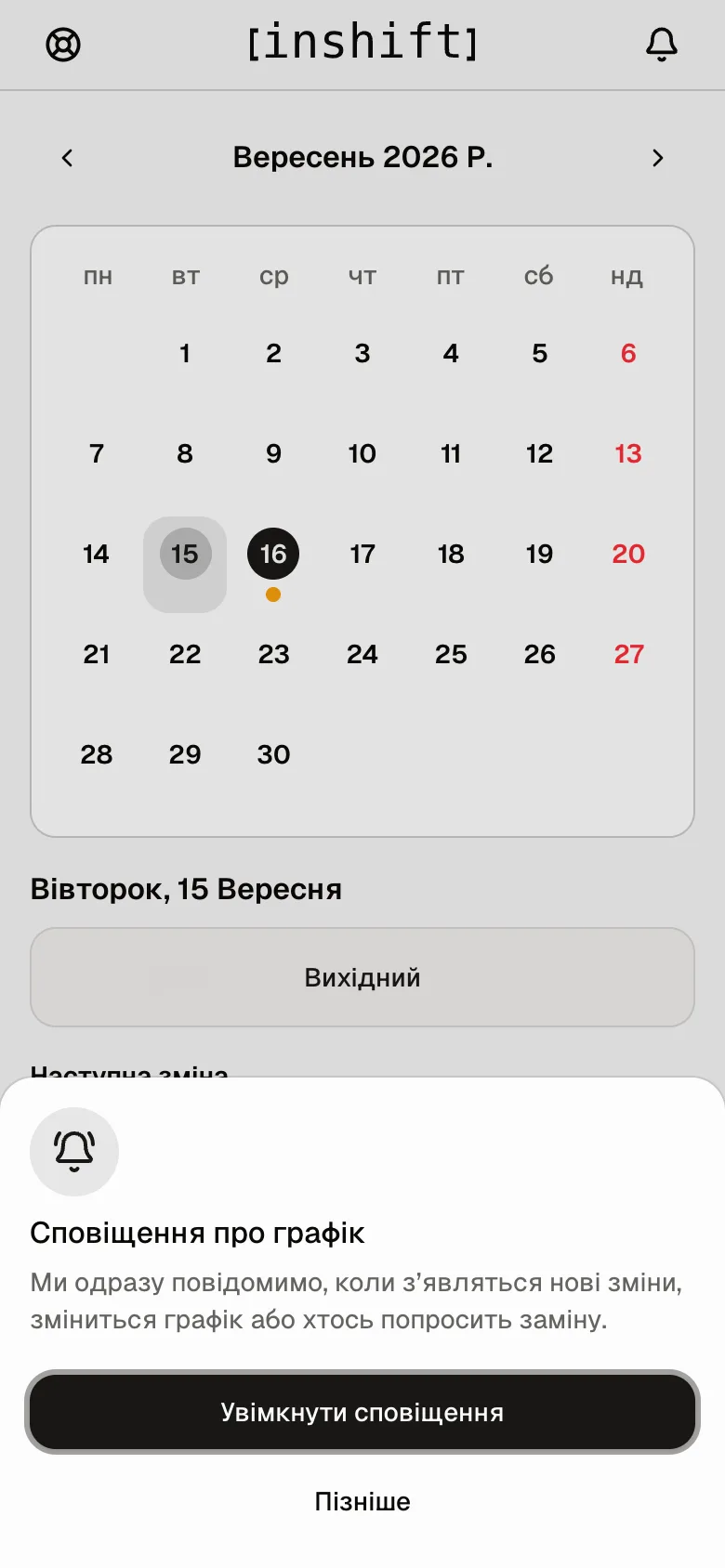
Step by step
- Open “Rota” and tap the date you need in the calendar.
- Read the list under the calendar: time, shift name and location.
- To look at another month, tap the arrow next to the month's name.
A list instead of the calendar
In “More” → “Settings” → “Appearance” → “Rota view” there are two options: “Calendar” and “Table”. “Table” shows the month as one continuous list by day, and for every day you see who is working among those whose schedule is open to you.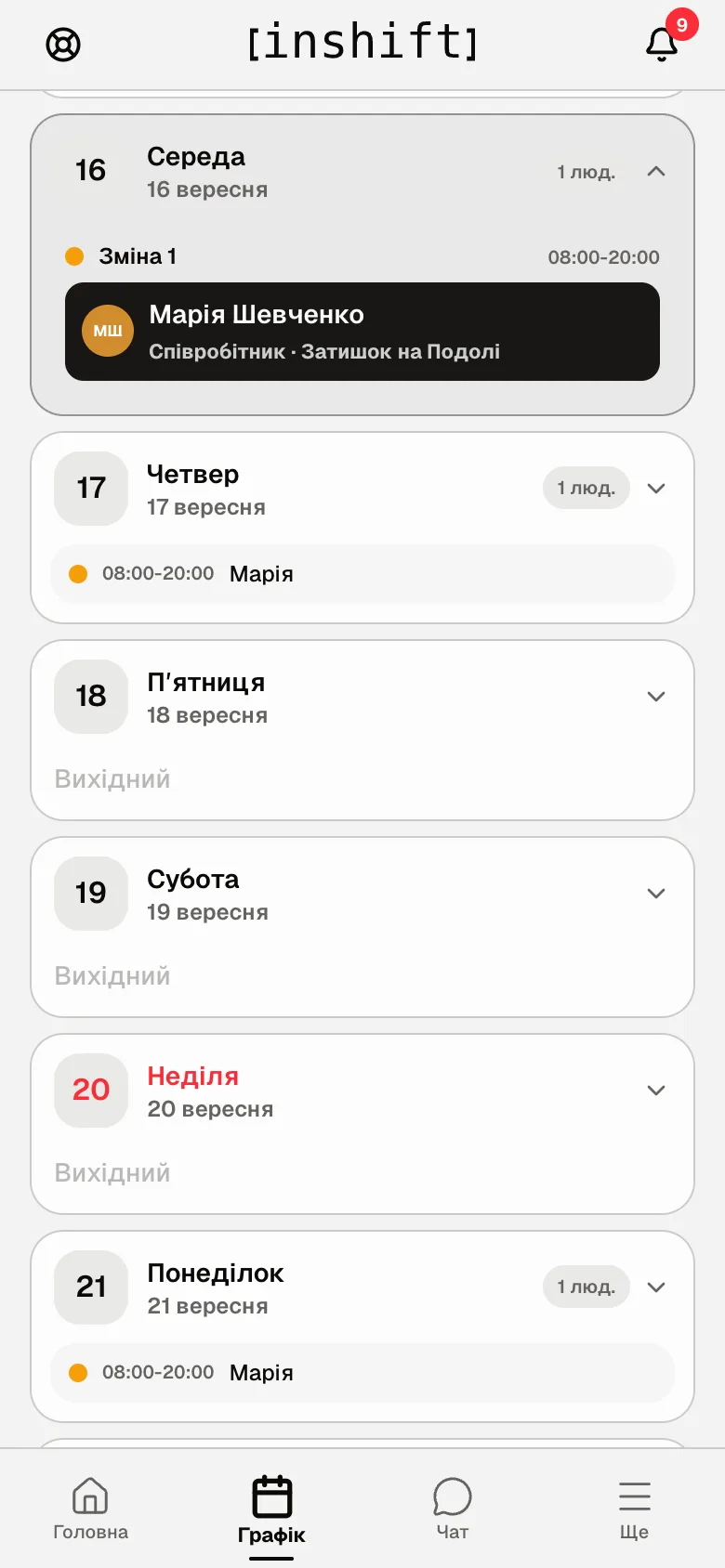
What is on “Home”
At the top is today: “Today you have one shift”, “Today is a day off” or “Your workday is done”. Below is “Next shift” with the time left until it starts.
The “Cover” and “Day off” buttons lead to a cover request and a time off request. If your manager has enabled open shifts, there is also “Open shifts” here, and with time tracking, “Check in”.
“Needs attention”: an available cover, an open shift, a reply to your request, a new announcement.
“Upcoming shifts”: the next few shifts at once; the “All” button leads to “Rota”.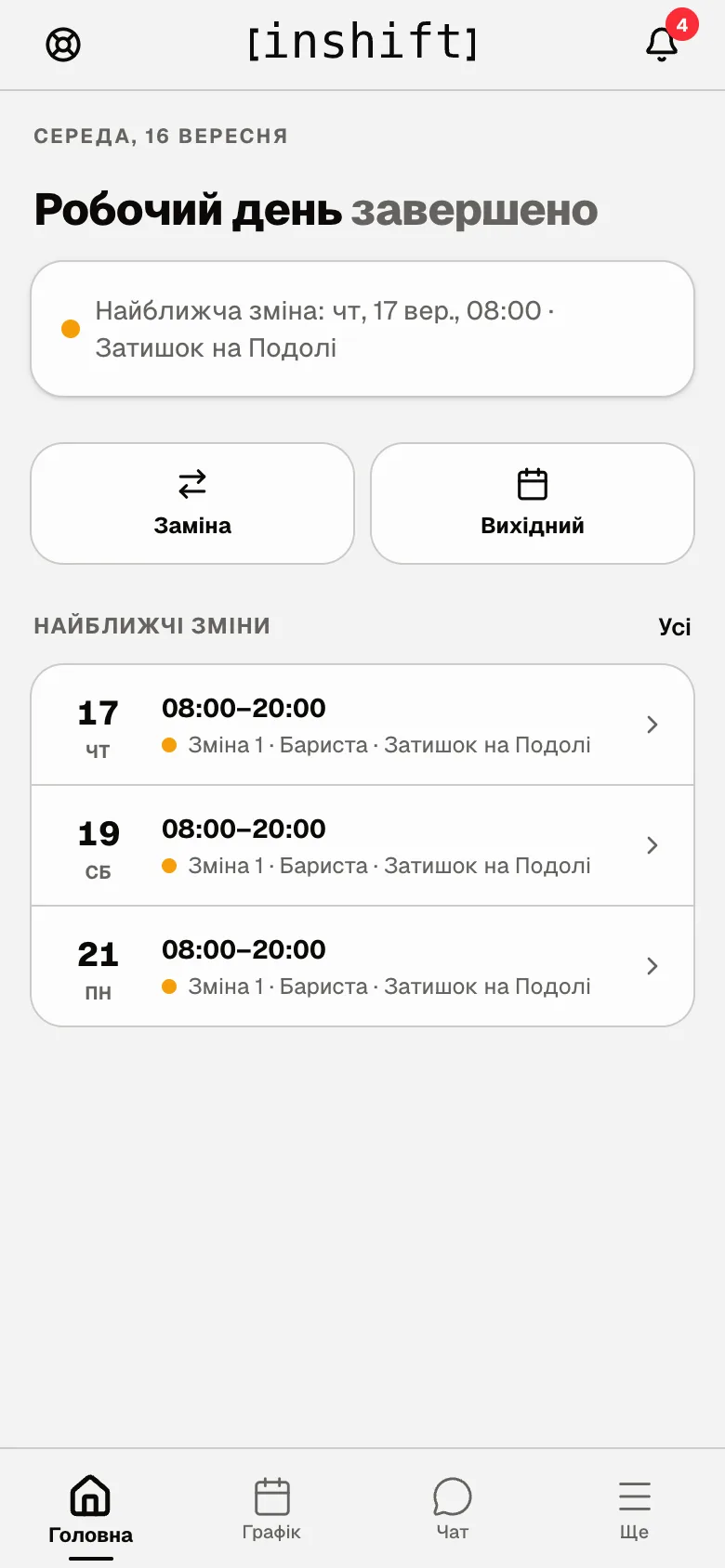
Why an action is unavailable
“Rota not ready yet” on the “Rota” tab: your manager has not published the shifts for this month yet. When they do, a notification arrives.
“You have no shifts this month”: the team's schedule exists, but you were not put on it. Ask your manager.
In “Table” you see only your own shifts, without colleagues: the basic “Employee” role sees only its own schedule. Other people's shifts are shown to those whose manager has opened the team's schedule to them.
A shift disappeared or its time changed: your manager adjusted the schedule; a notification “Shift taken off you” or “Shift time changed” comes about it. When in doubt, look at “Notifications” behind the bell at the top.
Questions and answers
How do I see who else works on my day?
Tap the day in the calendar: under your shifts there is the “Who else is working” block. Or in “More” → “Settings” → “Appearance” → “Rota view” choose “Table”, where colleagues are shown by day for the whole month. Both exist only when your manager has opened the team's schedule to you; the basic employee role sees only its own shifts.
Does my manager see that I looked at the schedule?
No. They only see that you have connected the app.
Can I add the schedule to my phone's calendar?
Yes, article Your schedule in the phone calendar.
The schedule did not refresh, though my manager says they changed it.
The app refreshes the schedule by itself when you come back to it. If not, close the app completely and open it again.