A person sees their pay in the app on the “Stats” screen: how much has been accrued for the period, for what exactly and on which days. The sums are calculated by the same server that shows them to the manager in the panel, so the numbers match. Bank details for payouts are added by the person themselves in their profile: only whoever pays the salary sees them.
The app shows only what has been accrued. Payouts, advances and the outstanding balance are seen only by the manager in the panel.
The “Stats” screen shows money if the “View payroll” right in the person's role is not set to “None”. Without it only shifts and hours are shown.
Where to find it
Stats: “More” → “Stats”. At the top is the period with arrows and a calendar icon, by default from the first of the month to today.
Bank details: “More” → your name at the top → profile → the “Payout details” card → “Edit”.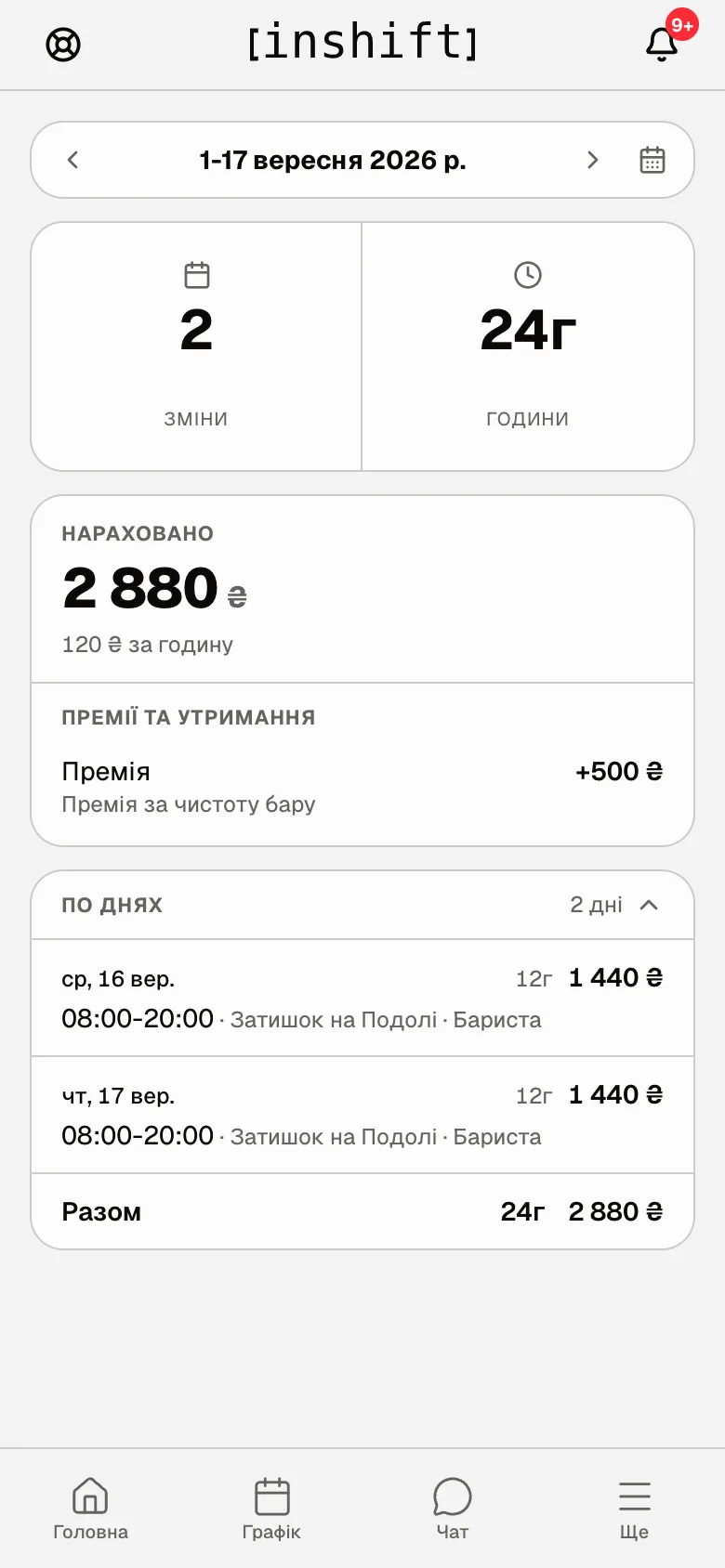
How to read the “Stats” screen
The “Shifts” and “Hours” tiles: how many published shifts and hours in the period. Hours are counted by the schedule, not by clock-in marks.
“Accrued”: the sum for the days of the period that have already passed. If the window includes future days, the caption becomes “Accrued to date”. Under the sum is the pay term: “£12 per hour”, “£95 per shift”, “Salary £2,000” or “By shift price”. If pay has not been set yet, instead of the sum you see “Pay is not set yet”.
“What the total is made of”: appears when there are extras. The first row is “Pay for shifts”, then each extra separately under its own name, as in the panel: “Night hours”, “Per-shift bonus”, “Shift at another location”, with the number of days. A sales percentage shows its base: “from £6,960 in sales”, and while the till shift is not closed, “preliminary, the till is still open”. If the percentage outgrew the rate, the row is called “Percentage instead of the rate”.
“Bonuses and deductions”: bonuses with a plus sign, deductions with a minus, with the reason the manager wrote.
“By day”: a breakdown by shift: date, time, site, position, hours and amount. The “3 days ahead” row shows shifts for which money has not been accrued yet. At the bottom is “Total”, and it matches “Accrued” at the top.
“N shifts with no price: pay is not set yet”: the person's pay term is “By shift price”, and the price of these shifts is not named. That is a question for the manager.
“My team”: appears for those whose role opens the stats of their locations, a manager for example: people, their shifts and hours for the same period, “Total” worked and “of N” by the schedule.
Step by step: change the period
- The arrows next to the period flip a month back and forward.
- The calendar icon opens the choice: a whole month, a half or any dates. That is how you look at a week, half a month or any stretch you are paid for.
- Future days in the window are shown but not accrued: the product does not count money in advance.
Step by step: add bank details
- Open your profile: “More” → your name at the top. Under the profile cards is the “Payout details” card. While there are none, it says “Add a card so your salary has somewhere to go” with an “Add” button.
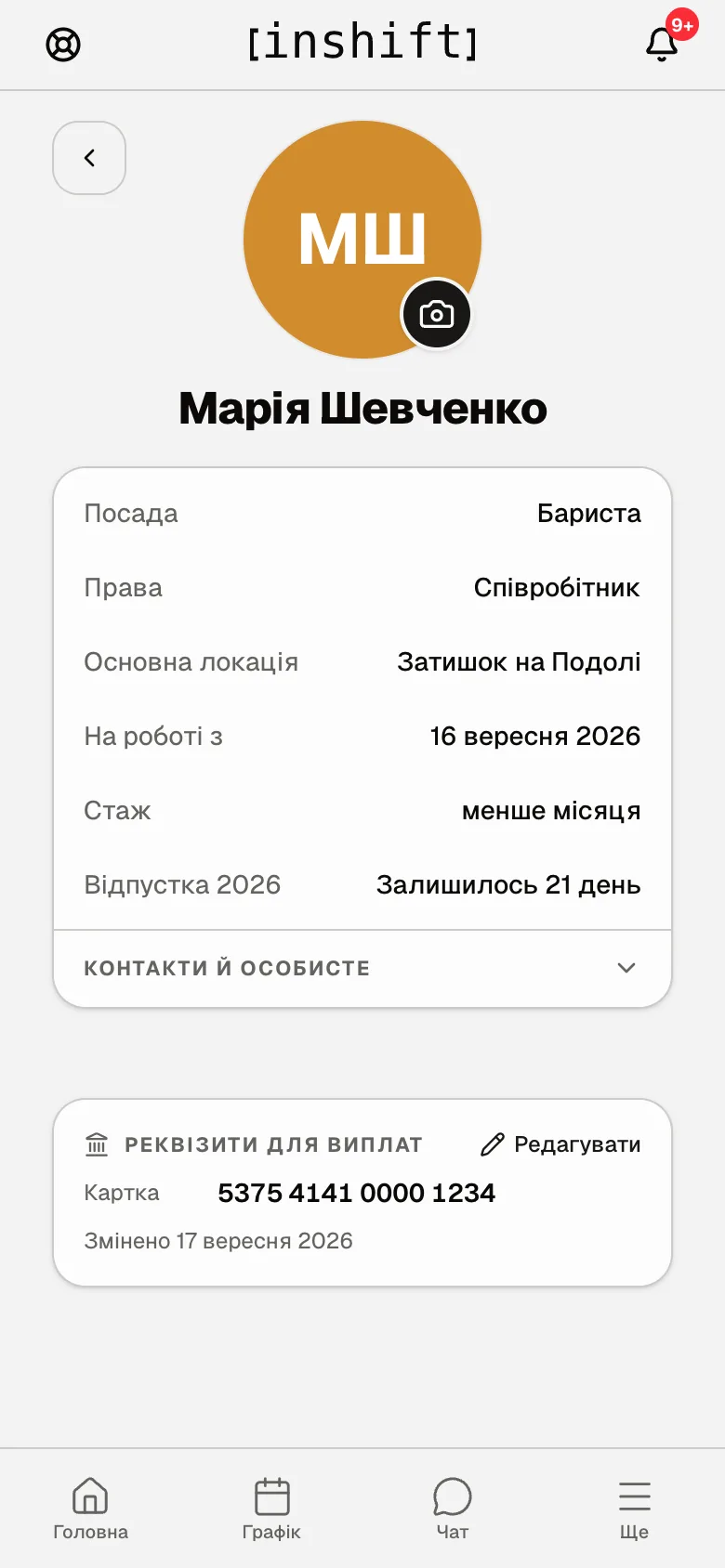
The profile in the app: the “Payout details” card with a card number, the change date and the “Edit” button - Tap “Add” or “Edit”. “Payout details” opens at the bottom with the “Card” field, hinted “Card number”, and the “Account” field, hinted “IBAN or account number”. Fill in one or both.
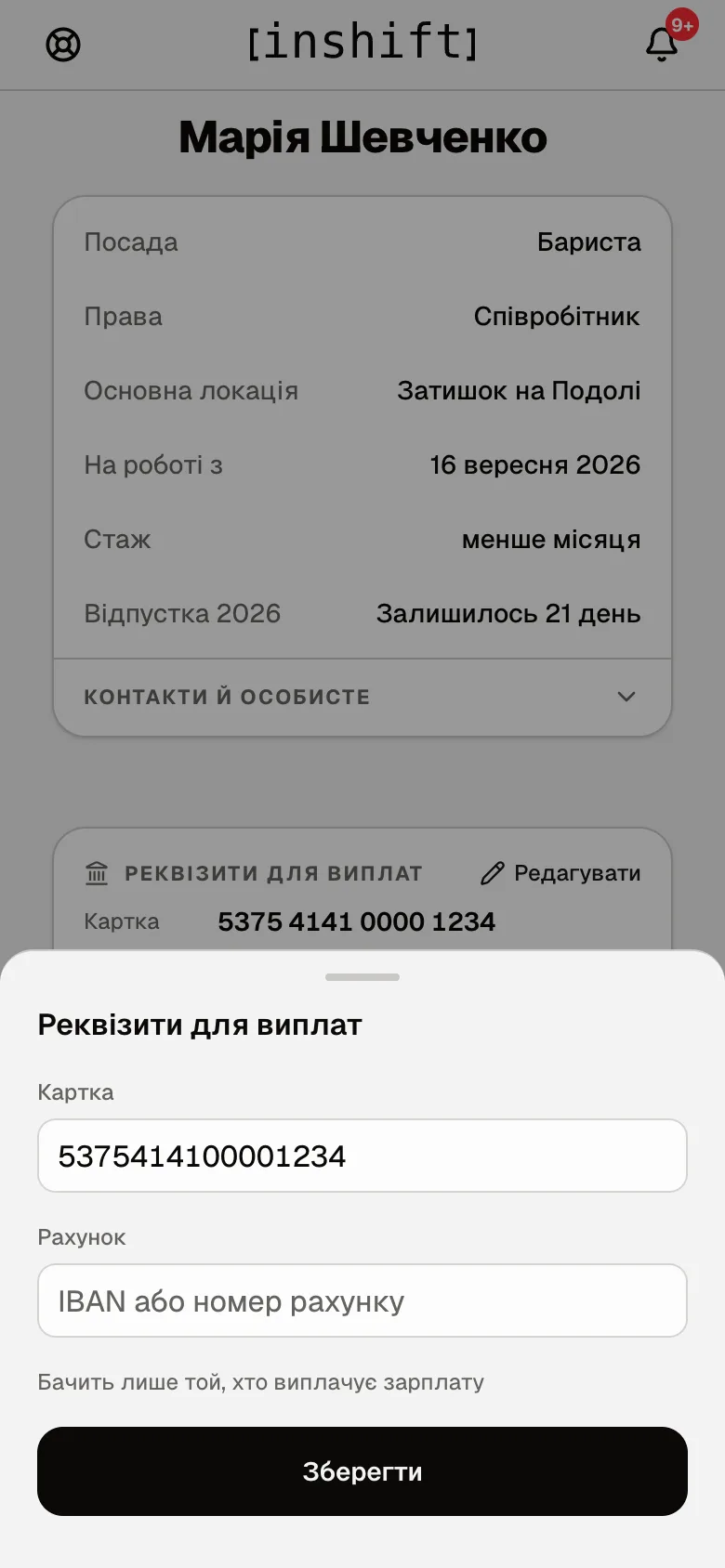
The “Payout details” window: the “Card” and “Account” fields, the note “Visible only to whoever pays the salary”, the “Save” button - Tap “Save”. If the number looks like a typo, the app warns you: “Saved. The number looks like a typo, please check it”. The card shows the number and “Changed 17 September 2026”.
The details are seen by you and by whoever pays the salary. Colleagues do not see them. The manager can enter or change the details themselves in the panel; the card then shows the change date.
Why an action is unavailable
No “Stats” item in “More”: stats are turned off for your role, the “View stats” right is set to “None”.
The screen has shifts and hours but no money: “View payroll” in your role is set to “None”. That is the organisation's decision.
“Pay is not set yet”: the manager has not set your pay term in the panel yet. Shifts and hours are counted, and money appears as soon as they do, for past days too.
“No shifts in this period”: you had no published shifts in the chosen window. Flip the period.
The sum in the app and the cash in hand do not match: the app shows what was accrued, not what was paid out. Advances and payouts are not shown in it; ask your manager about the balance.
No “Payout details” card: update the app from the App Store or Google Play.
Questions and answers
Can I see how much I have already been paid?
No. The app shows only what was accrued for the period. Ask your manager about payouts and the balance: in the panel they see your account in full.
Why is “Accrued” less than I expect for the month?
The default period ends today. Shifts still ahead are in “By day” as the “ahead” row, but not accrued.
What is “Pay for shifts” and the rows under it?
“Pay for shifts” is the base: the rate multiplied by hours, or a fixed amount per shift. The rows below are the extras added to it: night, holiday, another site, a sales percentage.
Is it safe to enter my card number?
The number is seen by you and by whoever pays the salary. It is not shown to colleagues.
Can I look at last year's pay?
Yes, with the arrows or the period calendar.