Notifications are the reason to have the app: a new shift, a changed time, a cover request from a colleague, the manager's decision, a new announcement. Everything reaches your phone at once, and an hour before a shift starts the app also reminds you: “Shift starts soon”.
For notifications to arrive, the phone has to give permission. The app asks for it by itself after the first sign-in; if you declined, you can turn them on at any time in the settings.
Where to find it
“More” → “Settings” → the “Notifications” block: the “Notifications” and “Quiet hours” switches.
The list of everything that has arrived: the bell in the top right corner on any screen.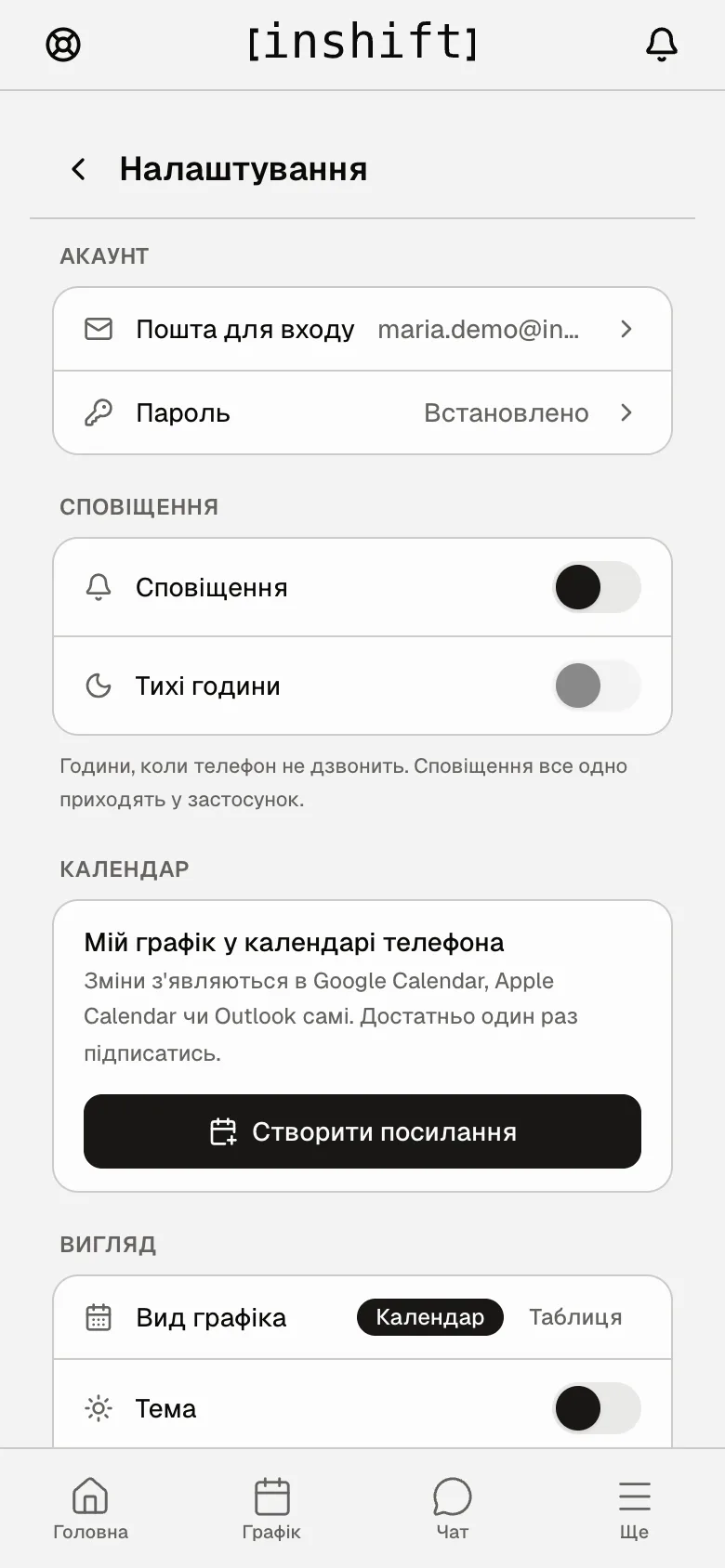
Step by step: turn them on
- After the first sign-in the app shows the “Rota notifications” window with the “Enable notifications” and “Later” buttons. Tap “Enable notifications”, then “Allow” in the phone's prompt.
- Missed it or tapped “Later”: open “More” → “Settings” and turn on the “Notifications” switch. The phone asks for permission; tap “Allow”.
- Check: the switch stays on. If it is grey with “Allow notifications in your phone settings” next to it, you once declined the phone's prompt. Tap “Open settings”, find InShift and turn notifications on there, then come back to the app.
Step by step: quiet hours
Quiet hours are the time when the phone does not ring or vibrate, at night for example. Notifications are not lost: they wait in the list behind the bell.
- In “Settings” turn on the “Quiet hours” switch. It is available only while notifications are on.
- Set the “From” and “To” time, for example from 22:00 to 08:00.
- Done. The reminder before a shift stays silent in these hours too: if the shift is at 07:00, the 06:00 reminder does not sound.
Which notifications arrive
About the schedule: “New shift”, “Schedule updated”, “Shift time changed”, “Shift moved”, “Shift location changed”, “Shift taken off you”, “You are on this shift”, “Shift starts soon” about an hour before the start.
About swaps: “Swap request”, “A colleague accepted the swap”, “A colleague declined the swap”, “Swap approved”, “Swap rejected”, “A colleague took your shift”.
About requests: “Time off request approved” or “rejected”, “New open shift”, “The shift is yours”.
About the team: the manager's announcements and chat messages.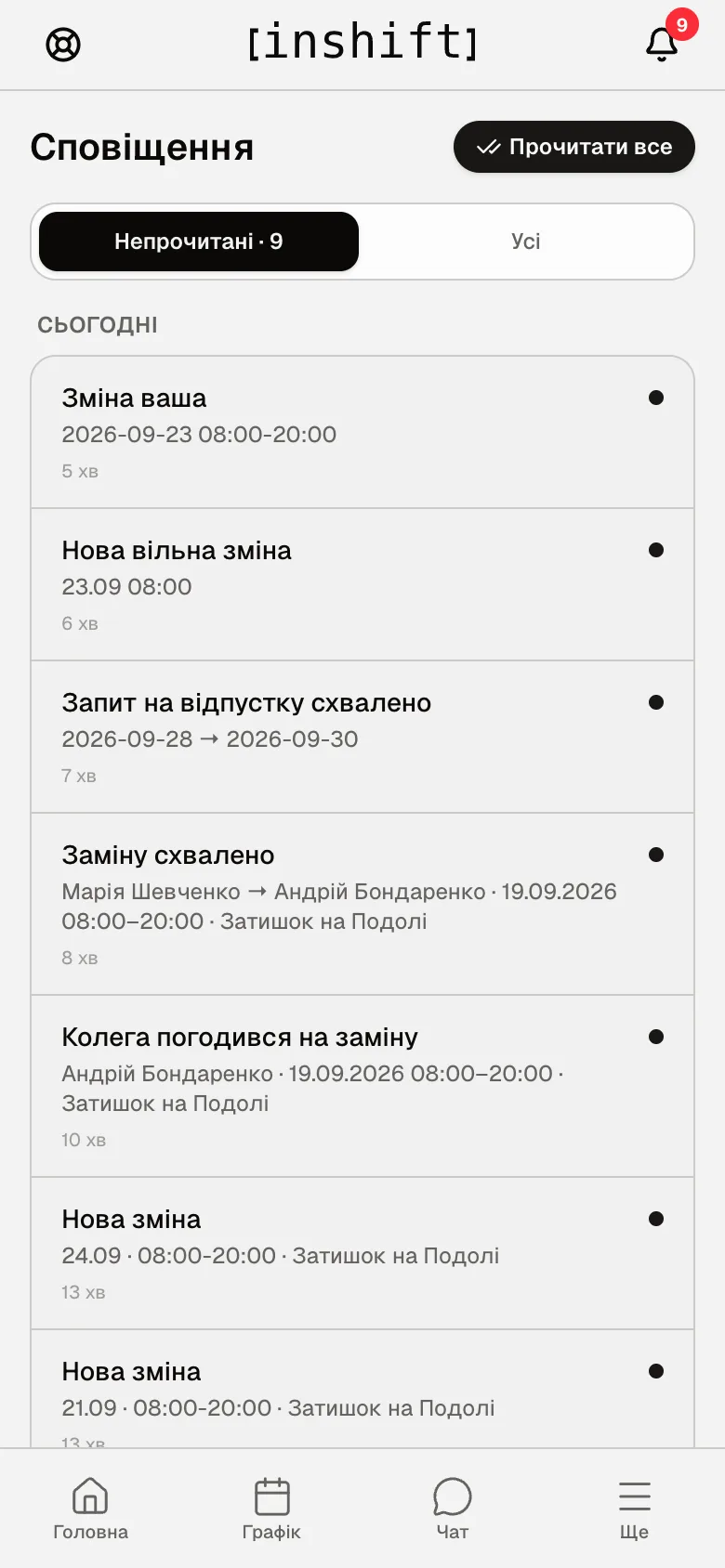
The list behind the bell
The red number on the bell shows how many are unread. Inside are two tabs, “Unread” and “All”, and the “Read all” button clears the number. Tap a notification to go to the schedule or the request it is about.
Why an action is unavailable
Notifications do not arrive although the switch is on: check the phone's settings for InShift. On iPhone: Settings → Notifications → InShift → Allow Notifications. On Android: Settings → Apps → InShift → Notifications. Also check the Do Not Disturb mode and your quiet hours in the app.
The “Quiet hours” switch is grey: turn on “Notifications” first.
A “New shift” notification arrived, but the shift is not in the schedule: open the app once more; the schedule refreshes when the app comes back on screen.
Too many notifications: quiet hours remove the sound at night, and the “Notifications” switch turns them off completely. Then you learn about new shifts only from the list behind the bell.
Questions and answers
Does my manager see that I turned notifications off?
No. They only see that you have connected the app.
Do notifications arrive on a second phone?
Yes, if you have signed in to the app there too and allowed notifications on it.
Can I get notifications by email?
No, only in the app.