If your organisation keeps track of property, the items issued to you are visible in the app: uniform, keys, a tablet, tools. When your manager issues something, a notification comes with a “Property issued to you” card, where you confirm “Received” or say “Not with me”. From then on the items are assigned to you until the manager takes them back. An item that is allowed to be passed on you can hand to a colleague right in the app.
From time to time the app may ask whether an item is still with you: that is a presence check your manager sets up.
Where to find it
“More” → your name at the top → profile → “My property”. If nothing is assigned to you, it says “Nothing is assigned to you”.
The “Property issued to you” card with its buttons is also shown on “Home” until you answer.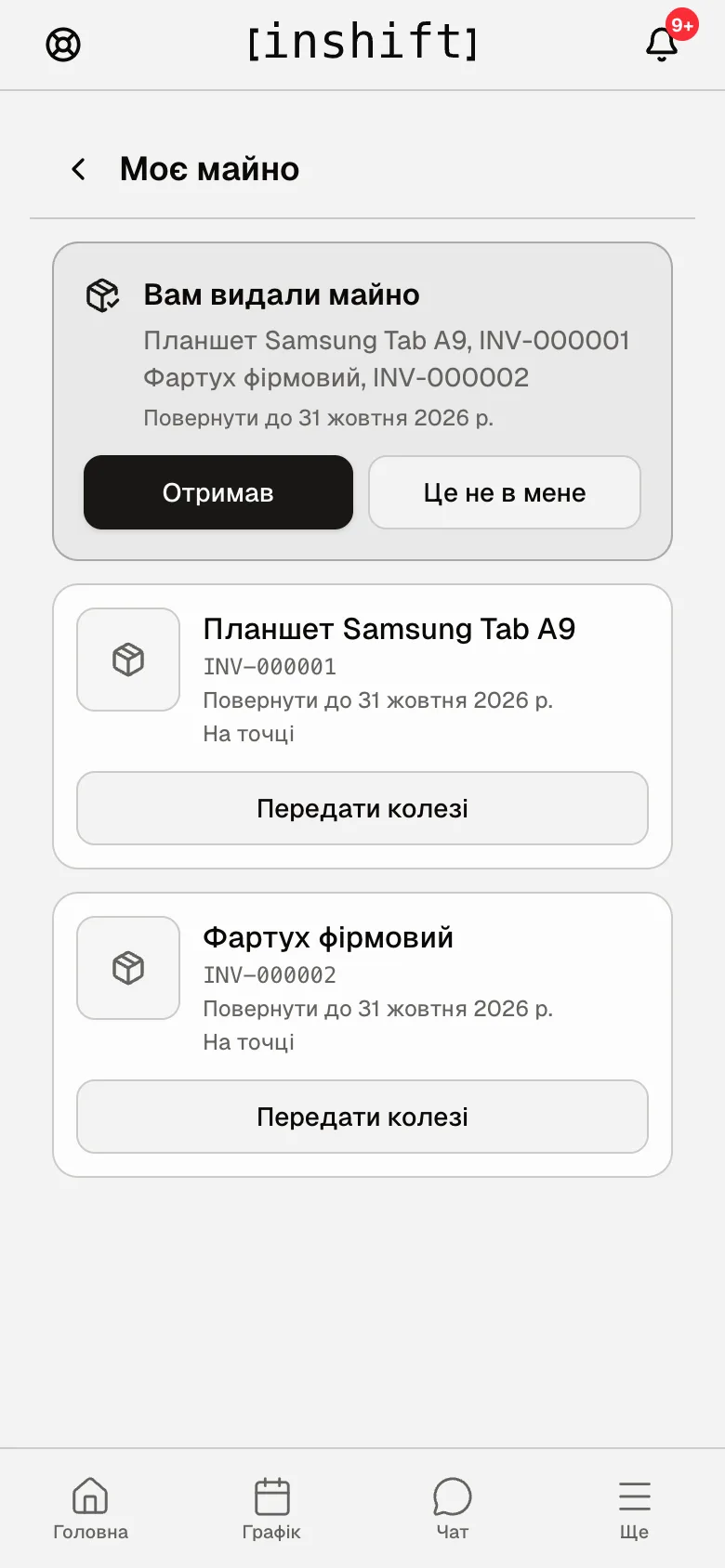
Step by step: confirm receipt
- Open the notification or “My property”. The “Property issued to you” card lists the items with their numbers, for example “Samsung Tab A9 tablet, INV-000001”, and, if set, “Return by 31 October 2026”.
- Check that the items really are with you and tap “Received”. The card disappears, and the items stay in the list below. Your manager sees that you have accepted them.
- If this was not issued to you, tap “Not with me”. The items go back to the manager, and nothing is assigned to you. You can decline only before “Received”: after confirmation, a return is processed by the manager.
What the list shows
Every item has a name, an inventory number, “Return by” if a date was set, and the place where the item should be, for example “On site” or “At home”. Items issued for good, like a uniform, have no return date.
An item cannot be returned through the app: hand it to your manager, and they click “Take back” in the panel. After that the item disappears from your list.
Step by step: pass to a colleague
- Next to the item tap “Pass to a colleague”. The button exists only for items your manager has allowed to be passed between employees.
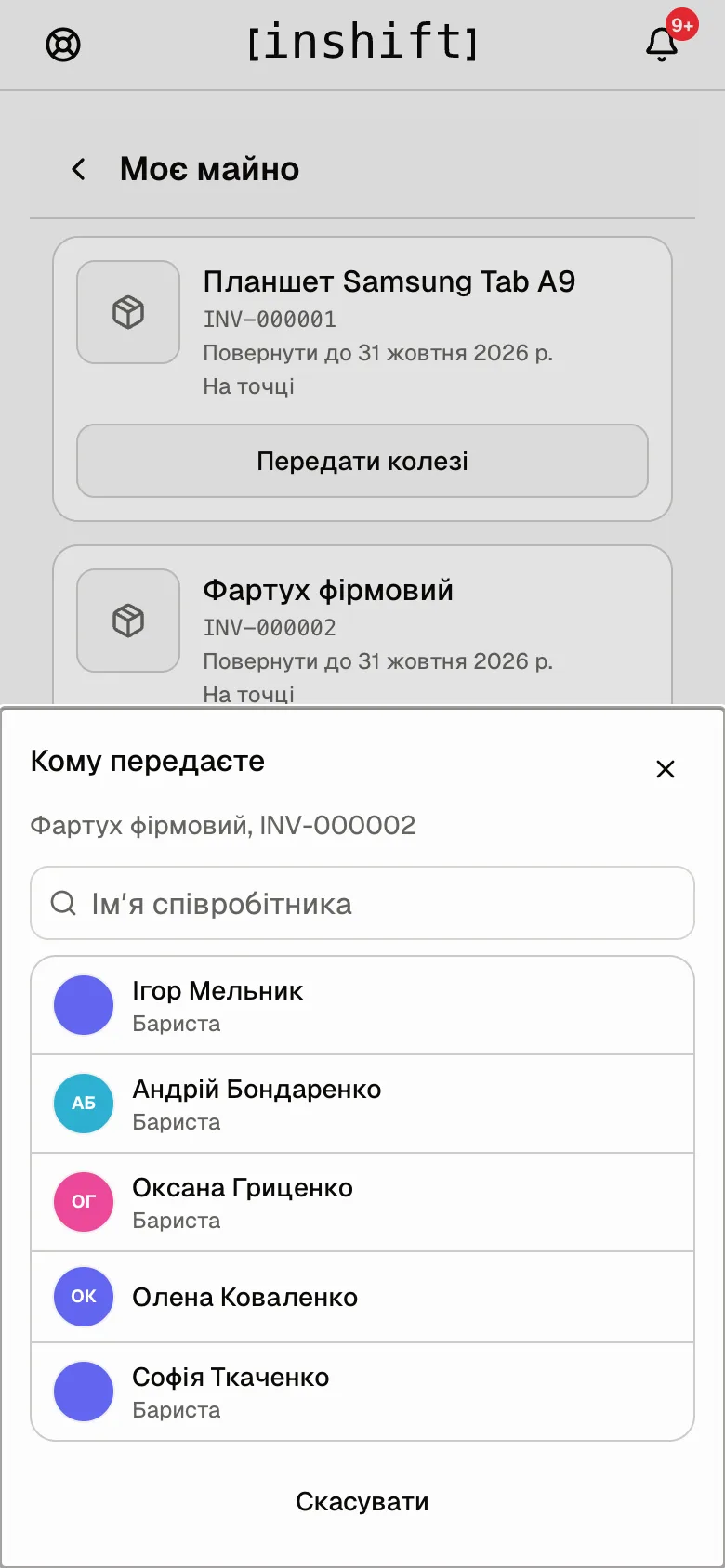
The “Who are you passing it to” window: the item's name with its number, a search by name and the list of colleagues - In the “Who are you passing it to” window find the colleague by name and tap them. The item moves to them at once and disappears from your list.
- The colleague gets a “Property issued to you” card and confirms “Received”. Your manager sees the transfer in the item's history. Hand the item over at the same moment you tap: from then on it is assigned to the colleague.
Presence check
If your manager has enabled the check, once every 30, 90 or 180 days the app shows “Confirm you still have this item” with a “Yes, I have it” button. Tap it if the item is with you. If the item is gone, do not confirm and tell your manager: they process a loss or a return.
Why an action is unavailable
No “My property” in the profile: property tracking is turned off in your organisation, or the app has not been updated for a long time.
No “Pass to a colleague” button: for this item your manager has not allowed passing between employees.
The “Who are you passing it to” window says “No one to pass it to. Ask your manager”: the list has no colleagues the item can be passed to.
The item is no longer with you, but it is in the list: ask your manager to take it back or reassign it to whoever has it now.
A property notification arrived, but there is no “Property issued to you” card: you already answered it, or your manager has taken the item back in the meantime.
Questions and answers
Do colleagues see what is assigned to me?
No. Your list is seen by you and by your manager in the panel.
What happens if I do not tap “Received”?
The item is assigned to you from the moment of issue anyway. The confirmation only tells your manager that you accepted it, and the card stays until you answer.
I lost an item. What do I do?
Tell your manager: they mark it as lost in the panel. There is no such action in the app.
Can I pass an item to a colleague at another site?
Yes, if they are in the “Who are you passing it to” list. The list shows the colleagues open to you in the team: usually the people of your location, and with “View team: Entire network” the whole organisation.