Schedule notifications arrive on the phone from the InShift app. If they are not arriving, the reason is almost always one of six: the person has not connected the app yet, the phone has not given permission, notifications are turned off in the app itself, it is quiet hours right now, the event is simply not of a kind that is notified about, or the app has not been opened for a long time. Below is the check in order, from the most common to the rare, separately for the manager and for the employee.
The admin panel does not send notifications to the phone: the manager receives them in the app just like the team.
If you are the manager: a person says nothing arrives
- Check whether the person has connected the app at all. “Employees” → the “Not connected” button shows those who have not entered the code yet. The dashboard says the same in the line “Not connected to the app: 2 of 7” with the caption “they can’t see their rota” and the “Invite” button. Without the app there are no notifications and cannot be, see The invite code: how it works and what to do when it fails.
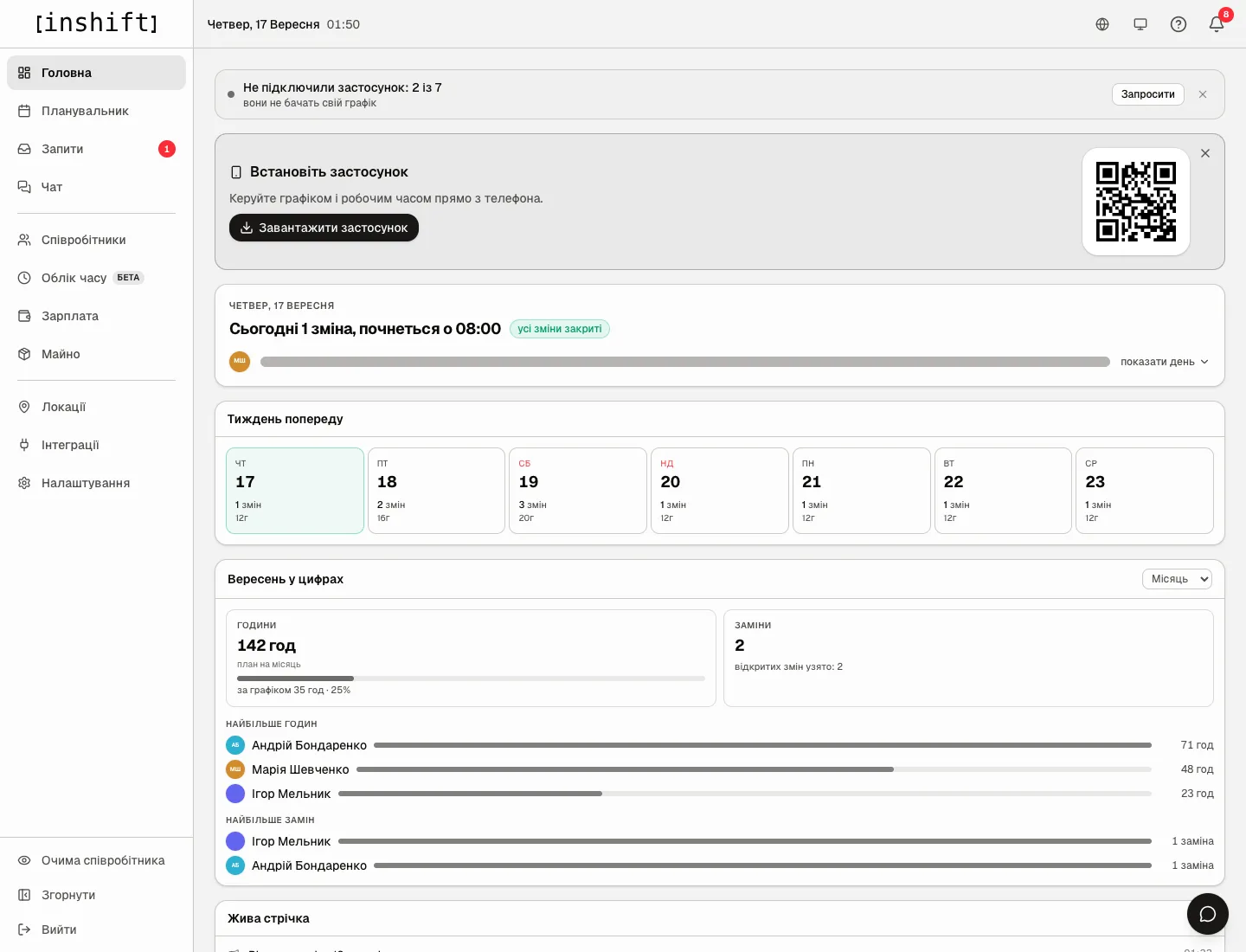
The panel dashboard with the line “Not connected to the app: 2 of 7” and the “Invite” button - Check whether there was an event that is notified about. A notification arrives only about published shifts: drafts are silent until you click “Publish”. A notification about an edit to a published shift arrives only if the shift is still ahead: past shifts are silent. And a person does not get a notification about their own edit: if a manager put themselves on a shift, no push arrives.
- Check whether the module is on. If a module is turned off in the organisation settings, its reminders do not arrive: the panel warns about this with “The section disappears from your menu and from the employee app, and reminders stop.”
- Look through the person’s eyes: “Employee’s view” → their phone → the bell at the top. If the notifications are in the list, they reach the server, and the matter is in the phone or the person’s quiet hours. If they are not there, there was no event.
- Ask the person to go through the check below.
If you are an employee: they do not arrive for me
- Open “More” → “Settings” → the “Notifications” block. The “Notifications” switch must be on. If it is grey with the note “Allow notifications in your phone settings” next to it, tap “Open settings”, find InShift and turn notifications on there.
- Check the phone settings. On iPhone: “Settings” → “Notifications” → InShift → “Allow Notifications”. On Android: “Settings” → “Apps” → InShift → “Notifications”. While you are there, check the “Do Not Disturb” and “Focus” modes on the phone.
- Check “Quiet hours” in the same block. During quiet hours the phone is silent, but the notifications land in the list behind the bell. The “Shift starts soon” reminder is silent during quiet hours too.
- Open the bell in the top right corner. If the notifications are in the list but did not arrive on the phone, the matter is in the phone permissions from steps 1 and 2. If they are not there, there has been no event yet: perhaps the manager has not published the schedule yet.
- Update the app from the App Store or Google Play and open it. A phone may take away the right to send notifications from an app that has not been opened for a long time, and after an update and opening it comes back.
- If you have two phones, notifications arrive on each where you are signed in to the app and have given permission.
In detail about the settings and quiet hours in Notifications: turning them on and quiet hours.
Which notifications there are
About the schedule: “New shift” and “Schedule updated” after publishing, “Shift time changed”, “Shift moved”, “Shift location changed”, “Shift taken off you”, “You are on this shift”, “You are covering a shift” and the “Shift starts soon” reminder about an hour before the start.
About requests: “Swap request”, “Swap approved”, “Swap rejected”, “Time off request approved” and “rejected”, “New open shift”, “The shift is yours”, “The shift went to someone else”.
For the manager: “New time-off request”, “Swap awaits approval”, “Someone wants this shift” and the morning digest “Needs attention today and tomorrow”.
What there is not: notifications about drafts, about past shifts, about your own actions, about the schedule ending, and emails.
Why an action is unavailable
The person has no “Notifications” block in the app settings: they opened InShift in a browser, not in the app from the store. Only the app sends notifications.
The “Quiet hours” switch is grey: turn on “Notifications” first.
“New shift” arrived, but the schedule is empty: open the app again, the schedule refreshes when the app comes back to the screen.
There is no “Not connected to the app” line on the dashboard, yet a person has no notifications: everyone is connected, so the matter is in their phone. Go through the employee check with them.
Questions and answers
Does the manager see that a person has notifications turned off?
No. The panel shows only whether the person has connected the app or not.
How many notifications arrive after a week is published?
One per person: “New shift” if there is one shift, or “Schedule updated” with the number if there are several.
Can notifications be sent to email or a messenger?
No. Notifications arrive only in the app. The invite code and registration emails do arrive by email, but schedule events do not.
Does the manager get a notification about every request?
About new requests, yes, one at a time. The morning digest additionally gathers everything that needs attention, once a day.