The invite code is 6 characters that link a person’s account in the app to their card in your organisation. You create the card, the panel issues a code, the person installs the app, enters the code and sees their schedule. One code per card, and while it is valid the panel shows the same code no matter how many times you open it.
The code consists of capital letters and digits without zero, one and the letters I and O, so they are not confused when read out, for example “5MXK6M”. It is valid for 7 days and burns after the first use. Under the code the window shows the exact deadline by your organisation’s clock, for example “Code valid until 5 October, 14:30”.
Codes can be issued by the owner, co-owners and anyone with the “Manage employees” permission. A manager issues codes only to people with fewer rights than the manager’s own: on a card whose role has the same or more rights, the “Invite” button is grey with the hint “A co-owner or the owner sends invites for this role: it has as many rights as yours or more”.
Where to find it
“Employees” → the “App” column of the table: a person without the app has the “Invite” button there. The “Not connected” button at the top leaves only those still without a code in the table. On a phone, “Invite” is in the person’s row.
For everyone at once: the “Invite your team” window, one message with a code next to each name. The panel opens it with the “Invite team” button after adding people in a table, after the first schedule is published in the “Rota published!” window and after “Import”. For a few selected people: tick them in the table → “Invite N” in the bar at the bottom. There is no separate window on the dashboard: the “Not connected to the app” row with its “Invite” button leads to the employee list.
In the card of a person without the app: the “Edit” form → the “Invitation” block → “Invite”. On the “Employee’s view” page the code is right in the person’s card.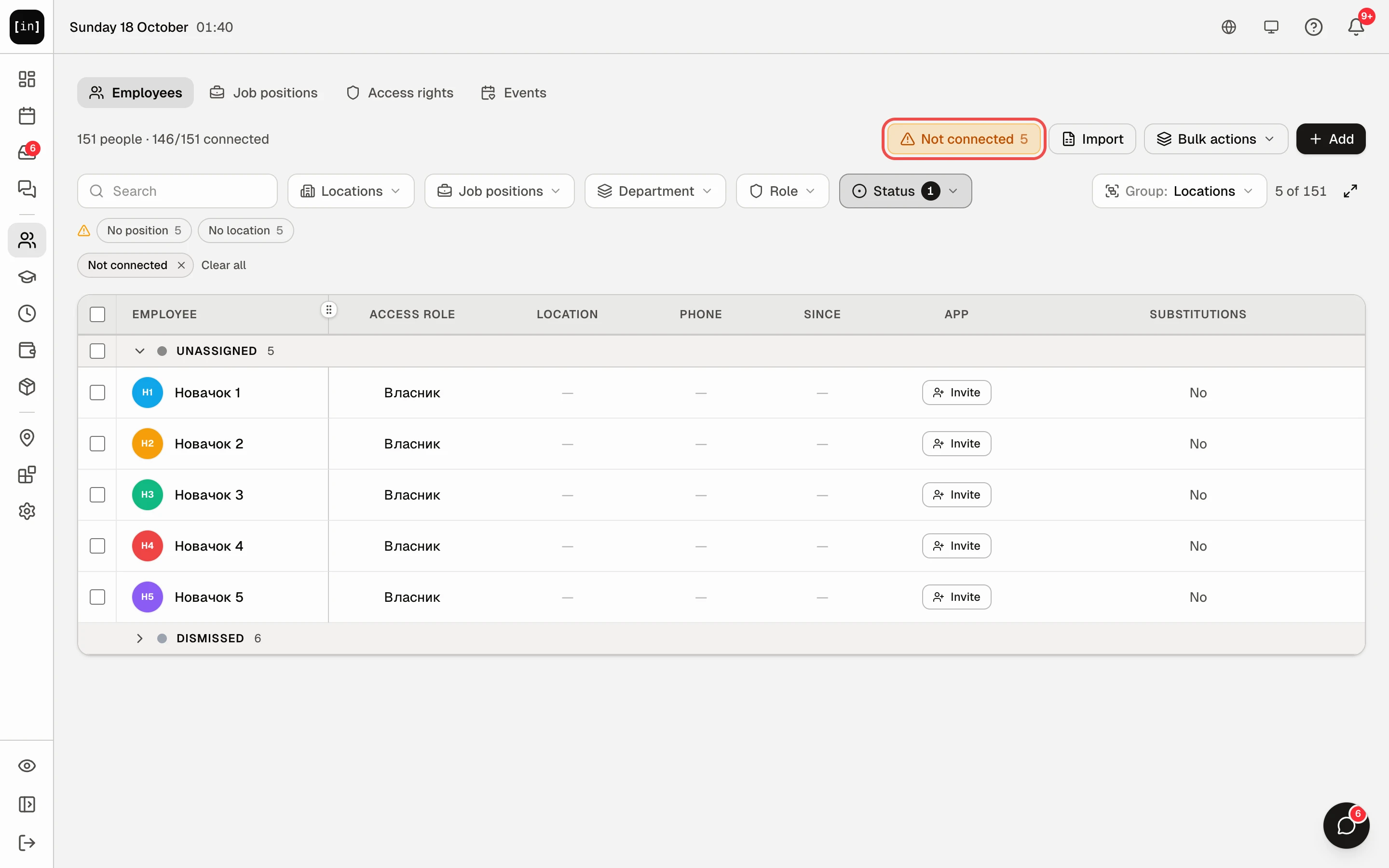
Step by step: give a code to one person
- In “Employees” click “Invite” in the “App” column of the person’s row. A window opens with their name and code, and at the bottom the deadline, for example “Code valid until 5 October, 14:30”, and the “Reissue code” button.
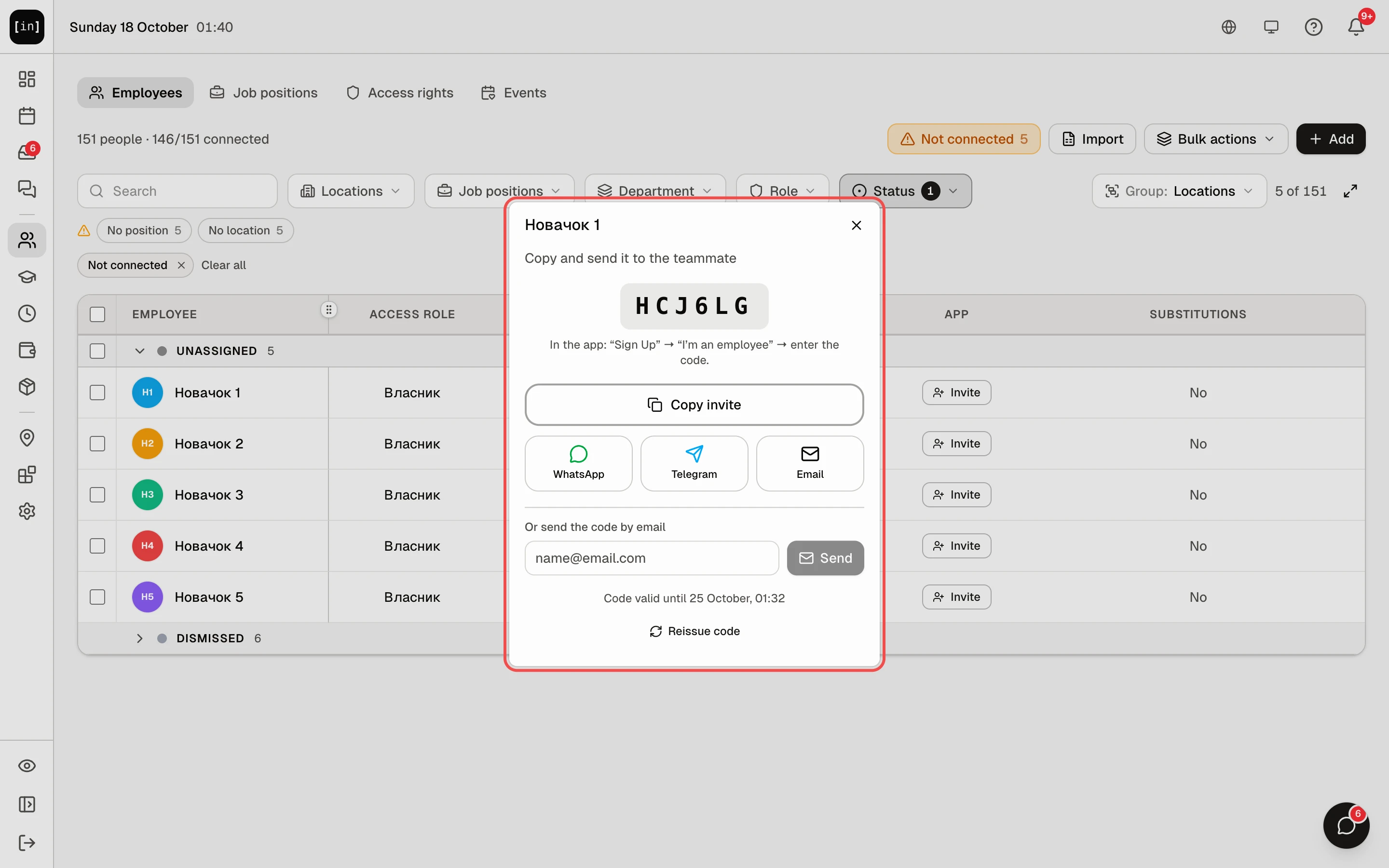
The invite window: the code, a login hint, “Copy invite”, WhatsApp, Telegram, Email, an email field, the code deadline and “Reissue code” - Pass the code on whichever way is convenient.
“Copy invite”: a ready-made message goes to the clipboard: a greeting by name, the link to download the app, the code and the three login steps. Paste it into any messenger.
“WhatsApp”, “Telegram”, “Email”, and on a phone also “Viber” and “SMS”: they open the app with the message already written.
“Or send the code by email”: type the email and click “Send”. The email comes from InShift, the note “Sent to …” appears with the “Send to another address” button. - What the person does: installs InShift, taps “Sign Up” → “I’m an employee”, enters the code, creates an account with their own email and password. In detail in Join your team with a code.
- As soon as they enter the code, “Connected” replaces “Invite” in their row, the counter at the top of the list changes, for example “7 people · 6/7 connected”, and “Activity” on the dashboard shows that the person has connected the app.
Step by step: codes for the whole team
- Open the “Invite your team” window: after adding people in a table there is the “Invite team” button, and after the first schedule is published the same button is in the “Rota published!” window. Only a few people: tick them in the “Employees” table and click “Invite N” in the bar at the bottom.
- The window has a ready message for everyone who has not joined yet: the app download link, how to sign in (“Sign Up” → “I’m an employee” → your code), the line “Sign-in codes:” with each person’s name and code under it, and “Codes are valid until …” at the end. The earliest deadline is used: a code issued earlier expires earlier.
- Click “Copy text” and send it to your team chat. Each person finds their name and enters their code.
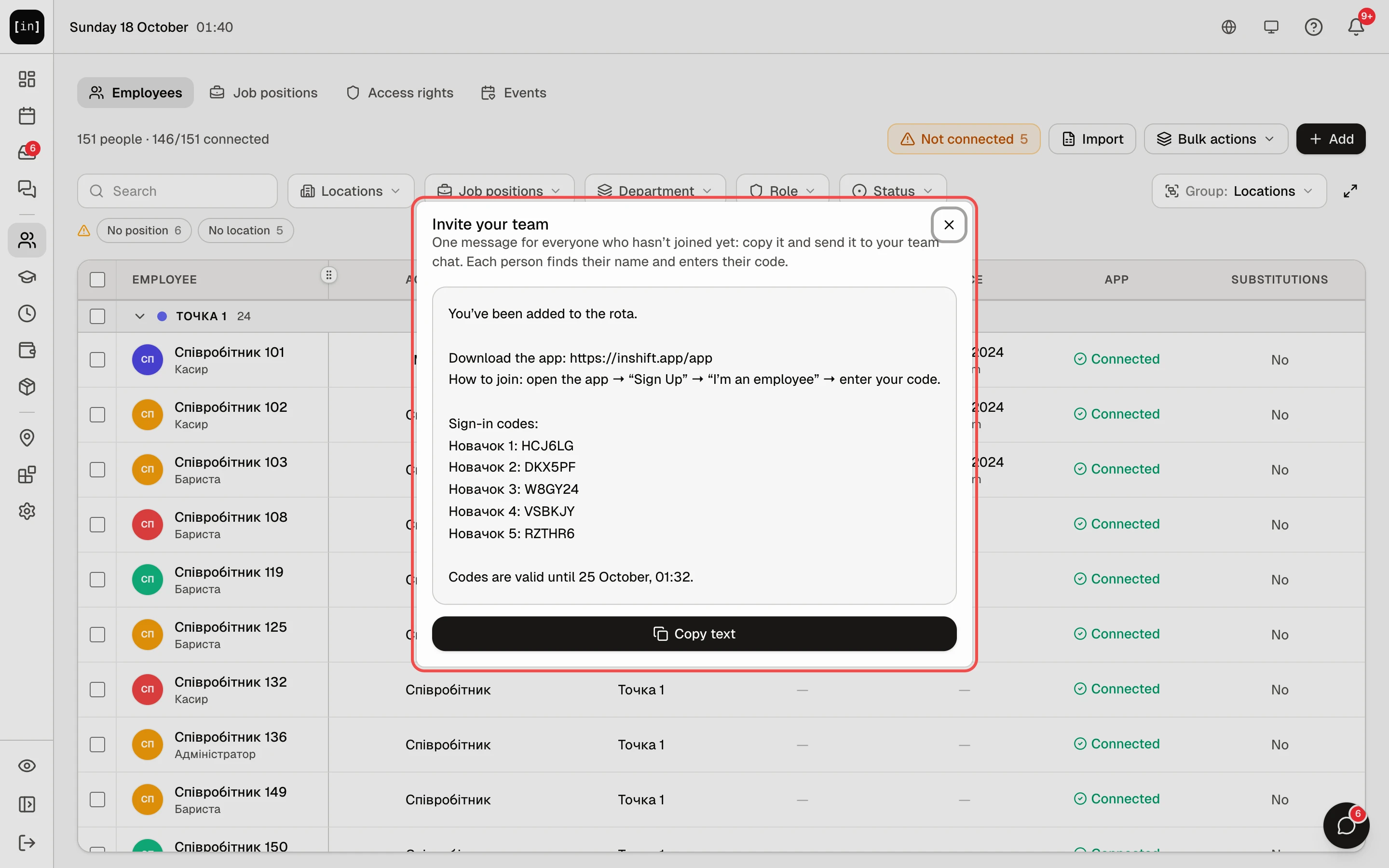
The “Invite your team” window: one message with names and codes and the “Copy text” button
There is no QR code in the panel, neither for the team nor for one person: the QR is shown by the manager app, see Invite an employee from your phone.
How the code works
The code is issued to the card, not to an email: the person registers with any email of their own, and the code links that account to the card. You do not need to know their email.
While the code is valid, every opening of the window shows the same code. Once the “Code valid until …” deadline passes, it burns, and the next click on “Invite” issues a new one. The old one no longer works after that.
Step by step: reissue a code
The code went to the wrong person, the message with the codes ended up in the wrong chat, or the person lost the message: do not wait 7 days, replace the code.
- Click “Invite” in the person’s row. In the panel that is “Employees”, in the manager’s app “Team” or “Without the app”.
- At the bottom of the window click “Reissue code”. No confirmation is needed.
- The window shows a new code and a new deadline 7 days ahead, with “The old code no longer works” under them. The old unused code stops being accepted that very second: a person entering it sees “Invalid or expired code”.
- Pass the new code on the same way. In an “Invite your team” message sent earlier, this person’s code no longer works: open the window again and send a fresh message.
A code can be reissued only while the person has not connected the app, and only by someone who can issue them a code.
The code is single-use: as soon as it has been used, it is marked as used. The same code cannot be entered a second time.
A person who already has an InShift account in another organisation cannot join with this code: one account works in one organisation. They need to register with a different email.
A person you dismissed and then reinstated gets a new code: the old account has been detached from the card.
Why the code does not work
The person sees “Invalid or expired code”: check the characters, especially look-alike letters, and the “Code valid until …” deadline in the “Invite” window. If the deadline has passed, click “Invite” again and pass on the new code. If the code was reissued, the person has the old one: pass on the code that is in the window now.
“This code has expired. Ask your manager for a new one”: the same, the code is older than 7 days.
“This code has already been used. If the account exists, sign in”: the person has already registered with this code, perhaps from another phone. Have them tap “Sign In” and enter the email and password. Forgot the password: set a new one in their card, the “App access” block.
“This card is already connected to an account…” for the person, or “This person is already connected to the app and doesn’t need a code…” for you after “Invite”: the card already has an account, often because your screen was out of date. If the email is wrong, do not create a new card or give a new code: change the email on their card under “App access”, and set a new password there if needed.
“You already have an account” with the hint “This email is already registered. No code needed, just sign in.”: the person is entering an email that already has an account in your organisation. They need to sign in, not register.
The hint “This email is already registered in another InShift organization. One account works in one organization: sign up for this team with a different email.”: the person worked at another company using InShift under this email. Have them register with a different one.
The hint “This email is already registered. Sign in to your account and the app will ask for the invite code.”: the person has an account that was detached from a previous organisation. Have them sign in, the app asks for the code itself.
The person enters the code on the website instead of the app: only the app accepts the code. The website is where owners register.
You have no “Invite” button, or it is grey: the person is already connected, your role does not have the “Manage employees” permission, or the person’s role has as many rights as yours or more, and such a code is issued by a co-owner or the owner. A dismissed person is not issued a code: first “Reinstate”.
Questions and answers
Is it safe to send the code in a messenger?
Yes. The code links an account to one card only, is valid for 7 days and burns after use. A stranger cannot see more than this person sees.
Can I issue a code in advance if the person starts in a month?
No, it burns after 7 days. Issue the code when the person is ready to install the app, or issue a new one later.
The code went to the wrong person. How do I cancel it?
Click “Invite” in the person’s row, then “Reissue code”. The old code stops working at once; pass the new one to the right person.
Whose clock is the code deadline in?
The organisation’s time zone and time format, the same as in the rota. So the manager and the owner see the same deadline, even if one of them is travelling.
The person connected with someone else’s email. What do I do?
In their card, in the “App access” block, change “Email” to the correct one. The email is changed by whoever manages the card: the owner, a co-owner, or a manager with “Manage employees” if the person has fewer rights than the manager. No confirmation is needed, and no email goes to the person either: tell them the new email yourself.
The employee already has an InShift account from another job. What now?
One account works in one organisation, so they should sign up with your code using a different email: the app will say the email is already registered in another InShift organisation. Signing in with the old account and entering the code works only when the previous organisation has dismissed them and the account is detached: then the app itself asks for the invite code.
How do I tell who has not connected yet?
The counter at the top of “Employees”, for example “7 people · 5/7 connected”, the “Not connected” button and the line “Not connected to the app” on the dashboard.