The employee card is everything about one person in one place: who they are, where they work, what they can do, how much they have worked and how much holiday they have left. In the panel it comes at three levels. The expanded row in the “Employees” table: a short summary of the person, the “Substitutions” and “All locations” switches and buttons. “Profile”: the same person on a page of their own, in blocks. “Edit”: the form where you change the position, locations, access, app access, dismiss or reinstate.
Part of the card the person fills in themselves when registering in the app: gender, date of birth, email. The rest is kept by you.
Cards can be opened by anyone who can see the team, and changed by anyone with the “Manage employees” permission, but only the cards of people who have fewer rights than you. The card of a person with the same or more rights opens for viewing only: a co-owner or the owner changes it. The owner and co-owners manage every card with two exceptions: nobody but the owner changes the owner’s card, and only the owner manages co-owners’ cards.
Where to find it
“Employees” → click the person’s row. A short summary of them opens underneath. At the top of it is a strip: on the left the “Substitutions” and “All locations” switches, on the right “Profile” and “Edit”.
“Profile” opens the person’s page, “Edit” goes straight to the form. “Back” in the profile and in the form returns to the table with that person’s row expanded again.
On a phone it works the same way: tap the person in the list, and the same strip and the same blocks open underneath in one column.
From the planner: click the person’s name in the grid, a short form with the same fields opens, and its “Full profile” button leads here.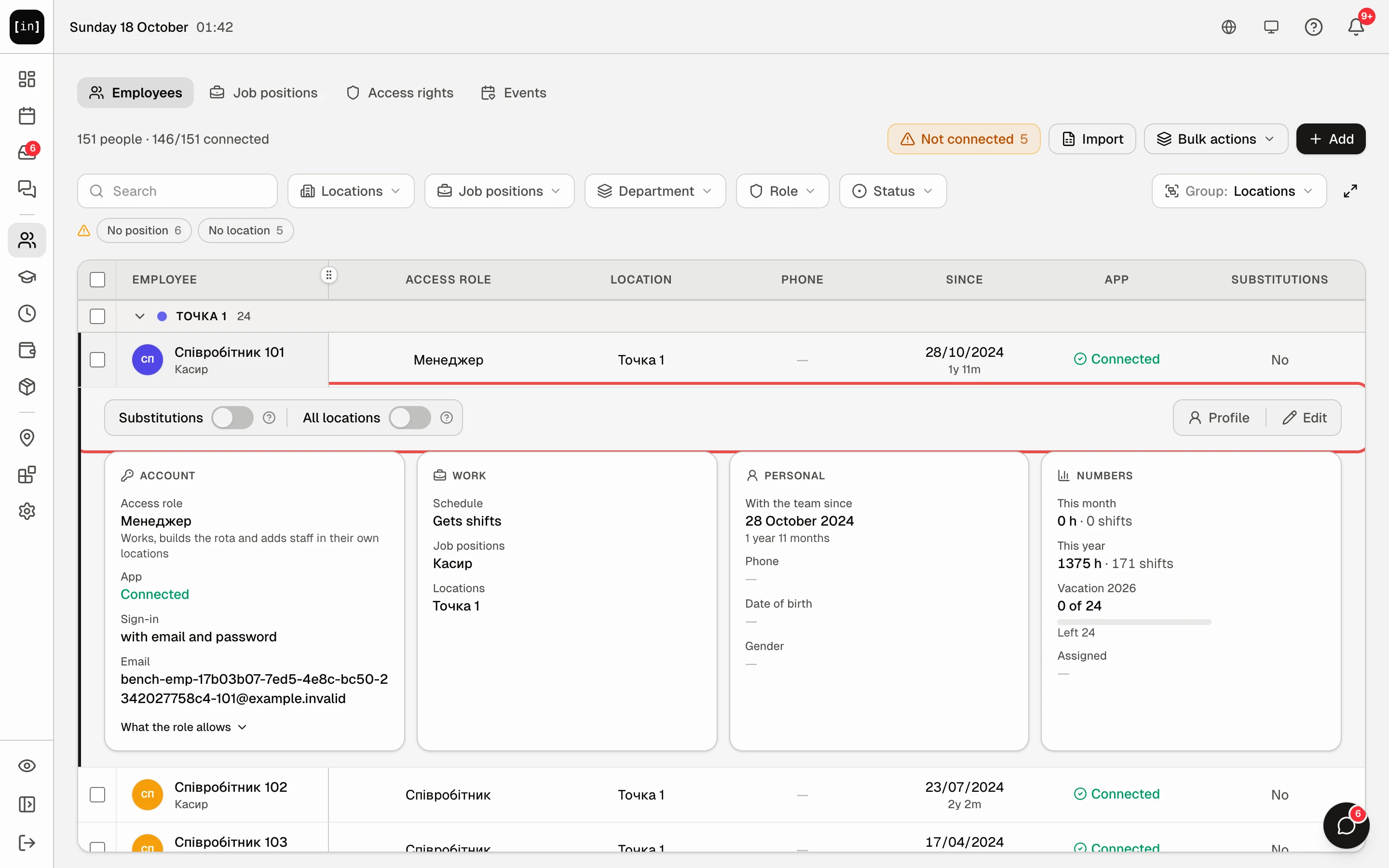
What is in the expanded row
“Substitutions”: whether the person can be called for a one-off cover at other sites, see Cover: put someone from another location on a shift. “All locations”: the person is on the schedule of every location, new ones too. Each switch has a “?” with an explanation. A switch takes effect at once, without “Save”, and the table row above it updates.
“Account”: the access role and what it allows, “App” (connected or not), “Sign-in” and “Email”. The owner and co-owners also have a “Level” line: full access.
“Work”: “Schedule” (gets shifts or “Not scheduled”), “Positions” with the primary one marked, “Locations”, “Trainee” if there is one.
“Personal”: “Since” and length of service, “Phone”, “Date of birth”, “Gender”. Anything missing shows as a dash.
“Numbers”: hours and shifts this month and this year, this year’s holiday and how much property is assigned to the person.
What is in the profile
At the top “Back” on the left and “Edit” on the right. The first row is a block with the photo, name, position and role, next to the same “Account”, “Work” and “Personal” as in the expanded row. Here “Work” also shows “All locations” and “Substitutions” as “Yes” or “No”.
Below are the numbers: “Scheduled” (hours and shifts for “This month”, “This year” and “All time”, with “Data since …” above them), “Vacation 2026” (“Used”, “Planned”, “Left” and the “3 of 24” bar) and property, if anything has been issued. The holiday block is there only when a holiday allowance is set, see Time off and sick leave: approval.
A dismissed person has the mark “Left on …”.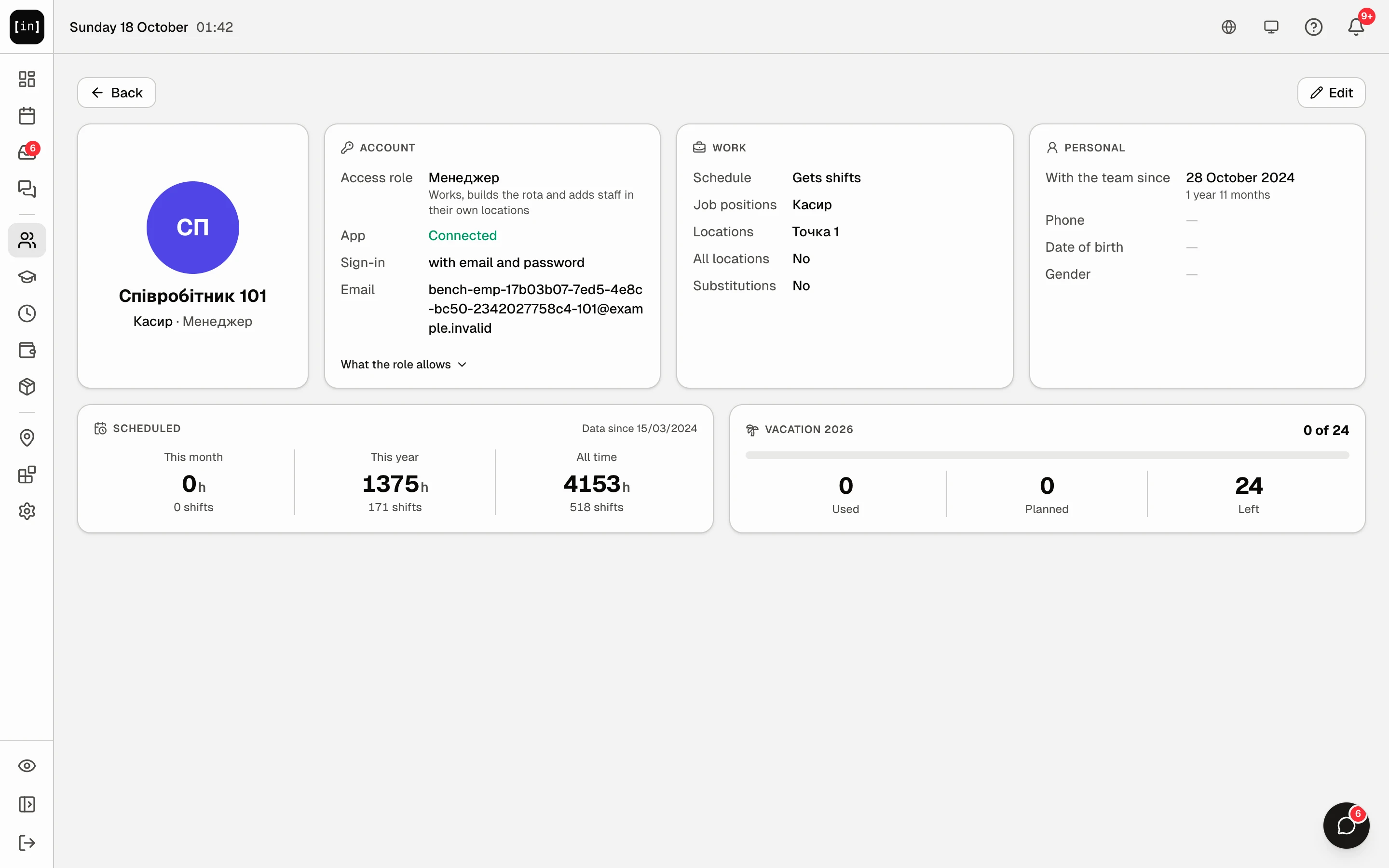
Step by step: change the card
- In the expanded row or in the profile click “Edit”. The form opens with blocks from top to bottom.
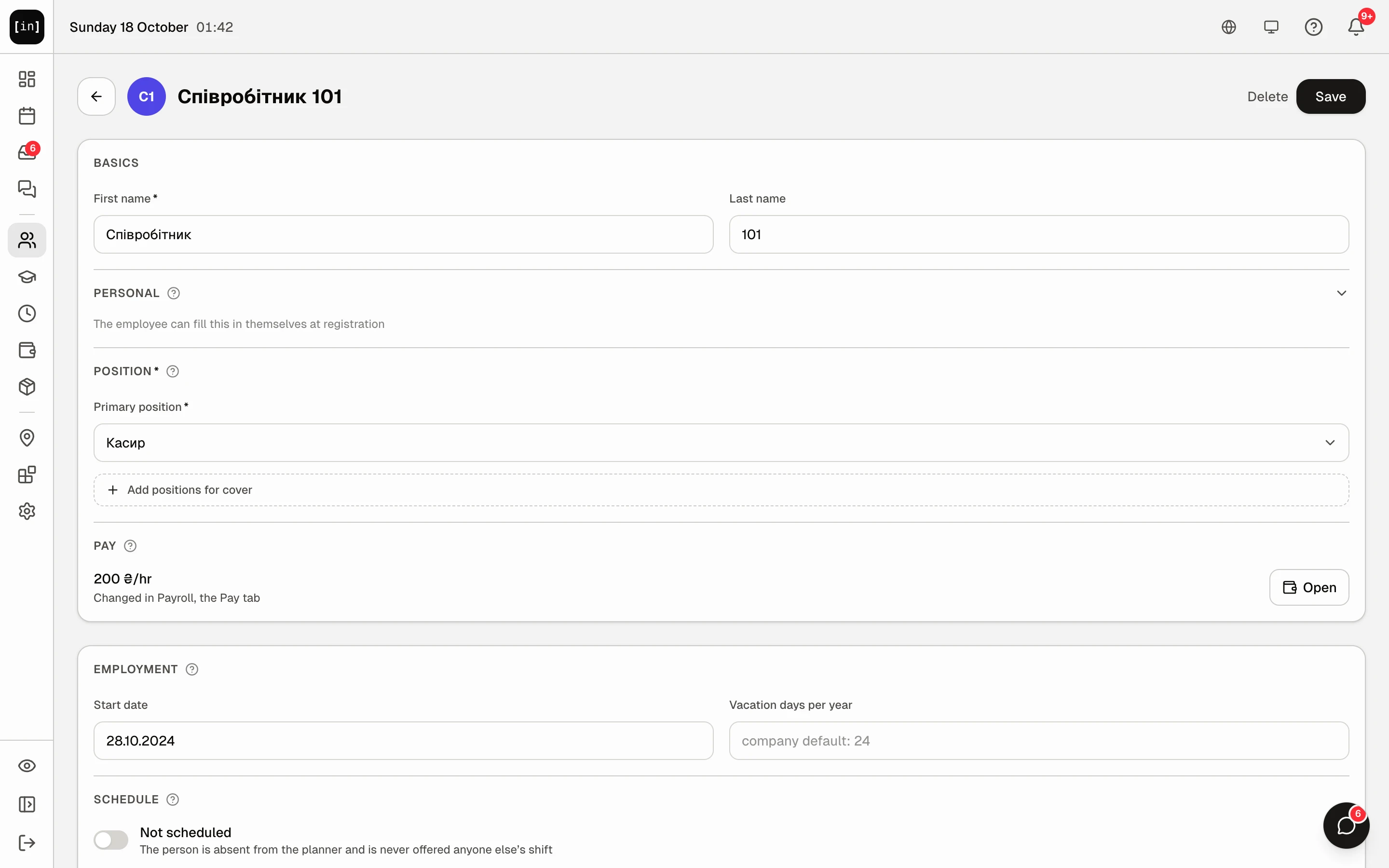
The edit form: “Basics”, “Personal”, “Position”, “Pay”, “Employment”, “Schedule” - “Basics”: “First name” is required, “Last name” is optional. This is how colleagues see the person in the schedule and in chat.
- “Personal”: “Gender” and “Date of birth”. You can leave them empty: the person fills them in when registering. The date of birth feeds the birthdays on the dashboard.
- “Position”: “Primary position” defines the group in the schedule and the shift types. If the organisation has several positions, below are “Can cover” and “Add positions for cover”: positions in which the person can be put on as cover and offered open shifts. In the schedule they stand under their primary one.
- “Pay”: this only shows whether pay has been assigned or not, and the “Open” button. The pay method and rate are assigned in “Payroll” → “Pay”.
- “Employment”: “Start date” counts length of service, “Vacation days per year” is needed only when this person’s allowance differs from the general one. An empty field says “company default: 24”.
- “Schedule”: the “Not scheduled” switch for those who do not work shifts: the owner, an accountant. The person will not be in the planner and will not be offered for other people’s shifts, while the card, access and property remain.
- “Location”: “Primary Location”, in whose schedule the person stands by default, and “Also works at other locations” for those who permanently work at several locations. Below is “Cover at other locations” with the “Available for substitution” switch: the person can be called in for one-off cover where they do not work permanently, see Cover: put someone from another location on a shift.
- “Access rights”: “Employee”, “Manager” or “Director”, “Details” shows the permissions of each, “Manage roles & permissions” leads to your own roles, see Roles and access. If the person does not have the app yet, the note under the roles says “This role takes effect once the employee has a login account (via invite).”
- Click “Save” at the top right. If a field is not filled in, it is highlighted with “Required field”, and at the top there is “Fill in the highlighted fields”.
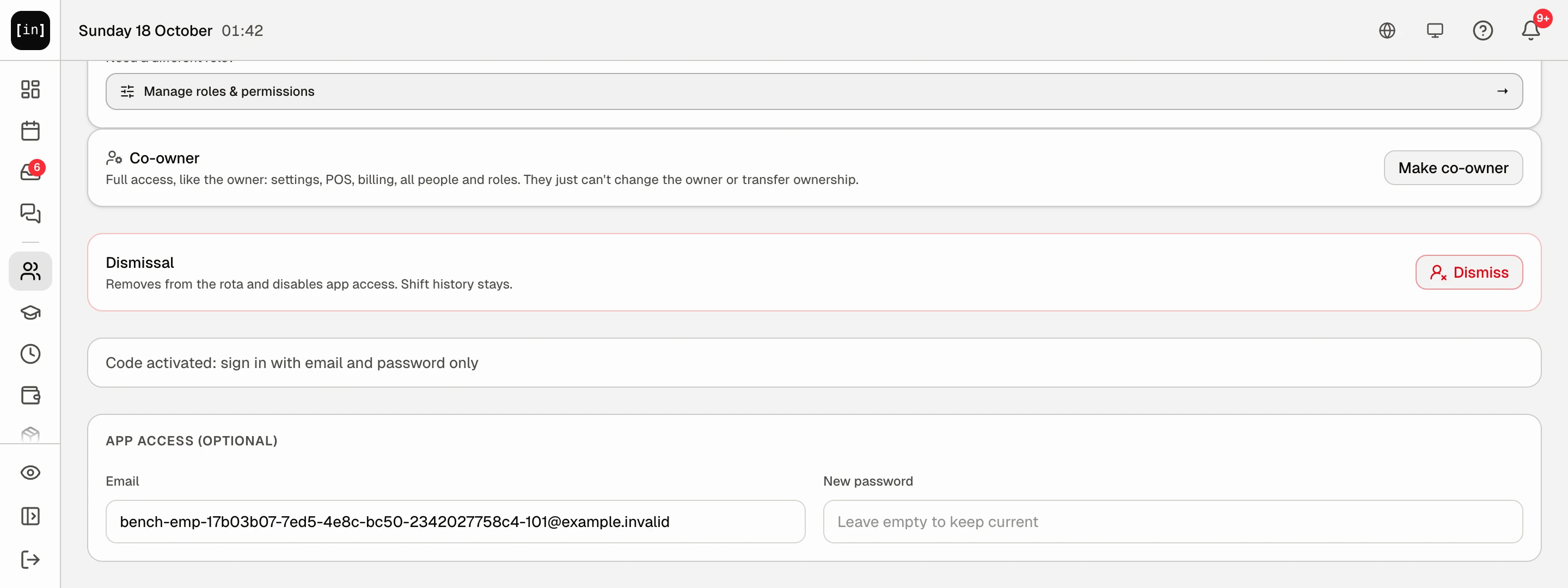
The bottom of the form: “Co-owner”, “Dismissal” and “App access” with email and new password
Change several people at once
The same change for many people, for example a new position or phone numbers, is done in a table that works like Excel.
- Tick the people on the left of their names. A bar with “N people selected” and an “Edit in a table” button appears at the bottom. Or “Bulk actions” at the top right → “Edit in a table”: everyone visible under the current filter and search goes into the table, and the item shows how many.
- The first time, pick the columns in the “What to fill in” window and click “Done”. You can change the set later with the “Columns” button.
- Edit the cells or paste a block from Excel. Changed cells turn yellow; hover one to see what it was.
- Click “Save N changes”. If roles or locations change, the table first shows “Check before saving”: what each person had and what they will get. Confirm with “Yes, save”.
- After saving, “Undo these changes” works for 7 days. Closed the line with that button: “Bulk actions” → “Recent bulk changes” lists every table save of the last 7 days with its undo. A cell someone else changed after you is left as it is.
Just a role or a location: the same bar has “Access role” and “Add to location”. Pick from the list and the change is saved at once, with “Undo these changes” in the notification.
“Bulk actions” → “Export to Excel” downloads the people visible under the current filter, with the same columns as the table and without rates.
App access
For a person who has already connected the app, the bottom of the form has the “App access (optional)” block with the “Email” and “New password” fields. Change the email if the person registered with the wrong one, and set a new password if they forgot it: type the password and click “Save”, then pass it on to the person. An empty password field changes nothing, and a new password signs the person out on every device, so they sign in again with it. No confirmation is needed, and no email goes to the person: tell them the new email or password yourself. The block is visible to whoever manages this person: the owner, a co-owner, or a manager with “Manage employees” if the person has fewer rights than you. Your own card has no such block: everyone changes their own email and password in “Settings” → the “General” tab → the “Account” block with a code sent to their email, see Account: login email and password.
For a person without the app, this block is replaced by “Invitation” with the “Invite” button: a login code, see The invite code: how it works and what to do when it fails.
The owner also sees the “Co-owner” block in the form with the “Make co-owner” button: the person gets full access to the organisation, like the owner. The block appears only on the card of an active person who has already connected the app. Removing works the same way: “Remove co-owner”, and from then on the role on the card sets their access again, see Roles and access.
Dismiss or reinstate
The form has the “Dismissal” block with the “Dismiss” button. In the “Dismiss …?” window choose “Reason for leaving”: “Resigned”, “Failed probation”, “Misconduct”, “Redundancy” or “Other”, and add a note if you wish. If the person has upcoming shifts, the window shows how many and asks what to do with them: “Delete upcoming shifts” or “Convert upcoming shifts to open”. If property is assigned to the person, the window reminds you with “Items not returned”.
After dismissal the person disappears from the schedule and from cover selection, app access is turned off, active requests are cancelled. Past shifts and payroll are kept. In the employee list the card gets the “Dismissed” mark.
Reinstate: open the dismissed person’s card and click “Reinstate”. App access is restored with a new invite code.
The “Delete” button at the top of the form removes the card entirely together with all shifts: “Are you sure? All shifts for this employee will be deleted.” For someone who has worked, dismissal is better: the history stays.
A co-owner is not dismissed or deleted straight away: on a co-owner’s card the “Dismissal” block says “Remove co-owner access first, then dismiss or delete the card”. The owner clicks “Remove co-owner”, and then the card is dismissed like any other.
Why an action is unavailable
There is no “Edit” button: your role does not have the “Manage employees” permission.
The expanded row has no “Substitutions” or “All locations” switch: you do not manage this person’s card. “Substitutions” is also missing when the person is “Not scheduled”, and “All locations” is switched only by someone who manages the whole network.
There is no “Bulk actions” button: it is only on a computer and only for those who manage the team.
The card opens for viewing only with “This person has as many rights as you or more, so a co-owner or the owner changes this card. You can view it.”: you manage only people who have fewer rights than you.
The caption “This is the owner's card: only the owner can change it.” or “Only the owner can change a co-owner's card.”: the owner’s card and co-owners’ cards are managed only by the owner.
There are no “Dismiss” and “Delete” buttons: this is your own card, which nobody dismisses or deletes, or the person has as many rights as you or more. On a co-owner’s card there is “Remove co-owner access first, then dismiss or delete the card” instead of the button.
Under “Position”, instead of a list there is “Add positions (barista, cook…) to assign them in the rota” and the “Set up” button: there are no positions yet, see Job positions.
Some roles are grey with the caption “You can only give a role with fewer rights than yours”: you can give only a role with fewer rights than your own. The owner and co-owners can give any role.
On your own card the roles are grey with the caption “A co-owner or the owner changes your role”.
A location in the list is grey with “This location is outside your scope, another manager runs it”: you manage other locations and cannot move people into someone else’s.
There is no “App access” block: the person has not connected the app yet, the “Invitation” block is there instead. Or this is your own card, or the person has as many rights as you or more.
There is no “Vacation” block in the profile: no holiday allowance is set and there have been no approved holidays this year.
Questions and answers
What can the person change themselves in the app?
The name, position, locations and access are changed only by you; the person does not touch them. They can change gender, date of birth, phone and photo in their profile, and the email and password in the account settings.
How do I move a person to another location?
In the form change “Primary Location”. Shifts already in place stay where they were.
Why is the person not in the schedule although the card exists?
“Not scheduled” is on under “Schedule”, or their primary location differs from the one open in the planner.
Does the person see their own card?
In the app they see their profile: name, position, locations, length of service, holiday balance, and pay only if it is open to them.