Your account is the email and password you sign in to the panel and the app with. They can be changed under “Settings” → the “Account” block. Both changes are confirmed with a code from an email: the email changes only after the code sent to the new address, and the password changes without the old one, with a code sent to the current email. After a change all other devices are signed out, this one stays.
If you sign in with Google, you may not have a password. It can be set right here, and then you can sign in both with the email and with Google.
Everyone changes their own account, only here and with a code sent to their email. Another person’s email and password are changed on their card, in the “App access” block, by whoever manages that person: the owner, a co-owner, or a manager if the person has fewer rights than the manager. No confirmation is needed there, and a new password signs them out on all devices, see Employee card.
Where to find it
“Settings” → the “General” tab → the “Account” block with the caption “Your sign-in email and password”: the rows “Sign-in email” with the current address and “Password” with the caption “Used to sign in with your email”, each with the “Edit” button, and for an account without a password “Set”.
Forgot the password and cannot sign in: “Forgot password?” on the sign-in page, see Register your organisation and sign in.
Step by step: change the email
- In the “Sign-in email” row click “Edit”. A form unfolds with the “New email” and “Current password” fields and the hint “We will send a code to the new address. The email changes only after you enter that code.”
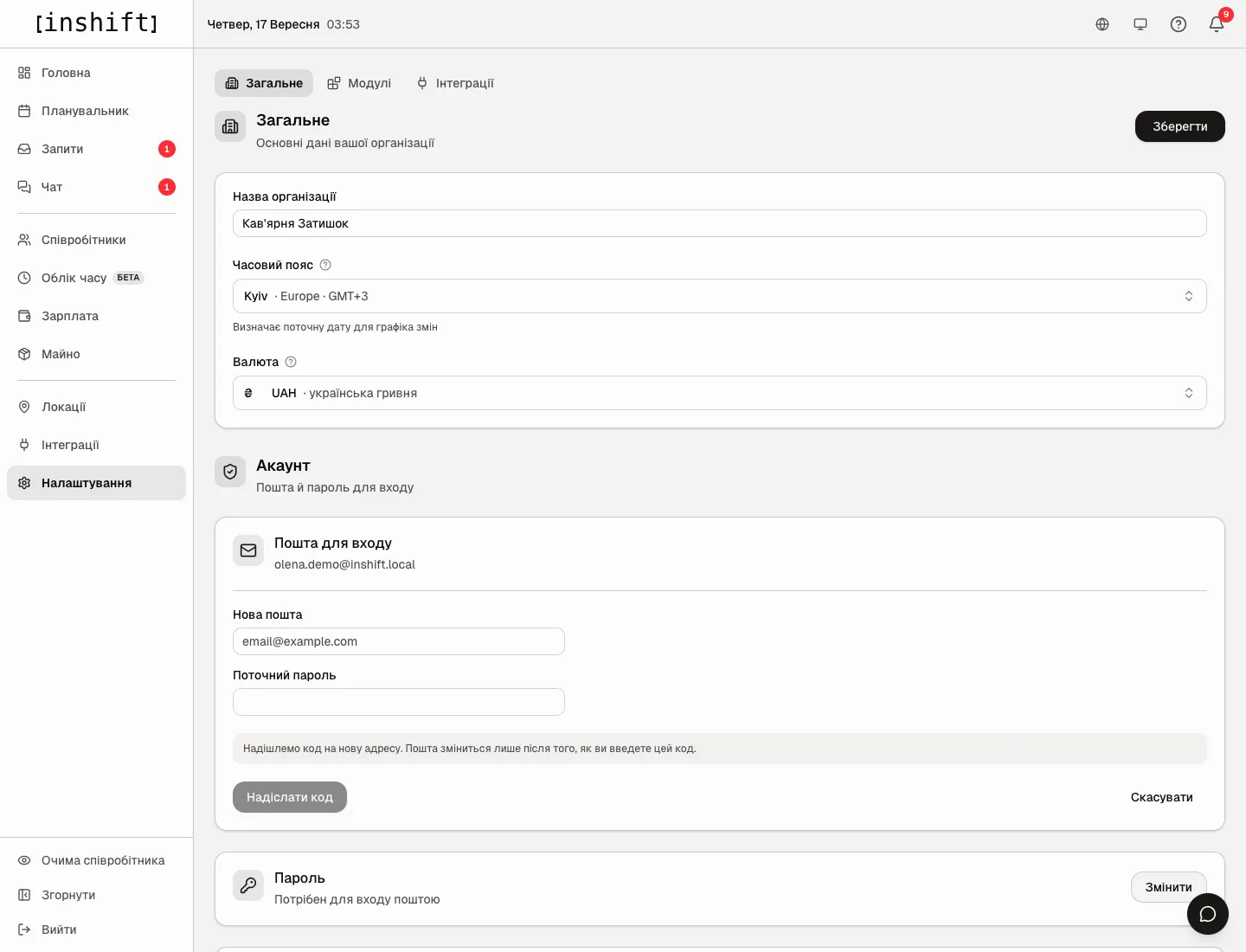
The “Account” block with the email change form unfolded: “New email”, “Current password”, “Send code” - Type the new address and the current password, click “Send code”. The panel says “Code sent to new@example.com. It is valid for 15 minutes.”
- Open the email at the new address, type the “Confirmation code” and click “Confirm”.
- The panel shows “Email changed. Other devices have been signed out.” From now on sign in with the new email, in the app on the phone too.
No code received: the hint under the field says “No code? Check the address and your spam folder. If that address already has an InShift account, the email cannot be moved to it.”
Step by step: change or set the password
- In the “Password” row click “Edit” or “Set”. The hint “We will email you a confirmation code. No need to type your old password.” unfolds with the “Send code” button.
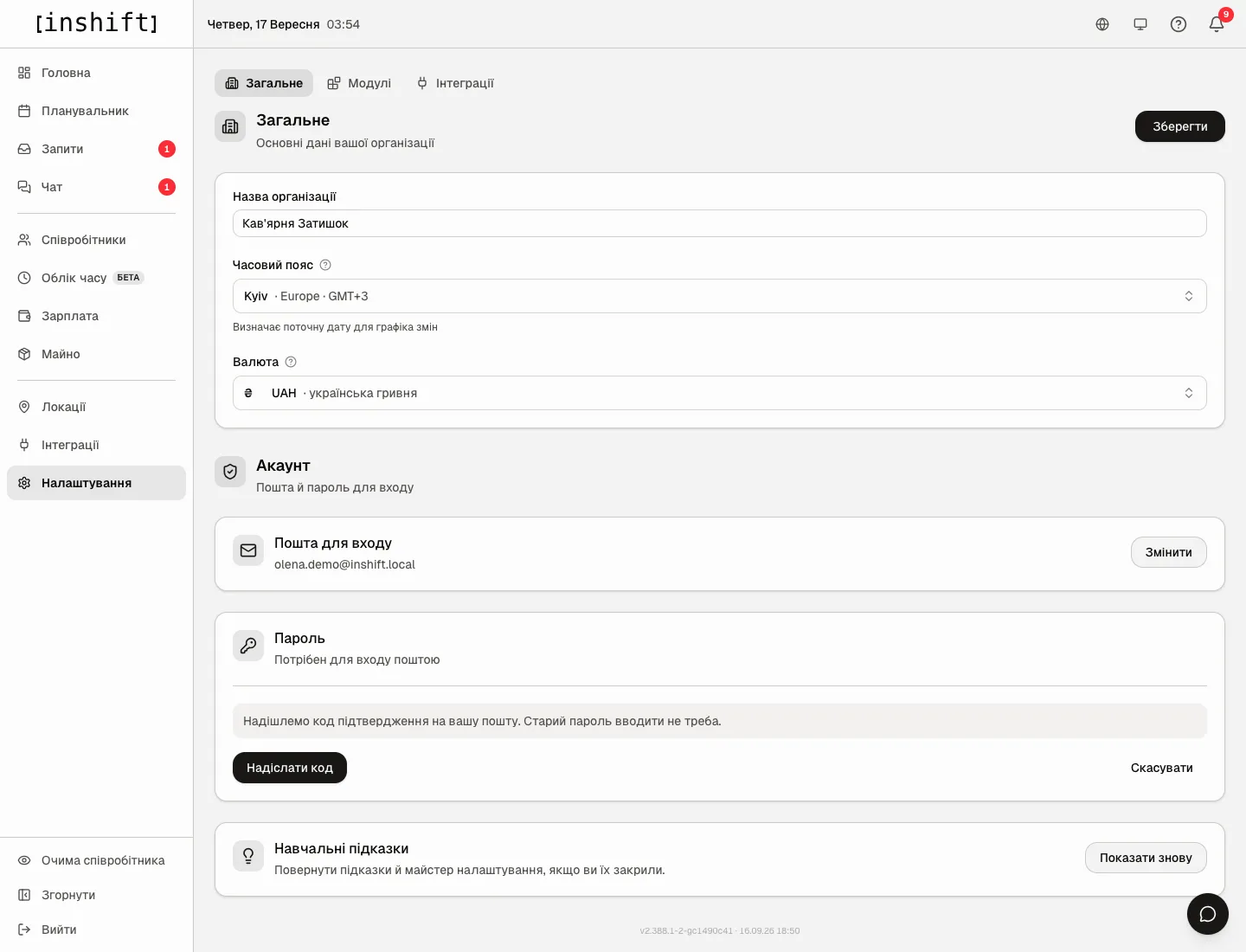
The “Account” block with the password change form unfolded: the hint about the code and the “Send code” button - Click “Send code”. The email arrives at the current address: “Code sent to jane@example.com. It is valid for 15 minutes.” Again: “Send the code again”, no sooner than a minute later: “A code was already sent. Try again in a minute”.
- Type the “Confirmation code”, “New password” and “Repeat new password”. The password is “At least 8 characters”. Under the form is a reminder: “All other devices will be signed out. This one stays signed in.”
- Click “Save”. The panel says “Password changed. Other devices have been signed out.” or, if there was no password, “Password set. You can now sign in with your email too.”
Signing in with Google
If you registered with “Continue with Google”, the “Password” row says “Not set” with the hint “You sign in with Google. Set a password to sign in with your email too.” Set it with a code, as described above.
The email cannot be changed without a password: “You sign in with Google. To change the email, set a password first: it is the only way to confirm the account is really yours.”
After the email is changed, signing in with Google works only with the Google account at the new address.
Why an action is unavailable
The “Edit” buttons are inactive, with the note “Sign-in details cannot be changed while viewing someone else’s account.”: you are looking at the panel on behalf of another person.
“Wrong password”: the current password entered is not the right one. If you forgot it, change the password with a code first, then the email.
“That is already your email”: the new address is the same as the old one.
“That address is already taken”: the new address already has an InShift account. One account works in one organisation, the email cannot be moved to a taken one.
“The code is wrong or no longer valid”: check the digits or send the code again, it is valid for 15 minutes.
“Set a password first”: the account signs in only with Google.
Questions and answers
Does the email change in the app on the phone?
Yes, the account is one: after the change, sign in to the app with the new email. The phone signs out of the account by itself.
Will the team see my new email?
No. The email is seen by you and by whoever manages your card: the owner, co-owners, or a manager with more rights than yours.
What if I have no access to the old email?
Changing the email needs only the current password and access to the new address, the old one is not needed. For a password change the code goes to the current email: if it is gone, ask whoever manages your card (the owner, a co-owner or a manager) to set a password there.
Can signing in with Google be turned off?
There is no separate switch. Set a password and sign in with the email, the Google button stays working for that address.