A second manager does not need a separate account for the panel. Access to admin.inshift.app is given by a role: if “Admin panel access” is on in a person’s role, they sign in to the panel with the same email and password as the app. What exactly they see and can do there is defined by the rest of the role’s permissions: “Manager” runs their own locations, “Director” the whole organisation.
The owner and co-owners can give any role with panel access, and a manager only a role with fewer rights than the manager’s own. Taking access away is just as simple: change the role or turn off the switch in the role.
Where to find it
A person’s role: “Employees” → the card → “Edit” → the “Access rights” block. The “Admin panel access” switch inside a role: “Employees” → the “Access rights” tab → the role → the “System access” block.
Signing in to the panel: admin.inshift.app, the same email and password as in the app, or “Continue with Google”.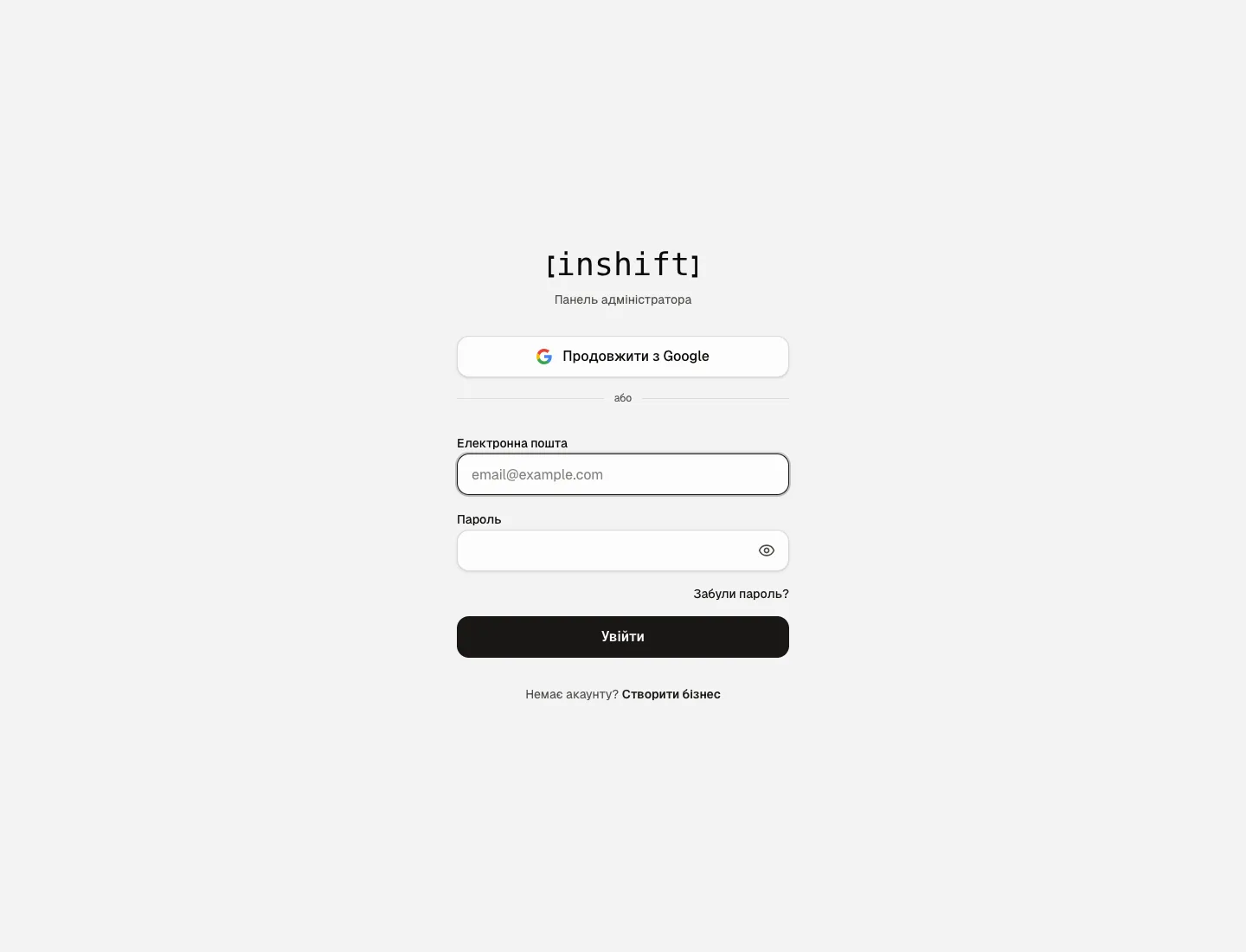
Step by step: give access to a location manager
- Make sure the person has connected the app: they have an account with an email and password. Without an account the role takes effect only after an invitation, see The invite code: how it works and what to do when it fails.
- Open their card → “Edit” → “Access rights” and choose “Manager”. The role’s caption: works, builds the schedule and adds staff in their own locations. A manager’s locations are those in their card: the primary one and “Also works at other locations”.
- Click “Save”.
- Tell the person to open admin.inshift.app in a browser on a computer and sign in with the app’s email and password. The panel shows only their locations and what the role allows. The app on the phone keeps working as before.
For full access to the organisation choose “Director”. For something in between, create your own role and turn on “Admin panel access” in it, see Roles and access.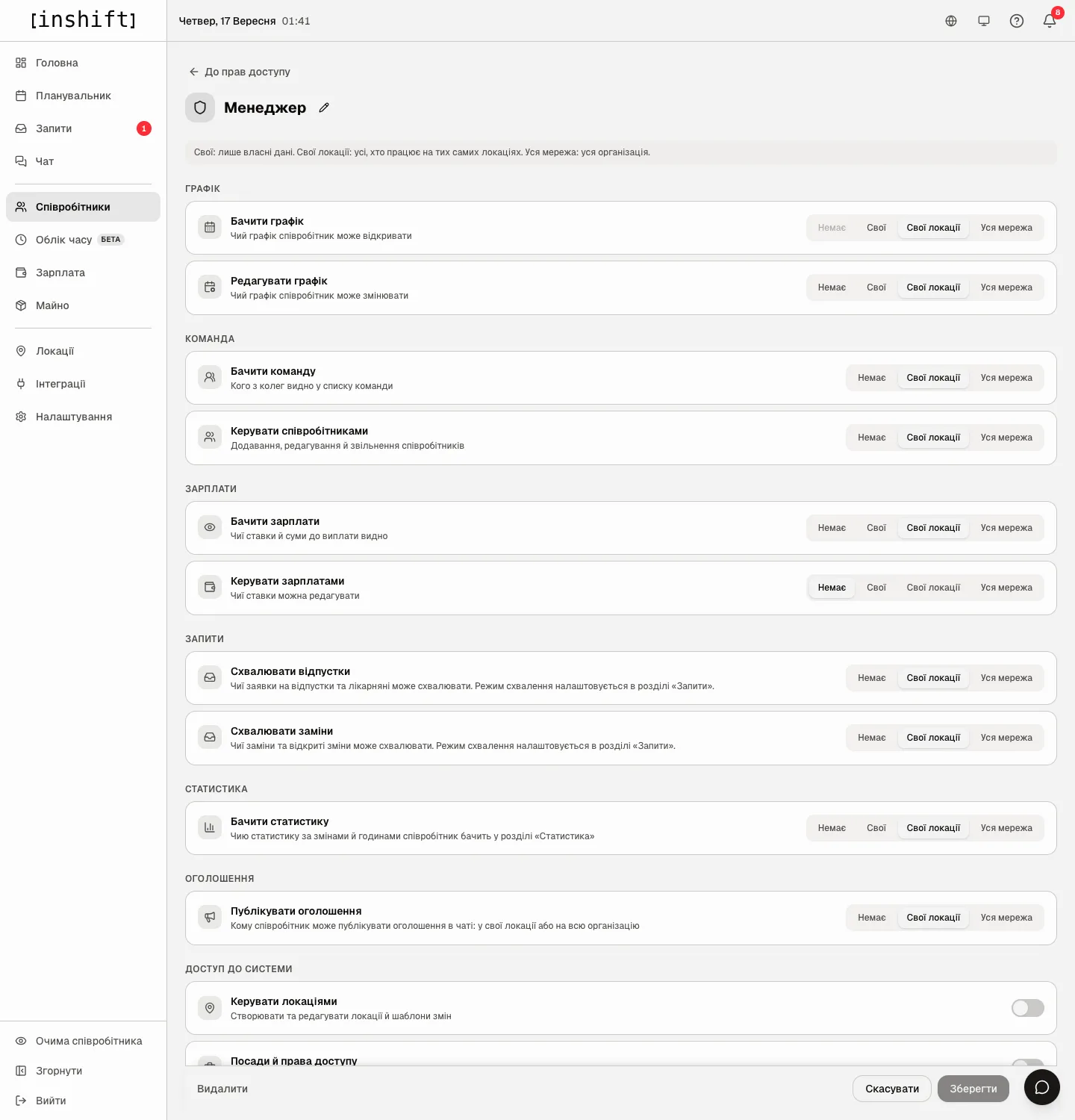
The role page: permission groups and the switches “Manage locations”, “Job positions and access rights”, “Admin panel access”
What a manager sees in the panel
The menu items depend on the role’s permissions. The planner and team of their locations, the requests of their locations, chat, payroll by the “View payroll”, “Pay out wages” or “Change pay” permission, “Employee’s view” by the “Manage employees” permission. “Locations” and “Job positions and access rights” only by the separate switches in the role. In “Payroll” the “Pay” tab opens with “Change pay”, the “Premiums” tab with “Change pay” at “Entire network”, and “History” with “View payroll” at “Entire network”. “Integrations”, the POS, modules and the organisation settings are for the owner and co-owners only. The “Account” block for one’s own email and password is there for everyone.
A manager manages only people who have fewer rights than the manager’s own role: changes their card and role, dismisses, reinstates and deletes, changes the email and password, issues an invite code, sees them in “Employee’s view”. The card of a person with the same or more rights opens for viewing only; a co-owner or the owner changes it. Everyone changes their own email and password in the “Account” block, see Roles and access.
Step by step: take access away
- Open the person’s card → “Edit” → “Access rights” and choose “Employee” or another role without panel access. “Save”.
- Or open the role on the “Access rights” tab and turn off “Admin panel access”: this takes the panel away from everyone with that role.
- On dismissal access is turned off by itself: a dismissed person signs in neither to the app nor to the panel.
- If the person is a co-owner, the role does not affect their access. First the owner clicks “Remove co-owner” on the person’s card, and from then on the role sets the access.
Why an action is unavailable
In the card some roles are grey with the caption “You can only give a role with fewer rights than yours”: these roles have as many rights as yours or more. A co-owner or the owner gives such a role.
The card opens for viewing only with “This person has as many rights as you or more, so a co-owner or the owner changes this card. You can view it.”: you manage only people who have fewer rights than you.
A person cannot sign in to the panel: check that “Admin panel access” is on in their role, and that they sign in with the same email as in the app. Forgot the password: “Forgot password?” on the sign-in page or a new password in their card, the “App access” block.
The manager signed in, but the menu is almost empty: access is on in the role, but the permissions are set to “None” or “Own”. Raise the ones you need to “My locations”.
The manager does not see some location: add it in their card under “Also works at other locations” or set “All”.
Questions and answers
Is a separate password needed for the panel?
No, the account is one. The email and password from the app work in the panel too.
How many people can have panel access?
As many as you like. Each sees exactly what their role allows.
Does a manager see payroll?
In the ready-made “Manager” role, yes, for their own locations, without the right to change rates. If you do not want that, create your own role with “View payroll: None”.
Can there be two owners?
There is one owner, and as many co-owners as you like. A co-owner can do everything the owner can except three things: change the owner’s card, manage other co-owners and transfer ownership. Only the owner appoints a co-owner: the person’s card → “Edit” → the “Co-owner” block → “Make co-owner”. If full access is not needed, give the second manager “Director”: schedule, team, requests, payroll with the “Premiums” and “History” tabs, locations across the entire network. “Integrations”, the POS, modules and the organisation settings stay with the owner and co-owners.