Forgot the password: the sign-in screen has “Forgot password?”, a code comes to your email, and you set a new one. This works the same in the app and in the panel, because the account is one. Changed the phone: it is not needed for signing in, InShift signs in with an email or with Google, so just install the app on the new phone and sign in. No access to the email: the manager can set you a new password in your card.
The password is never sent by email and is shown nowhere, neither to you nor to the manager: it can only be changed to a new one.
Where to find it
The app: the sign-in screen → “Forgot password?”. The panel: admin.inshift.app → “Forgot password?”. Both lead to “Reset password”.
For the manager: “Employees” → the person’s card → “Edit” → the “App access (optional)” block → “New password”.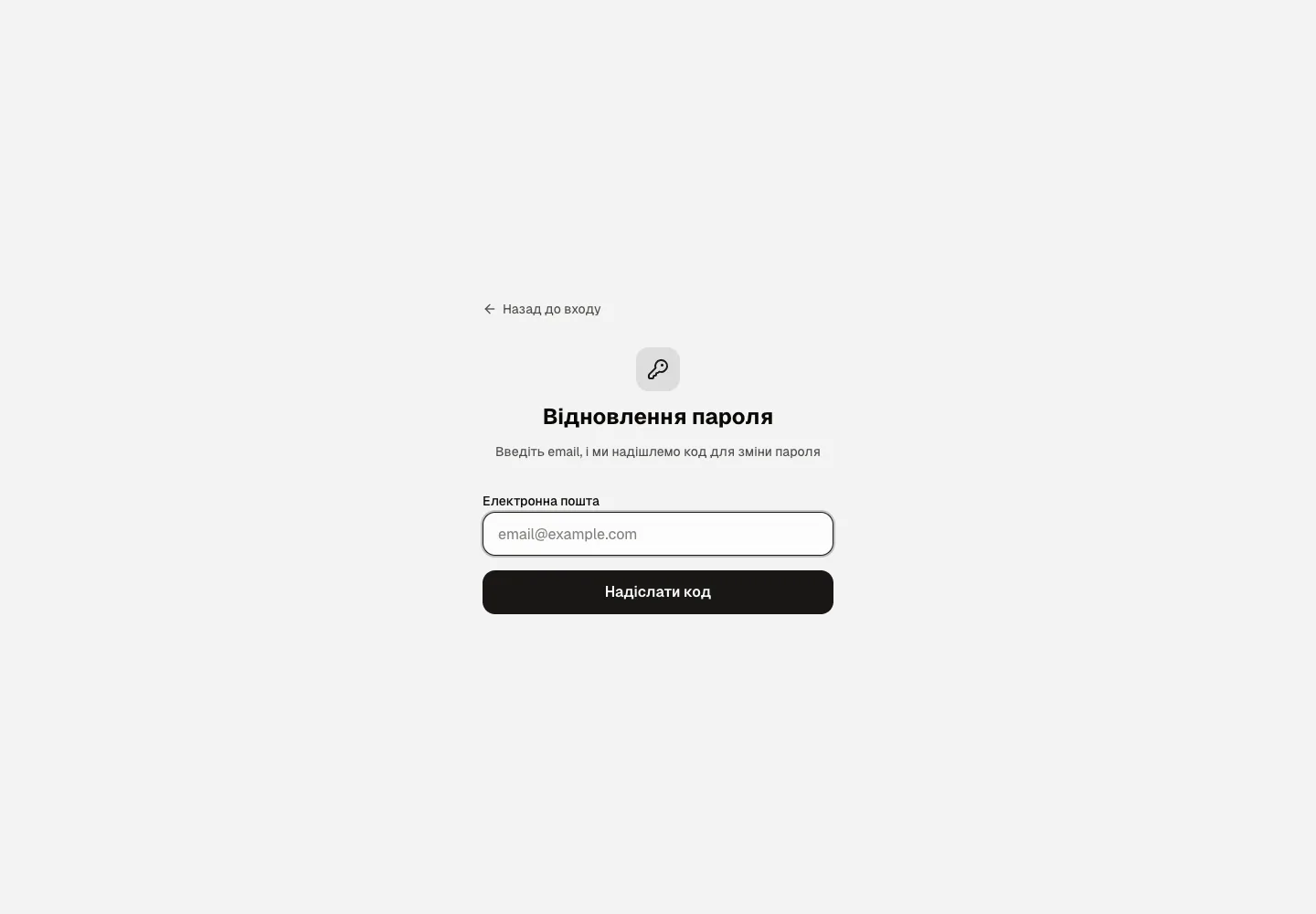
Step by step: reset the password yourself
- On the sign-in screen tap “Forgot password?”. “Reset password” opens: “Enter your email and we’ll send a code to reset your password”.
- Type the email you sign in with and tap “Send code”. The email arrives within a minute, check the spam folder.
- “Enter the code from the email” into the “Verification code” field. The code is valid for 15 minutes, again with “Resend code”.
- “Choose a new password”: “New password” of at least 8 characters, tap “Change password”. The note “Password changed. Sign in with your new password.”
- Sign in with the new password. Other devices where you were signed in to the account sign out of it.
Step by step: a new phone
- Install InShift from the App Store or Google Play on the new phone, see Install the app and sign in.
- Tap “Sign In” and enter the email and password, or “Continue with Google”. The invite code is not needed a second time: the account is already tied to your card.
- Turn on notifications when the app asks: the old phone stops receiving them after signing out of the account.
The phone number in the profile is only a contact for the manager: update it under “Contacts & personal”, it does not affect signing in.
Step by step: the manager sets a password
- If a person has no access to the email they registered with, the manager opens their card → “Edit” → “App access (optional)”.
- Types a password into “New password” and clicks “Save”, then passes the password on to the person. An empty field changes nothing. The password is set by whoever manages the card: the owner, a co-owner, or a manager with “Manage employees” if the person has fewer rights than the manager. No confirmation is needed, and the new password signs the person out on all devices.
- If the email needs changing too, the “Email” field is right there. After that the person signs in with the new email and the new password, see Employee card.
Why an action is unavailable
“Invalid email or password”: check the email you registered with and the keyboard layout. If you registered with Google, tap “Continue with Google”.
“Too many failed attempts. Try again in 15 minutes”: the account is temporarily locked after a series of wrong passwords. Wait or reset the password with a code.
“Too many attempts. Try again in a minute”: codes were requested too often.
“Invalid code”: check the digits or send the code again, the old one no longer works after that.
The email with the code does not arrive: check the address and spam. If the email no longer exists, ask the manager to set a new password in your card.
Questions and answers
Can I sign in without a password, with just a code?
No, the code is only for recovery. After that a password or signing in with Google is needed.
Does the manager see my password?
No. The manager can only set a new one in your card and pass it on to you.
I signed in with Google, and now I want a password. What do I do?
Set a password under “Settings” → “Account” → “Password” → “Set”, see Profile, language, security.
Will the account sign out on the old phone after the password change?
Yes, after a password change all other devices sign out of the account.