You look at your schedule in the InShift app on your phone: it is in the App Store and Google Play. In the app you see your shifts, get notifications, ask for cover and submit time off requests. The website is not needed for that.
The first time, you get into the app with an invite code from your manager; after that, with the email and password you gave at registration.
Where to find it
App Store or Google Play: search for “InShift”. Or open inshift.app/app on your phone: the page takes you to the right store by itself.
Step by step: the first time
- Install InShift from the store and open it.
- On the first screen tap “Sign Up”.
- Choose “I’m an employee” and enter the invite code from your manager. The rest is described in Join your team with a code.
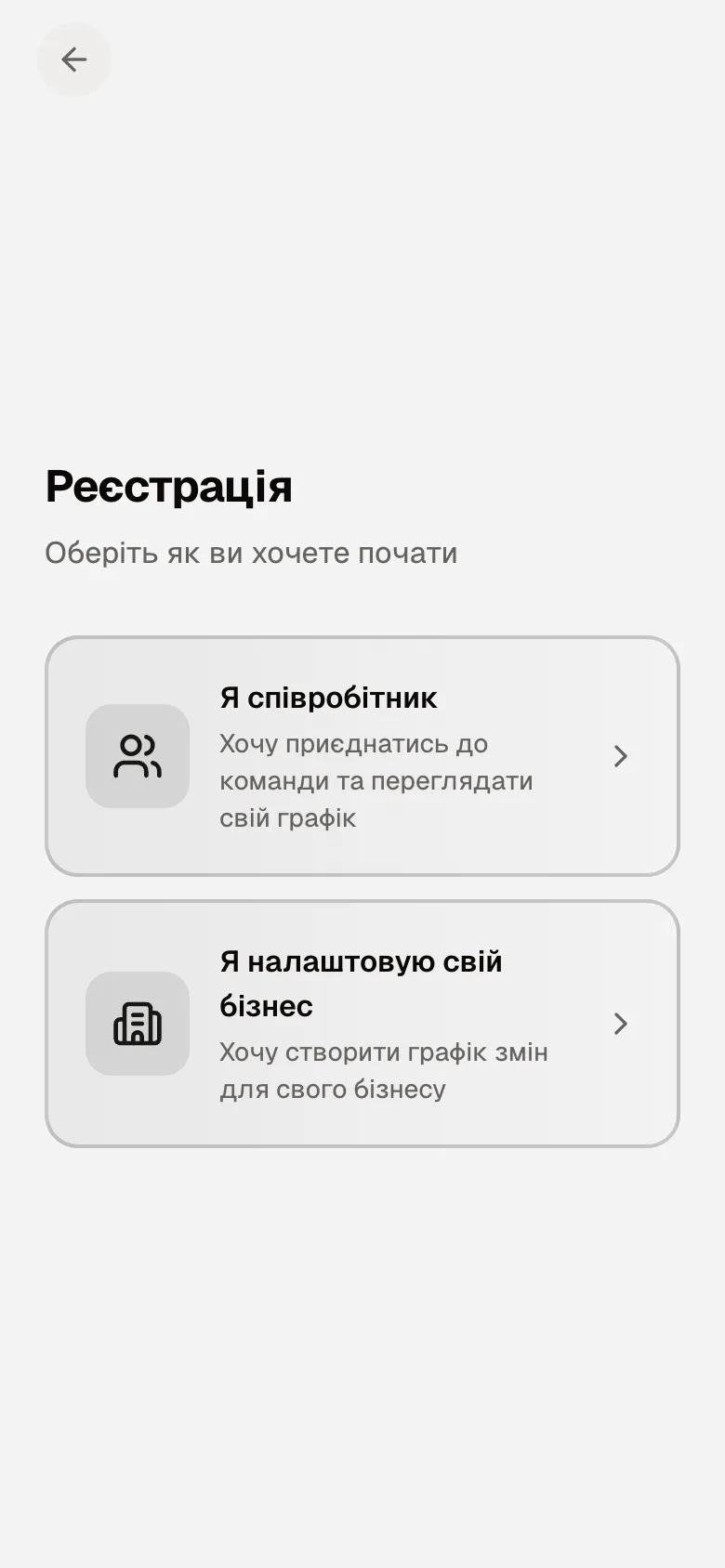
The “Sign Up” screen: “I’m an employee” and “I’m setting up my business”
Step by step: the next times
The app remembers you: open it, and the schedule is on the screen. You need to sign in again only after signing out, reinstalling the app or on a new phone.
- On the first screen tap “Sign In”.
- Enter the “Email” and “Password” you gave at registration and tap “Sign In”.
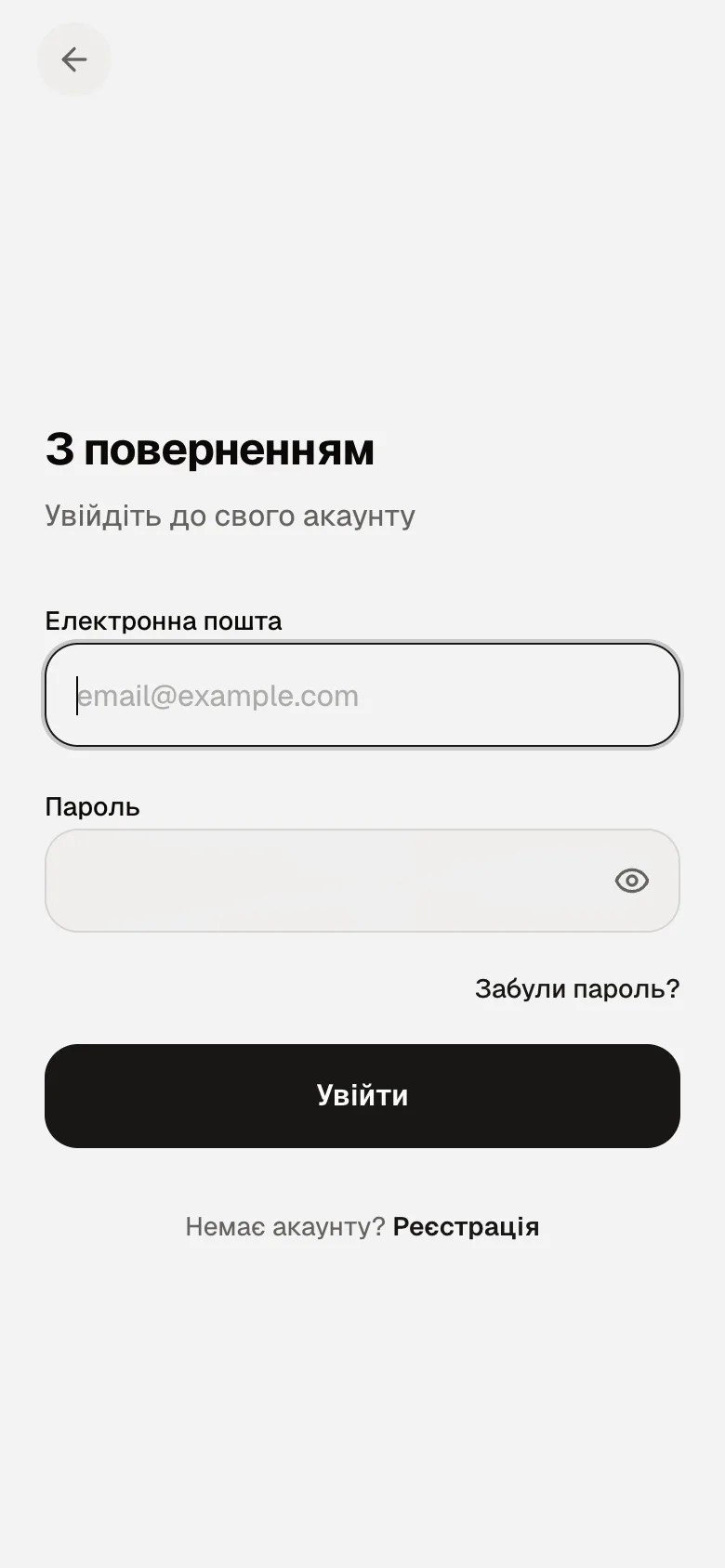
The sign-in screen: email, password, “Forgot password?” and the “Sign In” button - Forgot the password: tap “Forgot password?” under the form. Enter your email and tap “Send code”. Type the code from the email, tap “Verify”, make up a new password and tap “Change password”. Then sign in with the new password.
What happens after signing in
Four tabs at the bottom: “Home”, “Rota”, “Chat”, “More”. “Home” has your next shift and whatever needs your attention. “Rota” is your calendar. “More” holds your profile, “Substitute”, “Requests”, “Settings” and “Sign Out”.
Why an action is unavailable
“Invalid email or password”: check the keyboard layout and stray spaces. Did not help: “Forgot password?”.
“Too many failed attempts. Try again in 15 minutes”: sign-in is temporarily blocked after several wrong passwords. Wait, then use “Forgot password?” if you are not sure of the password.
“This account signs in with Google”: you are an owner or manager who registered with Google in the admin panel. The app has no such sign-in; go to admin.inshift.app.
There is no “Sign Up” button but an “Account is not connected to an organisation” screen with an “Invite code” field: you are already signed in, but you were dismissed or removed from the team. Ask your manager for a new code and enter it here: the account stays the same.
Questions and answers
Can I use it in the phone's browser without the app?
The schedule opens, but there are no notifications and nothing refreshes by itself. Install the app: that is how it is meant to work.
Can I sign in from two phones?
Yes, with the same email and password. Notifications arrive on both.
I changed my email. How do I sign in now?
The sign-in email is changed in “More” → “Settings” → “Sign-in email”. After the change, sign in with the new email; the password stays.