Time tracking means clock-in and clock-out marks. If your manager has enabled it in your organisation, the site has a tablet or a phone with an InShift screen on which a code changes every 30 seconds. You arrive, point your app's camera at that code, and your arrival is recorded. Leaving and breaks work the same way.
It also works without a phone: the same screen has a “Without a phone” button, where you clock in with a staff number and a PIN.
Where to find it
“Home” → the “Check in” button. It is there only when time tracking is enabled.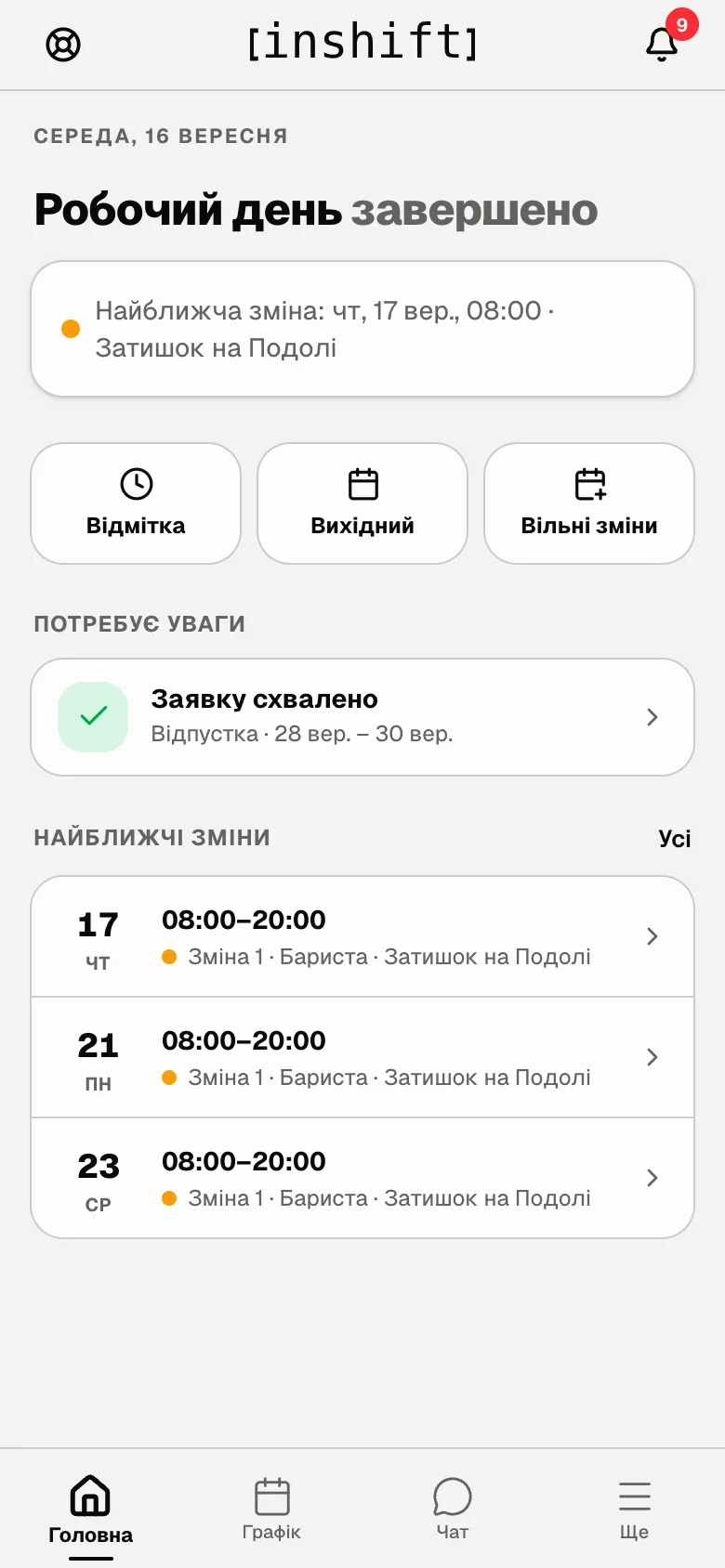
Step by step: arriving
- Once you are at the site, open the app and tap “Check in” on “Home”.
- On the “Check in” screen tap “Check in”.
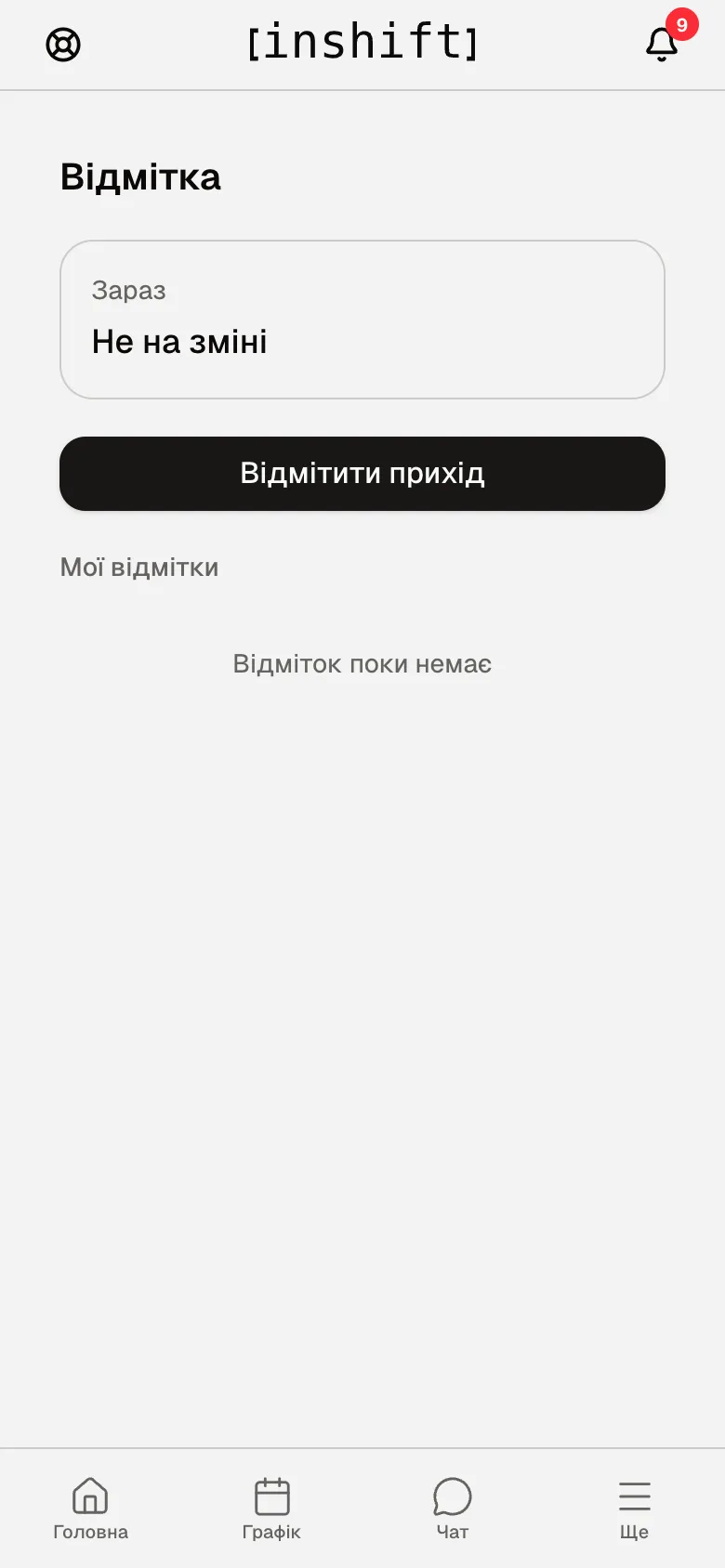
The “Check in” screen: the “Check in” button and the “My check-ins” list - The first time, the app asks for camera access: the “Camera access needed” screen. Tap “Allow camera”, then “Allow” in the phone's prompt. The camera is needed only for the code; no picture is stored anywhere.
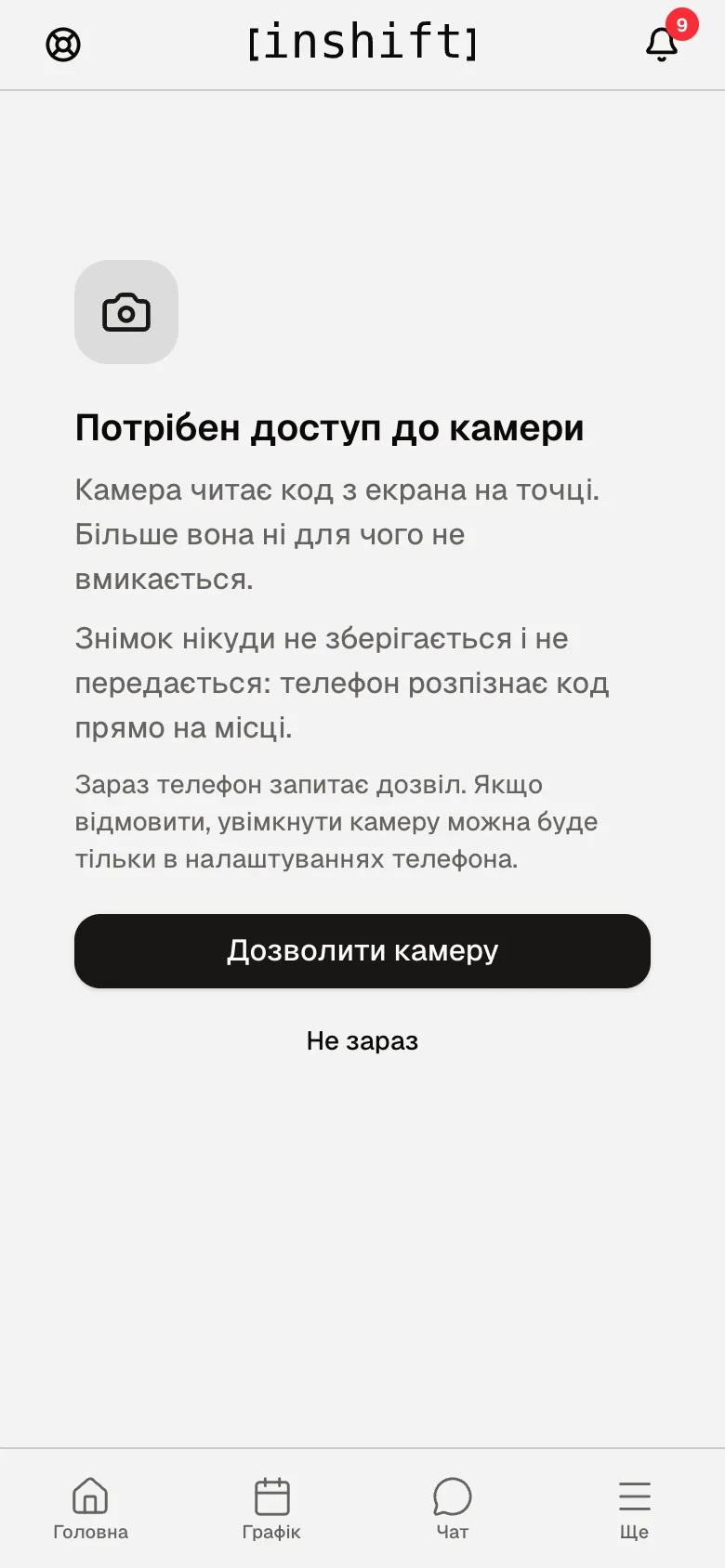
The “Camera access needed” screen with the “Allow camera” button - Point the camera at the code on the site's screen. There is nothing to tap: as soon as the code is recognised, “Checked in” appears, and a “Clock in” row with the time is added to “My check-ins”.
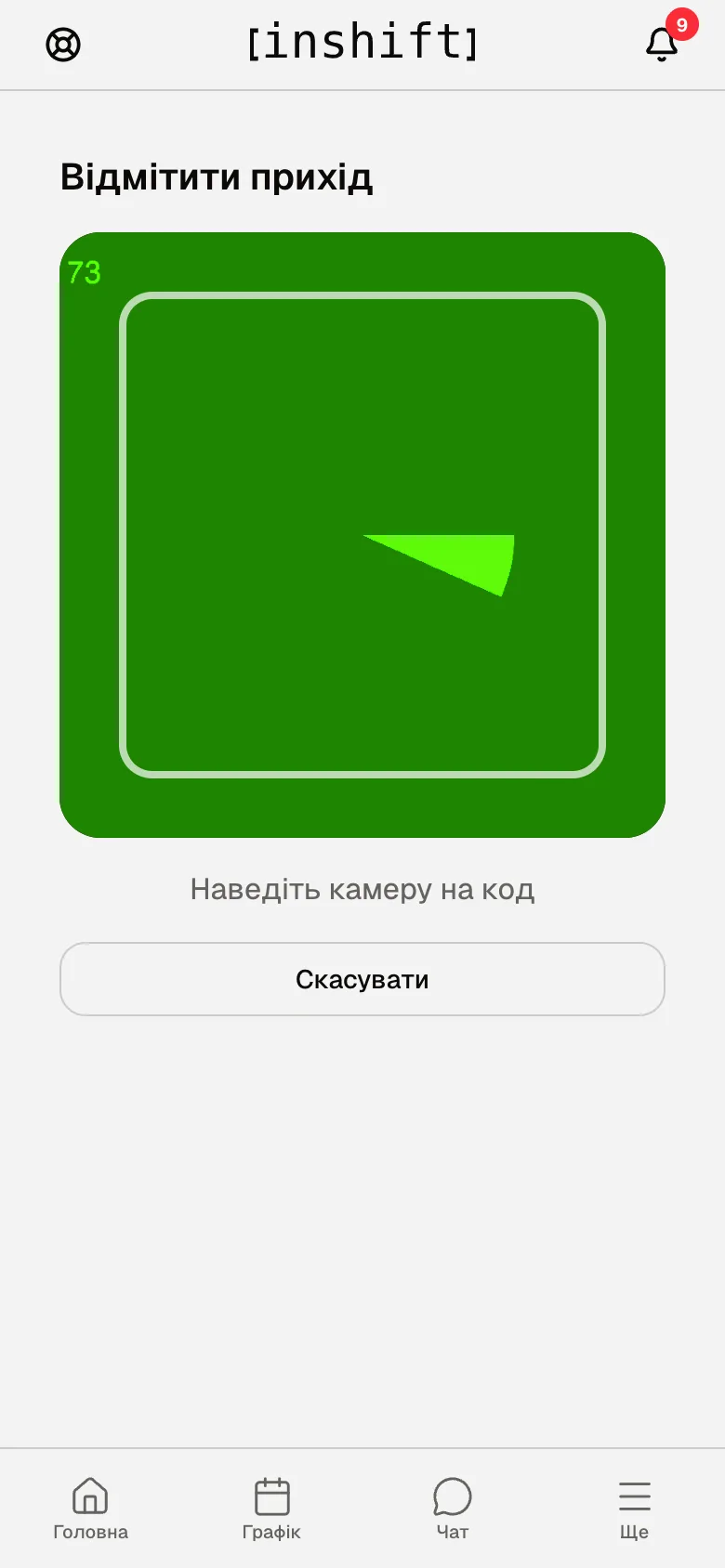
The scanner: “Point the camera at the code”
Break and leaving
While you are on shift, the “Check in” screen shows “Start break” and “Check out” instead of the check-in button. After “Start break” the app counts the minutes of the break, and the button becomes “Back from break”. Every action is confirmed the same way with the code from the site's screen.
Before leaving, tap “Check out” and scan the code. Forgot: the system closes the shift by itself a few hours after the scheduled end of the shift, and your manager sees that the clock-out was set by the system.
Without a phone
On the site's screen tap “Without a phone” and choose what you are doing: “Clock in”, “Clock out”, “Start break” or “End break”. Then enter the “Staff number” your manager gave you and “Your PIN”. The first time, the screen asks you to “Choose your PIN”: at least six digits, and your manager cannot see it. If the screen speaks another language, tap the globe button next to the clock.
My check-ins
On the “Check in” screen, under the buttons, is the “My check-ins” list: today's and previous shifts with the clock-in and clock-out times and breaks, and at the bottom “This month: N shifts”. This is the same thing your manager sees in the “Time tracking” section.
Why an action is unavailable
No “Check in” button on “Home”: time tracking is turned off in the organisation. The message on the “Check in” screen: “Time tracking is off for this organisation”.
“No camera access”: you declined access. Turn the camera on for InShift in the phone's settings, or clock in with your PIN on the site's screen.
“The camera is not available on this device”: clock in via “Without a phone” on the site's screen.
“This app version cannot scan yet”: update InShift in the store, and clock in with your PIN in the meantime.
The code does not read: get closer and wait for the code on the screen to change. A code lives for 30 seconds, and an old one is not accepted.
“This check-in already existed, no new one was created”: you scanned twice in a row. Nothing needs doing.
No internet: the check-in is saved on the phone and goes through by itself as soon as there is a connection, and the time that counts is the one that was on the screen. At the bottom you see “1 check-in is waiting for the network”.
Questions and answers
Can I clock in remotely, away from the site?
No. The code exists only on the site's screen and changes every 30 seconds; it cannot be photographed in advance.
What happens if I clocked in but there was no shift in the schedule?
The check-in is saved and the manager sees it on the board: the row shows “off schedule” instead of the scheduled time. They decide how to account for it.
Is pay calculated from check-ins?
At first, money is calculated from the schedule. Whether to switch to check-ins is the manager's decision.