Your profile in the app is what the team knows about you: name, position, rights, location, tenure and holiday balance. Part of the data you keep yourself: phone, date of birth, gender and photo. The sign-in email and password are changed in “Settings”, along with the language, theme and schedule view. You can delete your account yourself from the “More” screen.
Your name, position, locations and rights are changed by the manager in the panel. If there is a mistake in them, tell your manager.
Where to find it
Profile: “More” → your name at the top. A card with “Position”, “Access”, “Primary location”, “With the team since”, “Tenure”, “Vacation 2026”, and below it “Contacts & personal” and “Payout details”.
Settings: “More” → “Settings”. The sections are “Account”, “Notifications”, “Calendar”, “Appearance”.
Signing out and deleting: at the bottom of the “More” screen, “Sign Out” and “Delete account”. The “Privacy policy” and the app version are there too.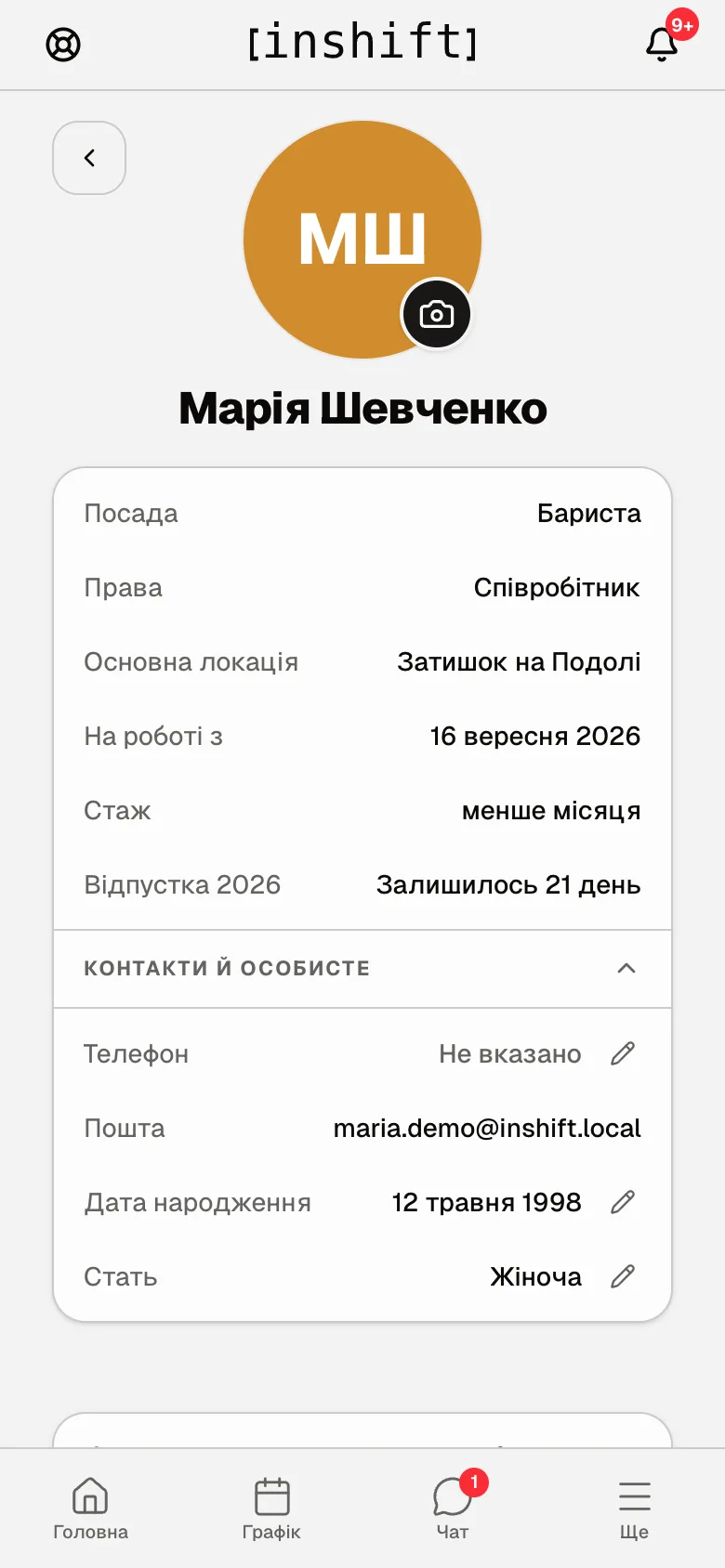
Step by step: change the photo, phone, date of birth
- Open the profile. The camera icon on the photo: “Change photo”, pick a picture and, if needed, “Adjust photo”. Colleagues see the photo in the schedule and in chat.
- Expand “Contacts & personal”. The pencil next to “Phone”, “Date of birth” and “Gender” opens the field; after saving, “Saved” appears. “Email” has no pencil here: it is changed in “Settings” → “Account”.
- The date of birth feeds the team's greetings: colleagues see whose birthday it is today, without the age, if the manager has enabled that.
Email and password
“Settings” → “Account” → “Sign-in email”: fill in “New email” and “Current password”, tap “Send code”. The code arrives at the new address and is valid for 15 minutes: “The email changes only after you enter that code.”. After confirmation, “Email changed. Other devices have been signed out.”.
“Password” → “Change”: “We will email you a confirmation code. No need to type your old password.”. Enter the code, “New password” (“At least 8 characters”) and “Repeat new password”. After the change all other devices are signed out; this one stays.
If you sign in with Google, “Password” shows “Not set”: “You sign in with Google. Set a password to sign in with your email too.”. Without a password the email cannot be changed.
Forgot the password and cannot sign in: “Forgot password?” on the sign-in screen, and a code arrives by email. Or ask your manager to set a new password in your card.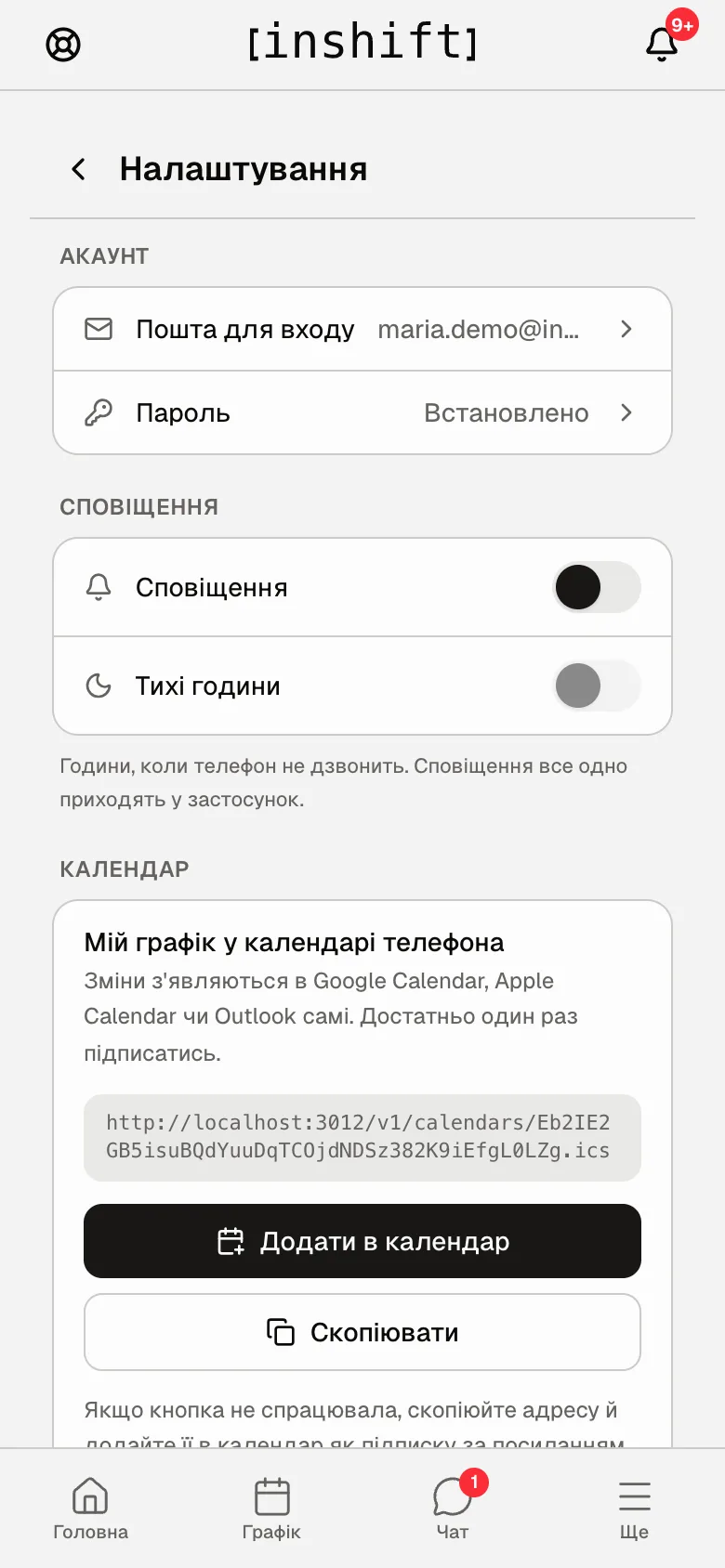
Language, theme, schedule view
The “Appearance” section at the bottom of “Settings”. “Language”: “UA”, “EN”, “RU”, applies at once to your account. “Theme”: the dark theme switch. “Rota view”: “Calendar” or “Table”, which is how the “Rota” tab opens, article My schedule in the app.
“Notifications” and “Quiet hours” are described in Notifications: turn on and quiet hours, “Calendar” in Your schedule in the phone calendar.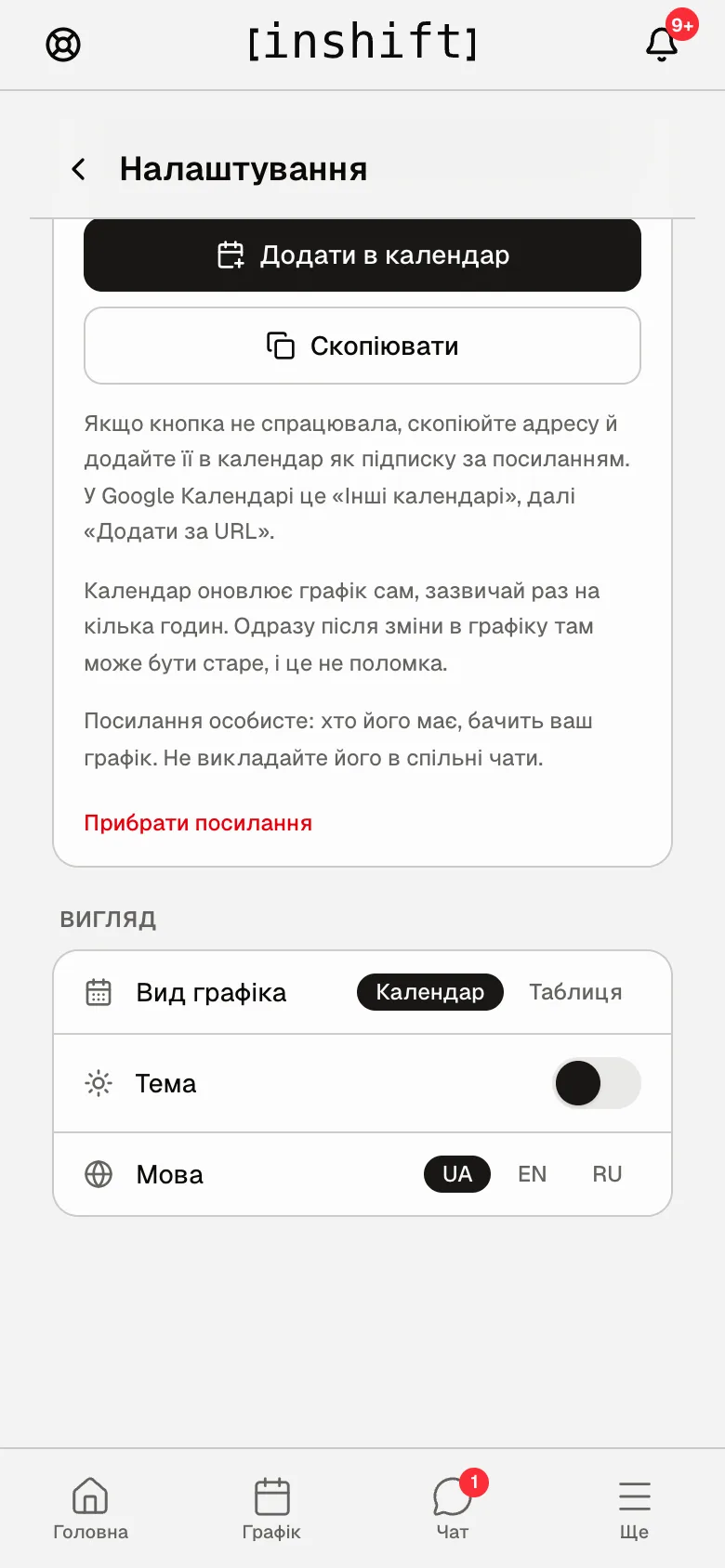
Sign out and delete the account
“More” → “Sign Out” signs you out of the account on this phone. The schedule and notifications come back after signing in.
“More” → “Delete account” deletes your account for good. The app asks again: “Are you sure? All your data will be permanently deleted.”, then “This action cannot be undone. Delete account?”, and asks for the password: “Enter your password to confirm deletion”. After that your card disappears from the organisation together with all your shifts in the schedule, and the items assigned to you go back to the free list. If you are only leaving the team, it is better not to delete anything: your manager dismisses you in the panel, and the history is kept. To come back after deletion you need a new card and a new invite code.
Why an action is unavailable
No pencil next to “Email” in the profile: the email is changed in “Settings” → “Account”, with a confirmation code.
Cannot change my name or position: the manager keeps them in the panel.
“No employee card yet”: your account is not linked to an organisation; enter an invite code, article Join your team with a code.
No “Vacation 2026” in the profile: the manager has not set a holiday allowance.
The code does not arrive by email: check the spam folder and the address. The code is valid for 15 minutes, and “Resend code” works no sooner than a minute later.
“Delete account” asks for a password and there is none: you sign in with Google; first set a password in “Settings” → “Account”.
“Transfer ownership of the organization to a co-owner first”: you are the owner and there are other people in the organisation. First transfer ownership to one of the co-owners in the panel: “Settings” → “General” → “Owner and co-owners” → “Transfer ownership”.
Questions and answers
What do colleagues see in my profile?
Colleagues who have the team open to them see your card: name, photo, position, rights, location and tenure, and the “Contacts & personal” block with what you have filled in: phone, email, date of birth and gender. Payout details, pay and holiday are not seen by colleagues; the manager sees them.
Can I have two accounts in different organisations?
No, one email is one account in one organisation. A second organisation needs a different email.
How does deleting the account differ from dismissal?
Dismissal is done by the manager in the panel: the card and the shift history stay, and access is turned off. Deleting the account erases the card together with the shifts. If you are simply leaving the team, ask your manager to dismiss you.
How do I change the language of notifications?
Notifications come in the language you chose in “Appearance” → “Language”.