The organisation’s data in InShift belongs to the organisation: schedules, cards, requests, marks, payroll. Who sees what is defined by roles, and the most sensitive things are closed separately: bank details for payouts are seen only by whoever pays the salary, API keys are shown once, passwords are stored nowhere in the clear. A person can delete their own account themselves, and the full description of which data is collected and for how long it is kept is in the privacy policy on the website.
This article is about what is in the product. The legal details are in the privacy policy: inshift.app/privacy, and on the account deletion page: inshift.app/delete-account.
Where to find it
The privacy policy: in the app “More” → “Privacy policy”, on the website inshift.app/privacy.
Deleting the account: in the app “More” → “Delete account”, or an email to support@inshift.app, as described at inshift.app/delete-account.
Access rights: “Employees” → “Access rights”, see Roles and access.
Account and password: “Settings” → “Account”, see Account: login email and password.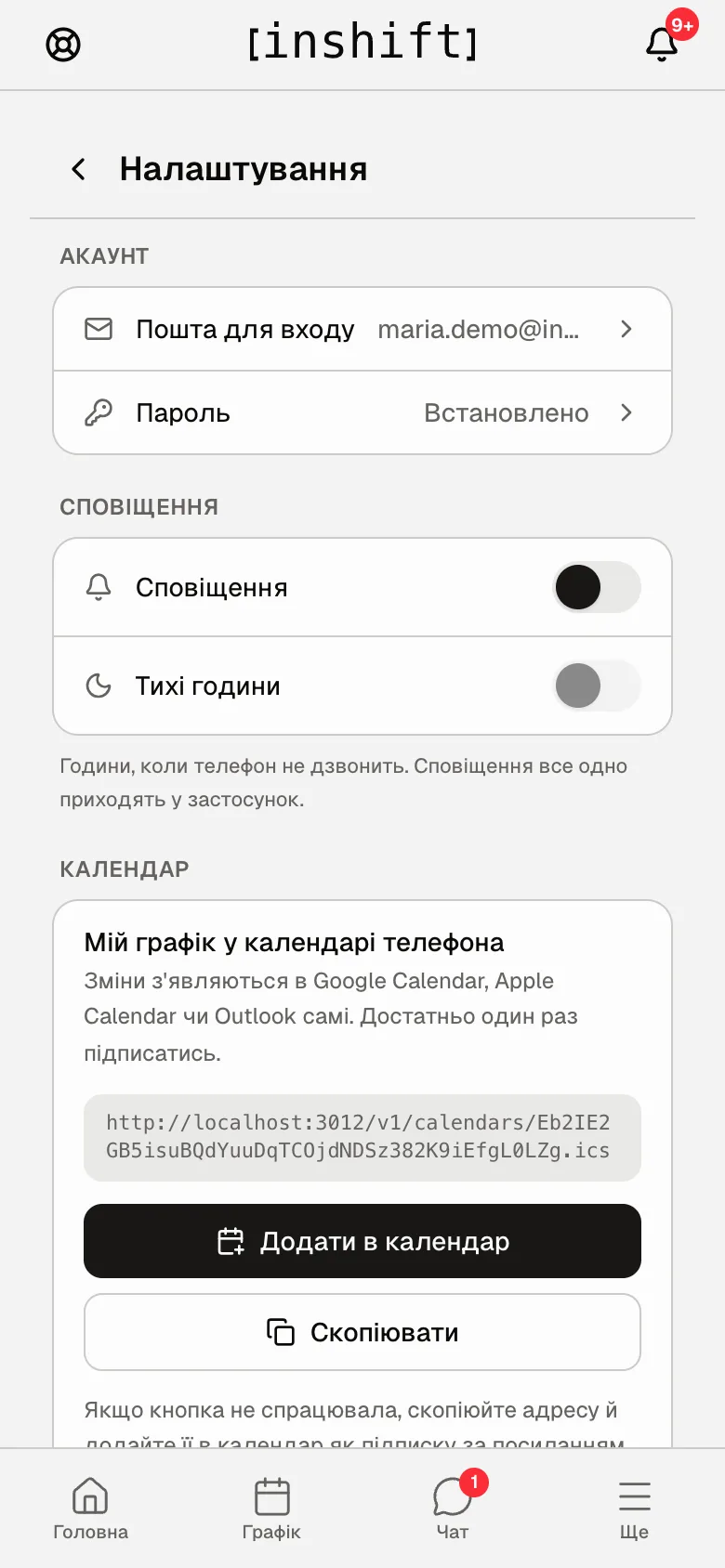
Who sees what
Inside the organisation access is set by roles: the levels “None”, “Own”, “My locations”, “Entire network” separately for the schedule, team, pay, requests, stats, announcements, property and time tracking. A person always sees their own schedule, the rest is decided by the person’s role, see What an employee sees and what they don't.
Data does not cross between organisations: one account works in one organisation, and a person from another company does not see your data.
A location manager sees only their own locations, including in payroll, requests, chat and time tracking. The owner and co-owners see everything.
Personal conversations in chat are closed to everyone, including the manager. Groups are seen only by their members.
What is protected separately
Bank details for payouts: “Visible only to whoever pays the salary, and to the person themselves”. Every change of details is recorded with the date and author: “Changed 17 September 2026, Jane Smith”.
Passwords: stored only as a fingerprint. A password can be changed with a code sent to the email, and after the change all other devices sign out of the account. Whoever manages a person’s card can set them a new password, but nobody can see the old one.
API keys: shown once when created, after that only a fingerprint: “This is the only time the key is shown. We store just its fingerprint and cannot show it again”. A key can be revoked immediately and for good, see API keys and webhooks.
The POS: the Poster key is stored encrypted, and when connecting through Poster you do not even see it.
The camera: the app reads the check-in code on the device, the picture is stored nowhere and sent nowhere.
Signing in: after a series of wrong passwords, signing in is locked for 15 minutes: “Too many failed attempts. Try again in 15 minutes”.
Complaints: any message in chat can be sent to support with the “Report” button.
Deleting an employee’s account
A person deletes the account themselves: “More” → “Delete account”, with confirmation and the password. Together with the account their card in the organisation is deleted, and with it the shifts, worked hours and marks. If the employer still needs them for payroll, the person should warn them before deleting: the page inshift.app/delete-account says so too. The second way: an email to support@inshift.app with the account’s address; personal data is deleted within 30 days.
A manager cannot delete someone else’s account, only dismiss the person or delete their card, see Dismissal and reinstatement.
The organisation’s data
Dismissal erases nothing: past shifts, payroll, history remain. Deleting a card erases it together with the shifts, so for those who have worked, use dismissal.
Turning modules off does not erase what was recorded: marks and items stay in the database.
The history of changes in money is visible under “Payroll” → “History”: who changed what and when. The history of items is in the item card, of marks on the board, of requests under “Requests”.
Data can be exported from the panel: the payroll sheet with the “Export to Excel” button, the schedule with the “Print” button, and the rest through an API key with read permissions.
Why an action is unavailable
I cannot see a person’s bank details: your role does not have “Pay out wages” at this person’s location, or their role is equal to or above yours. The panel then says “Bank details are visible only to whoever records payments”.
I cannot see the API key again: it is shown only when created, do a “Rotate”.
I cannot delete an employee’s account from the panel: an account is deleted only by the person themselves or by support at their request. The panel has dismissal and card deletion.
A person cannot delete the account because they sign in with Google: first set a password under “Settings” → “Account”.
“Transfer ownership of the organization to a co-owner first”: the owner deletes their account only when nobody else is left in the organisation. Otherwise first transfer ownership to one of the co-owners in the panel: “Settings” → “General” → “Owner and co-owners” → “Transfer ownership”.
Questions and answers
Where is the data physically stored?
This is described in the privacy policy at inshift.app/privacy, along with the retention periods and contacts.
Does InShift see our data?
The support team can open an organisation to investigate your request, and the “Employee’s view” page shows the manager the same thing their person sees.
Can we take all our data when leaving InShift?
Yes: the payroll export to Excel, printing schedules, a read-only API key for a full download, and deletion of the organisation by a request to support.
Is data sent to the Poster POS?
No, the flow goes one way: InShift reads sales from the POS and writes nothing to Poster.