Dismissal removes a person from the schedule and turns off their app, but erases nothing: past shifts, pay, history and items on hand remain, and the person can be reinstated. This is what sets dismissal apart from deleting the card, which erases it together with all shifts. For someone who has worked for you, the right way is almost always dismissal.
Dismissing and reinstating can be done by the owner, co-owners and anyone whose role has “Manage employees”, within their locations. A manager dismisses, reinstates and deletes only the cards of people with fewer rights than the manager’s own: the card of a person with the same or more rights is managed by a co-owner or the owner. Nobody touches the owner’s card, and a co-owner is dismissed or deleted only after “Remove co-owner”.
Where to find it
“Employees” → the person’s card → “Edit” → the “Dismissal” block at the bottom of the form with the caption “Removes from the rota and disables app access. Shift history stays.” and the “Dismiss” button.
From a phone: “More” → “Team” → the person → “Dismiss”, see Invite an employee from your phone.
Dismissed people: in “Employees” the card has the “Dismissed” mark, in the manager’s app the “Inactive” section.
Step by step: dismiss
- In the card form click “Dismiss”. The “Dismiss Sofia Tkachenko?” window explains: “They will disappear from the rota and substitute pickers, app access will be disabled, and active requests cancelled. Past shifts and pay stay.”
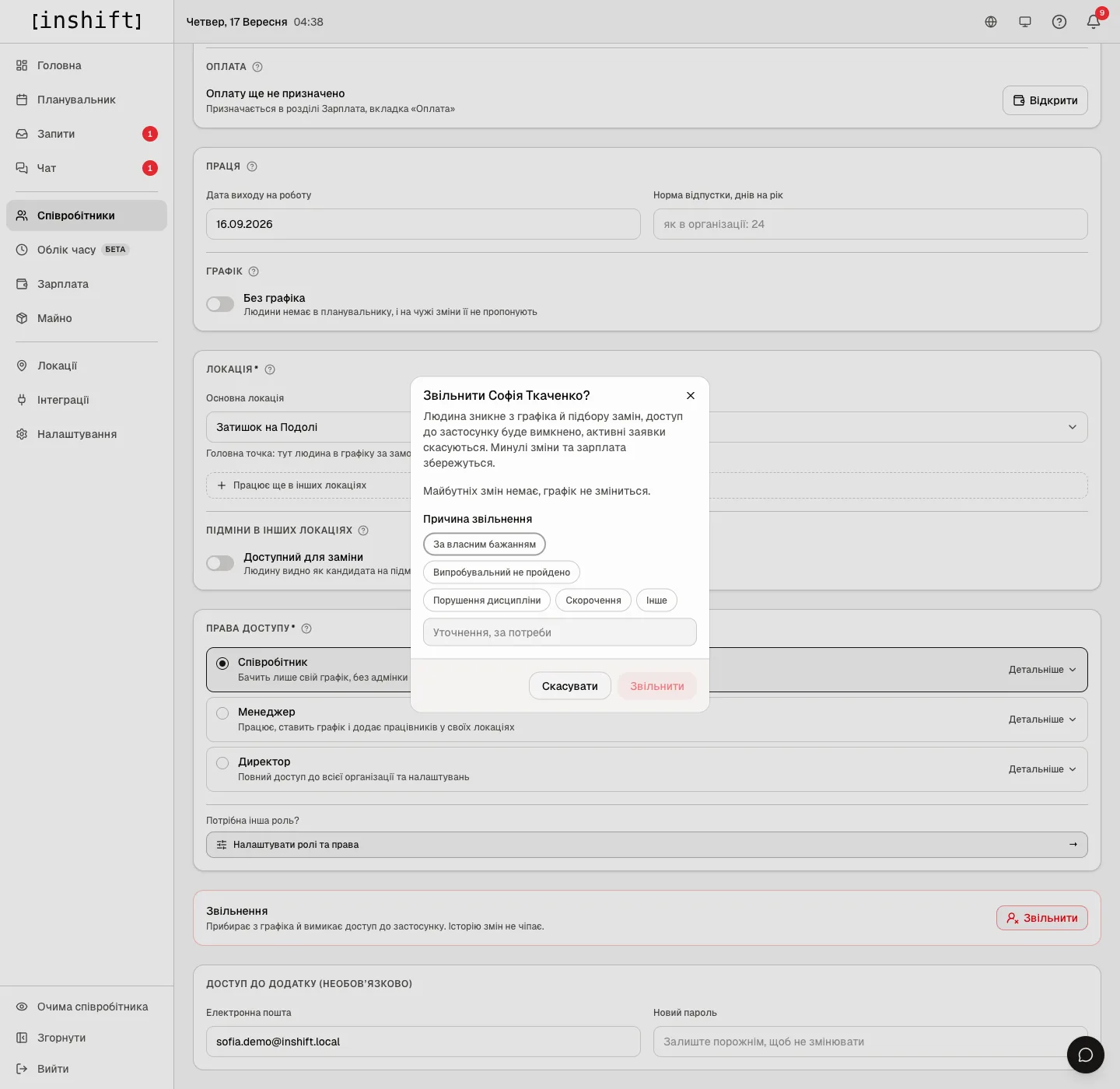
The “Dismiss Sofia Tkachenko?” window: the explanation, “No upcoming shifts, the rota won’t change.”, “Reason for leaving” with options, a details field - Read the line about upcoming shifts. “No upcoming shifts, the rota won’t change.” or the number of shifts and a choice: “Delete upcoming shifts” or “Convert upcoming shifts to open”, in which case the shifts stay in the schedule as empty slots. “Convert upcoming shifts to open” is preselected, so no shift disappears unless you choose that, see Empty slots in the schedule: unassigned shifts.
- Choose the “Reason for leaving”: “Resigned”, “Failed probation”, “Misconduct”, “Redundancy” or “Other”, and if needed “Details, optional”. The reason stays in the card for you, the person does not see it.
- If property is assigned to the person, the window reminds you with “Items not returned: 2” and “Total value: 9,000 £”. The items stay with the person until you take them back, see Issuing, returning and transferring items.
- Click “Dismiss”.
What changes after dismissal
In the schedule: the person disappears from the planner grid and from cover selection. Upcoming shifts are deleted or converted to empty slots, as you chose. Past shifts remain and count in payroll.
In the app: access is turned off, and the next time the person opens it they see “Account is not connected to an organisation”. Their active time-off requests and swap requests are cancelled.
In payroll: the person stays in the sheet with the “Dismissed” mark while there is anything accrued or owed: settle up and record the payout as usual, see Payouts, closing a period and bank details.
In property: the items stay assigned to the person, take them back or write them off.
In chat: the person is no longer in channels and groups, and in a conversation with them colleagues see “This person no longer works on the team”.
Roles: a role assigned to dismissed people cannot be deleted, “Cannot delete: the role is still assigned to employees, including dismissed ones”.
Step by step: reinstate, that is bring the person back
- Open the dismissed person’s card in “Employees” or under “Inactive” in the app and click “Reinstate” (“Restore” in the app).
- The card returns to the team with the same position, locations and role. App access is restored with a new invite code: the old account has been detached from the card, see The invite code: how it works and what to do when it fails.
- The history of shifts, pay and property for the past period stays with the card.
Delete the card
The “Delete” button at the top of the form erases the card entirely together with all shifts: “Are you sure? All shifts for this employee will be deleted.” Items that were assigned to the person become free. The history disappears, so delete only cards created by mistake.
Why an action is unavailable
There is no “Dismiss” button: this is your own card; or the person has as many rights as you or more, and the card opens read-only with the note “This person has as many rights as you or more, so a co-owner or the owner changes this card. You can view it.”; or it is the owner’s or a co-owner’s card; or your role does not have “Manage employees”.
“Remove co-owner access first, then dismiss or delete the card”: the person is a co-owner. The owner first clicks “Remove co-owner” on their card, then dismisses them.
There is no choice of what to do with upcoming shifts: there are none, “No upcoming shifts, the rota won’t change.”
A dismissed person is still in the payroll sheet: there is something accrued or owed. This is deliberate, settle up.
A role cannot be deleted: it is assigned to dismissed people. Reassign the role in their cards or leave it.
A reinstated person does not see the schedule: they need a new invite code, click “Invite”.
Questions and answers
Does the person see that they were dismissed, and the reason?
The app shows them “Account is not connected to an organisation”, without a reason. The reason is visible only in the panel.
What about the holiday we have already approved?
Active requests are cancelled on dismissal. Approved holiday on past days stays in the history.
Can I dismiss retroactively?
No, dismissal takes effect the moment you click. The date is visible in the card: “Left on …”.
How does “Not scheduled” differ from dismissal?
“Not scheduled” keeps the person in the team with access, chat and property, and just removes them from the planner. Dismissal turns off access.