A handover is a record: one or more items, to whom, by which day to return and where the item will be. The person receives a notification in the app and confirms with “Received”, so it is clear who exactly took the item. A return is recorded by the manager with the “Take back” button. The person can pass an item to a colleague themselves in the app, without a manager, if that is allowed for the entry.
An item on hand stays with the person until it is taken back, passed on or written off. The return date, if one was set, shows overdue items on the “Overdue” tile and in the card.
Handing over and taking back can be done by the owner, co-owners and anyone whose role has the “Manage property” permission, for people of their locations.
Where to find it
Hand over several items: “Property” → “Items” → ticks in the item rows → the “Hand over” button above the list. One handover holds up to 50 items: “Up to 50 items per handover. Unselect the extra ones”.
Hand over or take back one item: the item card → “Hand over” or “Take back”.
Who holds what: the “Held by” filter above the list, the “Held” tile, and in the person’s card the property block with “Assigned” and “Overdue”.
All events: the “History” tab with the “Event” filter.
Step by step: hand over items
- In the “Items” list expand an entry and tick the numbers you need. “Selected: 2” appears above the list with the “Cancel” and “Hand over” buttons.
- Click “Hand over”. The “Hand over” window lists “Lines in this handover: 2”, each can be removed with the cross.
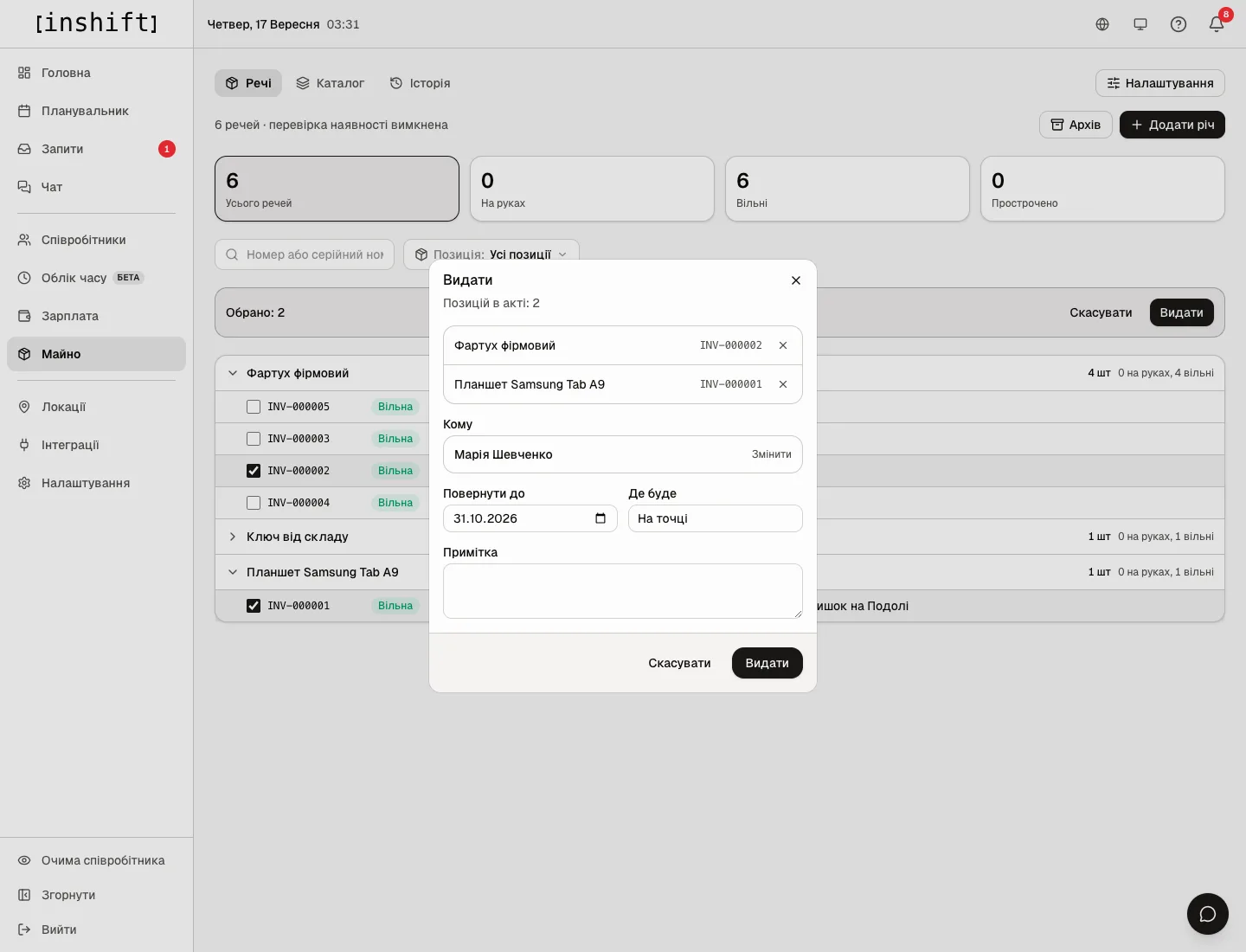
The “Hand over” window: two items in the handover, “To” Maria Shevchenko, “Return by”, “Where it will be”, “Note” - In the “To” field start typing a name and choose the person. The list shows only active employees of your locations.
- If needed, fill in “Return by”, “Where it will be”, for example “At home, on site”, and “Note”.
- Click “Hand over”. The items get the “Issued” status, “Holder” in the card becomes the name, and the person receives a notification with the first item’s name and number. If “Require receipt confirmation” is on for the entry, the handover waits until the person taps “Received” in the app: the handover is confirmed as a whole.
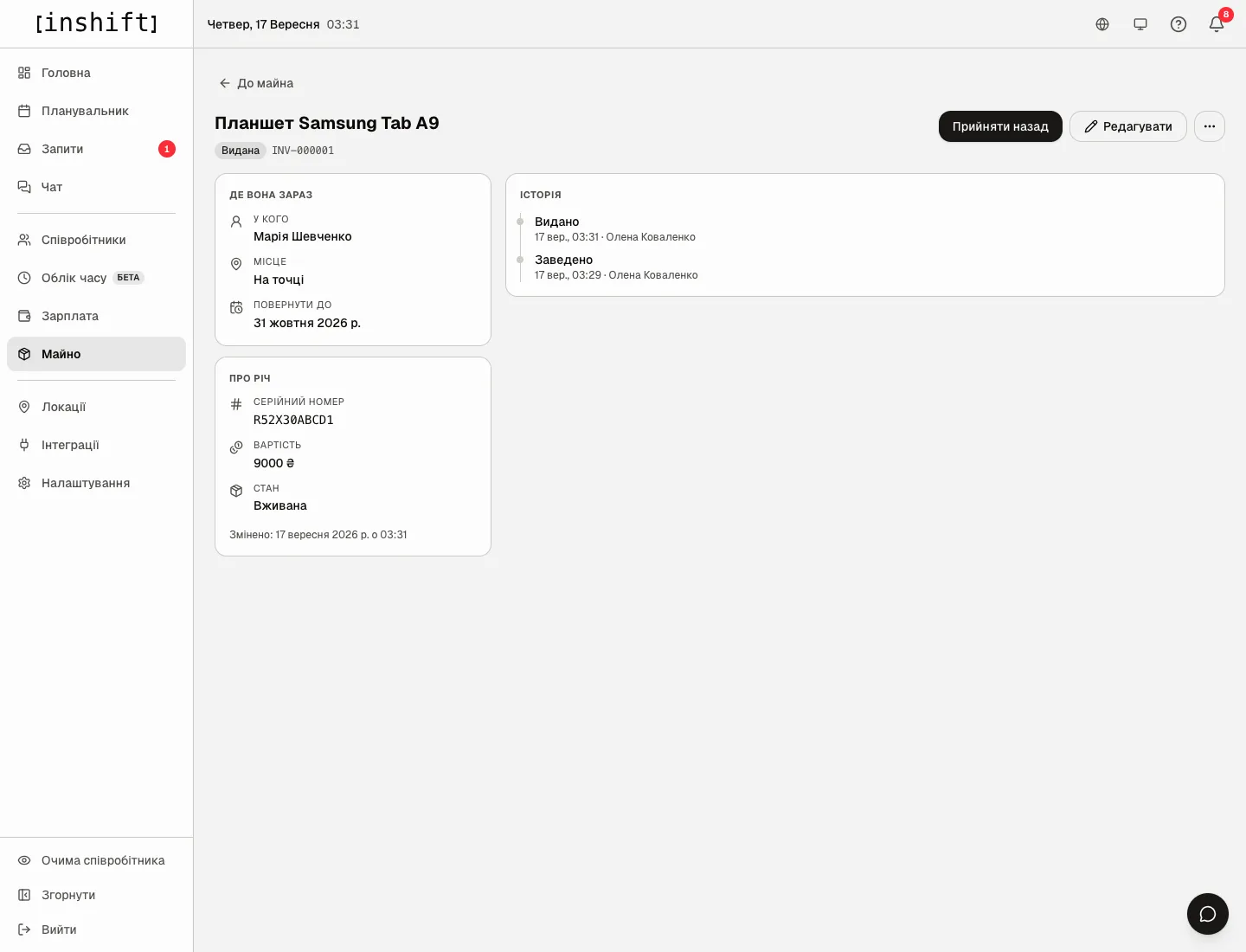
The item card after a handover: the “Issued” status, “Holder”, “Place”, “Return by”, the history “Issued” and “Added”
If someone else managed to hand the item over while you were filling in the record, the panel refuses and names the numbers that are already taken: the whole handover is rolled back.
Confirmation and refusal
The person sees the “Property issued to you” card in the app with the list and the “Received” and “Not with me” buttons.
“Received”: “Receipt confirmed” with the person’s name appears in the item’s history.
“Not with me”: the handover closes, the items go back to “Available”, the history says “Receipt declined”. That way a person cannot be left responsible for an item they never received. You receive a notification about the refusal.
Refusing is possible only before confirmation. After “Received” the return is recorded by whoever handed the item over.
Step by step: take back
- Open the item card, click “Take back”. The item becomes “Available”, “Holder” is cleared, and “Returned” appears in the history.
- If the item came back damaged or was lost, instead of a return open the “More actions” menu → “Send to repair”, “Mark lost” or “Write off”, type the “Reason” and confirm. An item is brought back from repair with the “Back in service” button.
For entries with “Item comes back” turned off, for example uniforms, no return date is needed and nothing becomes overdue: the item stays with the person until it is taken back or written off.
Passing between employees
If “Can be passed between employees” is on in the catalog entry, the person taps “Pass to a colleague” in the app, chooses the colleague, and the item goes to them at once. The old handover closes, the new one waits for the colleague’s confirmation if the entry requires it. In the item’s history: “Passed to a colleague” with both names.
Only an item that is really on the person’s hands can be passed, and only to an active colleague in their own organisation. The manager takes no part in this but sees everything under “History” and in the item card.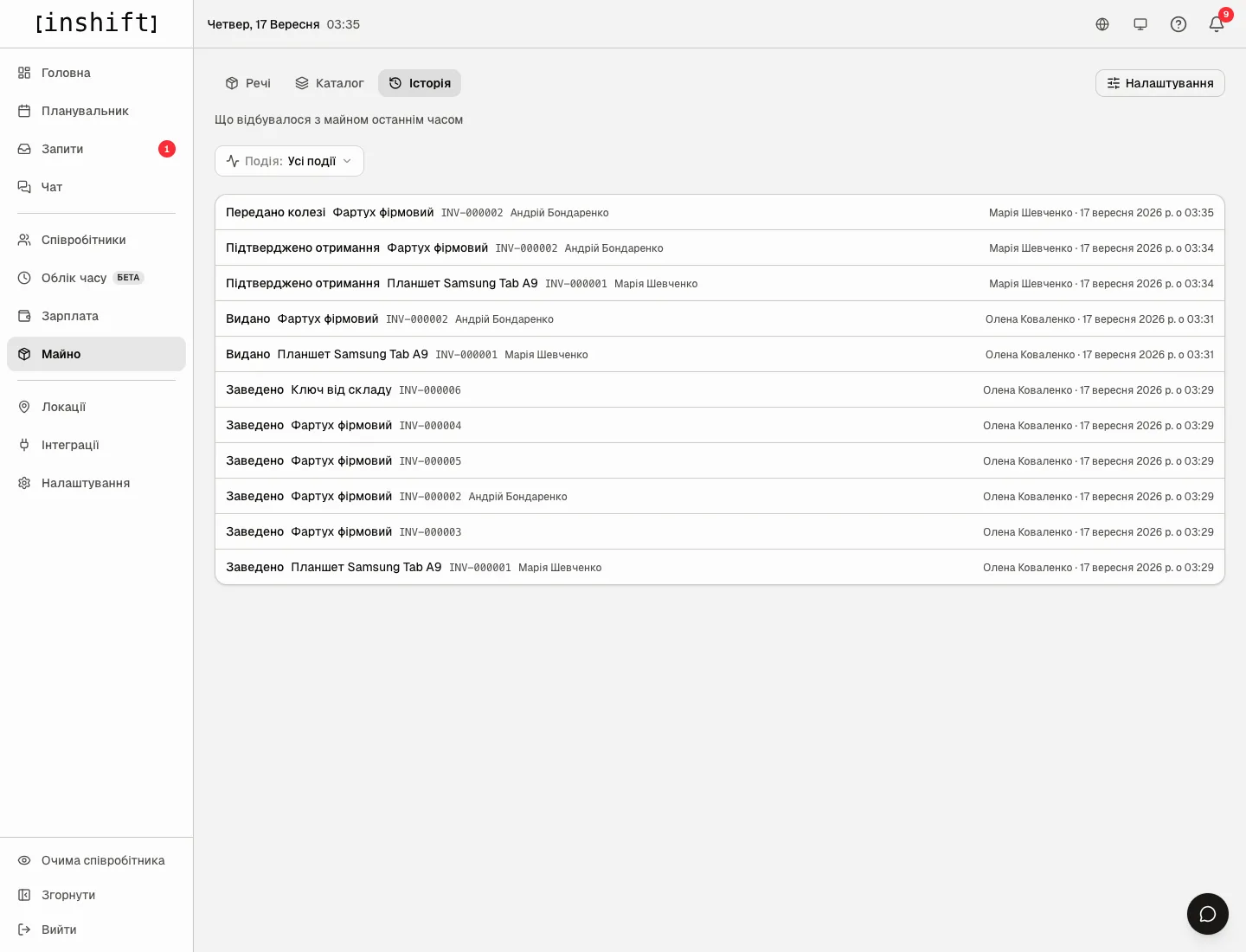
Dismissal with items on hand
In the dismissal window the panel reminds you: “Items not returned: 2” and “Total value: 9,000 £”. The items stay with the person after dismissal too, until you take them back or write them off: they are visible in the dismissed person’s card. If the person’s card is deleted entirely, their items become available, and their history remains; for someone who has worked, the right way is dismissal.
Why an action is unavailable
There is no “Hand over” button above the list: no item is ticked, or the ticked items are not available.
The “Hand over” button is grey: there are more than 50 items in the handover.
A person is not in the “To” field: they are dismissed or from a location you do not manage.
The person does not see the “Property issued to you” card: they have not connected the app, or the app has not been opened for a long time. The items are already assigned to them nonetheless.
The person has no “Pass to a colleague” button: “Can be passed between employees” is off for the entry.
The “Overdue” tile does not grow although the date has passed: “Item comes back” is off for the entry.
Questions and answers
Can an item be handed over without confirmation in the app?
Yes: turn off “Require receipt confirmation” in the catalog entry. The item is assigned to the person right after “Hand over”.
What happens if the person does not tap “Received”?
The item is assigned to them from the moment of the handover anyway. The confirmation only records that they accepted the item, and without it the handover stays in a waiting state.
Can the return date be changed after the handover?
No, a handover is not edited after it is made. Take the item back and hand it over again with a new date.
How do I see what a particular person holds?
The “Held by” filter above the item list, or the person’s card under “Employees”: the property block with the list.
Does the person get reminders about returning?
Yes, if “Return by” is filled in on the handover: the day before, the person gets “Due back tomorrow” in the app with the list of items. If the date has passed and the items are not back, “Return date has passed” goes to the owner, co-owners and managers with “Manage property” at the person’s location. On top of that, the app reminds them about an item on hand during the presence check, if it is turned on in the property settings, see Asset register: adding items, catalog and item card.