Property tracking is the register of the organisation’s items: uniforms, keys, tablets, tools. Each item has its own asset number, a card with a history and a status: available, issued, in repair, lost, written off. Items are grouped in a catalog: a group, inside it the equipment name, and inside the name live the numbered items. That way a tablet is not searched for among coffee machines.
This is a module: the owner or a co-owner turns it on under “Settings” → “Modules” → “Equipment tracking”. Turning it off does not erase the items and handovers already recorded.
The “Property” section is seen by the owner, co-owners and anyone whose role has the “Manage property” permission, for their own locations or the entire network.
Where to find it
“Property” → the “Items”, “Catalog” and “History” tabs. On the right the “Settings”, “Archive” and “Add item” buttons. Above the list the summary “6 items · presence check is off” and the tiles “Items total”, “Held”, “Available”, “Overdue”.
Search by asset or serial number, item name or the name of whoever holds it, the “Catalogue entry” and “Held by” filters. Clicking a tile narrows the list.
While the module is off, the owner and co-owners see “Property” in the menu with a placeholder and the “Turn the module on” button, the rest of the team does not see the section.
Step by step: add an item
- Click “Add item”. The “New item” window says: “Only the name is required. We assign the asset number”.
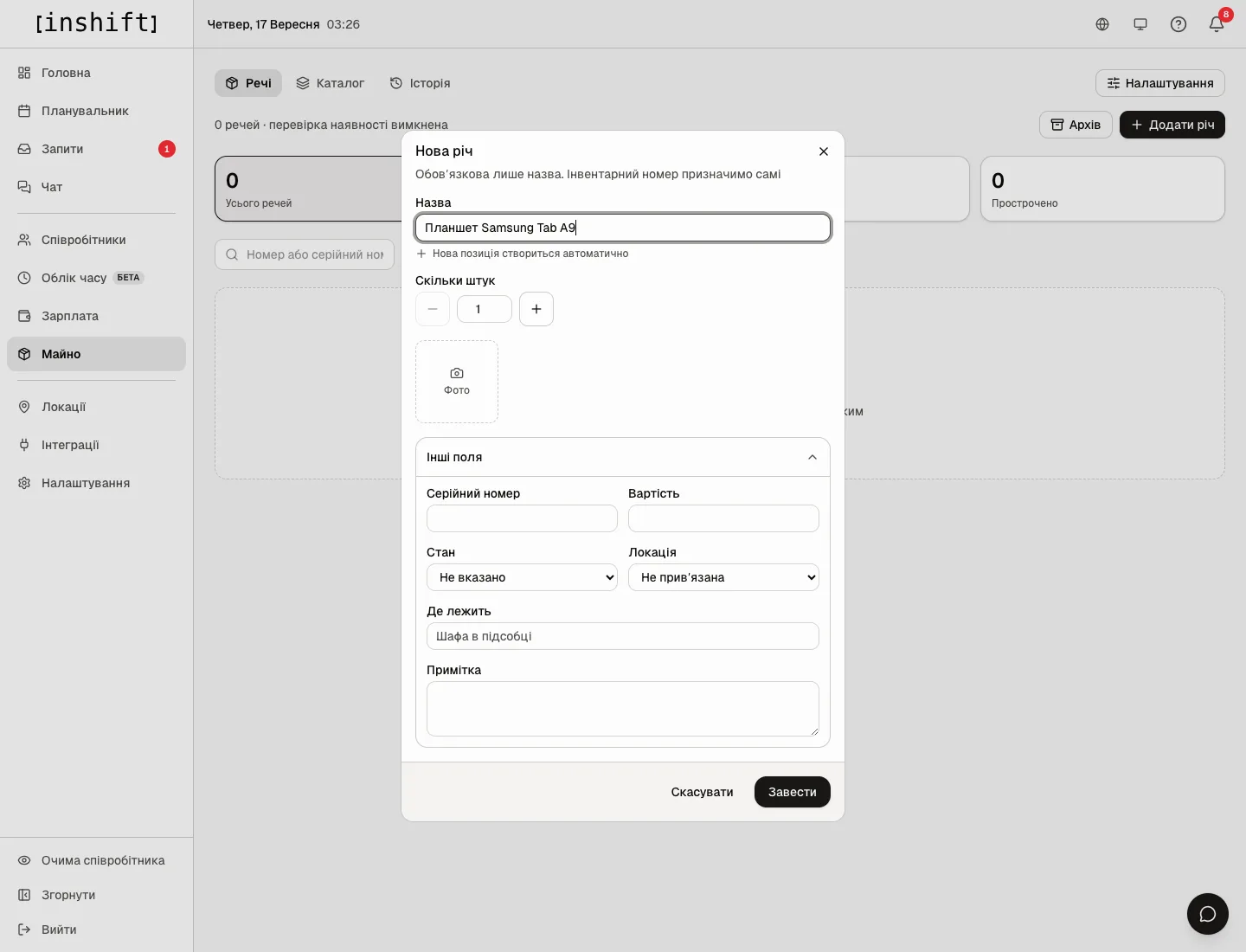
The “New item” window with “More fields” expanded: name, “How many”, “Photo”, serial number, value, condition, location, “Where it sits”, note - Type the “Name”, for example “Samsung Tab A9 tablet”. Under the field the panel says “This catalog entry already exists” or “A new catalog entry will be created”: the name becomes a catalog entry, to which other identical items are added later.
- “How many”: for identical items, like aprons, set the quantity, and the button becomes “Add 4”. Each one gets its own number, serial numbers for a batch are filled in later in the cards.
- “Photo”: up to several photos per item, the first becomes the main one.
- Expand “More fields”: “Serial number”, “Value”, “Condition” (“New”, “Used”, “Needs repair”), “Location”, “Where it sits”, for example “Back room cabinet”, and “Note”.
- Click “Add”. The item appears in the list with the “Available” status and a number like INV-000001.
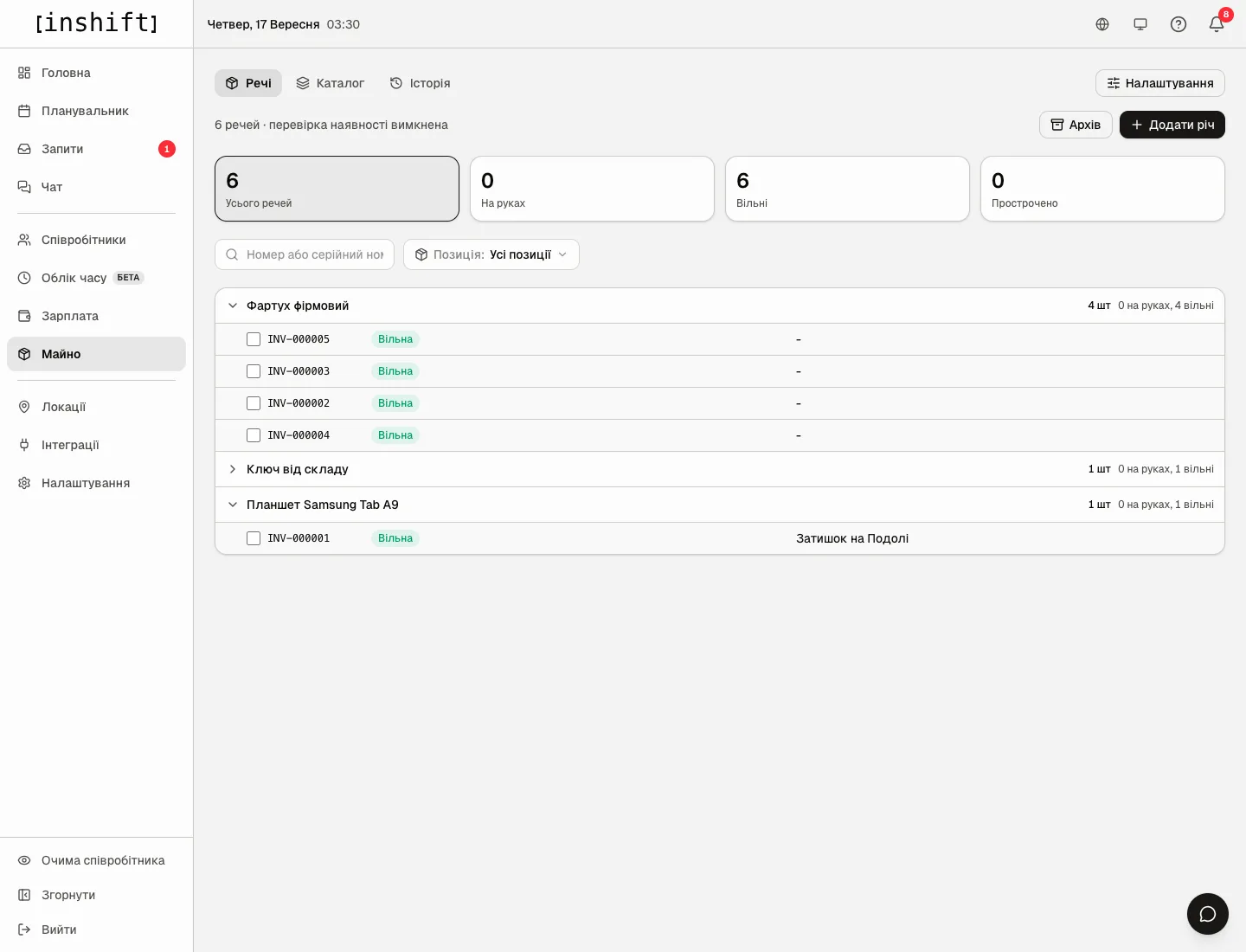
The “Items” list: the entries “Branded apron”, “Warehouse key”, “Samsung Tab A9 tablet”, each item with a number, the “Available” status and a tick
The item card
Click the item’s number in the list. The page has the name, status, number and three blocks. “Where it is now”: “Holder”, “Place”, “Return by”. “About the item”: serial number, value, condition, photos, the “Updated” date. “History”: every event from “Added” to the latest, with the date and who did it.
Buttons: “Hand over” for an available item or “Take back” for an issued one, “Edit” opens “Edit item” with the same fields as when adding. The “More actions” menu: “Send to repair”, “Mark lost”, “Write off”, for an item in repair “Back in service”, and “Delete”. Repair, loss and write-off ask for a “Reason” with the hint “A month from now this line is what explains why the item left the list”.
“Delete” does not erase: “It goes to the archive with its whole history. You can bring it back any time.” The archive opens with the “Archive” button above the list, and it has “Restore to list”.
Catalog: groups and entry rules
The “Catalog” tab shows groups, with entries in them and the counter “items: 4”. “New group” creates a group, for example “Tablets”, “Uniforms”, “Tools”. The settings icon in an entry’s row opens “Catalog entry”: “How this kind of item is handled”.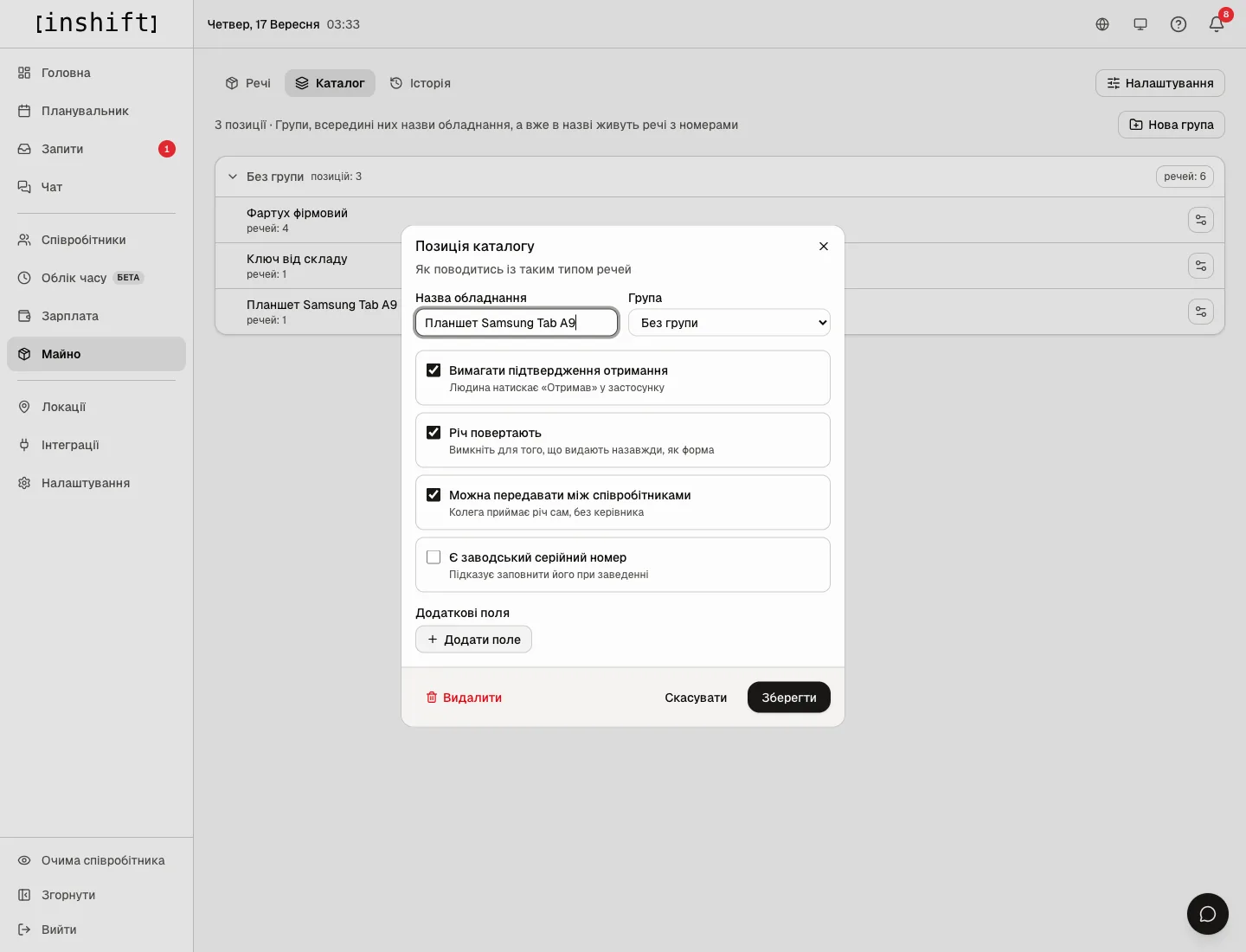
“Require receipt confirmation”: “The person taps Received in the app”. On by default.
“Item comes back”: “Turn off for things given for good, like uniforms”. Without it a handover does not expect a return and does not become overdue.
“Can be passed between employees”: “A colleague takes it directly, without a manager”, see Issuing, returning and transferring items.
“Has a factory serial number”: “Prompts to fill it in when adding”.
“Extra fields”: your own card fields, for example IMEI. “Add field” and the field name.
Only an empty entry can be deleted: “This entry has 4 items. Archive them or move them to another entry first”. Deleting a group does not touch its entries: “They stay in the catalog, just without a group”.
Presence check
The “Settings” button above the list opens the “Property tracking” page: “Every so often we ask the holder whether they still have the item. One tap to answer in the app”. The “Presence check” options: “Never ask”, “Every 30 days”, “Every 90 days”, “Every 180 days”. Click “Save”.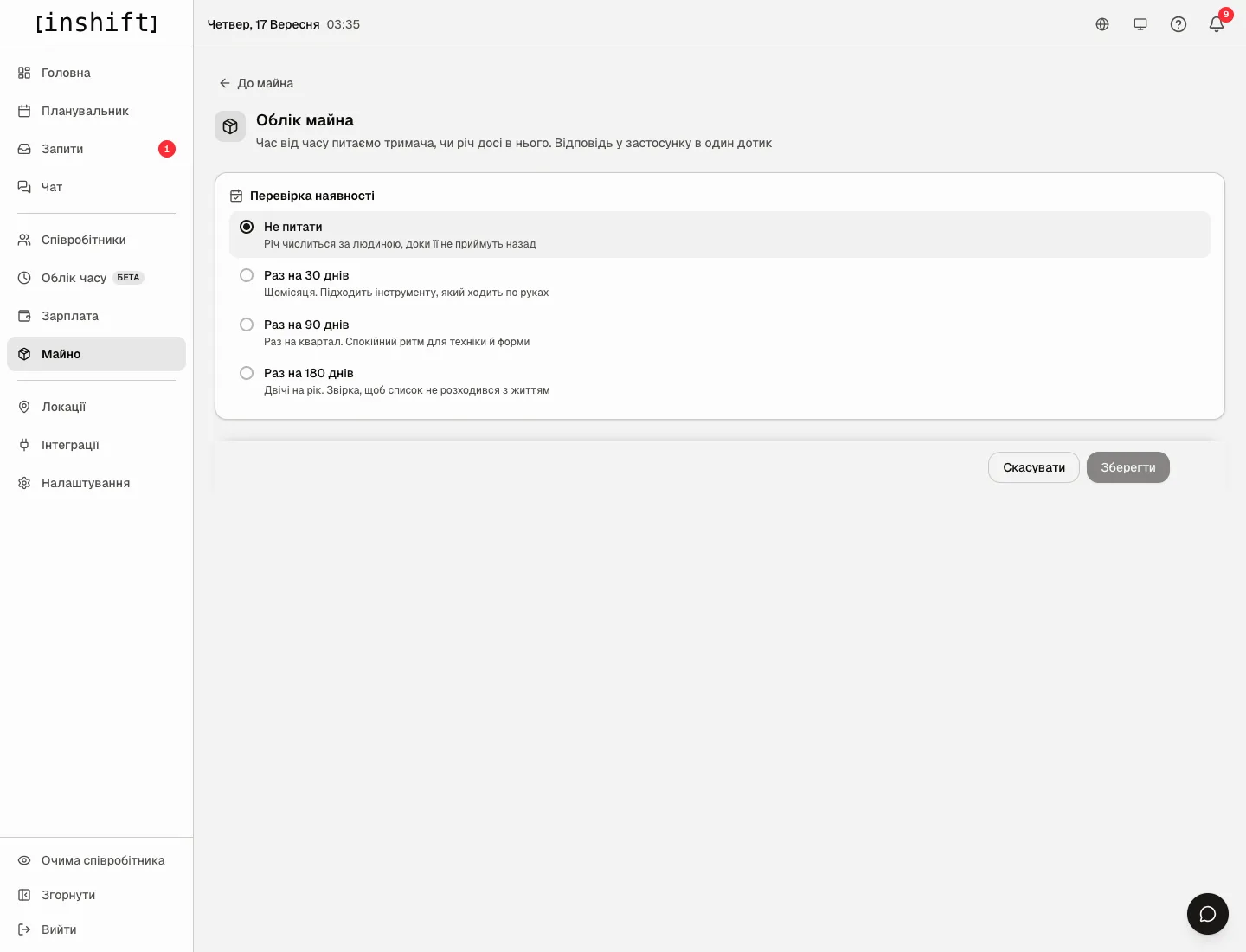
The person in the app sees “Confirm you still have this item” and taps “Yes, I have it”. The answer goes into the item’s history as the “Presence confirmed” event.
Why an action is unavailable
There is no “Property” section: the module is off and you are neither the owner nor a co-owner, or your role does not have the “Manage property” permission.
“This entry has N items” when deleting an entry: first archive the items or move them to another entry via “Edit item”.
An item cannot be found by search: the asset number is matched whole (“149” or “INV-149” finds INV-000149), the serial number from its start, the name and the holder’s name by any part. Or the item is in the archive.
“Item not found. It may have been archived, or the link is out of date”: open “Archive”.
There is no “Overdue” tile with a number: nobody has items with an overdue return date.
Questions and answers
How does a group differ from an entry?
An entry is an equipment name, for example “Samsung Tab A9 tablet”, and the rules for all such items. A group unites entries: “Tablets”. A numbered item always belongs to an entry.
Can the asset number be changed?
No, the number is assigned by the panel and stays with the item for good, including in the archive.
What do I do with an item that is no longer used?
“Write off” with a reason if it is worn out, or “Delete” into the archive if you are simply removing it from the list. The history stays in both cases.
Do location managers see the items?
Yes, within their locations, if their role has the property permission. An item that is held by nobody and not tied to a location, that is, sitting in the organisation’s storage, is visible to everyone who can see property.