Adding a person to the team and giving them an invite code can be done from a phone. The manager’s app has the “Team” screen: here you create a card, edit it, issue a code and dismiss. The code is the same as in the panel: 6 characters, valid for 7 days, one per card. Those who have not connected the app yet are gathered on the separate “Without the app” screen, which the line on “Home” leads to.
The team can be managed from a phone by the owner, co-owners and anyone whose role has the “Manage employees” permission, within their locations. A manager edits, invites and dismisses only people with fewer rights than the manager’s own, and can give only a role with fewer rights than their own.
Where to find it
“More” → “Team”. At the top the number of people, “+” for a new card, “Search…” and the location filter “All”, “Cosy Corner on Podil”. People are grouped by role: “Employee”, “Director”. Tap a person, and “Edit”, “Invite” and “Dismiss” appear under the row.
“Home” → the line about people without the app → the “Without the app” screen with the caption “They cannot see their schedule on the phone and get no notifications” and the “Invite” button next to each.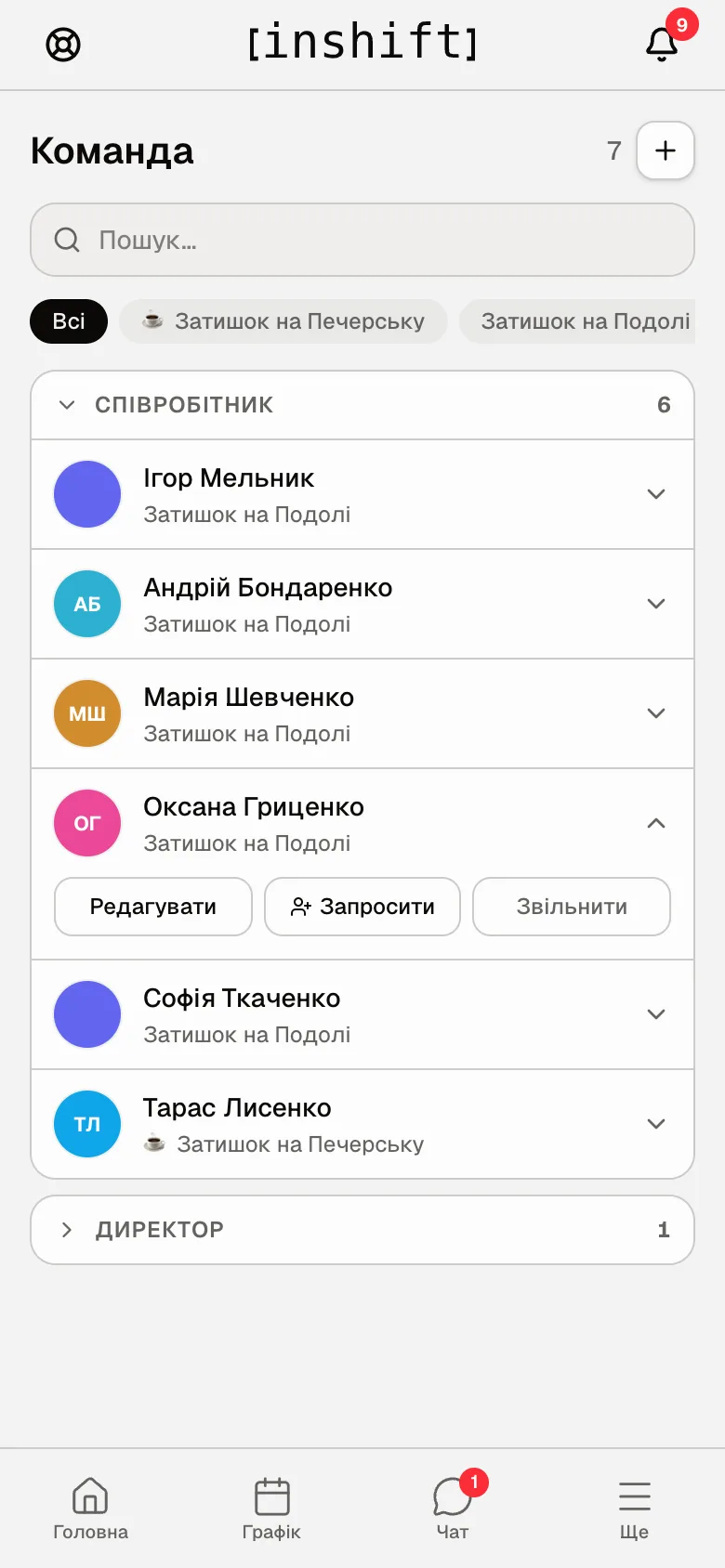
Step by step: add a person
- On the “Team” screen tap “+”. The “Add employee” form opens.
- Type the “Name” and “Last name”, choose the “Position”, “Primary location”, if needed “Additional locations” or “All locations”, the “Available for substitution” switch, “Access” (the role), “Gender” and “Date of birth”.
- If the person has come for training, turn on the “Trainee” switch. It is there when “Training” is on in your organisation and your role has the “Training” right, see Training in the manager app.
- Tap “Add employee”. The card appears in the list. The person does not have the app yet: next give them a code.
Step by step: give an invite code
- Tap the person under “Team” and then “Invite”, or on “Home” open the line about people without the app and tap “Invite” next to the name.
- “Invite” opens from the bottom with a QR code and the code, for example “5MXK6M”, buttons, the deadline, for example “Code valid until 5 October, 14:30”, and the “Reissue code” button.
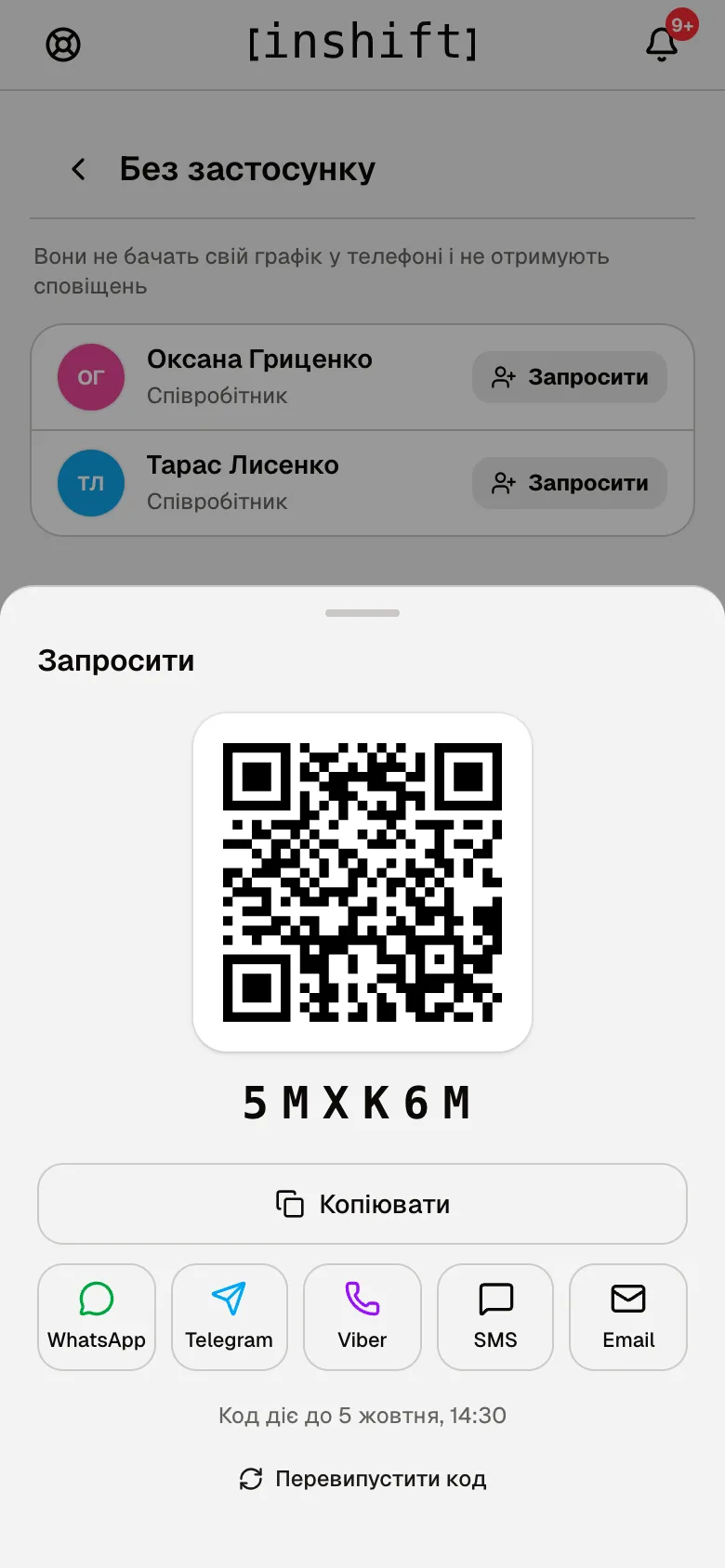
The “Invite” screen in the app: a QR code, the code 5MXK6M, “Copy”, WhatsApp, Telegram, Viber, SMS, Email, the code deadline and “Reissue code” - “Copy” puts a ready-made message on the clipboard: “Join the team on InShift! Install the app and enter code 5MXK6M, or open: link”. The “WhatsApp”, “Telegram”, “Viber”, “SMS”, “Email” buttons open the messenger with this text. Or show the QR: the person scans it with the camera and lands on the app download.
- The person installs InShift, taps “Sign Up” → “I’m an employee”, enters the code and creates an account, see Join your team with a code. As soon as they join, they are no longer on the “Without the app” screen, and “Home” in the panel gets an entry in the activity feed.
While the code is valid, “Invite” shows the same code. Once the deadline passes, the next tap issues a new one.
The code went to the wrong person or got lost: tap “Reissue code”. The old unused code stops working at once, the new one is valid for 7 days, and “The old code no longer works” appears under it. In detail in The invite code: how it works and what to do when it fails.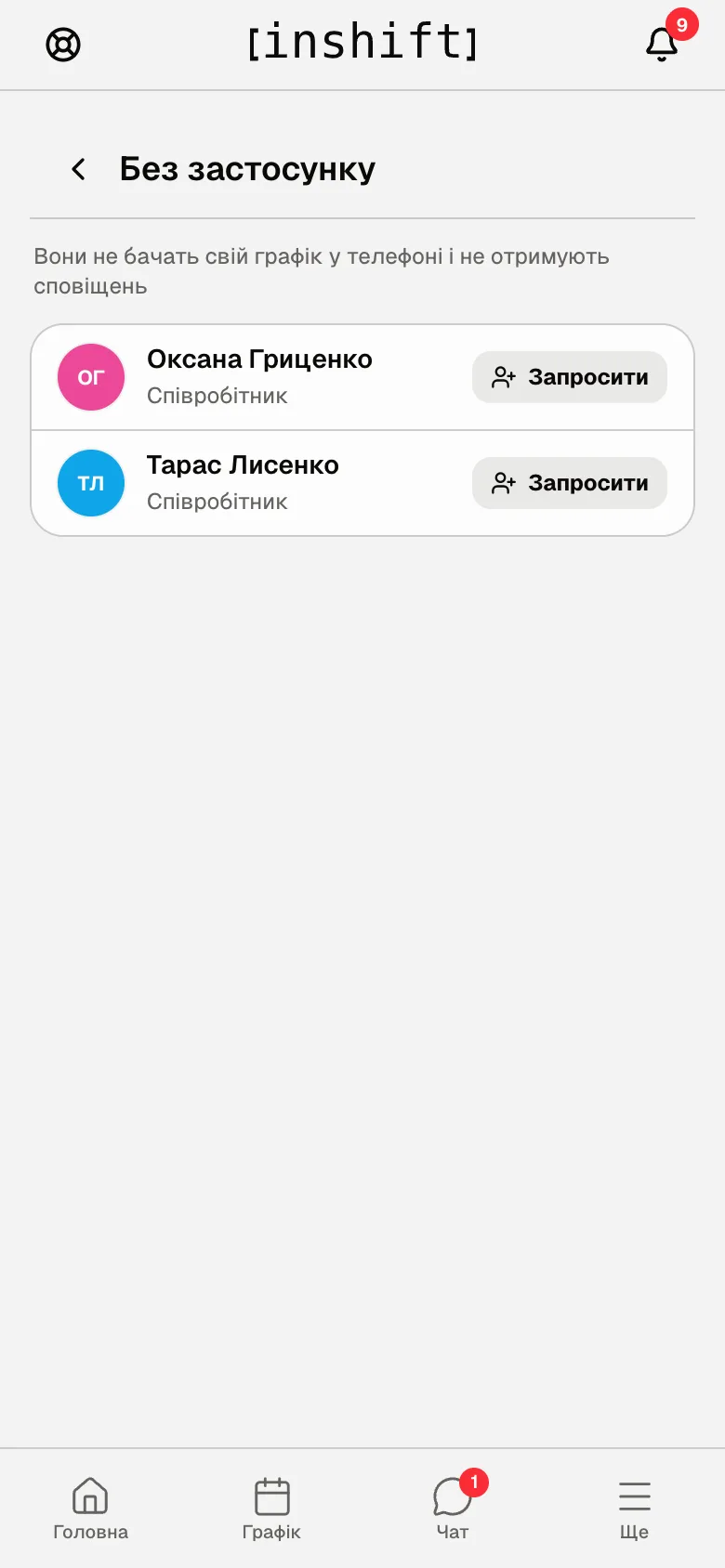
The “Without the app” screen: the caption about the schedule and notifications, people without the app with the “Invite” button
Edit and dismiss
“Edit” opens the same form as when adding: name, position, locations, cover, access, personal details. A person’s pay, email and password are edited in the panel.
“Dismiss” asks “Dismiss?” and explains: the person disappears from the schedule and cover selection, app access is turned off, active requests are cancelled, future shifts stay in the schedule with nobody assigned, past shifts are kept. The app does not ask for a reason or what to do with upcoming shifts: that exists only in the dismissal window in the panel. After confirmation, “Employee dismissed”. A dismissed person is visible in the “Inactive” section with the “Restore” button.
Why an action is unavailable
There is no “Team” item under “More” or no “+”: your role does not have the “Manage employees” permission.
There is no “Invite” button under a person: they have already connected the app.
There is no “Edit”, “Invite” or “Dismiss” under a person: they have as many rights as you or more, or they are the owner or a co-owner. A co-owner or the owner changes such a card.
Some roles are missing from the “Access” list: you can only give a role with fewer rights than yours, and the role already assigned to the person stays there too, see Roles and access.
A person is not under “Team”: they are from a location you do not manage, or dismissed: check “Inactive”.
The code did not work for the person: the “Code valid until …” deadline has passed, the code was reissued, or it has already been used. Tap “Invite” again and pass on the code that is in the window now, see The invite code: how it works and what to do when it fails.
“Failed to create code”: check the connection and try again.
Questions and answers
Can I give codes to the whole team at once from the phone?
No, from the phone codes are issued one by one. Codes for everyone with QR codes for printing are handled by the panel: the “Invite your team” window.
Do I need to know the person’s email?
No. The code links whatever account the person registers with to the card.
What does the person see after joining?
Their published schedule, chat and notifications. They see your edits to the card straight away.
Can I change pay from the phone?
No, pay is assigned in the panel: “Payroll” → “Pay”.