“I cannot see my schedule” is the most common question both from the team and from a manager who has just built it. There are few reasons, and almost all can be checked in a minute: the schedule is not published yet, the shifts are in another month, the person is looking at the wrong account, or the app is not connected to the organisation. Below is the check in order, separately for the manager and for the employee.
The main rule: a person in the app sees only published shifts, their own, at any location. Nobody sees drafts except those who build the schedule.
If you are the manager: a person does not see the shifts you put in
- Check that the shifts are published. Open the “Planner” on the right week: drafts have a dotted border and a pale colour, and a yellow line hangs above the grid: “Drafts (N) are visible only to you, publish to show your team”. Click “Publish”, see Publish the schedule and what the team sees.
- Check that the shifts belong to this very person. Under “Employees” there can be two cards for one person, for example “Oksana Hrytsenko” added twice, with the app connected to one and the shifts put in the other. The “Not connected” button shows the card without the app. Move the shifts to the connected card and dismiss the extra one.
- Check the period. The person looks at the “Rota” in the app by month: if the shifts are in next month, the current one is empty. Have them page the month with the arrow.
- Look through the person’s eyes: “Employee’s view” → their phone → “Rota”. You see exactly what they see, see Preview as an employee.
- Check that the person is connected. The “Not connected to the app” line on the dashboard and the “Not connected” button under “Employees” show those who have not entered the code yet. Without the app there is nowhere to see the schedule, see The invite code: how it works and what to do when it fails.
If you are an employee: mine is empty
- On the “Rota” tab check the month at the top and page with the arrows. Shifts for next week may already be in next month.
- If the tab says “Rota not ready yet” with the caption “It will appear once your manager publishes shifts”, or the “You’re on the team” card sits above an empty calendar, the manager has not published your shifts yet. This is not an app error: as soon as they publish, the “New shift” notification arrives.
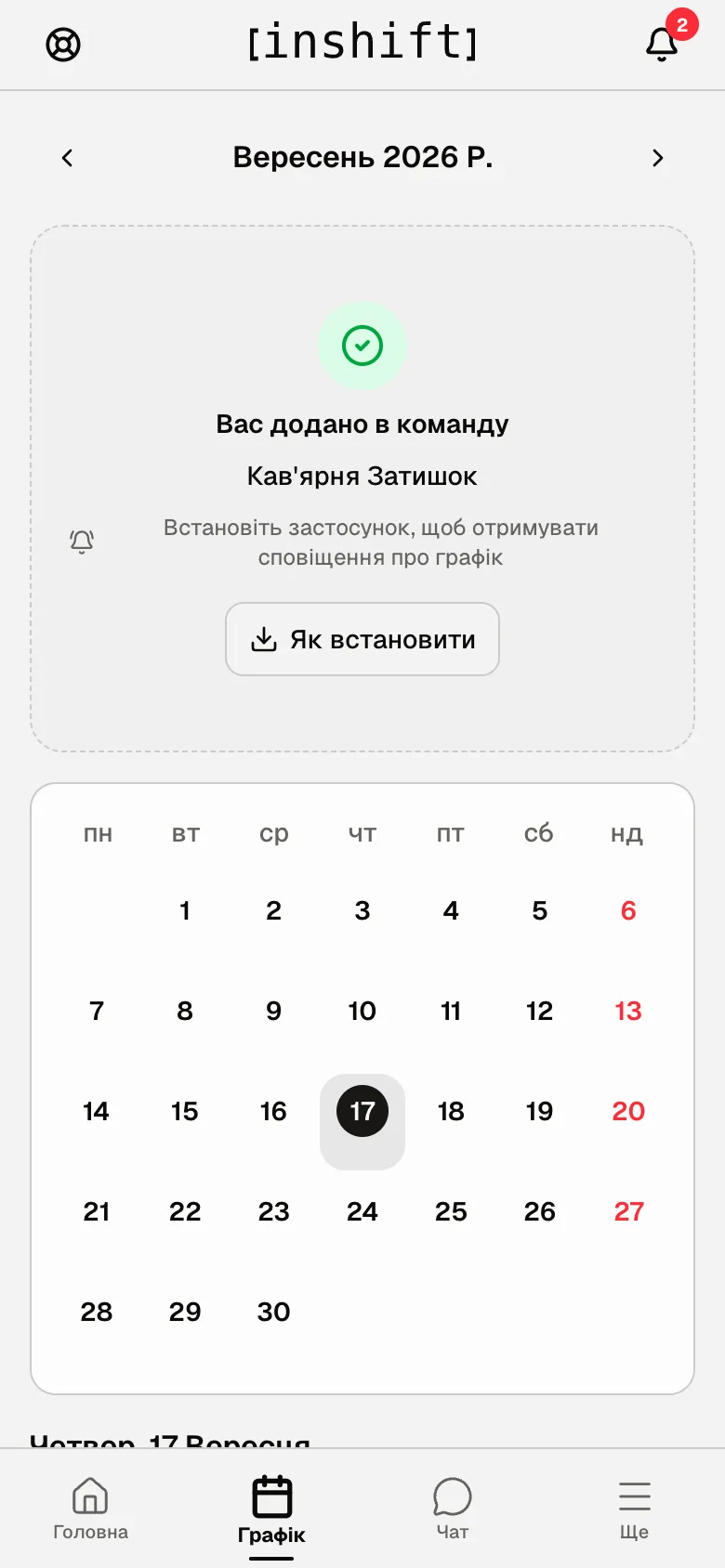
The “Rota” tab without shifts: the “You’re on the team” card and an empty calendar - Close the app and open it again. The schedule refreshes by itself when the app comes back to the screen, but after a long break this is the simplest way.
- Check which account you are signed in to: “More” → your name and email at the top. If you registered twice with different emails, the schedule is tied to the one you entered the code with. Sign out and sign in with that email.
- If the app shows “Account is not connected to an organisation” and the “Invite code” field, your account is not tied to the team: ask the manager for a code and tap “Join”.
- If you saw the schedule before, and now there is the same “Account is not connected to an organisation” screen, you were dismissed in the panel and access was turned off. Ask the manager.
- Update the app from the App Store or Google Play if you have not done so for a long time.
What a person sees and what they do not
Their own published shifts at all locations where they work, including cover at other locations with the location name.
Colleagues of their own location on the same day, if the manager opened that in the role: “View rota” at “My locations”. The basic “Employee” role sees only its own shifts.
Does not see: drafts and the shifts of people from other locations.
An empty day in the app means there are no shifts that day, or the manager has not got to that day yet: the app does not tell them apart.
Why an action is unavailable
“Home” says “No upcoming shifts yet”: the shifts are not published or there are none in the coming days. Check the “Rota” by month.
The manager sees the shifts in the panel, but the person does not in the app, although everything is published: check which card the app is connected to and the location in the card: the shifts are in a card without the app, or the person signed in to another account.
You published, but “Employee’s view” is empty: the shifts are in another period or in another card of this person.
The person says “the schedule disappeared”: the shifts were deleted or moved, they received “Shift taken off you” or “Shift moved”. Or they were dismissed, and the app was detached.
Questions and answers
Will a person see the schedule without the app?
No, only in the InShift app on the phone. The manager can print the schedule with the “Print” button in the planner or show the screen, but there will be no notifications that way.
Can a person be given just a view of their colleagues’ schedule?
Yes: in the role the “View rota” permission at “My locations”. Their own shift is always visible, see Roles and access.
How soon after publishing does the schedule appear in the app?
Immediately. If the app was open, it refreshes by itself, if closed, at the next opening.
A person sees other people’s shifts but not their own. Why?
Their shifts are still drafts, or they are in another card. They see colleagues from the location’s published schedule.