Cannot make your shift: ask a colleague to cover for you right in the app. You pick the shift and the person, they agree, and the shift moves to them in the schedule. Depending on your organisation's rules, after the colleague agrees the swap is also confirmed by the manager.
Who you can offer it to is decided by the app itself: it shows only colleagues with the same position and location who are free that day.
Where to find it
“More” → “Substitute”, or the “Cover” button on the “Home” tab.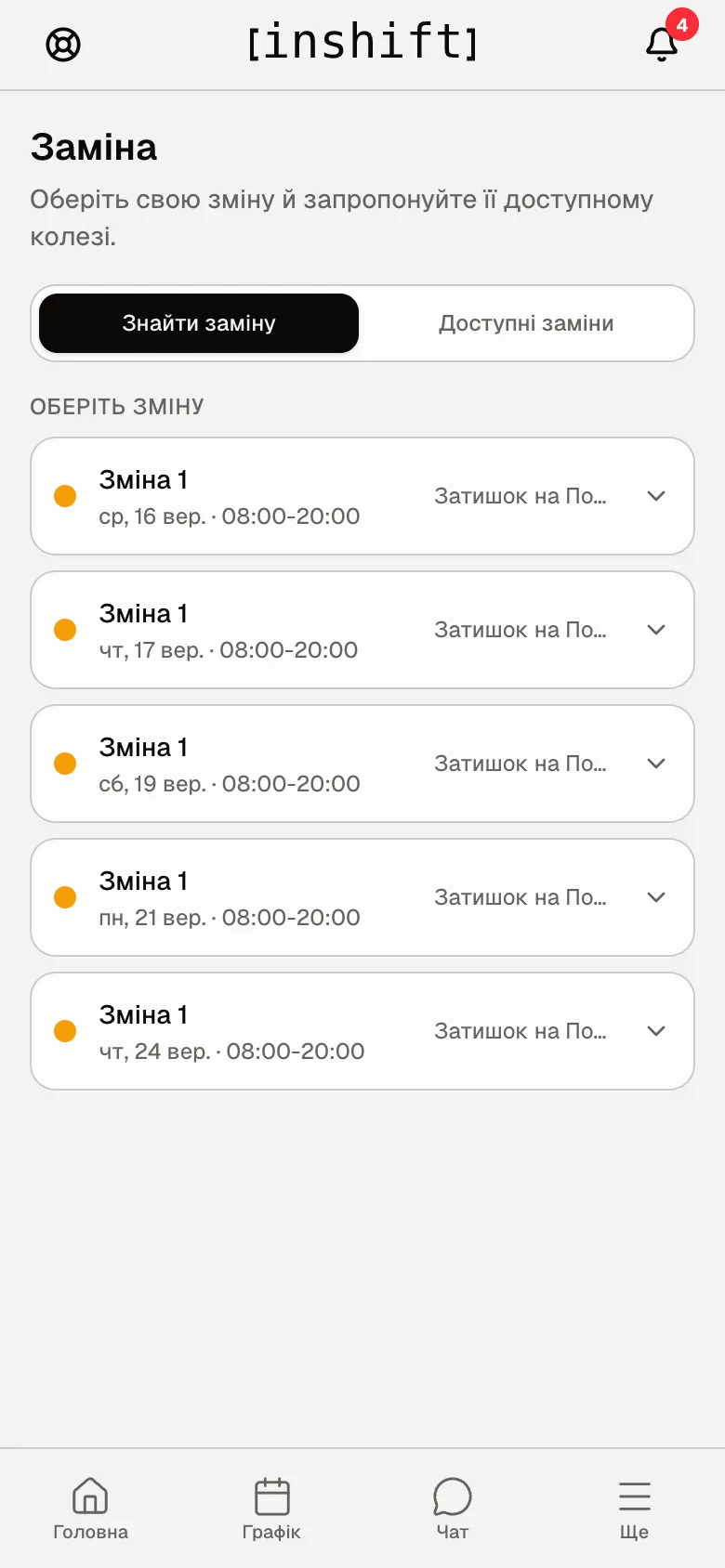
Step by step: ask a particular colleague
- Open “Substitute”. On the “Find a replacement” tab, under the “Choose a shift” heading, is the list of your upcoming shifts.
- Tap the shift you want to give away. “Who you can offer it to” unfolds under it: the colleagues who can cover for you.
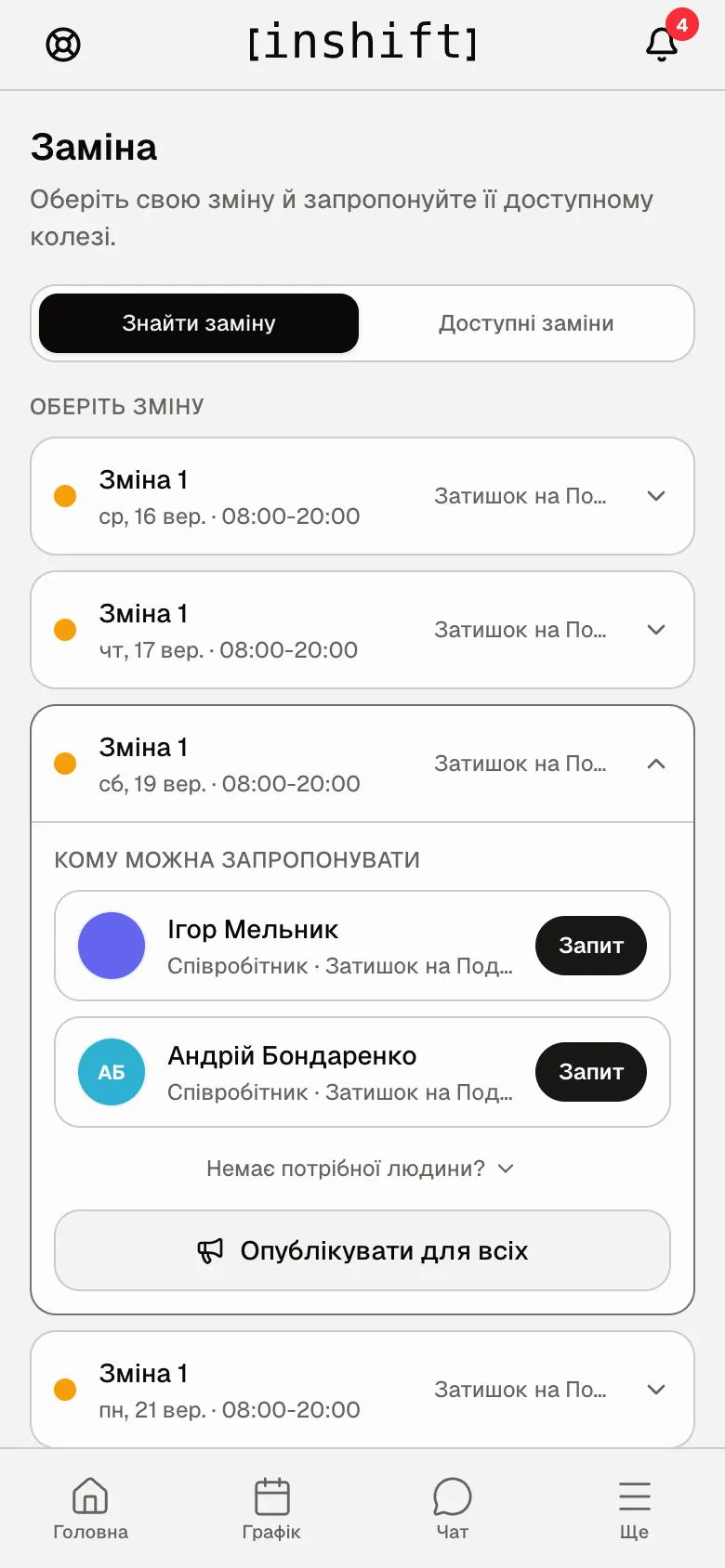
An expanded shift: the list of colleagues with a “Request” button next to each - Tap “Request” next to the person you need. “Request status” appears under the shift: “Request sent: Andrii Bondarenko hasn’t responded yet”. The colleague gets a “Swap request” notification.
Changed your mind: tap “Cancel request”.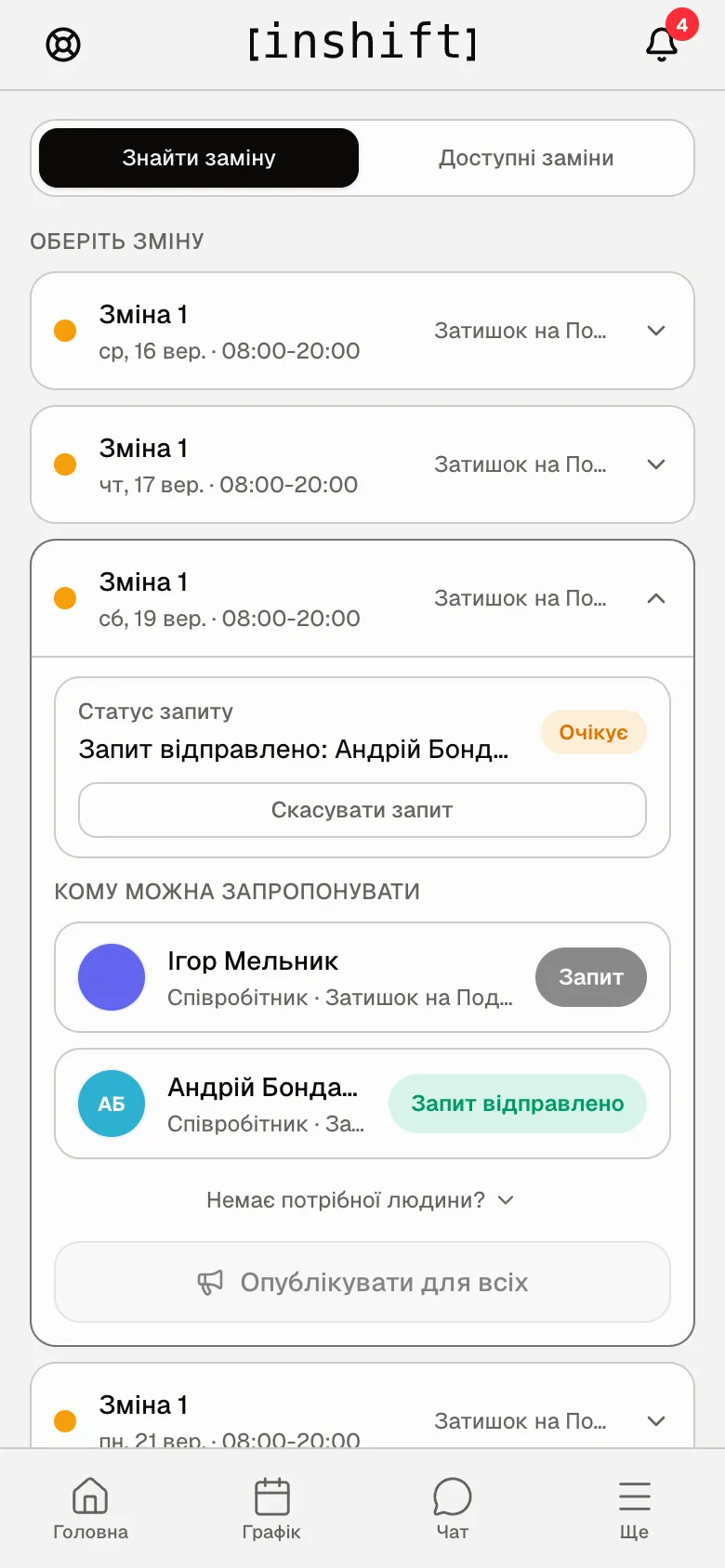
Request sent: the status under the shift and the “Cancel request” button - Wait for the reply. The colleague sees your request in their app: “Requests” → “Swaps” with the “Accept” and “Decline” buttons.
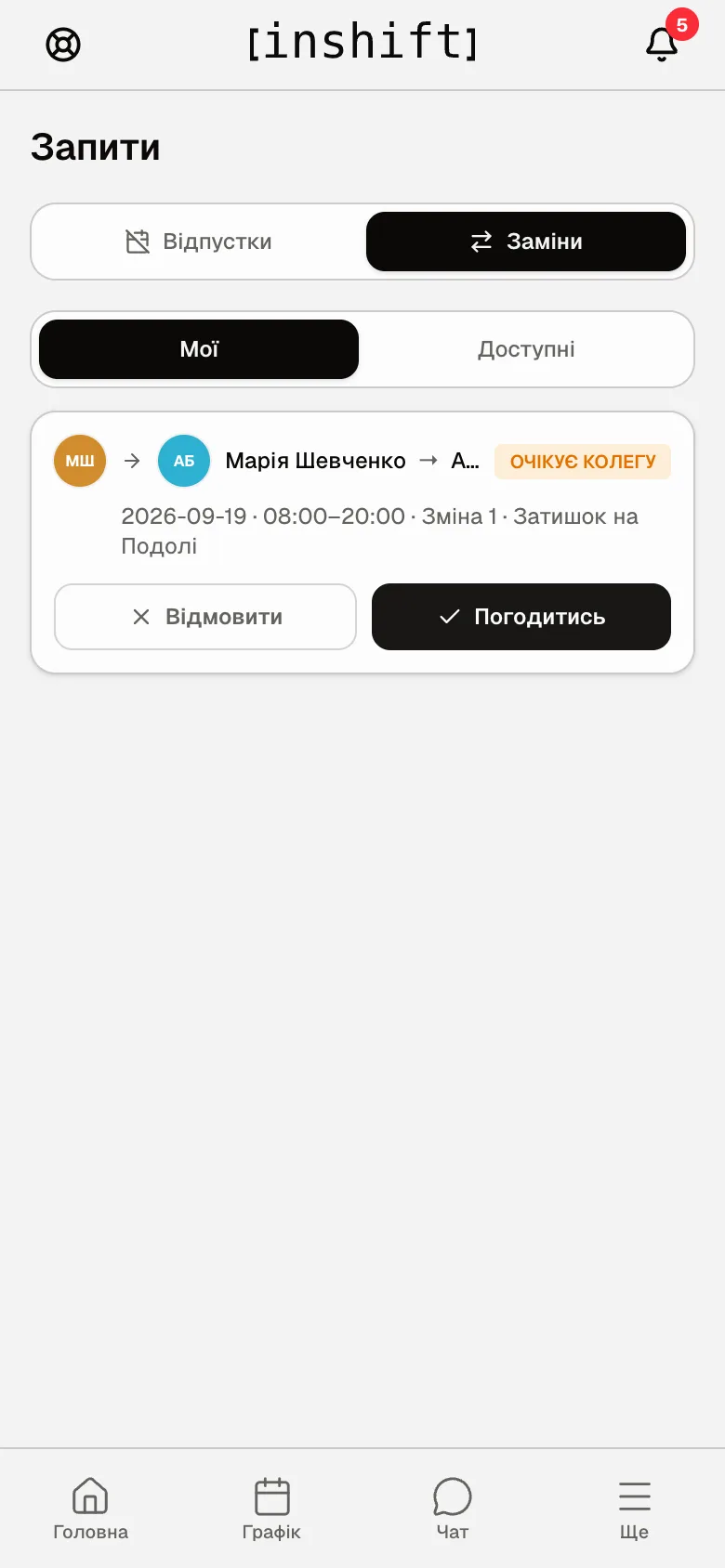
How the colleague sees the request: a card with the “Decline” and “Accept” buttons - Once the colleague has agreed, the status becomes “Andrii Bondarenko agreed, awaiting approval”. Then it is the manager's decision: in their admin panel they click “Approve” or “Reject”.
- After approval the shift disappears from your schedule and appears in the colleague's. You get a “Swap approved” notification, and in “Requests” → “Swaps” → “Mine” the request carries the “Approved” label.
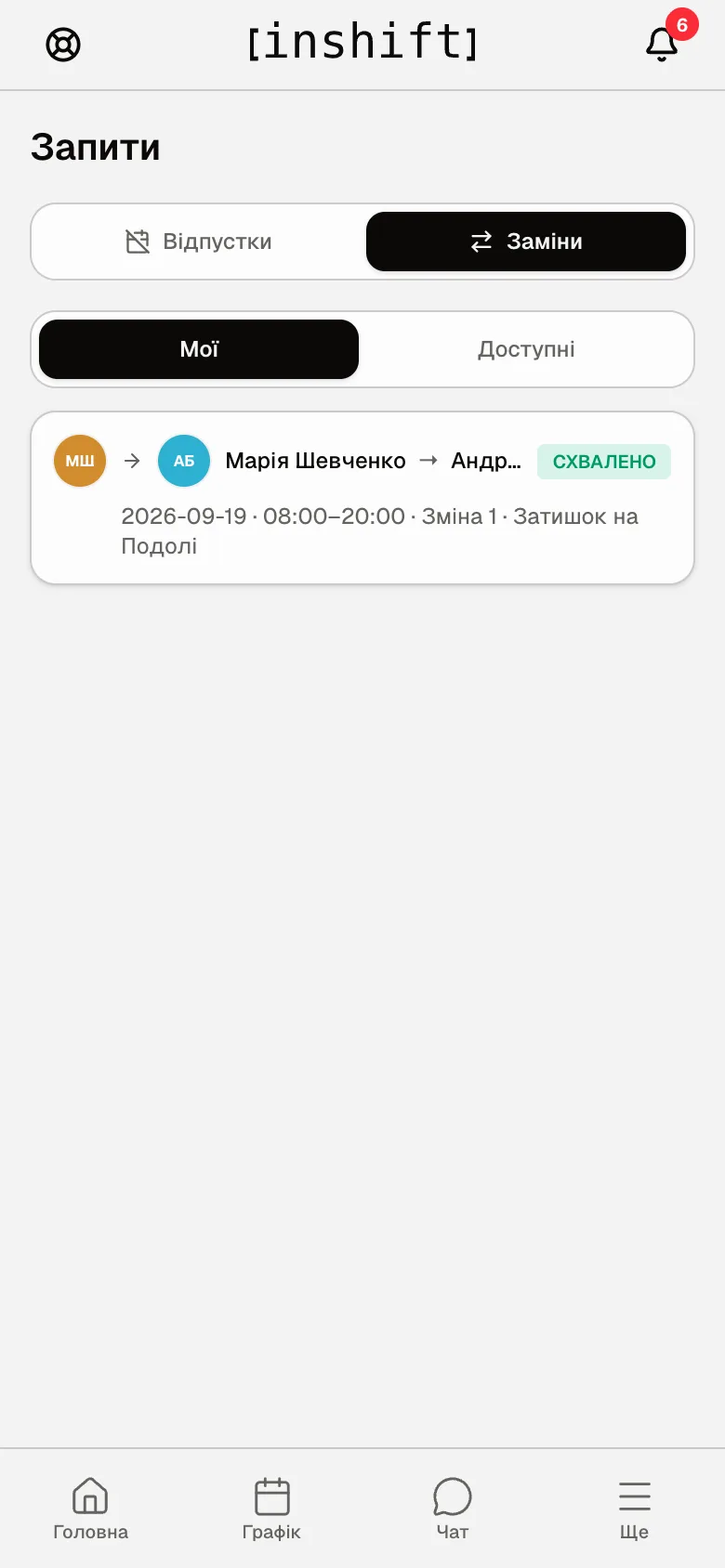
“Requests” → “Swaps”: a request with the “Approved” status
Step by step: offer it to everyone at once
- In “Substitute” tap the shift and, at the bottom of the list of colleagues, tap “Publish for everyone”.
- All available colleagues at this location see the request: “Available shift swap” appears on their “Home”, and the “Available swaps” tab gets a “Take shift” button. Whoever accepts first takes the shift. Then it goes the same way: the manager's confirmation, if your organisation requires it.
Request statuses
“Awaiting colleague”: you sent the request, the colleague has not replied yet.
“Pending approval”: the colleague agreed and is waiting for the manager's decision.
“Approved”: the swap is confirmed, the shift has moved to the colleague.
“Declined”: the colleague turned it down. Offer it to someone else or publish it for everyone.
“Rejected”: the manager did not approve the swap. The shift stays yours.
“Cancelled”: you cancelled the request yourself.
All your requests are in “Requests” → “Swaps” → “Mine”.
Why an action is unavailable
The message “Swaps are turned off for this organisation”: your manager has not allowed swaps between employees. Arrange it with them directly.
Nothing under the shift, or “No available colleagues”: there is nobody to offer it to. Tap “Someone missing?”: there is the list of unavailable people with a reason next to each: “already working that day”, “different location”, “trainee”, “different position” or “no position set”. A trainee does not take other people's shifts until they join the staff. If a colleague should qualify, ask your manager to check their position and location in the card.
No “Substitute” section at all: it is absent from “More” when swaps are turned off.
The shift is not in the “Choose a shift” list: only an upcoming published shift can be given away.
Questions and answers
Can I trade shifts rather than just give mine away?
In a request you give your shift away. To take a colleague's shift in return, they send a request to you in the same way.
Does my manager see that I am looking for cover?
Yes: “is looking for cover” shows up in “Activity” on the dashboard at once, and when the colleague agrees, the request comes to them for a decision. If the organisation uses the “Coworker only” rule, the swap happens without their decision.
What if nobody agrees?
Tell your manager: they can put someone else on the shift themselves.