A request for time away is submitted by the person from their own app: they choose a type and dates and write a comment. There are four types: “Holiday”, “Sick leave”, “Personal” and “Unpaid”. All of them arrive on the same “Time off” tab under “Requests”, and in “Manager approves” mode each one waits for your decision. In “Automatic” mode a request is approved immediately, and you only see it in the list.
Approved time off does not touch the schedule: the person’s shifts on those days are not deleted or marked. If shifts are already there, remove them or hand them to someone in the planner yourself. What the panel does do is count the remaining holiday days in the person’s card and show them in the app.
Requests can be reviewed by the owner, co-owners and anyone whose role has the “Approve time-off” permission.
Where to find it
“Requests” → the “Time off” tab. The number on the tab and on the “Requests” menu item is how many requests are pending. A new request arrives with the notification “New time-off request”.
The grey line above the list repeats the mode, for example “2 requests · The request waits for the manager’s decision.”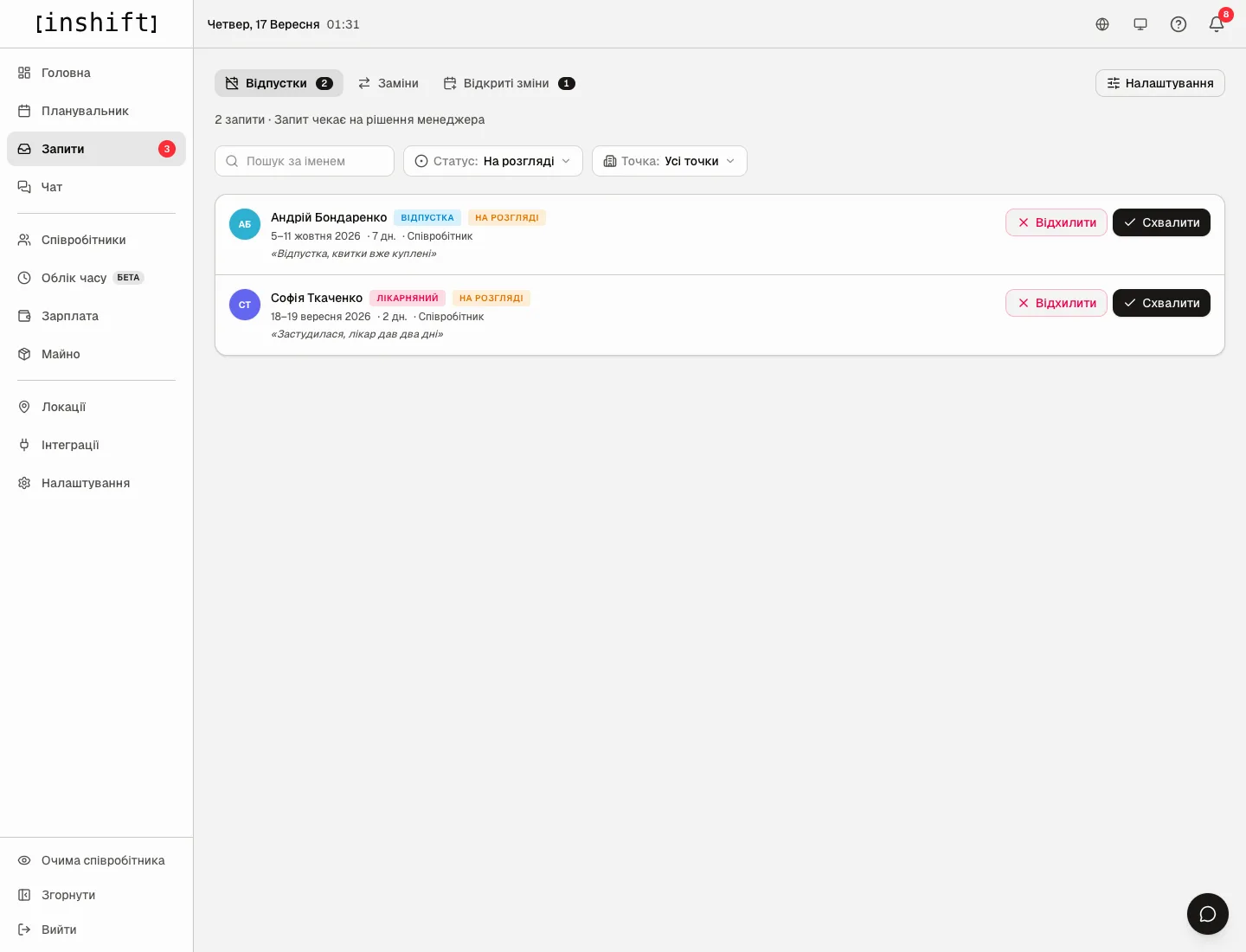
How to read a request
The name, then two tags: the type, “Holiday”, “Sick leave”, “Personal” or “Unpaid”, and the status. Below are the dates, the number of calendar days, for example “7 days”, and in italics the person’s comment. After the decision, “Manager note” appears in the same place, if you wrote one.
Statuses.
“Pending”: waiting for your decision.
“Approved”: the person is away on those days. Holiday is deducted from their balance.
“Rejected”: you refused, the balance is unchanged.
“Cancelled”: the person withdrew the request while it was pending.
The “Status” filter shows “Pending” by default, and there are also “Approved”, “Rejected” and “All”. The “Location” filter narrows the list to one location, “Search by name” finds a person.
Step by step
- Open “Requests” → “Time off”.
- Check whether the person has shifts on those days: open the planner on the right week. The panel does not check this for you.
- Click “Approve”. The person receives the notification “Time off request approved”, the status changes to “Approved”, and the request disappears from “Pending”.
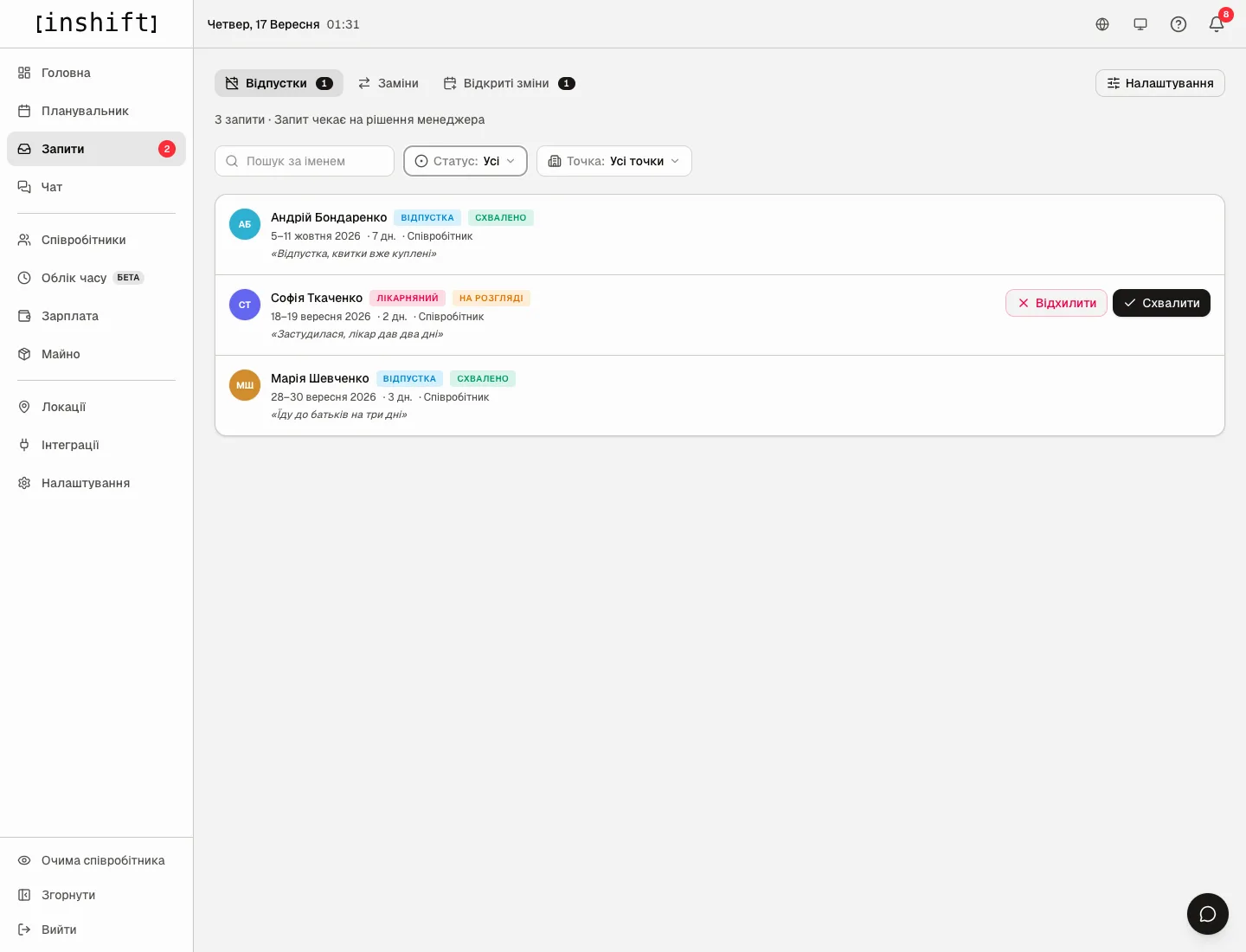
The “All” filter: Andrii’s approved request and Sofia’s pending sick leave - Or click “Reject”. In the “Reject this request?” window write a “Reason for rejection” if you want and click “Reject”. The person receives “Time off request rejected” and sees the reason in the app.
- If the person had shifts on those days, remove them in the planner or put someone else on them, see Shifts: add, edit, move, delete. Approved time off does not touch those shifts.
Holiday balance
The yearly allowance is set in “Request rules”, the “Vacation quota” field, or separately for a person in their card, the “Vacation days per year” field. Until an allowance is set, the balance is not shown anywhere.
Used days are never typed in by hand: the panel counts them from approved requests of the “Holiday” type for the current calendar year. The days are calendar days, weekends included. A holiday that crosses New Year is split between the years. “Sick leave”, “Personal” and “Unpaid” do not reduce the balance.
The balance is shown in the person’s card in the panel and in their app under “Left”. If the person asks for more than they have left, the app warns them with “Over the balance by”, but does not stop them from submitting: the decision is yours. The balance can go negative, and the panel shows that rather than hiding it.
Where else approved time off is visible
In the manager’s app, the day screen has a list of those who are away that day, with the type of absence.
On the dashboard, “Activity” shows submitted and decided requests.
The planner does not show time off: the shifts on those days stay exactly as you set them.
Why an action is unavailable
There is no “Time off” tab: time-off requests are turned off in “Request rules”, or your role does not have the “Approve time-off” permission.
A request has no “Approve” and “Reject” buttons: it has already been decided or cancelled. Check the “Status” filter.
Clicking shows “Could not process the request, try again”: the request has just changed, for example the person cancelled it. Refresh the page.
The person’s card shows no holiday balance: no allowance is set in “Request rules” or in the card, and there have been no approved holidays this year yet.
The person cannot submit a request: there is no “Day off” button in the app because requests are turned off.
After “Approve” the window “This person mentors trainees on these days” appears: we’ll approve the leave without touching shifts. Click “Approve anyway”, and change the trainee’s mentor on the rota, see A trainee on the rota: a shift with a mentor.
Questions and answers
Can holiday be approved retroactively?
Yes, the request dates can be in the past. That is a handy way to record a holiday agreed verbally, so the balance stays correct.
Can I create a request on someone’s behalf?
No, requests are submitted only from the employee app. If a person does not use the app, their balance will not be counted.
What happens to a shift if I approve sick leave on its day?
Nothing automatically. The shift stays in the schedule, and people see it as a working one. Remove it or offer it to the team as an open shift, see Open shifts: offer a shift to the team.
Is sick leave counted in payroll?
No, the panel only records the fact of absence. Sick pay and holiday pay are not calculated in InShift.