When you have offered a shift to the team and published the schedule, the people who qualify see it in the app and tap “I want it”. Each tap is an application. Applications gather under the shift on the “Open shifts” tab under “Requests”, and you pick one person: they get the shift, the rest are turned down automatically. On their own, applications change nothing in the schedule.
Applications can be reviewed by anyone who can edit the schedule of the location where the shift is. How to create an open shift is in Open shifts: offer a shift to the team.
Where to find it
“Requests” → the “Open shifts” tab. The number on the tab is how many shifts have applications. A new application arrives with the notification “Someone wants this shift”.
The same number of volunteers is shown in the planner on the shift card in the “Open shift” row, for example “1 volunteer”, and on the dashboard in the line “Open shifts awaiting claims: 1” with the “To requests” button.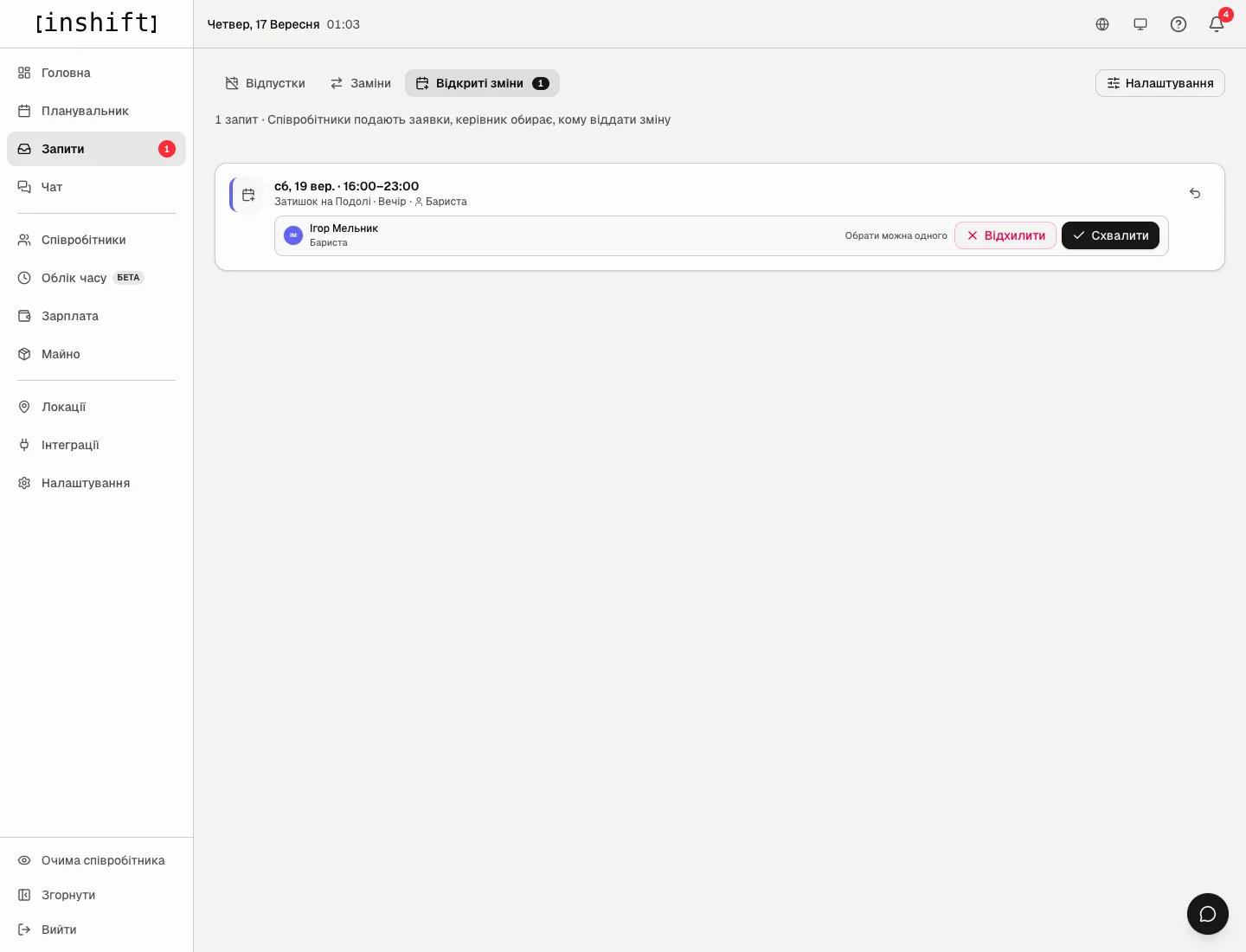
How to read a card
At the top is the shift: day and time, location, shift type and the position you were looking for. On the right is a button with a back arrow, “Stop offering”.
Below is the list of volunteers: name, position and a comment, if the person wrote one. Next to each is the note “Only one can be picked” and the “Reject” and “Approve” buttons. If there are no applications yet, the shift shows “No one has volunteered yet”.
The list shows only shifts that were offered to the team and published. Shifts without applications are here too, so you can see what is still waiting.
Step by step
- Open “Requests” → “Open shifts”.
- Look at the volunteers. Anyone who already has a shift at that time could not apply: the list contains only people who are free at that time with a matching position and location.
- Click “Approve” next to the person you are giving the shift to. The shift becomes theirs at once: in the planner the card moves from the “Open shift” row to the person’s row, and the person receives the notification “The shift is yours”. The other volunteers receive “The shift went to someone else”, and their applications close on their own.
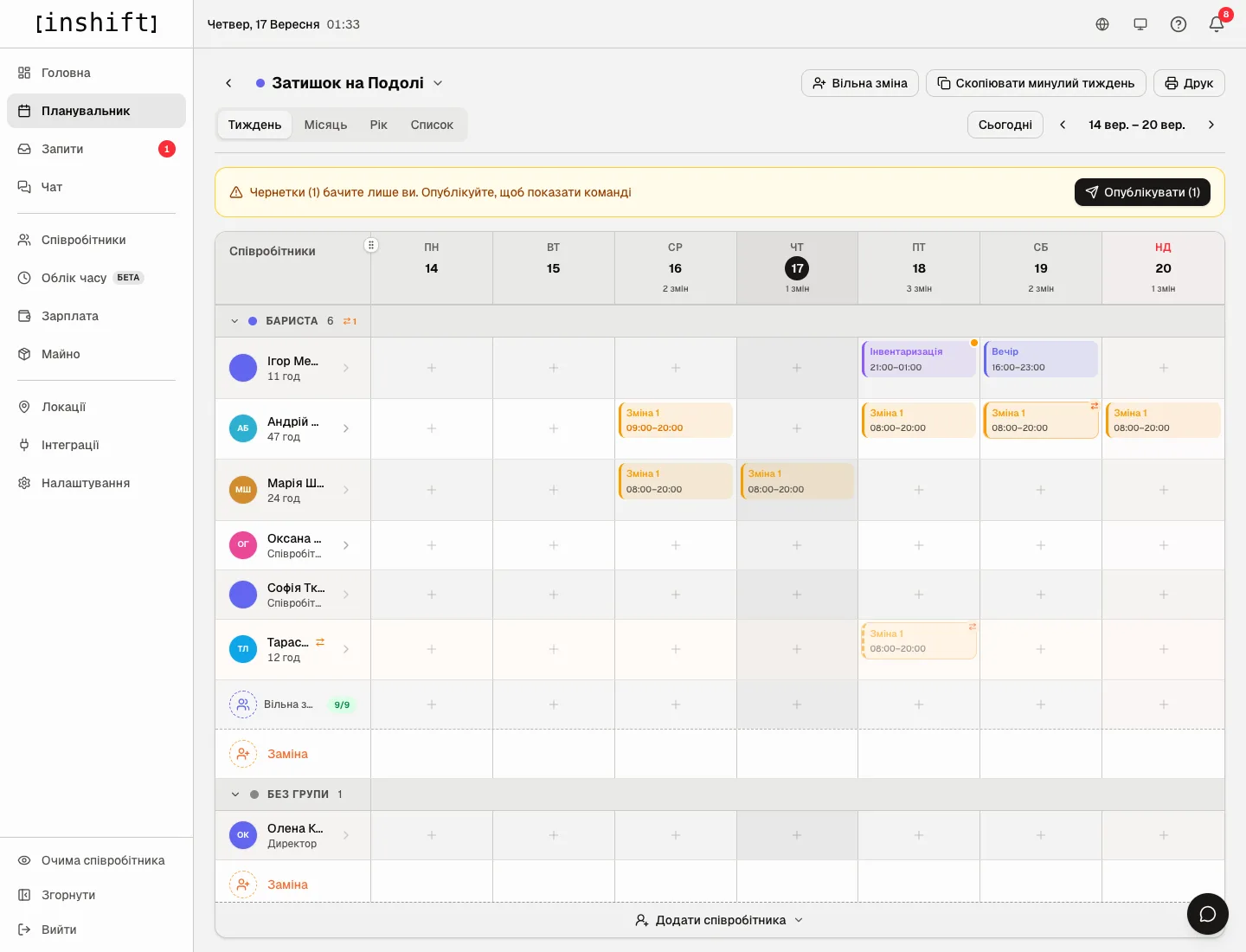
The planner after approval: the “Evening” shift is Ihor’s on Saturday, the “Open shift” row is empty - To turn down one person without closing the shift, click “Reject” next to them. In the “Reject this request?” window you can write a “Reason for rejection”. The person receives “Request declined”, and the shift stays open for the others.
- To withdraw the shift from open shifts altogether, click the arrow button “Stop offering” on the right of the card. The shift stays in the schedule as an empty slot, disappears from the app, and everyone who applied receives “The open shift is gone”.
You can also choose someone who did not apply: in the planner click the shift card, and in the “Who covers this shift?” window click any suitable person. The applications close just as they do on approval.
Why an action is unavailable
There is no “Open shifts” tab: open shifts are turned off in “Request rules”, or your role cannot edit the schedule.
The tab says “No open shifts” and “Shifts you offer to the team will show up here.”: there are no published shifts offered to the team right now. Drafts are not shown here.
The shift says “No one has volunteered yet”, although people say they can see it: only tapping “I want it” submits an application. Or the wrong people see the shift: check the shift’s position and the people’s locations.
Clicking “Approve” shows “Could not process the request, try again”: the shift has already started, it has already been given to someone else, or the person has just cancelled their application. Refresh the page.
A person applied and then vanished from the list: they cancelled the application themselves with the “Cancel request” button in the app.
Questions and answers
Can one shift be given to two people?
No. One shift is one slot. If you need two people, create two slots: in the “Open shift for the team” window set “How many people needed” to 2. Then these are two separate shifts with separate applications.
What do those who were not chosen see?
The notification “The shift went to someone else”, and the shift is no longer visible under “Open” in their app.
Can I change my mind after approving?
Yes, as with any shift: open it in the planner and change “Employee” or delete it. The person receives a notification about the change.
How long do applications wait?
Until the shift starts. A shift that has already started cannot be given away, and applications for it lose their point.