A swap between employees is when someone cannot make it and hands their shift to a colleague from their own app. They pick the shift, choose who to offer it to, a specific person or everyone who qualifies, and wait. Then, depending on your organisation’s rules, the shift is approved by the colleague, by you, or by both in turn. Once the swap is approved, the shift in the schedule moves to the colleague, and both receive a notification.
You see all swaps at your locations in “Requests” → “Swaps” and decide only the ones that have reached you: in “Coworker + manager” mode these are requests the colleague has already accepted, in “Manager only” mode every request at once. In “Coworker only” mode your decision is not needed, and the list just shows you who swapped with whom.
Swaps can be approved by the owner, co-owners and anyone whose role has the “Approve substitutions” permission for that location.
Where to find it
“Requests” → the “Swaps” tab. The number on the tab and on the “Requests” menu item is how many requests are waiting for your decision. A new one arrives with the notification “Swap awaits approval”. When someone offers a shift to everyone who qualifies, the location’s managers receive “Someone at your location needs cover”.
The grey line above the list says how many requests match the current filter and how approval currently works, for example “1 request · First a coworker accepts, then the manager approves.”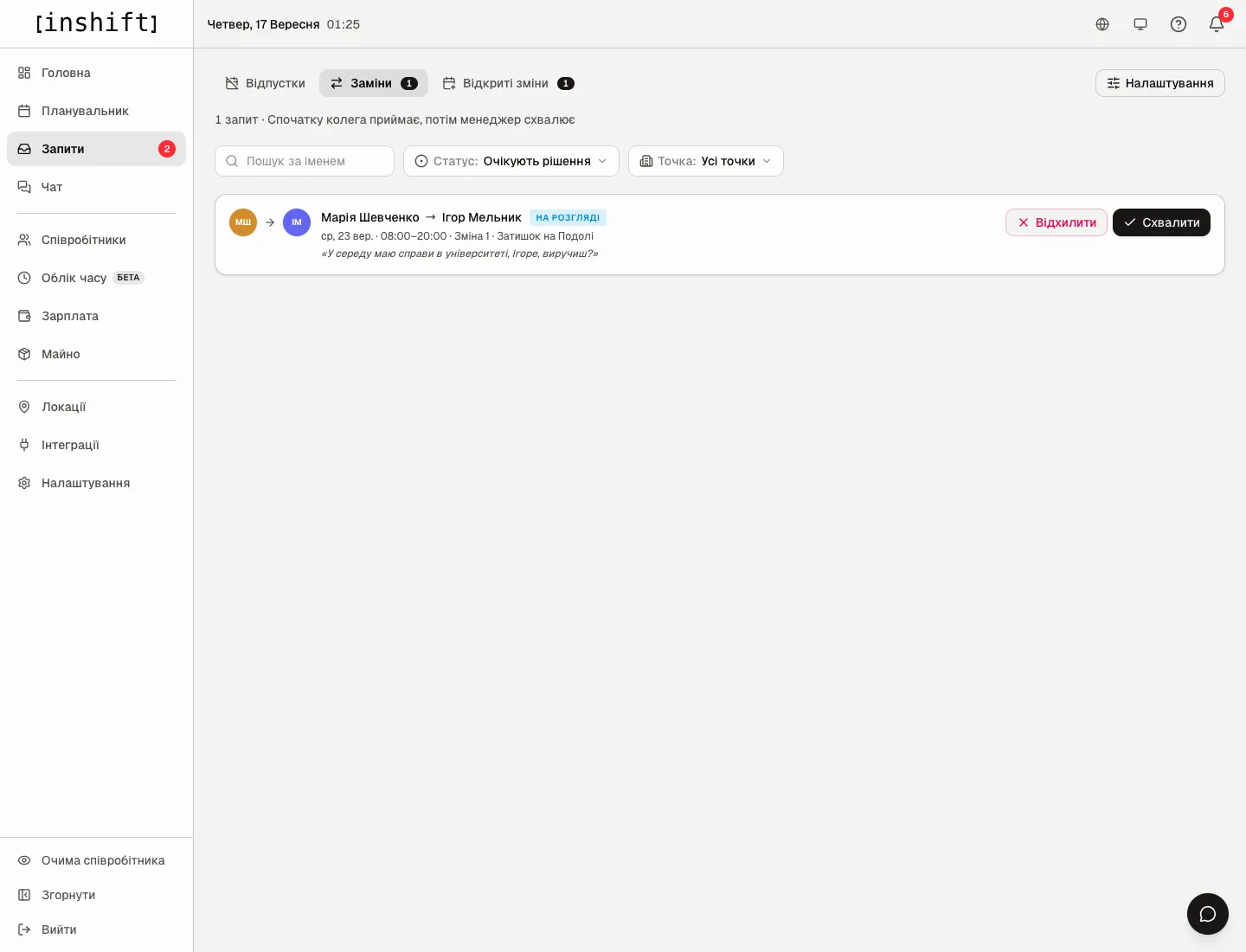
How to read a request
The row shows who gives the shift and to whom, “Maria Shevchenko → Ihor Melnyk”. If the person offered the shift to everyone who qualifies and nobody has taken it yet, “anyone” stands in place of the name. Below are the date, time, shift type and location, and in italics the person’s comment, if they wrote one.
Statuses.
“Awaiting colleague”: the request has been sent and the colleague has not replied yet, or the shift was offered to everyone and nobody has taken it. Your decision is not needed yet.
“Pending”: the colleague agreed, or in “Manager only” mode the request came straight to you. This is your queue.
“Approved”: the shift moved to the colleague.
“Rejected”: you refused.
“Declined”: the colleague refused.
“Cancelled”: the person withdrew the request, the shift was deleted from the schedule, or one of the participants is no longer in the team.
The “Status” filter above the list shows “Awaiting approval” by default. The other options are “Awaiting colleague”, “Approved” and “Rejected”. The “Location” filter narrows the list to one location, and the “Search by name” field searches by participants.
Step by step
- Open “Requests” → “Swaps”. The list is already filtered to “Awaiting approval”.
- Check who is covering for whom and whether the colleague will be overloaded: their hours are shown in the planner under their name.
- Click “Approve”. The shift in the schedule immediately moves to the colleague with a cover mark. Both receive the notification “Swap approved”. The request disappears from “Awaiting approval” and can be found under “Approved”.
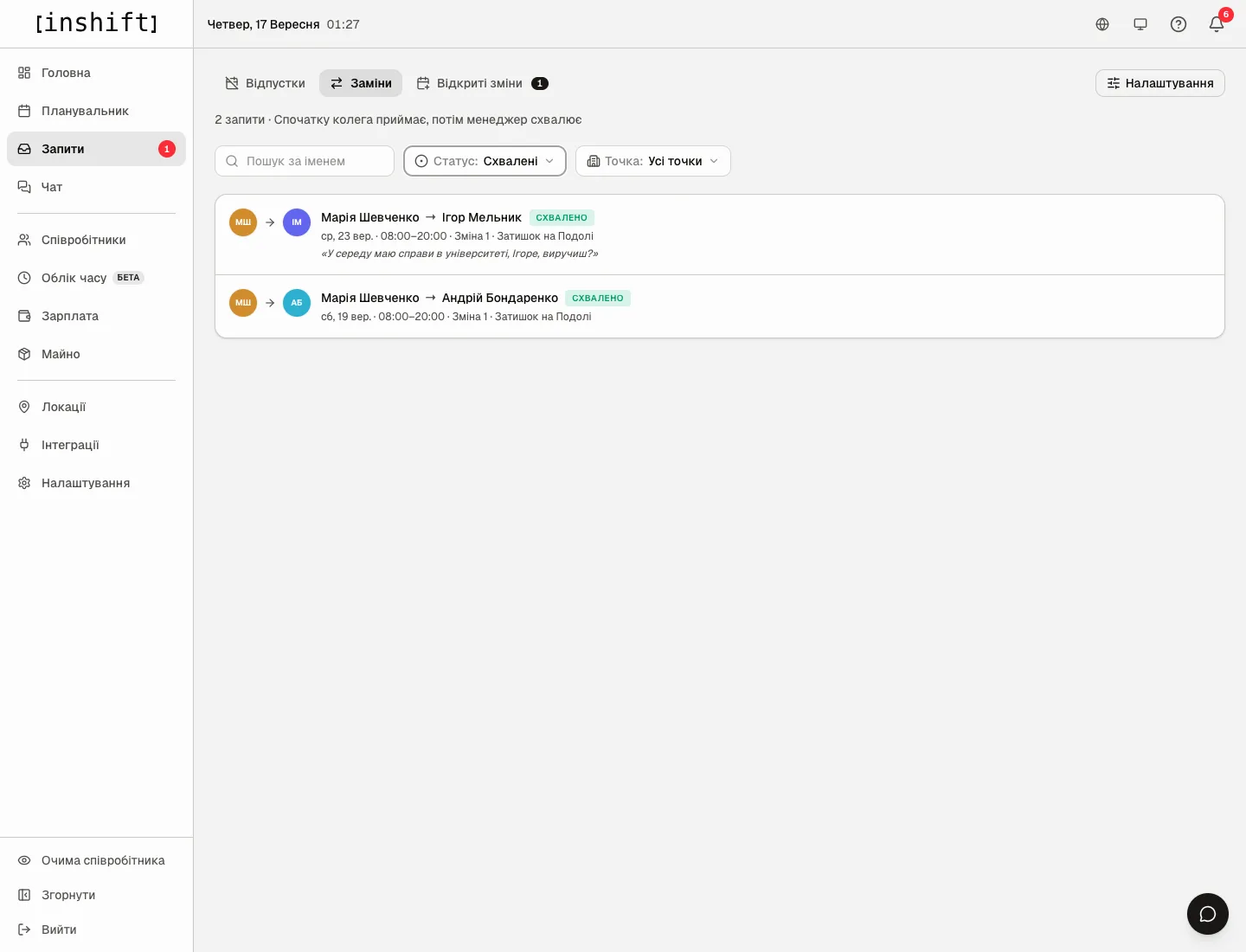
The “Approved” list: two requests with the status “Approved” 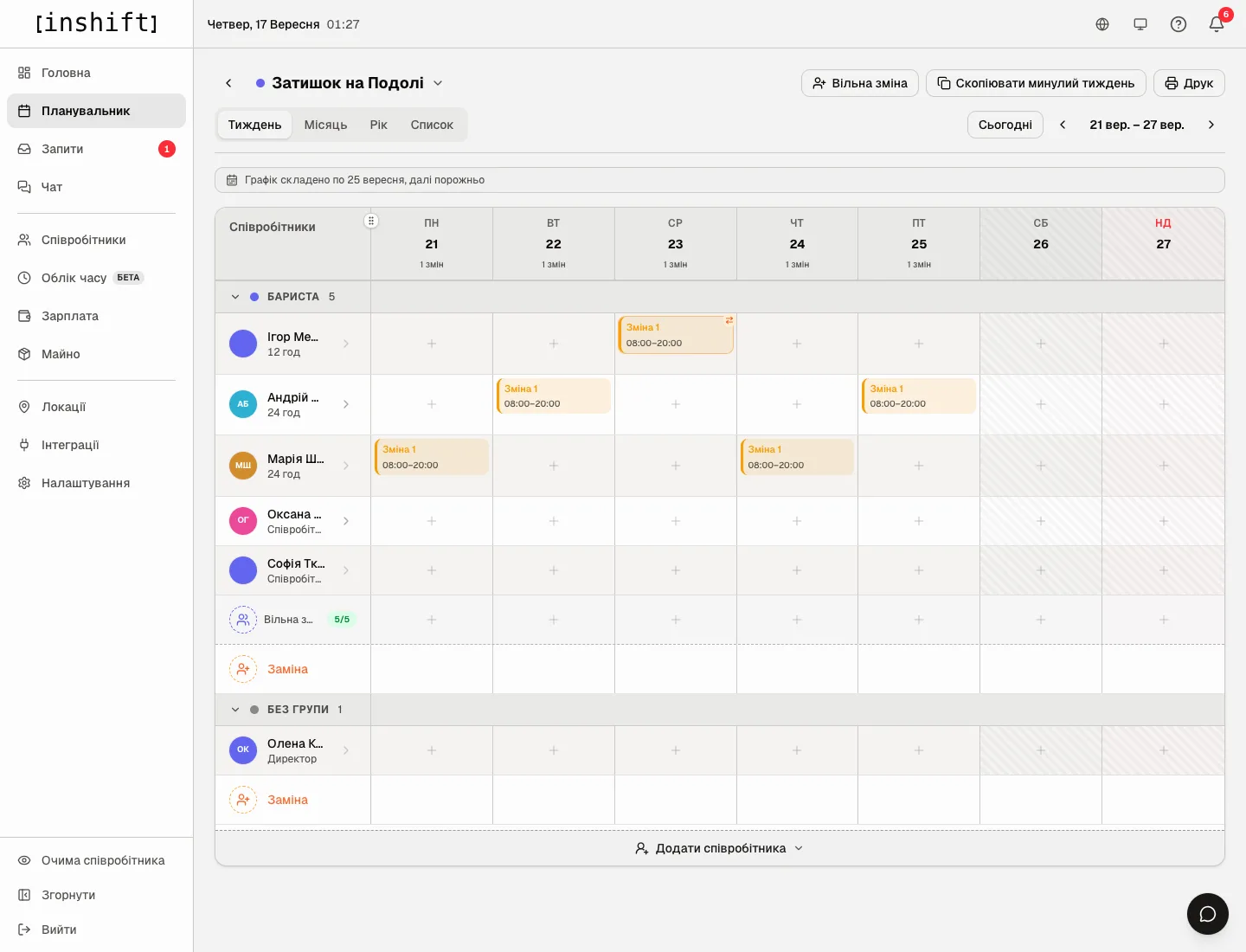
The planner after approval: the Wednesday shift now belongs to Ihor with a cover mark - Or click “Reject”. The “Reject this request?” window opens with the “Reason for rejection” field. The reason is optional, but the person will see it in the app, and that makes things clearer. Click “Reject” in the window. Both receive “Swap rejected”, and the shift stays with the person who asked.
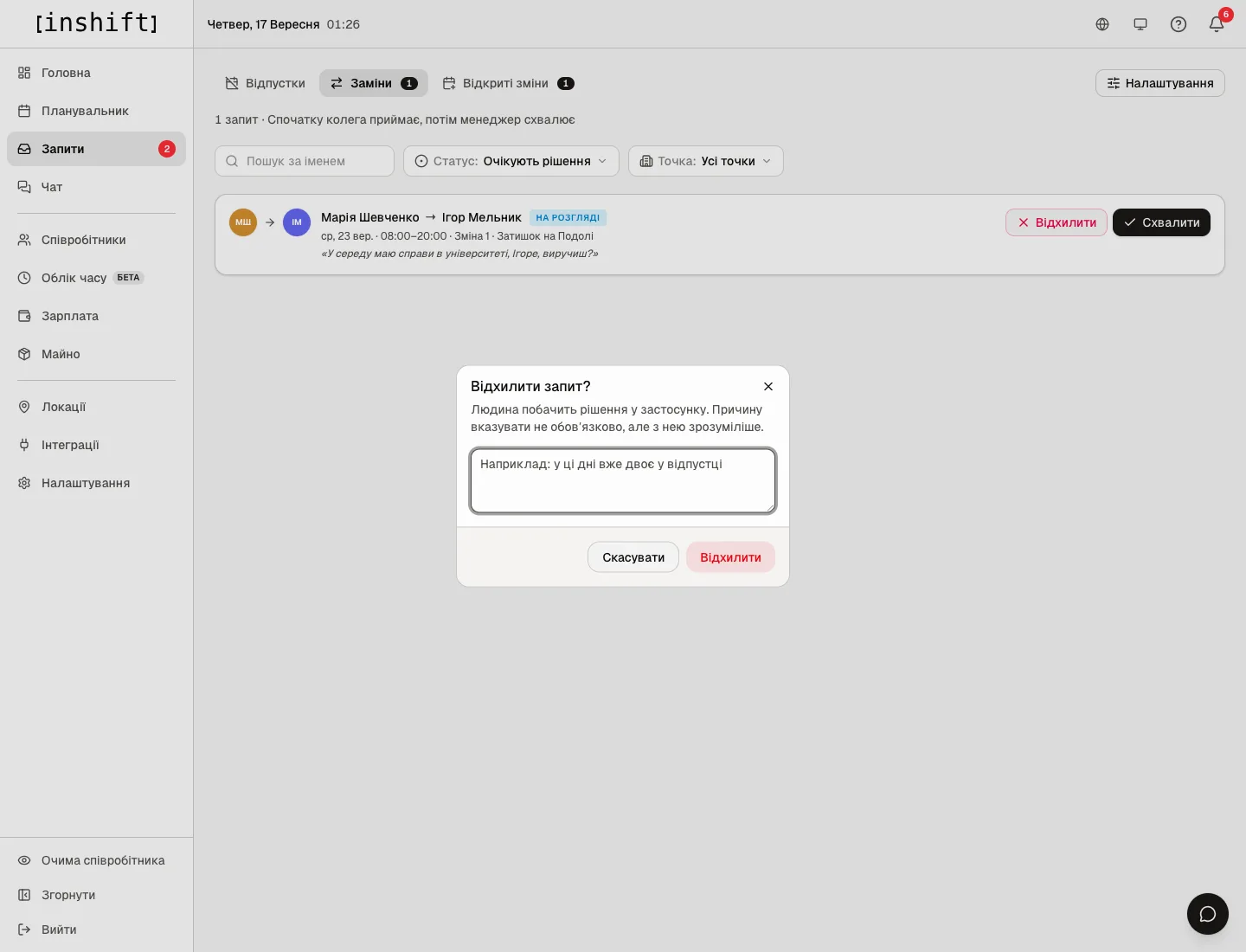
The “Reject this request?” window with the “Reason for rejection” field
What happens to the shifts
Until approval the shift stays with the person who asked: they are responsible for it until you decide.
After approval the shift moves to the colleague entirely: the date, time and location stay the same, only the person changes. In the planner the card gets a cover mark, an orange circle with arrows. In payroll the shift counts for the colleague under their pay terms.
The panel will not let you approve a swap if the colleague already has another shift at that time, including at another location: clicking “Approve” shows “Could not process the request, try again”, and the request stays pending. Reject it with an explanation.
If the shift that a request is about is deleted from the schedule, the request is cancelled automatically, and both people receive “Swap request cancelled” with the explanation “The shift was removed from the schedule”. The same happens if one of the participants is dismissed.
A shift that has already started cannot be approved: “Approve” shows the same message. All that is left for such a request is to reject it.
Why an action is unavailable
There is no “Swaps” tab: swaps are turned off in “Request rules”, or your role does not have the “Approve substitutions” permission.
A request has no “Approve” and “Reject” buttons: it is in the “Awaiting colleague” status, so the decision is still with the colleague, or it has already been decided. Check the “Status” filter.
The buttons are there, but clicking shows “Could not process the request, try again”: the request has just changed, for example the person cancelled it or the shift was deleted. Refresh the page.
The list is empty, but people say they asked for cover: check the “Location” and “Status” filters, including “Awaiting colleague”. Requests from locations outside your permissions are not shown to you.
A person cannot create a request: in their app the shift is not published yet, there is already an active request for this shift, or swaps are turned off.
After “Approve” the window “A trainee will be left without a mentor” appears: the person giving away the shift mentors a trainee in it, and after the swap nobody mentors the trainee in those hours. “Cancel” leaves the request pending, “Change anyway” approves it, and you set the trainee’s mentor later in their shift, see A trainee on the rota: a shift with a mentor.
Questions and answers
Can I approve a swap before the colleague has replied?
No, in “Coworker + manager” mode the colleague replies first. If there is no time to wait, reject the request and put the right person on the shift yourself in the planner.
What does the person see after my decision?
The notification “Swap approved” or “Swap rejected” with the date and time, and the status under “Requests” in the app. The reason for rejection too.
Does a swap count as cover in payroll?
The shift counts for whoever worked it, at their rate or shift price. The cover mark only shows that the person worked outside their own schedule.
Can swaps be turned off for a while?
Yes, in “Request rules” choose “Off”. Requests already submitted are not lost, but they stay hidden while swaps are off.