Chat is messaging with the team in the panel and in the app: shared channels, groups and personal conversations. Channels are created by themselves: “General chat” for the whole organisation and a chat for each location for those who work there. Groups are created by a manager or, if allowed, by anyone on the team. Messages arrive as pushes, you can see who has read them, and a manager can delete someone else’s message as a moderator.
Only those who have connected the app take part in the chat: a person without an account is not in the lists.
The chat in the panel is open to everyone who signs in to it. Moderating, that is deleting other people’s messages, can be done by the owner, co-owners and anyone whose role has “Admin panel access”.
Where to find it
“Chat” in the panel menu. On the left the “Team chat” list: “Announcements”, “General chat”, the location chats and the “Groups” section. On the right the conversation, at the top its name and “5 members”, the “Mute” button. The settings icon above the list opens “Chat settings”, the plus creates a group.
In the team’s app: the “Chat” tab, see Chat in the app: conversations, groups and announcements.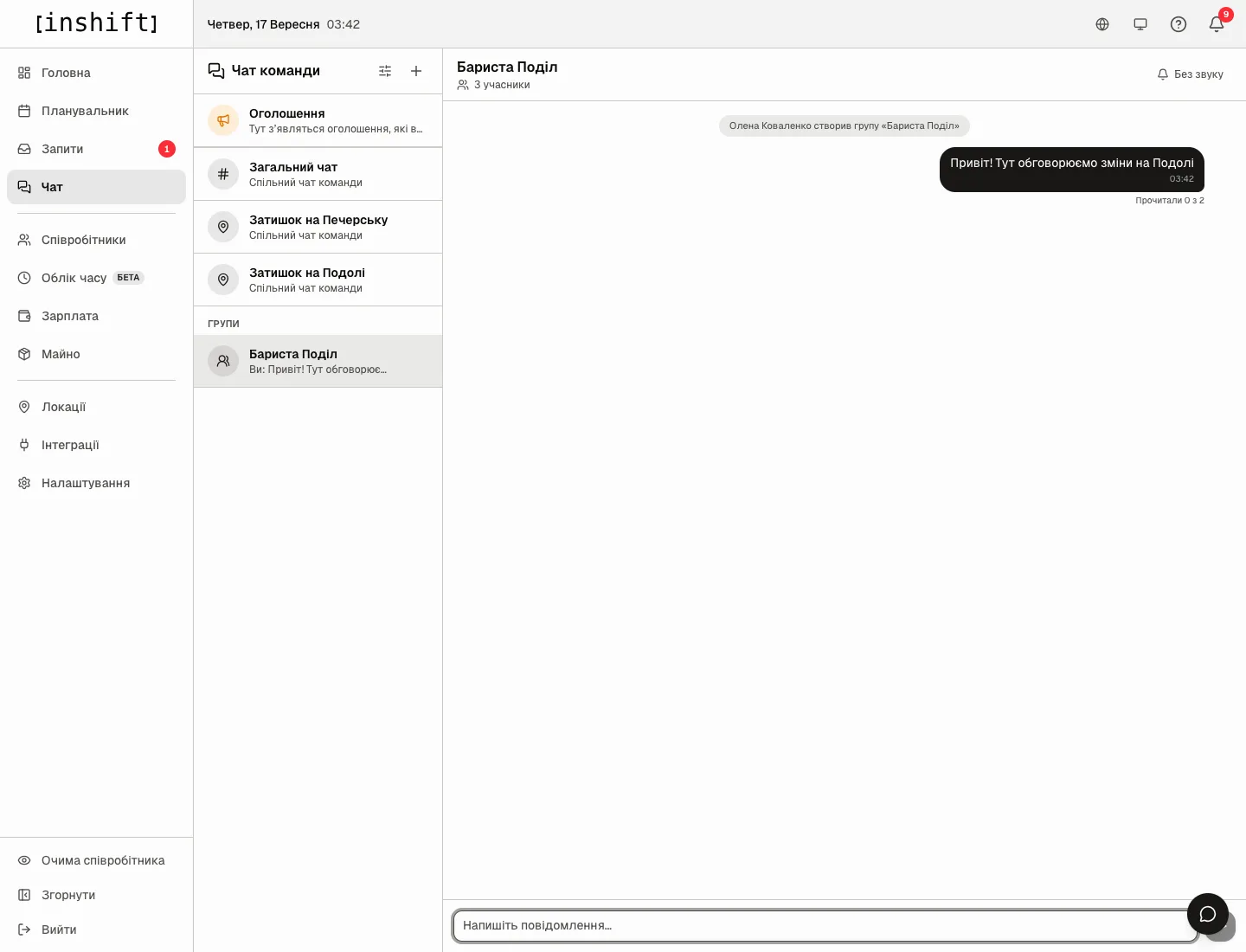
Step by step: write
- Choose a channel or group on the left. An empty conversation says “No messages yet. Be the first”.
- Type the text into “Write a message…” and press Enter or “Send”. Under your message appears “Read by 0 of 4”: click it to see “Who has read”.
- Hover over a message: “Message actions” give “Reply”, for your own “Edit” and “Delete”, for someone else’s “Delete (moderation)” with the confirmation “Delete this message as a moderator?”. A deleted message leaves the trace “Message deleted” or “Deleted by moderator”, an edited one the mark “edited 12:40”.
- “Mute” at the top turns off notifications from this conversation for you, “Unmute” brings them back.
Step by step: create a group
- Click the plus above the list. In the “New group” window type the “Group name” and tick members from the list, the search is “Search colleagues”. The list has only those who have connected the app.
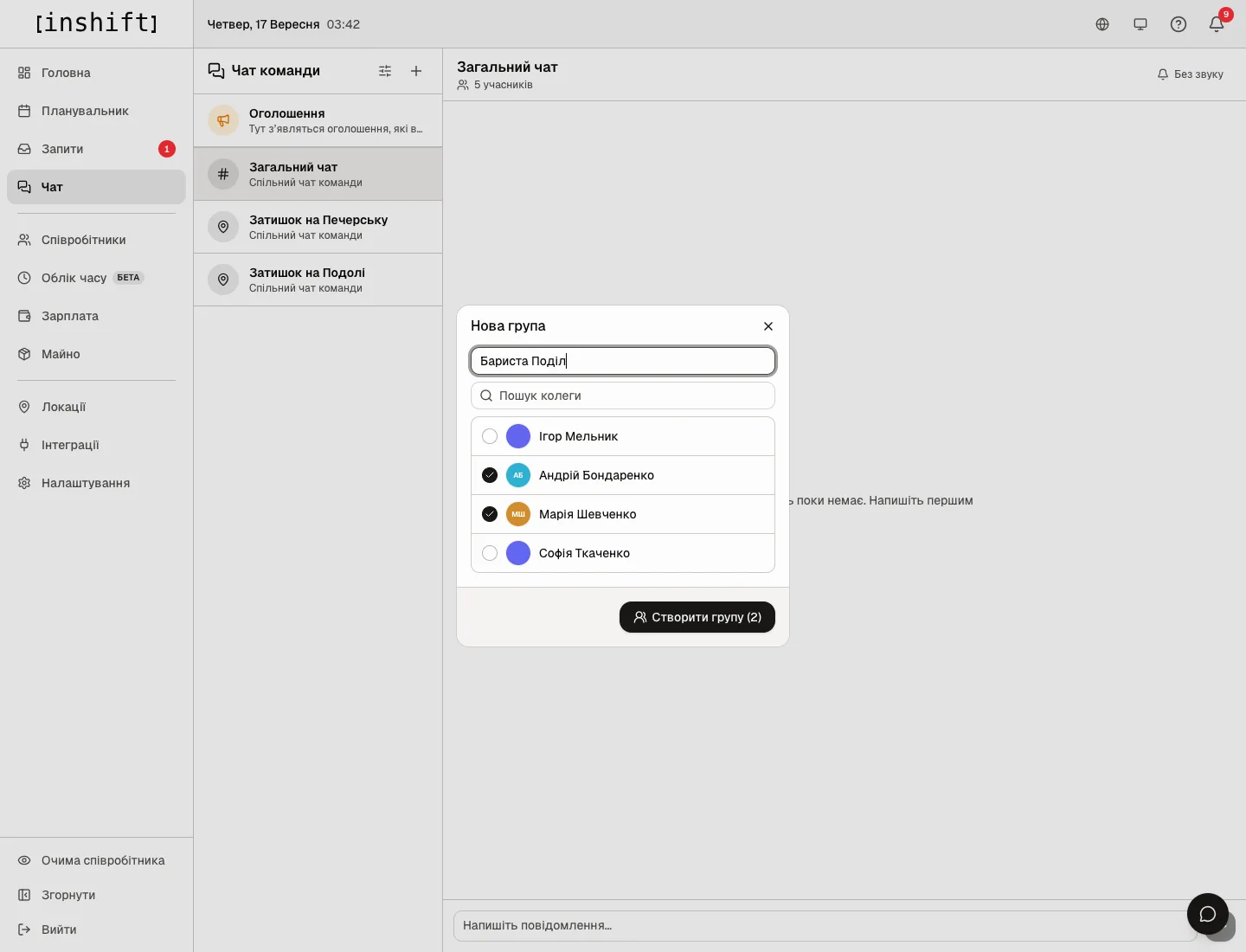
The “New group” window: the name “Baristas Podil”, chosen members, the “Create group (2)” button - Click “Create group (2)”. The group appears in the “Groups” section, and the conversation gets the entry “Jane Smith created the group “Baristas Podil””.
- “Group settings” at the top of the conversation: “Add member”, “Remove” next to a member, “Rename”, “Leave group”, “Delete group” with the confirmation “Delete this group for all members?”. The group’s author is marked “Created the group”; they moderate it too.
Chat settings
The settings icon above the list opens “Chat settings” with two rules. The owner and co-owners see the icon.
“Posting in the general chat”: “All employees” (“Everyone can post in the general chat”) or “Managers only” (“Employees read, only managers post”). A manager here is anyone with “Admin panel access”. This rule does not limit the location chats. A person in the app sees the note “Only managers can post in the general chat”.
“Chat group creation”: “Managers only” (“Groups are created by managers and admins”) or “All employees” (“Any employee can create a group from visible colleagues”).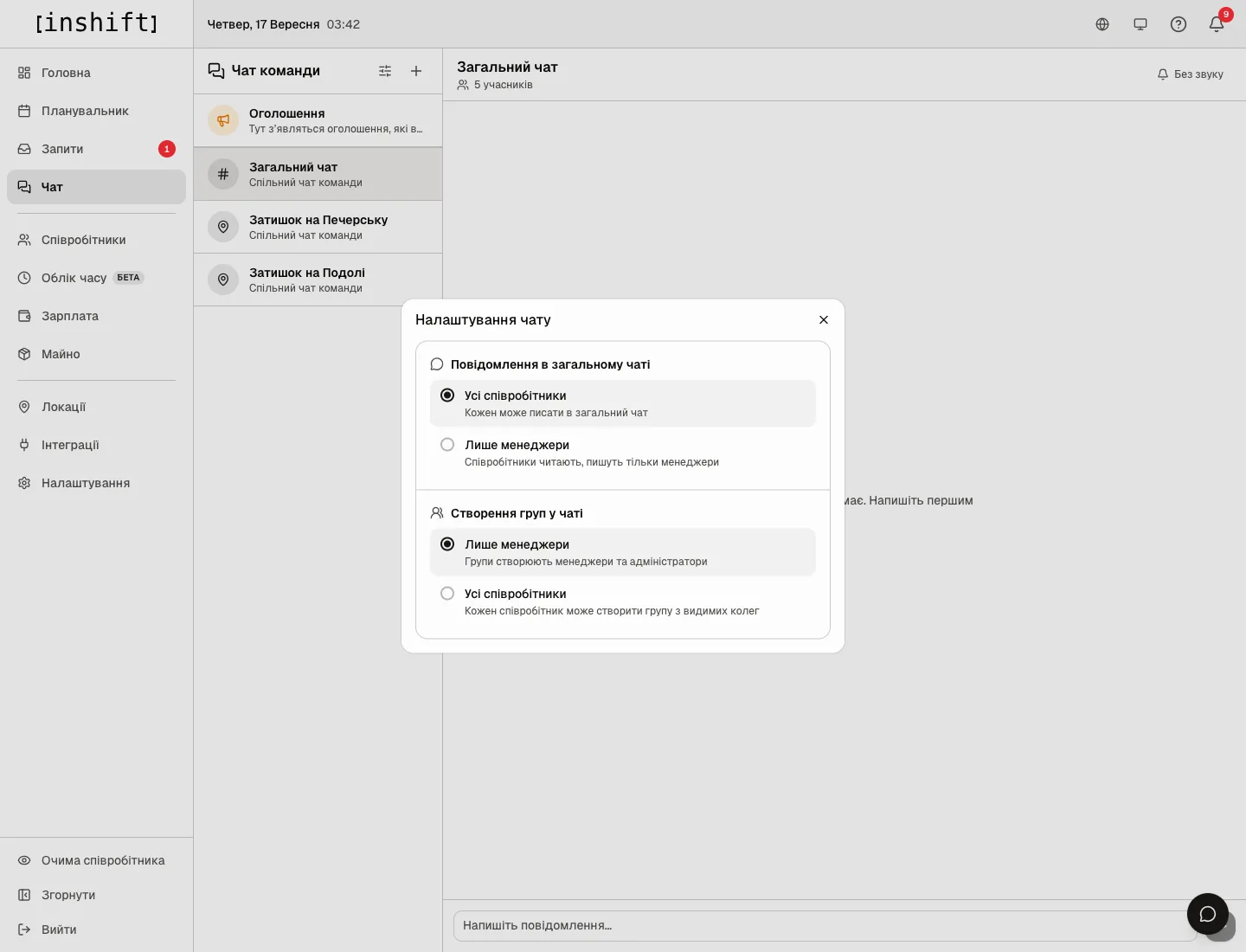
Who sees whom
“General chat”: everyone who has connected the app. A location chat: the people of that location, including those for whom it is an additional one. Groups: members only. Personal conversations are held by people between themselves in the app, the panel does not have them.
“Who has read” shows people within your view of the team, the rest as the line “3 more people from other locations”.
The “Employee’s view” page shows only the general chat and the location chats: personal conversations and groups are not available in the mirror.
Why an action is unavailable
I cannot write in “General chat”: “Managers only” is on, and your role does not have “Admin panel access”.
There is no plus for a group: “Chat group creation” is set to “Managers only”, and you are not a manager.
A person is not in the member list: they have not connected the app, “Not in the app yet”, or they are dismissed.
There is no “Delete (moderation)” on someone else’s message: you are neither the owner nor a co-owner, your role does not have “Admin panel access”, and in a group you are not its author.
There is no personal conversation with a person in the panel: personal conversations live in the app.
A message does not send: “Failed to send. Try again”, check the connection.
Questions and answers
Does the manager see the team’s personal conversations?
No. The panel has the channels and groups they are a member of. Personal messaging between colleagues is closed.
Do pushes arrive for every message?
Yes, if the conversation is not on “Mute” and notifications on the phone are on. During quiet hours the push is silent, the message stays in the chat.
How do I make the chat announcements-only?
Set “Posting in the general chat” to “Managers only” and publish through “Announcements”, see Announcements to the team.
Can a message be deleted for good?
The text is erased, but “Message deleted” stays in its place: that way it is visible that something was there.
How many groups can be created?
As many as you like. Up to five conversations can be pinned at the top of the list: “You can pin up to 5 conversations”.