In most teams a week looks like the previous one: the same people, the same shifts, a few edits for holidays and days off. So a new week is not built from scratch: you copy last week with one button, adjust and publish. That takes a few minutes, not an hour.
The copy always arrives as drafts: the team does not see it until you click “Publish”. So you can copy boldly, delete what is extra and publish the rest when the week is ready.
Where to find it
“Planner” → location → the “Week” view → the “Copy last week” button at the top right. The button exists only in the “Week” view and only for someone who can edit this location's schedule.
Step by step
- In the “Week” view use the arrows to go to the week you are building. It can be empty or already partly filled.
- Click “Copy last week”.
- The “Copy last week?” window opens, saying “5 shift(s) will be copied as drafts. Your team won’t see them until you publish.” with an arrow from last week to this one, for example “21 Sep – 27 Sep → 28 Sep – 4 Oct”. The number is how many shifts will arrive.
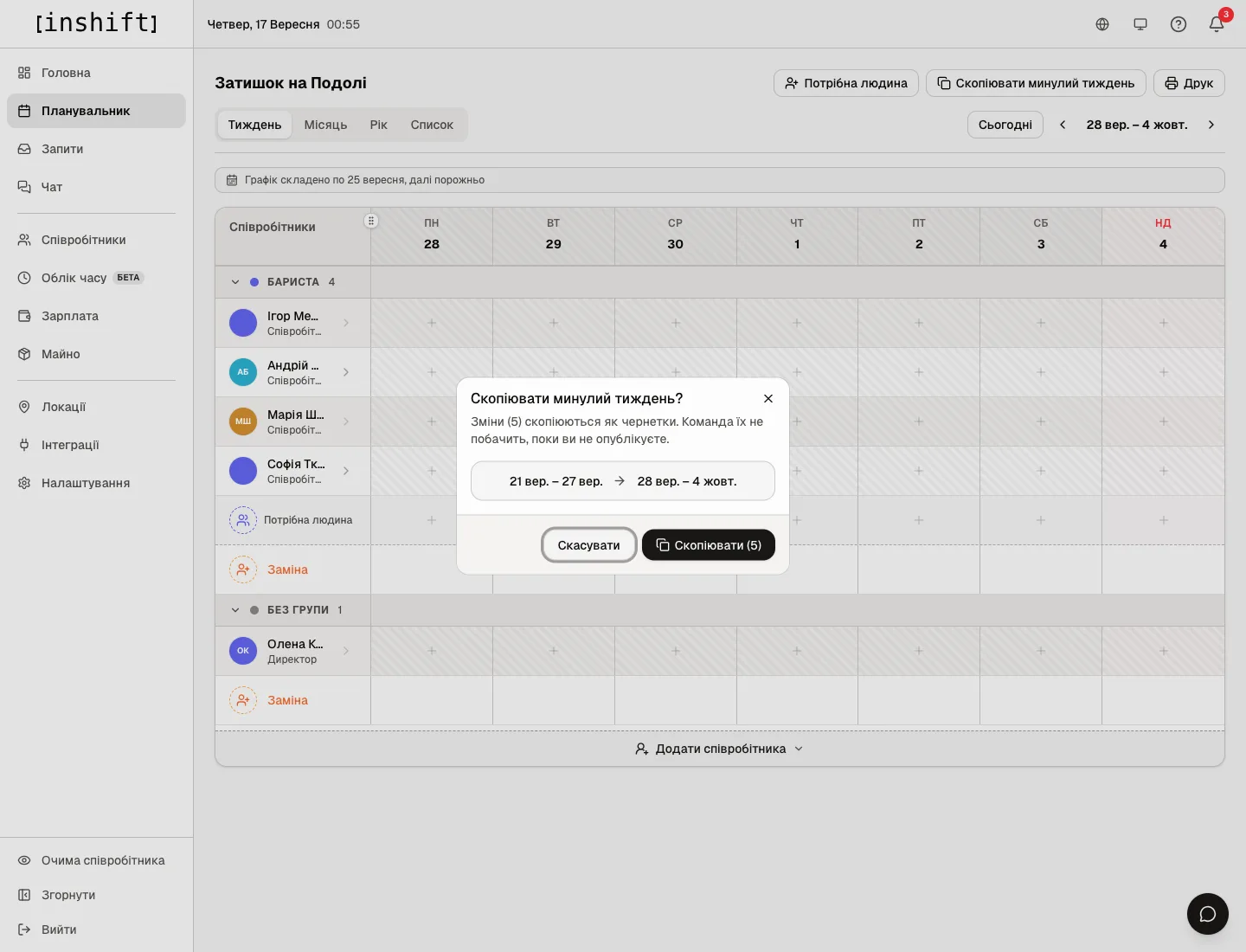
The “Copy last week?” window with the number of shifts and the direction of copying - Click “Copy (5)”. “Copied 5 shift(s)” appears at the bottom, the shifts land on the same days of the week as drafts, and the yellow row “Drafts (5) are visible only to you” appears above the grid.
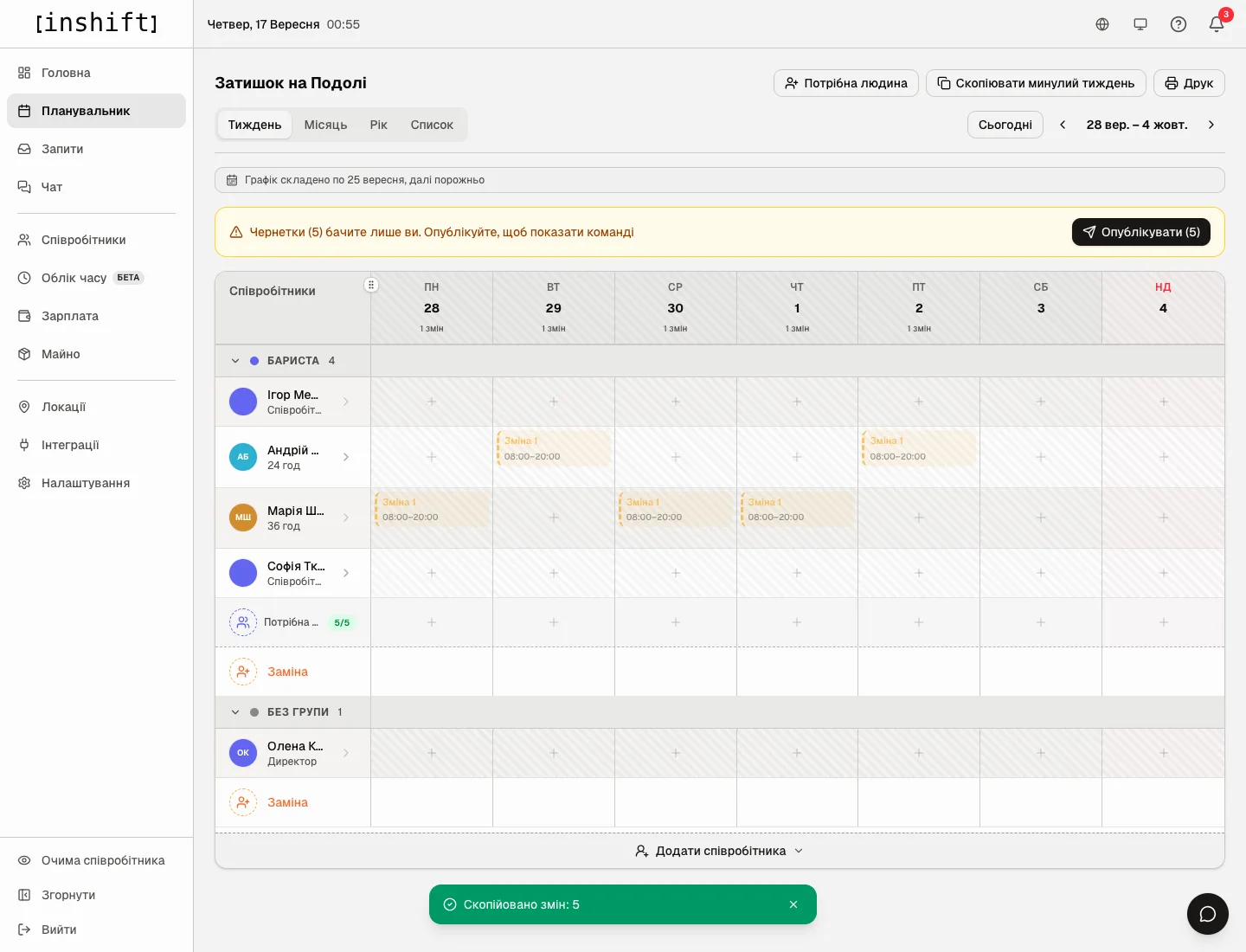
The week after copying: drafts in the same cells and the message “Copied 5 shift(s)” - Adjust what has changed: remove the shifts of those on holiday, add new people, move shifts between days. How that is done is in Shifts: add, edit, move, delete.
- Click “Publish (5)”. The team gets a notification about the new shifts, article Publish the schedule and what the team sees.
What is copied and what is not
All of last week's shifts in this location are copied: people's shifts, substitutes from other locations, “Someone needed” empty slots, custom shifts. Every shift arrives with the same day of the week, time, name, colour and price it had in the original, not with the type's current settings. If you have changed the type's time in the location in the meantime, the copied shifts keep the old time, article Shift types in the planner: by template and outside it.
Both drafts and published shifts of last week are copied, and all of them become drafts.
Shifts that already exist in the new week are not copied: the same person, the same day, the same shift type. So the button can be clicked again without creating duplicates. If all shifts are already in place, the panel says “All of last week’s shifts are already in this week”.
Shifts that overlap in time with the same person's other shifts in the new week are not copied, including their shifts in other locations. The message is then “Copied 4 shift(s), skipped 1 due to overlaps”.
Empty slots that were offered to the team last week are copied as regular “Someone needed” slots: they have to be offered to the team again, article Open shifts: offer a shift to the team.
Holidays, sick leave and approved days off are not shifts; they are not copied and do not get in the way of copying: if a person is on holiday in the new week, their shifts arrive and have to be removed by hand. A day-off mark placed in the grid as a shift with the same start and end is different: it is copied with the week, as a draft, like any shift.
Why an action is unavailable
There is no “Copy last week” button: you are in the “Month”, “Year” or “List” view. Switch to “Week”. Or your role does not have the right to edit this location's schedule.
There is no button in the “All locations together” view: copying works within one location; open the one you need.
The message “Last week has no shifts to copy”: last week is empty. Go to a week that follows a filled one, or build the week from the cell menus.
The message “Could not copy shifts”: last week has a shift of a person who has since been dismissed, and such a shift cannot be copied. Build the new week from the cell menus.
Questions and answers
Can I copy the week from two weeks ago?
No, only the week just before the one on the screen is copied. To carry an older one over, first copy it into the week in between and then onwards, or build the week you need by hand.
Can I copy a month?
No, only week by week.
Will the team see the copied shifts?
No, not until you click “Publish”. A copy is always a draft.
I copied and then changed my mind. How do I remove everything at once?
There is no separate undo button. Delete the drafts one by one: click the shift, “Delete”, confirm. While the shifts are drafts, the team notices nothing.
Not all shifts are copied. Why?
Look at the message at the bottom: “skipped due to overlaps” means those people already have shifts at the same time in the new week. Shifts that already exist in the new week are not copied either.