The Poster POS connects to InShift so that each cashier’s sales arrive on their own. A percentage is accrued on them in the premiums, and the “What was collected” report lets you compare the figures with the till side by side. Until the cash shift at the location is closed, the day’s percentage is preliminary: the exact amount arrives once it is closed.
Connecting takes two steps: give access to the POS and link the cashiers to your people. Without the link the sales percentage is accrued to nobody.
Only the organisation owner and co-owners can connect the POS. There can be several tills: a chain that runs its venues on different Poster accounts connects each account separately, with its own cashiers and locations, and a person’s sales from all tills add up.
Where to find it
“Settings” → the “Integrations” tab → “Who is connected to your data” → the “Poster” card with its state: “Not connected”, “Synced 9:00 AM”, “Not synced yet”, “Sync is failing”, “Data is yesterday's”, “Sales don't match Poster”, “Till not closed”, “Unassigned sales”, “Some till locations aren't linked”, “App removed in Poster” or “Disconnected”. Under the card’s name is the till’s name, or, with several tills, how many: “2 tills”. The same list is opened by “Integrations” in the menu.
The “Poster” page: the tills as rows, each with its name, the account address such as “cosycorner.joinposter.com”, the state and “People linked: 5”, and below the list “Connect another till”. A row opens the till page: “Collected 9/17/2026, 9:00:00 AM, for 2026-09-10 to 2026-09-16” or “Never collected yet”, the “Refresh”, “Reconnect” and “Disconnect” buttons, and below them “Link people”, “When to collect sales”, “What was collected”, “Collection history”. “All tills” takes you back to the list.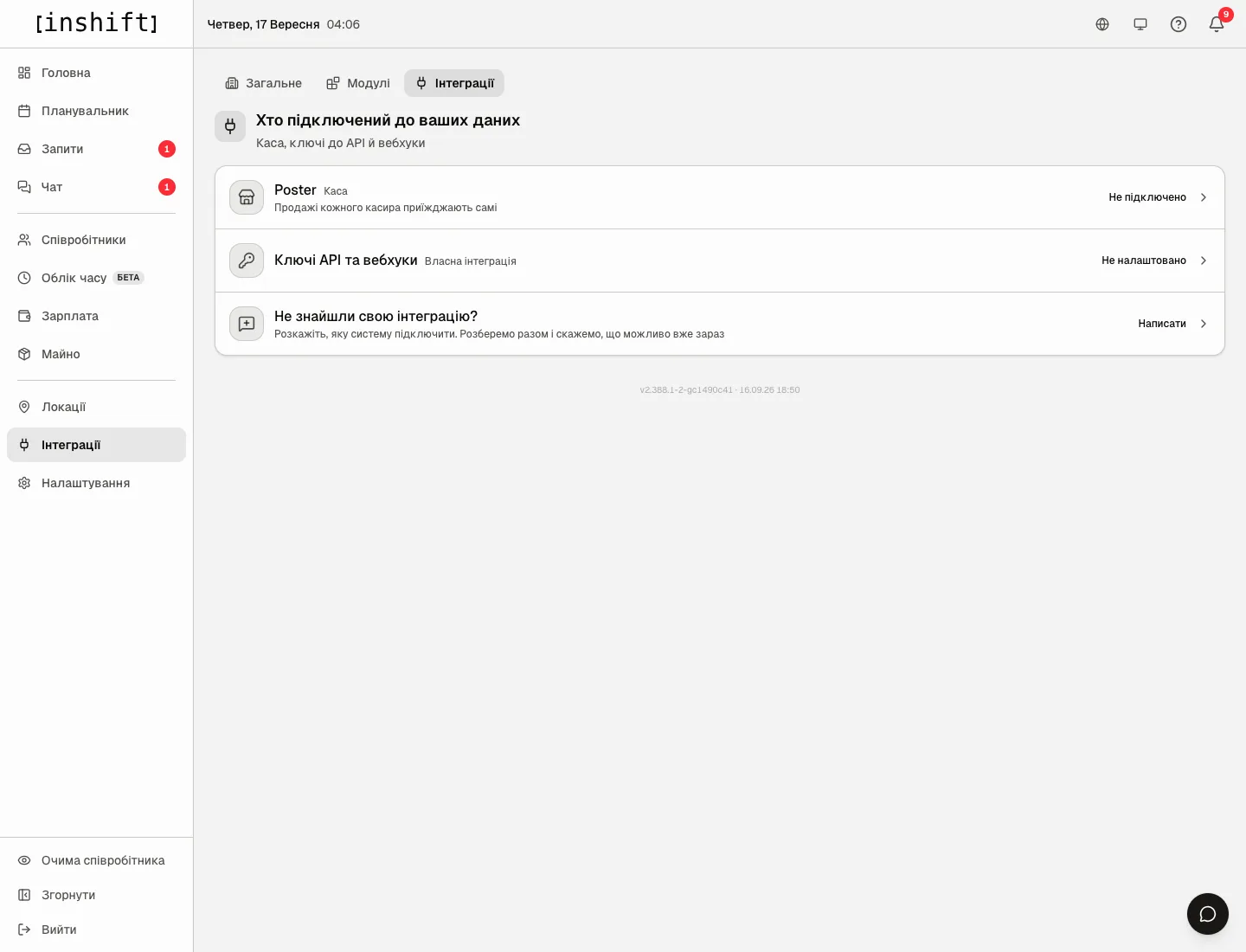
Step by step: connect
- Open the “Poster” card. While there is no till yet, the page offers two ways.
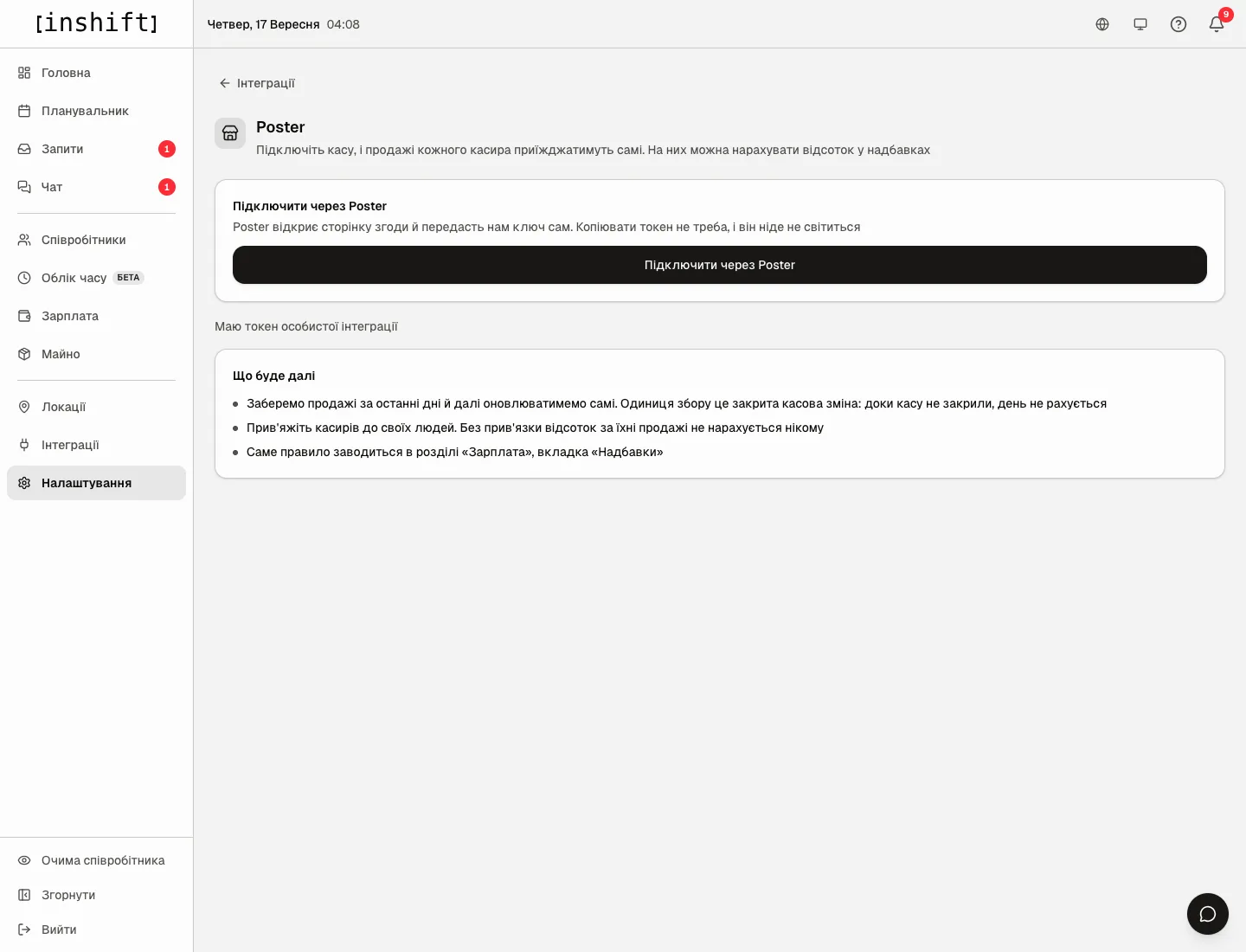
The “Poster” page: the “Connect through Poster” button, the “I have a personal integration token” switch and the “What happens next” block - “Connect through Poster”: “Poster opens its consent page and hands us the key itself. No token to copy, nothing exposed”. Click the button, sign in to Poster as the account owner and agree. Poster returns you to the panel with the question “Connect to Cosy Corner Café?”, click “Connect”. The same path works from the Poster side: in its app catalog click “Connect” next to inShift, and Poster brings you here.
- “I have a personal integration token”: for those who created their own integration in Poster. The “Where to get the token” block explains: “Sign in to the Poster admin panel as the account owner”, “Open Settings, then Integrations”, “Find your application and copy the access token”, “Paste the token below. We check it with a live request before saving”. Paste it into “Access token” and click “Connect”.
- The panel says “Cosy Corner connected” and opens that till’s page. Then “What happens next”: “We pull the sales of the last few days and keep them up to date on our own”, “Link the cashiers to your people”, “The rule itself is set up in Payroll, the Bonuses tab”.
Step by step: another till
- On the “Poster” page, below the list of tills, the “Connect another till” block: “Does your chain run venues on different Poster accounts? Each account connects separately, with its own cashiers and locations. A person's sales from all tills add up”.
- If your browser is signed in to Poster with a different account, fill in “Poster account login”: “Optional. Poster opens the consent in the account you are signed in to; the login tells it which one to open”. Click “Connect via Poster” and agree in Poster.
- Before the “Connect” button the panel warns: “Your organization already has the till Cosy Corner connected. This one becomes another till with its own cashiers and locations”. If it is the same Poster account, there will be no new till: “This till is already connected. We will replace its key; people links and collected sales stay”, with the “Reconnect” button.
- A personal integration token works here too: “I have a personal integration token” → “Access token” → “Connect”.
Step by step: link the cashiers
- On the POS page click “Link people”. “Who in the POS is who” opens: “On the left are the people the till sees. On the right pick your own. Suggestions are marked with an icon: we offer, we do not choose for you”. The list of cashiers is fetched from the till with a live request every time it is opened.
- On the “People” tab the cashiers are grouped by the till spot where they rang up receipts in the last 30 days, first those whose unlinked sales cost the most: “12,400 £ over 8 days”. Next to each, choose your person or accept the suggestion: “Accept suggestion”, for everyone at once “Accept suggestions: 5”. Filters: “All”, “Not linked”, “With a hint”, “Till spot”. At the very end of the person picker there is a “Dismissed” group: dismissed people who had shifts since the first day of last month, marked “dismissed” next to the name. Dismissed people without shifts in that time are not in the picker. A cashier you link for the first time does not ask for a day: all of their sales go to the person, past ones included. If a cashier was linked before but is not now, or you change the person on a saved link, “Link changes apply from” appears at the bottom: sales from that day go to the chosen person, sales before it stay with the previous link.
- The “Locations” tab: match the till spots to your locations, so a spot’s sales land on the right location for the “Location's whole till” rule. A location can belong to only one till: one taken by a neighbouring till cannot be chosen and is marked “already in Cosy Corner”. A person, on the contrary, can be linked in several tills, marked “also in Cosy Corner”, and their sales from all tills add up. If the organisation has no rule with the “Own sales” base, linking the locations is enough: the “People” tab then says “No need to link people: your percentage is calculated from the whole till of the location”, and on the till page “Link people” shows “Locations linked: 3” instead of “People linked: 5”.
- After saving, the panel says “People linked: 5”. The “Who gets no percentage” block shows your people with a percentage-of-own-sales rule who have no cashier linked yet: “Until that changes their percentage is zero, and the payroll screen will not show a single line about it”.
The percentage rule is set up separately, see Sales percentage from the POS.
Collecting sales
The till hands over closed shifts, and those are what InShift collects. The schedule, “What was collected” and “Collection history” are separate for each till, on its page. The schedule: “When to collect sales” → “Collection hour” in the organisation’s time and “Times a day”, from “Once a day”. The hint says it plainly: “More often does not mean more exact. The unit of collection is a closed cash shift, and a collected day is never rewritten: frequency only changes how soon a closed day shows up here”.
The “Refresh” button collects the data now and takes a preliminary snapshot of open shifts: “Closed days collected: 2. Live snapshot for open ones: 1”. It can be clicked no more than once an hour: “Available again at 12:40”.
“What was collected”: the sales for the window as they went into the calculation, in two tabs. “By cashier”: each cashier’s sales, with “Revenue”, “Receipts”, “Cashiers” on top and the hint “In the POS: Reports → Sales by employee, same window. “Revenue” there and here is the same number”. An unlinked cashier is shown as “Cashier #12, not linked” with a hint to link them. “By location”: “Each location's revenue for each day, all cashiers together. The whole-till percentage is calculated from this”, with “Locations” instead of “Cashiers” on top; an unlinked spot reads “Till location #3, not linked”. “By cashier” opens first, or “By location” if there is no rule with the “Own sales” base.
“Collection history”: “When we collected, what triggered it and what came back”: “By hand” or “On schedule”, “days: 3, sales rows: 41”, “waiting to close: 1”.
States and warnings
“Data is yesterday's”: “Sales have not been refreshed for over a day. The percentage uses what we managed to collect”.
“Till not closed”: “The till was not closed for 2 days. The percentage for these days is preliminary: the exact amount arrives once the shift is closed in Poster. Oldest: 15 September, Podil”. Close the shift in Poster, and the next collection picks it up.
“Unassigned sales”: “Sales of cashiers linked to nobody: 2 people, 18,000 £ this month”. Link the cashiers.
“App removed in Poster”: “The inShift app was removed in Poster. Sales are not collected. Reconnect the till” with the “Reconnect” button.
“Sales don't match Poster”: “Sales for 2 days didn't match Poster's statistics. Those days aren't final yet: the next sync will check them again”.
“Some till locations aren't linked”: “Sales from till locations not linked to a location: 1, 24,000 £ this month. Nobody gets their revenue; link them under “Link people””. It only appears where there is a rule with the “Location's whole till” base.
A till that doesn't keep cash shifts is not a warning: its page shows the line “This till doesn't keep cash shifts: sales are taken by the day a receipt closed and checked against Poster's statistics every day”.
“The till key expires on 30 September. Reconnect the till ahead of time” and “The till key has expired. Reconnect the till”: click “Reconnect”.
Disconnect
The “Disconnect” button on the till page asks “Disconnect the POS?” and explains: “The key will be deleted and collection will stop. Collected sales, links and the accrued percentage stay, and you can connect again any time”. The till stays in the list with the state “Disconnected”, and its page says “Till disconnected on 9/17/2026” and “Collected sales and links are kept, payroll for past days is unchanged. Collection is paused until you connect the till again”. There are two ways out: “Connect again” resumes collection with the same links and sales, while “Delete till and data” erases it for good after the confirmation “Delete the till with its data?”: “Links and all collected sales of this till will be gone. The sales percentage for past days will drop out of payroll, and what you owe people will change retroactively. This cannot be undone”.
For new days the sales percentage of a disconnected till is not accrued until it is connected again.
Why an action is unavailable
There is no “Integrations” tab: only the owner and co-owners see it.
There is no “Connect through Poster” button, only the token field: connecting through Poster is not set up on the server yet, use the token.
The note “Key storage is not configured on the server”: there is nowhere to store the token encrypted, contact support.
“Only the owner or a co-owner connects a till”, “You are signed in as an employee. Only the owner or a co-owner can connect a till to the organization”: sign in with the owner’s or a co-owner’s account, “Sign in with another account”.
“Your organization already has the till Cosy Corner connected. This one becomes another till”: this is a different Poster account, after “Connect” it is added alongside rather than replacing the existing one.
“This till is already connected. We will replace its key; people links and collected sales stay”: the same Poster account, click “Reconnect”.
“This till is gone: it was disconnected or the link is outdated”: the till was deleted, go back to “All tills”.
“The Poster link has expired or was already used. Press Connect in Poster again”: click “Connect” in Poster again.
The percentage is not counted although the POS is connected: check “Link people” and whether the cash shift for that day is closed.
Questions and answers
Does InShift see receipts and products?
No. It collects sales totals per cashier for closed shifts: revenue and the number of receipts.
I have several locations in one Poster account. What do I do?
Connect the account once and match the till spots to your locations on the “Locations” tab under “Link people”.
I have several venues on different Poster accounts. What do I do?
Connect each account as a separate till through “Connect another till”. Each till has its own cashiers, locations, schedule and report, and a person’s sales from all tills add up into one percentage.
What if a cashier was changed in Poster?
Open “Link people”: the cashier list is live, the new one appears at once. Link them to a person.
A person was dismissed in the middle of the month. Will their sales be lost?
Dismissal does not remove the link, and sales for the days they worked stay with the person. If the cashier link was removed, the dismissed person can be linked again while they have shifts since the first day of last month: they are in the picker in the “Dismissed” group. The “Link changes apply from” date decides from which day their sales are theirs again. A cashier linked for the first time takes all of their past. If the cashier has already been handed to another person and the date is earlier than when that person started on it, sales for those days move away from them.
Why are today’s amounts “preliminary”?
The cash shift is still open. The final amount appears after the shift is closed in Poster and the next collection.
I do not use Poster, I have another POS. Can it be connected?
Yes, we connect other POS systems on request. The “Integrations” tab has a “Did not find your integration?” block with a “Write to us” button: it opens a support conversation with the question already in it. Tell us which POS you have and we will say what is possible right now.