A sales percentage is a premium counted not from the schedule but from takings: the day’s sales come from the connected POS, and the person gets their share of them. The rule lives among the premiums and is set the same way: to whom, how many percent, from which date. Without a connected POS it pays nothing.
The percentage can be counted from own sales, that is from what the person rang up themselves, or from the location’s whole till for the day. For a shared till there are tiers by the number of people on shift, and for cashiers on “the rate or the percentage” there is the “Pay instead of the rate” switch.
The rule is set by the owner, a co-owner or anyone whose role has “Change pay” at “Entire network”. The owner or a co-owner connects the POS under “Integrations” → “Poster”, see Connect Poster.
Where to find it
“Payroll” → the “Premiums” tab → the “Percentage of sales” card with the hint “A share of the cashier's own daily revenue. Sales come from the connected POS” → “Add”.
In the statement: “Payroll” → “Accruals” → the person’s row → the breakdown by day. The percentage is a separate line with its base, for example “12,400 £ in sales”, and while the till shift is not closed yet, with the mark “preliminary, the till is still open”.
Step by step: a percentage for a cashier from their own sales
- In the “Percentage of sales” card click “Add”.
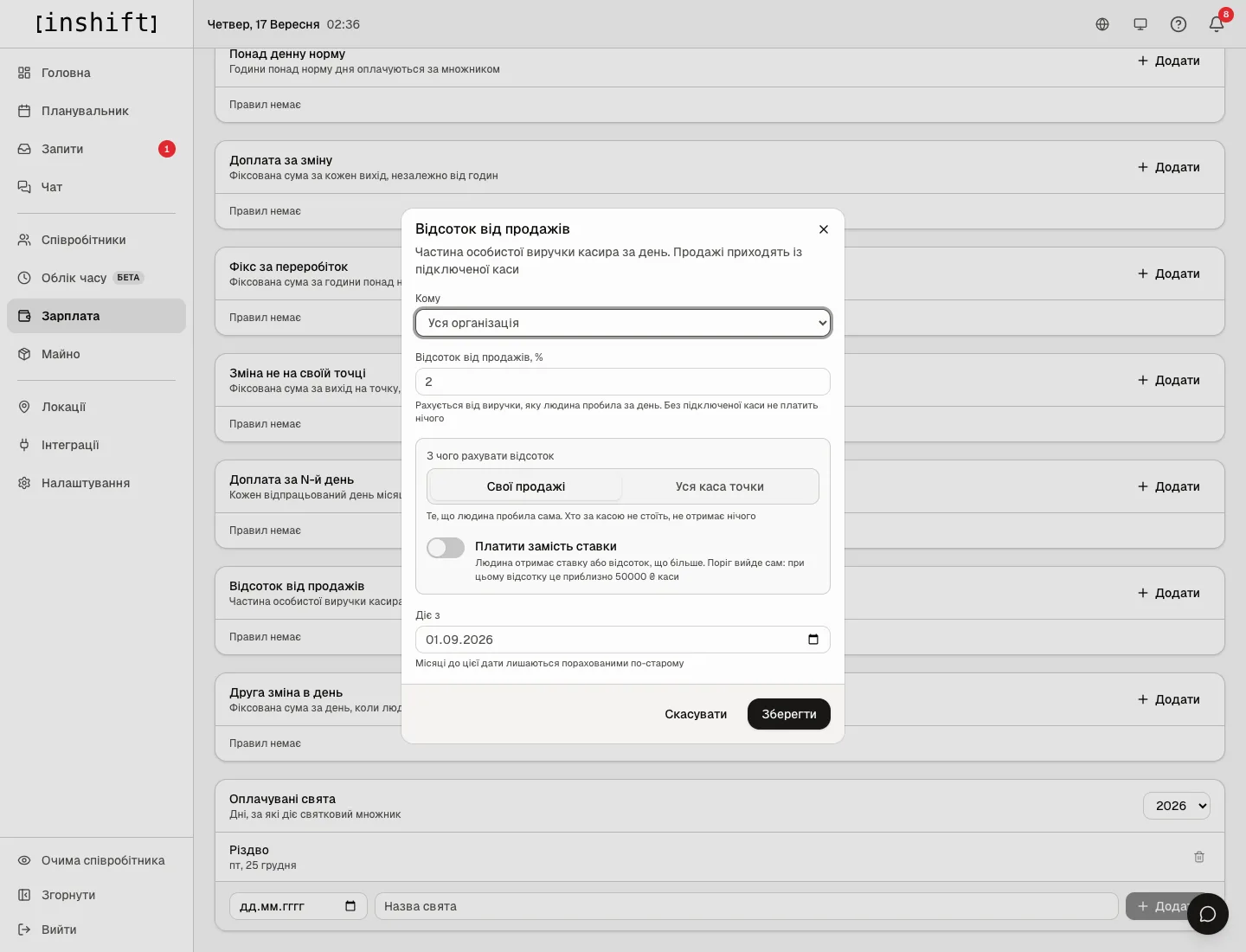
The “Percentage of sales” window: “Applies to”, “Percentage of sales, %”, “What the percentage is based on”, the “Pay instead of the rate” switch, “Effective from” - Under “Applies to” choose who the rule applies to: “Whole company”, “Location”, “Position” or “Person”. For cashiers “Position” is convenient.
- Type the “Percentage of sales, %”. The hint under the field: “Calculated from the revenue the person rang up that day. Without a connected POS it pays nothing”.
- Under “What the percentage is based on” leave “Own sales”: “What the person rang up themselves. Anyone not on the register gets nothing”. For sales to be credited to this particular person, their card must be matched to a cashier under “Link people” on the POS page, see Connect Poster.
- Check “Effective from” and click “Save”.
Step by step: a percentage of the whole till per shift
- In the same window choose “Location's whole till”: “The whole revenue of the location for the day, whoever rang it up. This is how a shift is paid when not everyone is on the register”. Everyone who had a shift at the location that day gets the percentage.
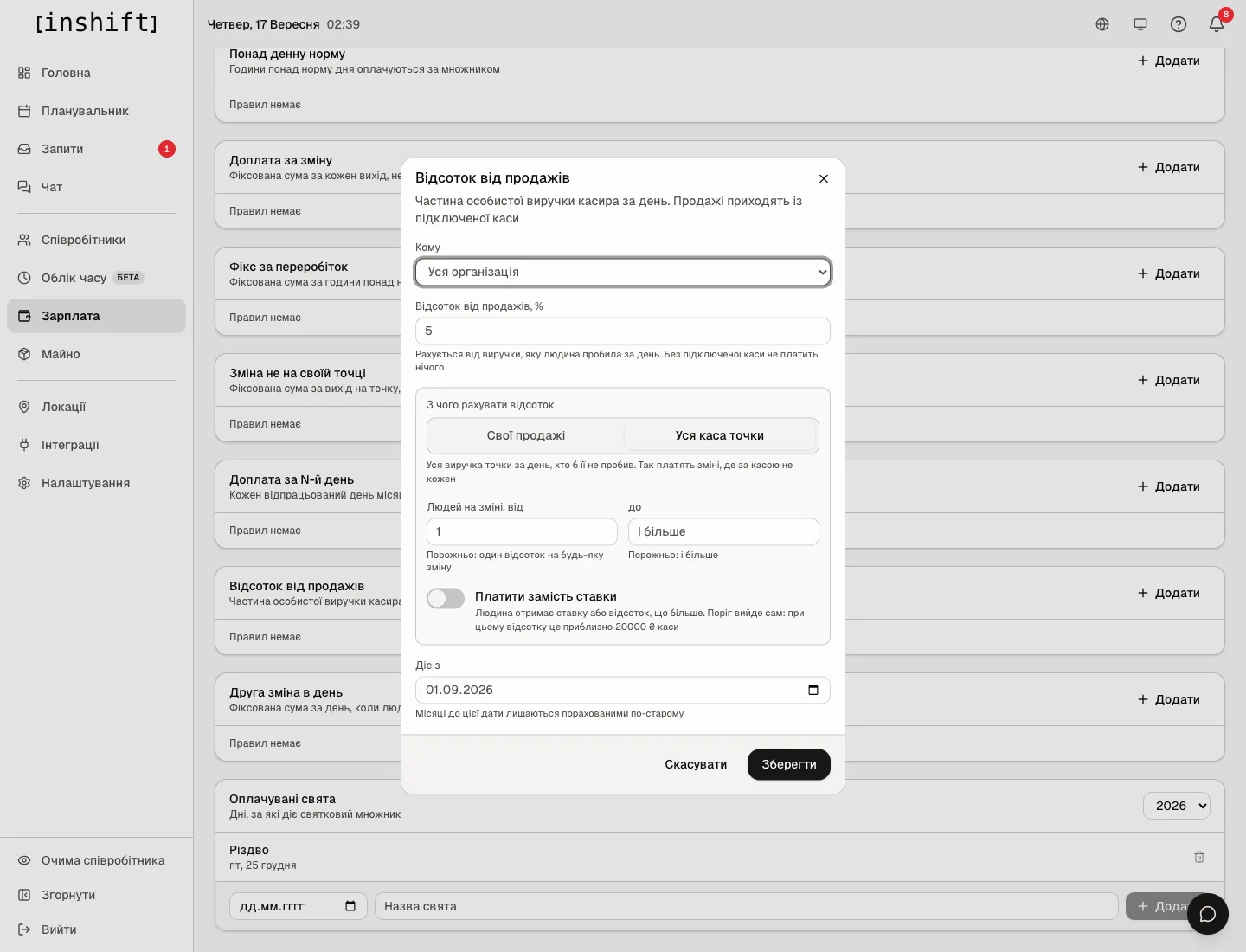
The “Percentage of sales” window with “Location's whole till”: the fields “People on shift, from” and “to”, the “Pay instead of the rate” switch - The fields “People on shift, from” and “to” appear. Empty means one percentage for any shift. Filled in, they make a tier: the rule applies only on days when that many people are on shift.
- Tiers are built with several rules: one with “from 1 to 1” at 8%, a second with “from 2 to 2” at 6%, a third with “from 3” and an empty “to” at 4%. The percentage falls as the number of people grows, and the till is not split: the shift’s pool stays at roughly the same level however many people come in.
- Click “Save” for each rule.
Who counts as on shift
Once “People on shift, from” is filled in, the window shows “Who counts as on shift”:
- “Everyone on the location rota”: everyone on the location’s rota that day, kitchen and cleaning included. This is how it counts if you change nothing.
- “Only positions”: the company’s positions appear below the bar; tick the ones who share the percentage, for example the bartender and the waiter. The cook, the cleaner and other positions no longer knock the tier down.
A person’s position on a shift comes from the shift itself, and if the shift has none, from the person’s card at the start of the shift. The person earning the percentage always counts, even if their position is not on the list. Trainees do not count in either option.
The list is shared by all tiers with the same “Effective from” date and the same “Applies to”: pick the positions on any tier and they apply to all of them. In the “Percentage of sales” card each such tier reads “only: Bartender, Waiter”.
“Pay instead of the rate”
A switch in the rule window: “The person gets the rate or the percentage, whichever is larger”. This is for the deal “1,800 per shift or 4% of the till, whichever is larger”. There is no separate threshold field, it follows on its own from the rate and the percentage, and the hint shows an example straight away: “The threshold follows on its own: at this percentage it is about 45,000 £ of the till”.
When the percentage has outgrown the rate, the statement for that day shows “Percentage instead of the rate” rather than the rate plus the percentage: the person got one of the two.
Without the switch the percentage is added to the rate like an ordinary premium.
Why an action is unavailable
There is a rule, but the percentage in the statement is zero: the POS is not connected or there are no sales for that day yet. Check “Integrations” and the sync report.
The “Own sales” percentage is not counted for a particular person: their card is not matched to a POS user, or the sales are rung up by another account. Matching is in the POS settings.
The statement says “preliminary, the till is still open”: the till shift at the location is not closed yet, the amount will change after closing.
It looks as if a person on the “Shift price” method got no percentage: with “Pay instead of the rate” it is compared with the price of the shift itself, and if the shift is worth more, the person gets its price and no separate percentage. Without the switch the percentage is added to the shift price, as for everyone.
The “from 1 to 1” tier hardly ever applies, although one person works the floor: other positions are on the location rota too, and the rule counts everyone. Choose “Only positions” under “Who counts as on shift”.
Under the fields, “With own sales a tier cuts the percentage twice: with two people each already rang up half”: you filled in “People on shift” with the base “Own sales”. It is not forbidden, but with own sales a tier is usually not needed.
Questions and answers
What amount is the percentage counted from: takings or profit?
From the takings the POS shows for the day: for “Own sales” from this person’s receipts, for “Location's whole till” from all the location’s receipts.
Can different locations have different percentages?
Yes: add a separate rule for each location under “Applies to” → “Location”. A rule for a location wins over a rule for the whole organisation.
A person worked half a shift: is the percentage halved too?
No, the day’s percentage is whole, however many hours the person worked. The number of people on shift also counts everyone on the location rota that day, whatever the length of their shift.
Does editing the rota after the fact change a percentage already counted?
Yes. Add a cover to a past day, and there are more people on shift: the others may land on a different tier for that day.
What does the person see in the app?
In the stats, a separate line with the rule’s name and base, for example “from 69,600 in sales” for own sales or “from a till of 69,600” for the whole till of the location, so the amount can be checked.
When does the day’s percentage become final?
After the till shift at the location is closed and the next sync with the POS. Until then it is marked “preliminary”.