The “Accruals” tab is the statement for a period: who worked how much, how much has been accrued to them, how much has already been paid out and how much is still owed. While the organisation has no pay terms at all, it is a timesheet: shifts and hours. The very first assigned pay term adds money by itself, without a separate switch.
Money is counted from published shifts by the schedule hours: a 08:00-20:00 shift gives 12 hours regardless of when the person checked in. Drafts are not included in the amount. The rate and premiums are taken as of the shift’s day: raised the rate from October, September did not change.
The statement is seen by the owner, co-owners and anyone whose role has “View payroll”: for their own locations or the entire network. A location manager sees only the people of their locations.
Where to find it
“Payroll”, the “Accruals” tab is open by default. At the top are the period with arrows, search, “All locations” and, if there are several positions, a position picker. On the right are the print icon and the “Export to Excel” icon.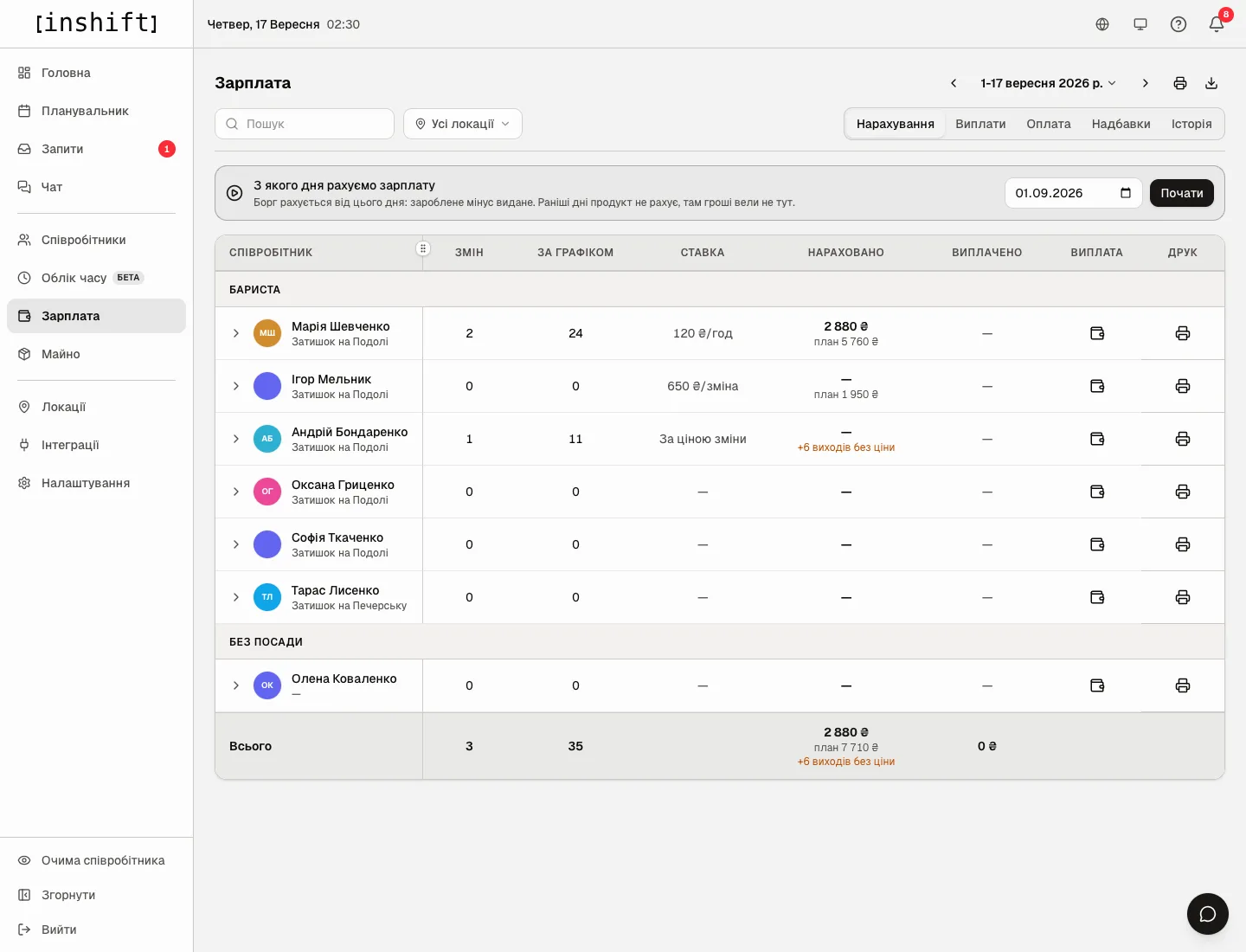
Step by step: first run
- Assign pay to people on the “Pay” tab, see Pay terms: hourly, per shift, salary, shift price. Without it a person’s row shows hours and a dash instead of an amount.
- Name the day from which money is counted. Above the table is the “From which day we count payroll” bar with the hint “The balance is counted from this day: earned minus paid. Earlier days are left alone, money was kept elsewhere then.” Pick a date and click “Start”. Only the owner or a co-owner can do this. After that the “Owed” column, the “Close period” button and the line “No period has been closed yet” with the open balance appear.
- Choose the period. Click the period caption at the top: a month calendar opens with the buttons “Whole month”, “1-15”, “From 16”. An arbitrary stretch: click the first day, then the last, with the hint “Pick the end of the period”. The arrows move by a month or by the length of the stretch. The current month is shown up to today.
- Narrow the list if needed: “Search” by name or position, “All locations” for a location. Print and export take only the visible rows.
How to read the table
Rows are grouped by position, for example “Barista” and “No position”. At the bottom is the “Total” row. Dismissed people stay in the statement with the “Dismissed” mark while money is still attached to them.
“Shifts” and “Scheduled”: the number of published shifts and hours for the period. With time tracking on, the “Checked in” column stands next to them: hours by check-in records for comparison, they do not go into the money.
“Rate”: the current pay term, for example “120 £/hr”, “650 £/shift”, “Shift price”. A dash means “Not set”.
“Accrued”: the amount for days that have already passed. Under it “plan 5,760 £”: how much it will be if all the period’s shifts take place. An amber “+6 shifts with no price” means that some of the upcoming shifts are not in the plan: the person is on the “Shift price” method and these shifts have no price, see Shift prices.
“Bonuses/Deductions”: the column appears when someone has been given a bonus or a deduction, for example “+500 £”.
“Paid” and “Owed”: what was paid out for the period and how much is still owed since the start day. The balance is the person’s account, not a report for the window: it is counted from the “Start” day, not for the days shown. A minus in the balance means an overpayment: an advance looks exactly like that.
“Payment”: the icon opens the person’s row at the payout form, see Payouts, closing a period and bank details. “Print”: one person’s sheet.
A person’s row up close
Click the arrow to the left of the name. The row expands into three parts.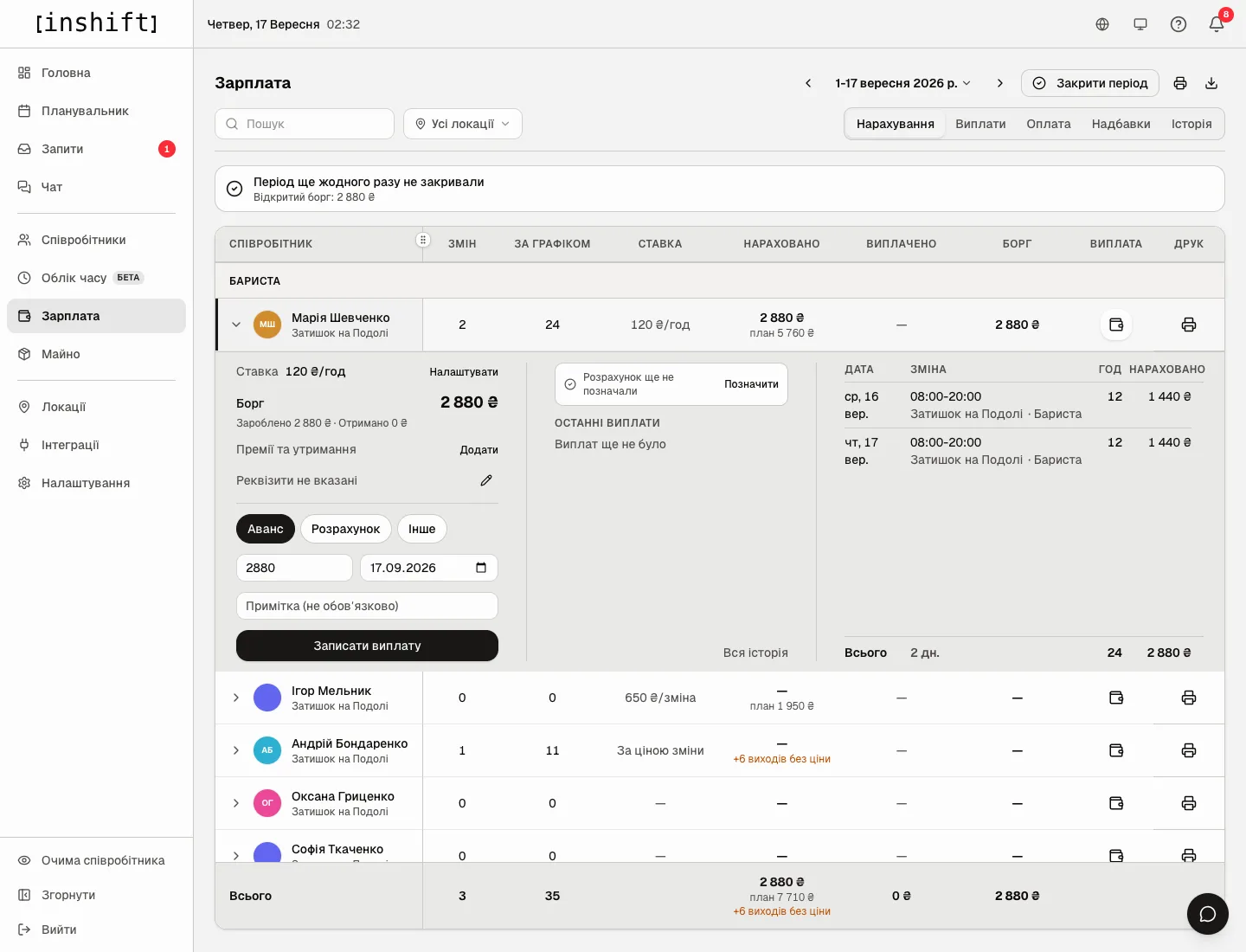
On the left: “Rate” with the “Set up” button that opens the pay term. “Owed” as a big number and under it “Earned 2,880 £ · Received 1,000 £”. “Bonuses and deductions” with the “Add” button. The person’s bank details and a pencil. Below is the payout form.
In the middle: “Settled through” with a date and the “Mark” button, “Recent payments” with a pencil and a bin next to each, “Full history”.
On the right: how the period added up by day. The columns “Date”, “Shift”, “h”, “Accrued”, with the location and position in each row. Night, holiday and overtime hours are captioned separately, cover is marked “Substitution”, a shift at another location “not own location”. A shift that was put in or changed after its day has the mark “Added 17.09” or “Changed 17.09”. Days still ahead are grey: “Day still ahead: not accrued yet”. The “Total” row shows days, hours and the amount, and “With plan” adds the upcoming ones.
“What changed N” at the bottom expands the trail of edits: “edited by Jane Smith · yesterday”, “removed by …”.
Backdated
If the period has shifts that were put in or changed after their day, “Backdated: 3 shifts, 24 h, across 2 people” appears above the table, and if it happened after a payout, also “after payout: 1”. The “Review” button leads to the “History” tab, where you can see who did it and when.
This is not an error but a reminder: the amounts for those days changed after they could already have been paid out.
Print and export
The print icon at the top opens the “Print” window: “Visible rows go to paper: 7. Search and filters narrow the list” and the choice “Which sheet”. “Short, for payment”: name, accrued, to be paid and bank details, for a director or an accountant. “Full sheet”: all columns for everyone: shifts, hours, premiums, paid, owed. “One person’s sheet”: the month by day with all premiums and payouts, to hand to the person. Click “Print”.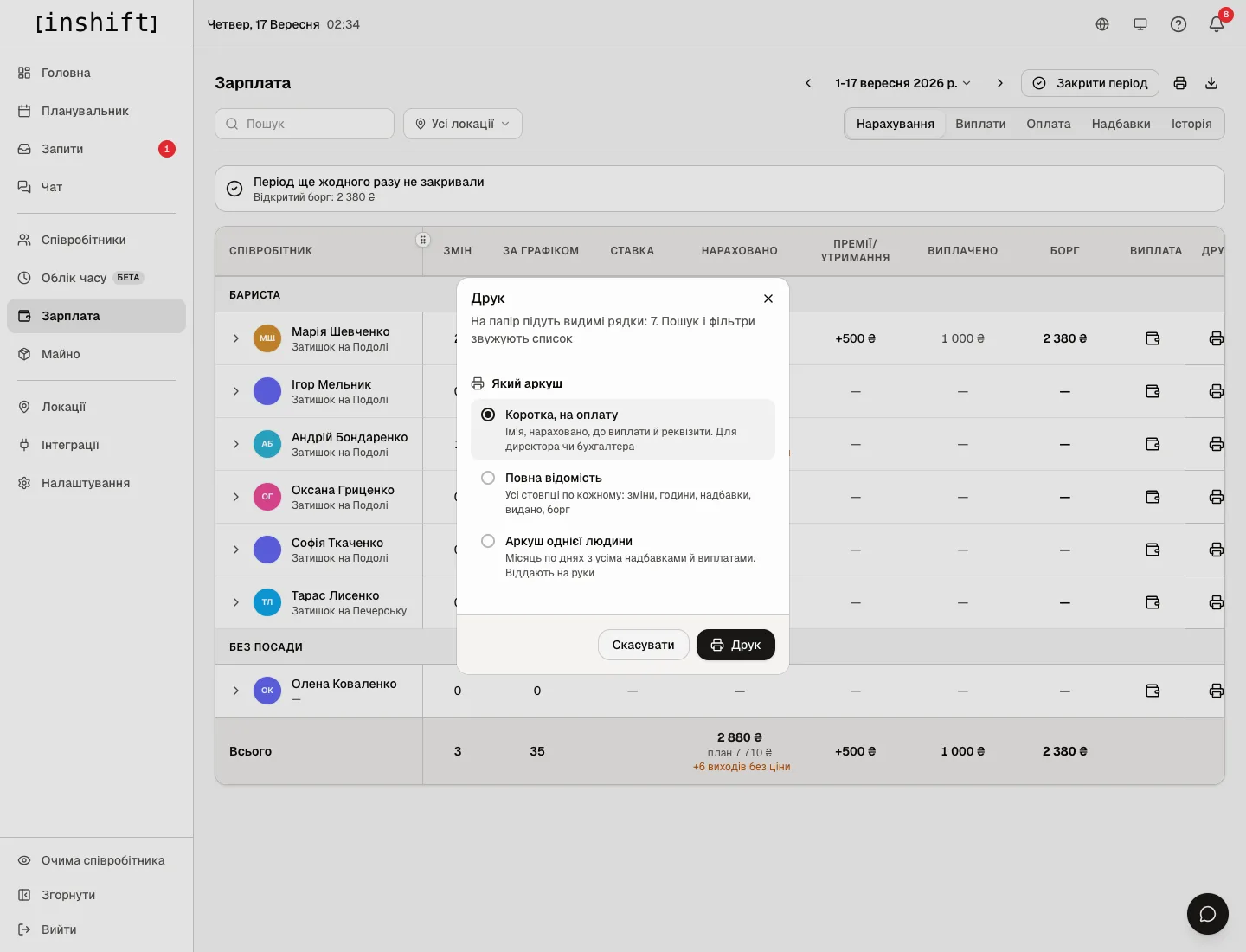
The sheet has the period caption, what the list was narrowed by, the fields “Prepared by”, “Approved by” and “Signature”. Bank details are printed only for whoever records payments: otherwise “Bank details are visible only to whoever records payments”.
The “Export to Excel” icon downloads the period’s table as a file.
Why an action is unavailable
There is no “Payroll” section in the menu: your role has none of “View payroll”, “Pay out wages” or “Change pay” at least at “My locations”.
There is no “From which day we count payroll” bar and “Start” button: the day has already been named, or you are neither the owner nor a co-owner.
There are no “Paid” and “Owed” columns: the start day has not been named yet. Without it the balance is not counted: “The balance is not counted yet: no start day has been named.”
There is no “Checked in” column: time tracking is turned off in the organisation settings.
There are no amounts, only hours: nobody has been assigned pay. In that case the section is a timesheet.
A person is not in the statement: they are at a location other than the one chosen in the filter, or they were dismissed and no money is attached to them.
There is no “Close period” button: the start day has not been named, your role does not have “Pay out wages”, or the organisation has no money yet.
There is no “Payment” in your own row: nobody pays themselves except the owner.
A person’s row has no amounts: the person’s role is equal to or above yours (or it is the owner or a co-owner), their pay is handled by a co-owner or the owner.
Questions and answers
Why is “Accrued” less than “plan”?
“Accrued” counts only days that have already passed. The plan adds the period’s upcoming shifts. Tomorrow’s shift gets into the accrued amount tomorrow.
Are hours counted by the schedule or by the fact?
By the schedule. Check-in records are shown in a separate column for comparison, and the product cannot pay by the fact: correct the shift in the planner, and the amount changes.
What happens to the amount if a shift is deleted after a payout?
The accrued amount decreases, so does the balance, down to an overpayment. “Backdated” with the “after payout” mark appears above the table, and “History” gets the entry “Shift removed”.
Can I look at last year?
Yes, with the arrows or the period calendar. The rates and rules taken are those in effect at the time.
How do I print the statement for just one location?
Choose the location under “All locations” and click print. The sheet says what the list was narrowed by.