A shift price is money that sits on the shift itself, not in the person’s pay term. An evening shift for 900 and a full day for 1,500 can both belong to the same bartender, which a single per-person rate cannot express. The price is set on a shift type at a location, and it is filled into every new shift of that type. A single shift can be given its own price.
This price is paid only to those whose method under “Pay” is “Shift price”. For a person on hourly pay or a salary, the shift price changes nothing, see Pay terms: hourly, per shift, salary, shift price.
Prices can be set by the owner, co-owners and anyone whose role has the “Change pay” permission. They can be seen by anyone with “View payroll”.
Where to find it
“Payroll” → the “Pay” tab → the “Shifts” switch. The heading “Price per shift” with the hint “What each shift type is worth at each location”, below the locations, and within each its shift types with a “price” field. The question mark next to the heading expands “How it works”.
In the location form: “Locations” → the location → a shift type → the “Shift price” field. It is the same number as under “Shifts”.
In a single shift: the planner → the shift → “Edit Shift” → the “Shift pay” field with the hint “From shift type”.
Step by step: a price for a shift type
- On the “Shifts” switch expand a location. Next to the name you can see how many types it has, for example “2 types”, and the warning “1 shift unpaid”, if there is one.
- In the type’s row type the price into the “price” field and press Enter or click outside the field. The price is saved immediately, there is no separate button. An empty field means “there is no price”, and zero means “we agreed this shift is unpaid”: a trial shift, working off a debt. Trainee shifts are not paid by the shift price: trainee pay applies, see Training: trainees and mentors.
- The new price gets into only the shifts you put in after this. For shifts that are already in the schedule without a price, the “Fill N” button appears: it gives this price to all such shifts of the type. The hint on the button: “Give this price to shifts of this type that have none. Days already settled are left alone.” After clicking, the panel says “Price given to 3 shifts.”, and if it skipped some: “1 skipped: that day is already settled.”
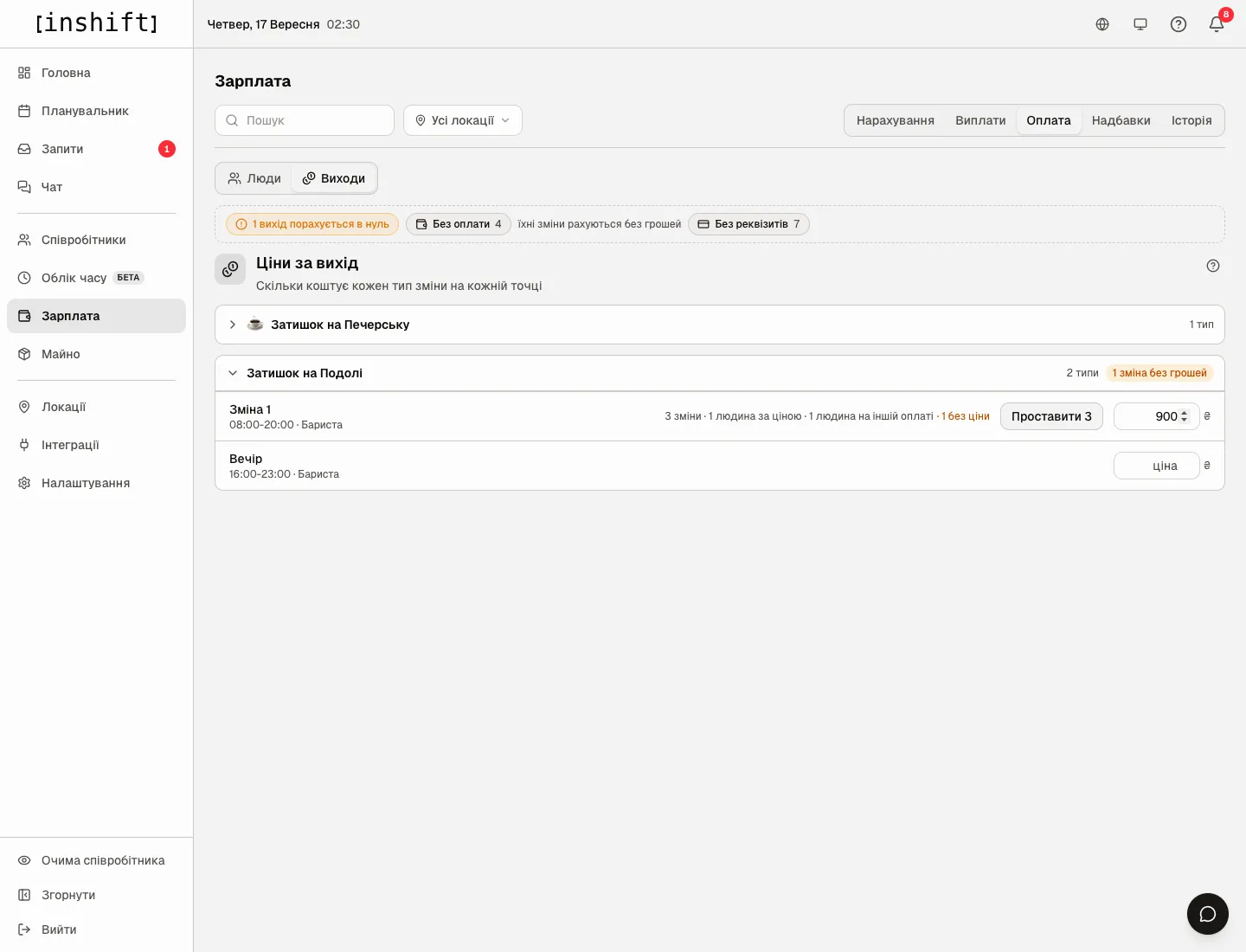
The “Shifts” switch: the “Shift 1” type with counters, the “1 with no price” warning, the “Fill 3” button and a price field of 900 - Shifts that already have their own price are not touched by the button: every shift keeps the price it was put in with. Raised the price in December, November did not change.
Step by step: an own price for one shift
- In the planner click the shift and open “Edit Shift”.
- At the bottom is the “Shift pay” field with the hint “From shift type”. Empty means the type’s price applies. Type an amount if this shift is worth something different: a double shift, stocktaking, a holiday.
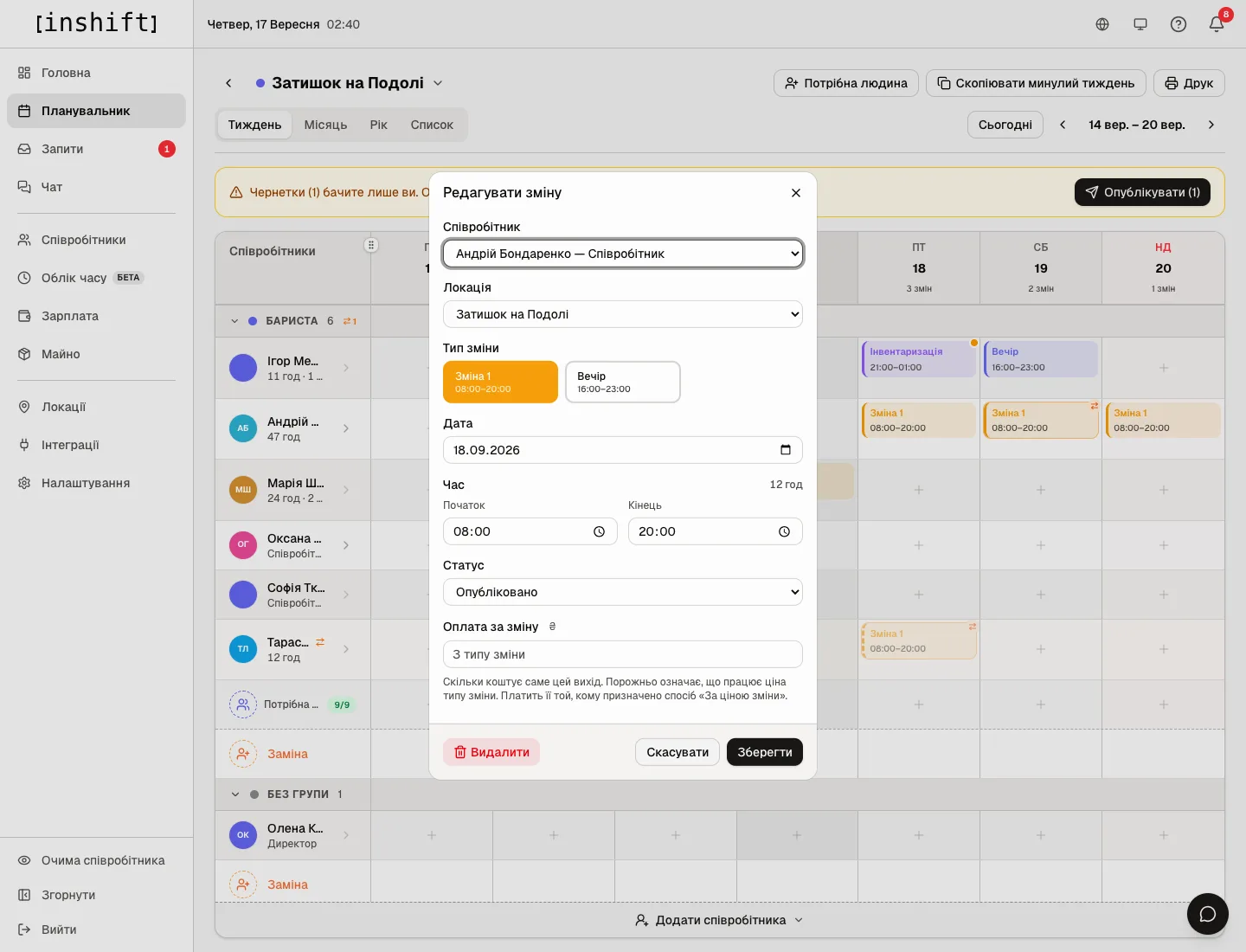
The “Edit Shift” window with the “Shift pay” field and the hint about the type’s price - Click “Save”. If the person on this shift is not paid by shift price, a hint appears under the field, for example “This person is paid by the hour: the shift price does not affect their pay.” The price is saved, but does not go into the money until the method changes.
What the counters mean
In a type’s row: “3 shifts · 1 person on this price · 1 person on other pay · 1 with no price”. Shifts: how many shifts of this type fall in the period. Person on this price: how many people this price actually pays. On other pay: how many work this type on hourly, per shift or salary pay, for them the price means nothing. With no price: shifts that have no price, neither their own nor from the type, they will count as zero.
Next to a location’s name: “1 shift unpaid”, and above the list “1 shift will be paid nothing”. This is the only state worth attention: someone is already working a shift for its price, and there is nothing to pay. The field of such a type is highlighted amber.
“N shifts outside any type”: shifts at the location without a type, for example created as “Custom shift”. Their price is set only in the shift itself.
An empty price with nobody on this method is not a mistake: a type nobody works for its price can stay without a price for years.
Why an action is unavailable
The price field is grey: your role does not have the “Change pay” permission. The hint says so: “The price is changed by someone with Change pay in their role”.
The price field on your own shift is grey with the caption “The price of your own shift is changed by a manager above you or the owner”: the price of your shift is your money, and nobody changes it for themselves except the owner.
The price field on the shift of a person equal to or above you is grey with the caption “This person has as many rights as you or more: a co-owner or the owner changes the price of their shift”.
There is no “Shifts” switch: the switch is seen by those who can see payroll, the “View payroll” permission.
There is no “Fill N” button: the type has no price yet, or all its shifts already have a price. The button appears only when there is something to fill.
“No locations whose prices are open to you”: your role sees payroll only for its own locations, and none are assigned to you.
“This location has no shift types yet”: add types under “Locations”, see Create a location and shift types.
You set a price, but payroll still says “+N shifts with no price”: those shifts were put in earlier. Click “Fill N” or type the price into each shift.
Questions and answers
How does a shift price differ from the “Per shift” method?
“Per shift” is one amount per person for any shift they work. A shift price sits on the shift: different types are worth different amounts, and the person gets what is written on their shifts.
Do night and holiday premiums apply to a shift price?
No. A fixed price stays fixed: multipliers for nights, holidays and overtime do not change a shift price. The only way to pay more is an amount, through the “Per-shift bonus” rule, see Premiums: night, holiday, overtime and other extras.
What happens if I change a type’s price retroactively?
Nothing to the past: shifts already in place keep their price. To change it in them too, click “Fill N” for shifts with no price, or type the new price into each shift separately.
What is the “Fallback price” in a person’s term?
A price for when the shift has none. It is set under “Pay” with the “Shift price” method. Without a fallback, a shift with no price counts as zero with a warning.